
1. Introduction
This manual provides essential information for setting up, operating, maintaining, and troubleshooting your Lenovo IdeaCentre AIO 3 23.8" FHD All-in-One Desktop. Please read this manual thoroughly before using your device to ensure proper functionality and to prevent damage.
The Lenovo IdeaCentre AIO 3 is designed for everyday computing tasks, office productivity, and light creative projects, offering a streamlined experience with its integrated display and components.
2. What's in the Box
Verify that all items are present in the packaging:
- Lenovo IdeaCentre AIO 3 All-in-One Desktop
- Wireless Keyboard
- Wireless Mouse
- Power Adapter
- 7-in-1 Docking Station with 1TB Storage
- 32GB MicroSD Card with Adapter
- Type-C Data Cable
- 3-in-1 Charging Cable
- Suede Cleaning Cloth
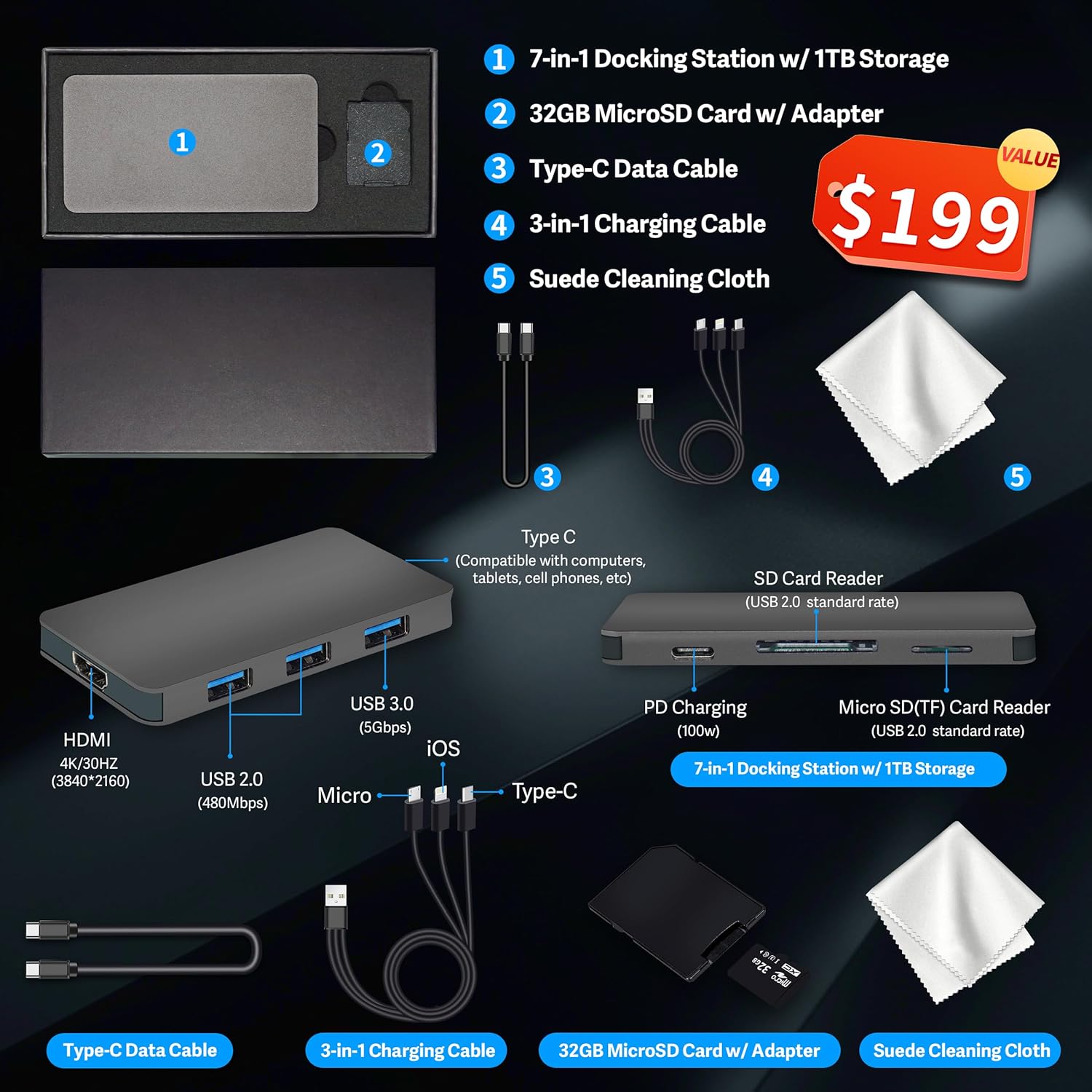
Figure 2.1: Included accessories, featuring the 7-in-1 docking station, cables, MicroSD card, and cleaning cloth.
3. Setup Instructions
3.1 Unpacking and Placement
- Carefully remove the All-in-One desktop and all accessories from the packaging.
- Place the desktop on a stable, flat surface, ensuring adequate ventilation around the unit.
3.2 Connecting Power
- Connect the power adapter cable to the DC-in port on the rear of the All-in-One desktop.
- Plug the power adapter into a grounded electrical outlet.
3.3 Connecting Peripherals
Connect the wireless keyboard and mouse. Typically, a single USB receiver is used for both. Insert the USB receiver into an available USB port on the desktop.
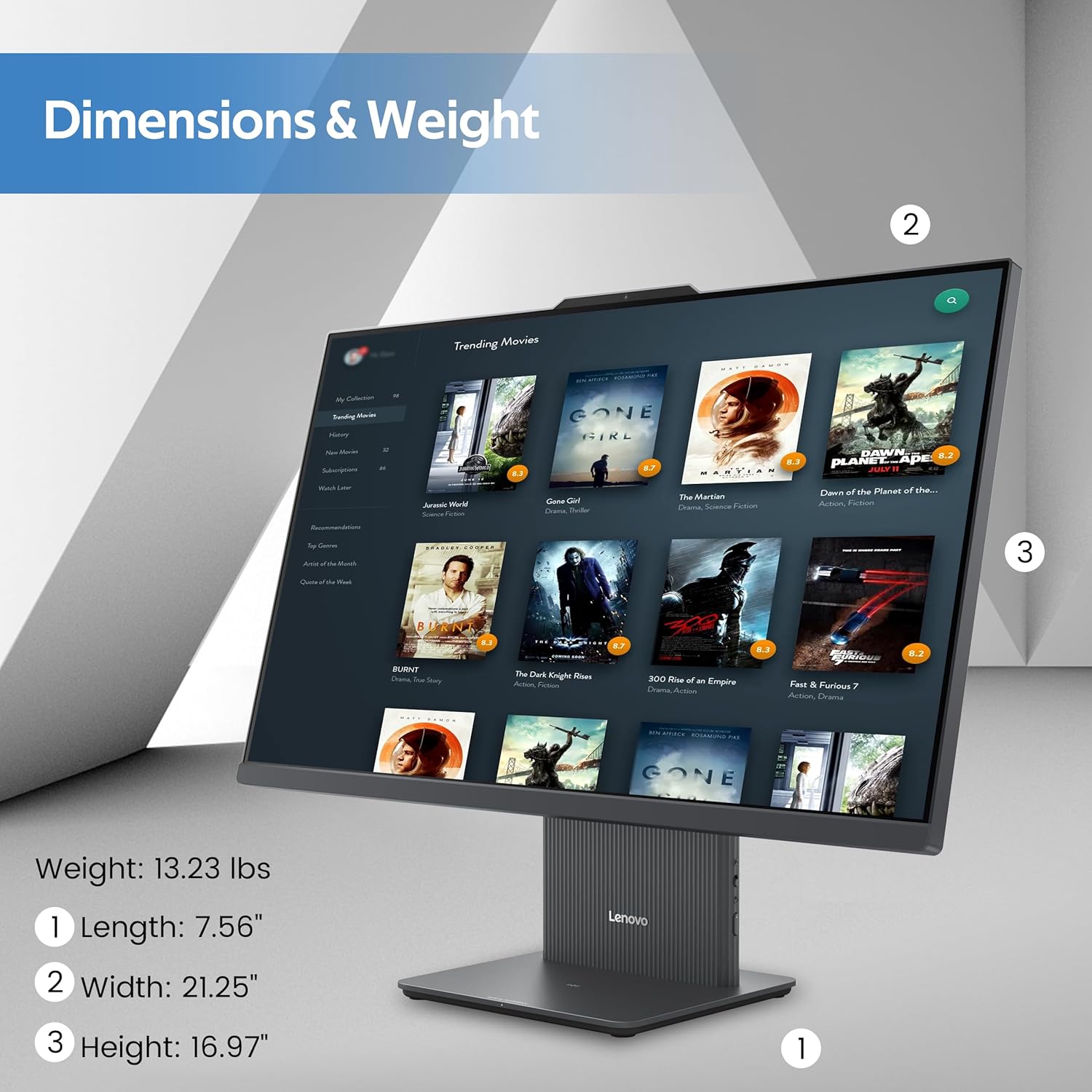
Figure 3.1: Overview of the rear and left-side ports, including USB, HDMI, RJ-45, and audio connections.
3.4 Initial Boot-Up and Windows 11 Setup
- Press the power button located on the rear of the desktop.
- Follow the on-screen instructions to complete the Windows 11 initial setup, including language selection, network connection, and user account creation.
4. Operating Instructions
4.1 Display Features
The IdeaCentre AIO 3 features a 23.8-inch Full HD (1920x1080) IPS display with a 100Hz refresh rate. It includes an anti-glare coating for comfortable viewing and covers 99% sRGB for accurate color reproduction.

Figure 4.1: The 23.8-inch Full HD display provides clear and vibrant visuals.
4.2 System Performance
Your AIO desktop is equipped with an AMD Ryzen 5 7535HS processor, 16GB DDR5 RAM, and AMD Radeon 660M Graphics. This configuration supports smooth multitasking and efficient handling of daily computing tasks.
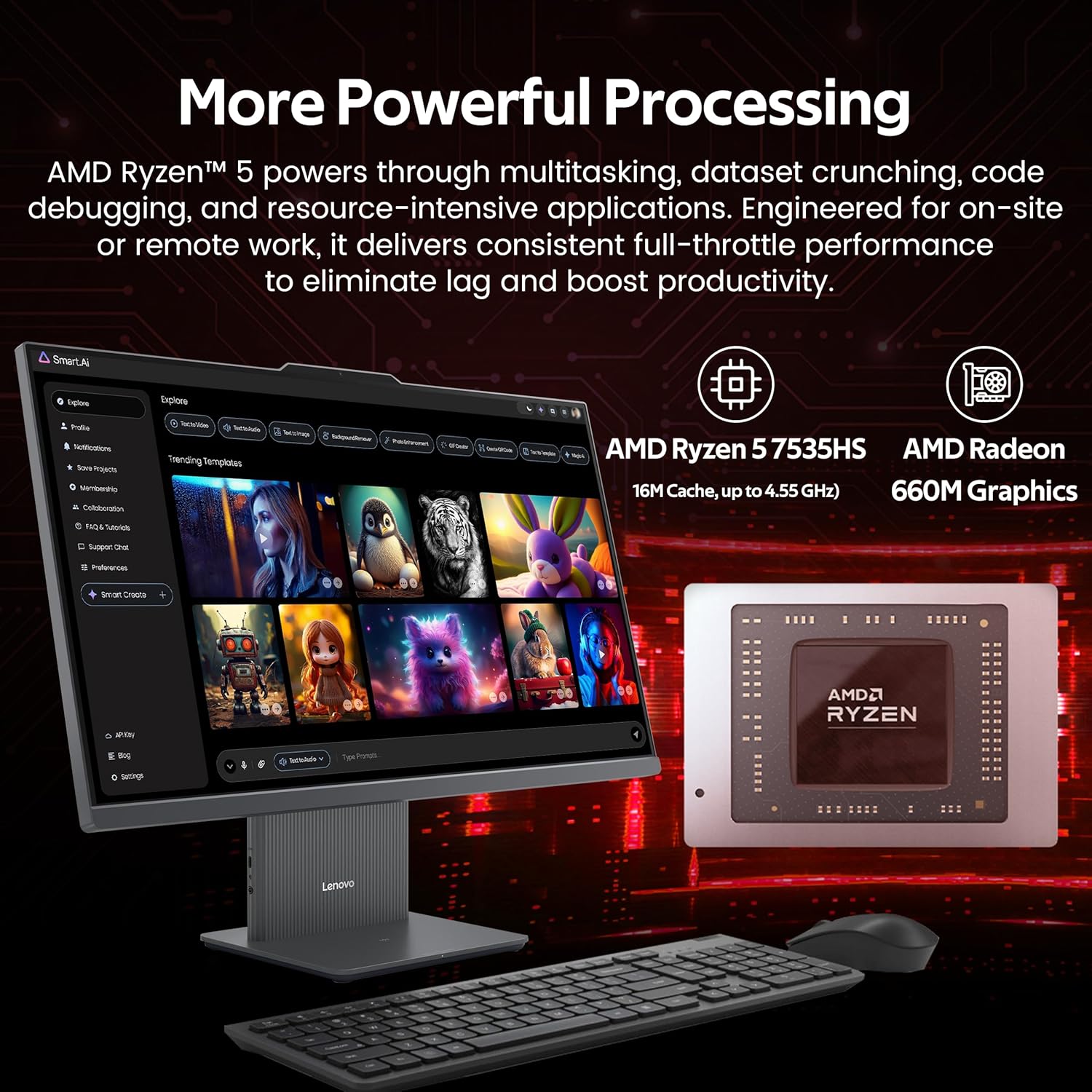
Figure 4.2: Illustration of the AMD Ryzen 5 7535HS processor and AMD Radeon 660M Graphics for powerful processing.
4.3 Storage
The system includes a 512GB SSD for fast operating system and application loading, complemented by a 1TB docking station for additional storage capacity, totaling 1.5TB.

Figure 4.3: The All-in-One desktop highlighting its 16GB RAM and 1.5TB storage capabilities.
4.4 Connectivity
The IdeaCentre AIO 3 supports Wi-Fi 6 for high-speed wireless internet and Bluetooth 5.3 for connecting wireless peripherals. It also features an RJ-45 Ethernet port for wired network connections.

Figure 4.4: Features such as wireless charging, Wi-Fi 6, Bluetooth 5.2, and integrated stereo speakers.
4.5 Ports and Interfaces
The desktop includes various ports for connectivity:
- Rear Ports: 1x USB-A (USB 10Gbps / USB 3.2 Gen 2), 2x USB-A (Hi-Speed USB / USB 2.0), 1x HDMI-in 1.4, 1x HDMI-out 2.1 TMDS, 1x RJ-45 (Ethernet), 1x Power Connector.
- Left Side Ports: 1x USB-C, 1x Headphone / Microphone Combo Jack.
4.6 Multitasking
The system is designed to handle multiple applications and browser tabs simultaneously, providing a smooth user experience for various tasks.

Figure 4.5: A user demonstrating the ability to manage multiple applications and tasks on the desktop.
5. Maintenance
5.1 Cleaning the Device
- Always power off and unplug the device before cleaning.
- Use a soft, lint-free cloth (such as the provided suede cleaning cloth) to gently wipe the screen and exterior surfaces.
- Avoid using harsh chemicals, abrasive cleaners, or aerosol sprays directly on the device.
- Use compressed air to clear dust from vents and ports periodically.
5.2 Software Updates
Regularly check for and install operating system updates (Windows Update) and driver updates (Lenovo Vantage or Lenovo Support website) to ensure optimal performance and security.
5.3 Data Backup
Periodically back up your important data to an external drive or cloud storage to prevent data loss.
6. Troubleshooting
6.1 No Power
- Ensure the power cable is securely connected to both the desktop and the electrical outlet.
- Verify the electrical outlet is functional by plugging in another device.
- Check the power adapter for any visible damage.
6.2 Display Issues
- If the screen is blank, ensure the device is powered on and not in sleep mode.
- Adjust display brightness settings.
- If an external monitor is connected, ensure the correct display output is selected in Windows settings.
6.3 Wireless Connectivity Problems
- Wi-Fi: Check if Wi-Fi is enabled in Windows settings. Restart your router and the desktop. Ensure you are connecting to the correct network and entering the password correctly.
- Bluetooth: Ensure Bluetooth is enabled. Re-pair your Bluetooth devices. Check device batteries.
6.4 Keyboard or Mouse Not Responding
- Ensure the USB receiver is properly inserted into a USB port.
- Check the batteries in the wireless keyboard and mouse and replace if necessary.
- Try inserting the USB receiver into a different USB port.
7. Specifications
| Feature | Specification |
|---|---|
| Brand | Lenovo |
| Model Name | IdeaCentre AIO 3 |
| Operating System | Windows 11 |
| CPU Model | AMD Ryzen 5 7535HS |
| CPU Speed | 3.3 GHz (up to 4.55 GHz boost) |
| RAM Memory Installed | 16 GB DDR5 (4800 MHz) |
| Storage | 512 GB SSD + 1 TB Docking Station (Total 1.5 TB) |
| Graphics Coprocessor | AMD Radeon 660M Graphics |
| Screen Size | 23.8 Inches |
| Display Resolution Maximum | 1920x1080 Pixels (FHD) |
| Connectivity Technology | Ethernet, HDMI, USB, Wi-Fi 6, Bluetooth 5.3 |
| Ports | 1x USB-A (3.2 Gen 2), 2x USB-A (2.0), 1x USB-C, 1x HDMI-in 1.4, 1x HDMI-out 2.1 TMDS, 1x RJ-45, 1x Headphone/Mic Combo, 1x Power Connector |
| Item Dimensions (L x W x H) | 26 x 21.5 x 9 inches (approximate) |
| Item Weight | 21 Pounds (approximate) |
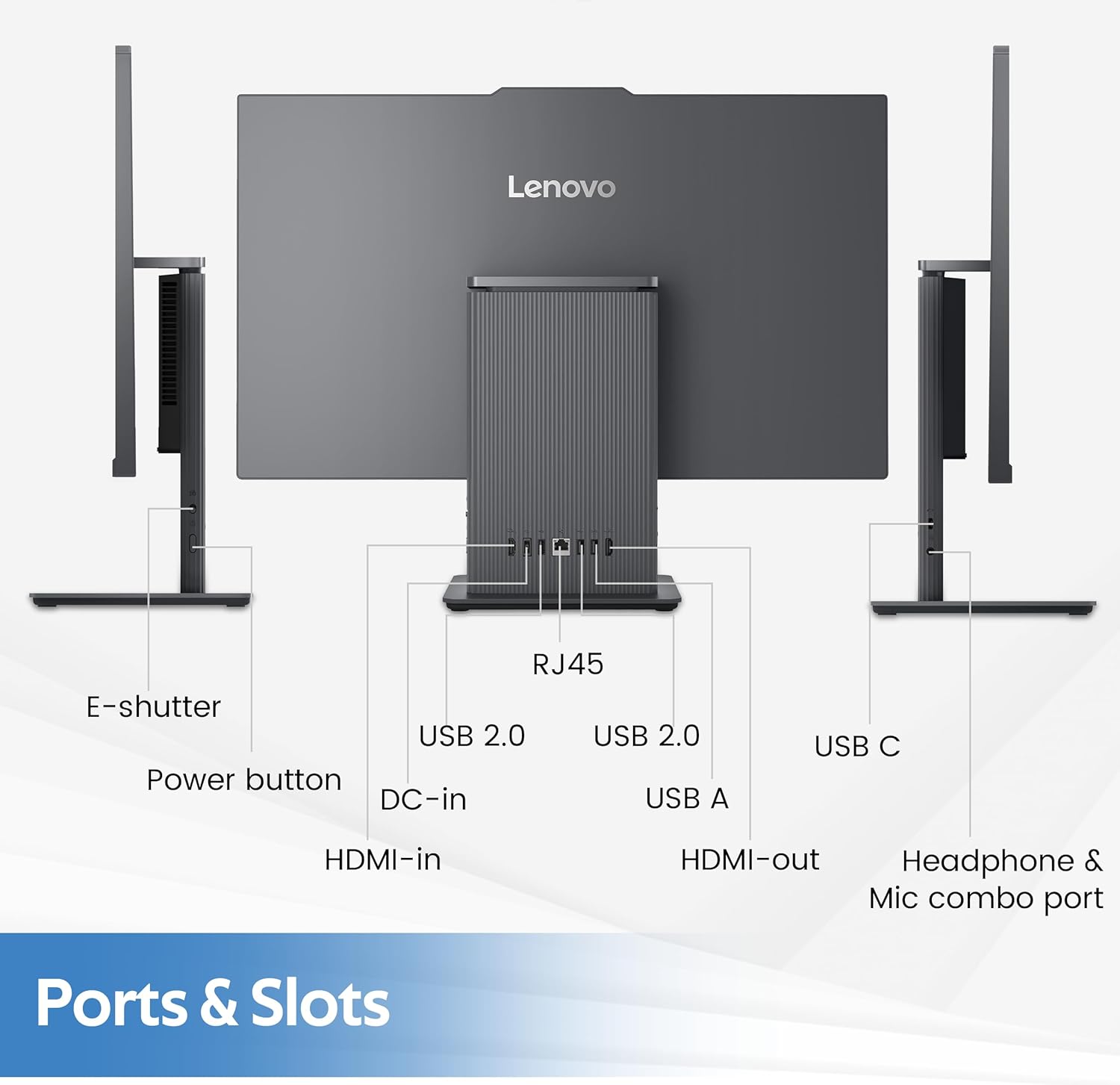
Figure 7.1: Physical dimensions and weight of the Lenovo IdeaCentre AIO 3 desktop.
8. Warranty and Support
8.1 Warranty Information
Your Lenovo IdeaCentre AIO 3 desktop comes with a standard manufacturer's warranty. Please refer to the warranty card included with your product for specific terms, conditions, and duration. Keep your proof of purchase for warranty claims.
8.2 Technical Support
For technical assistance, driver downloads, or further support, please visit the official Lenovo support website or contact Lenovo customer service. You can find contact information and support resources at support.lenovo.com.


