
1. Introduction
The AIMNAPS P17 Smart Door Knob provides advanced security and convenient keyless access for your home or office. This smart lock integrates multiple unlocking methods, including fingerprint, password, key fob, and mobile application control, alongside a traditional physical key. Designed for easy installation and robust performance, the P17 enhances your door security with modern technology.
2. Product Overview and Components
The AIMNAPS P17 Smart Door Knob comes with all necessary components for installation and operation. Please ensure all parts are present before beginning installation.
Included Components:
- 1 x Smart Door Knob Assembly (Exterior and Interior Handles)
- 1 x Latch Mechanism
- 1 x Strike Plate
- 2 x Physical Keys
- 2 x Key Fobs
- Mounting Screws and Hardware
- Installation Template

Figure 2.1: The AIMNAPS P17 Smart Door Knob illustrating its five distinct unlocking methods: mobile application, numeric password, key fob, fingerprint recognition, and traditional physical key.
3. Installation
The AIMNAPS P17 Smart Door Knob is designed for straightforward DIY installation, typically requiring only a screwdriver (not included). No additional drilling is usually necessary for standard door preparations.
Door Compatibility:
- Door Thickness: 1-3/8 inches to 1-31/32 inches (approximately 35mm to 50mm)
- Backset: Adjustable for 2-3/8 inches (60mm) or 2-3/4 inches (70mm)
- Hole Diameter: 2-1/8 inches (54mm)
Installation Steps:
- Prepare the Door: Ensure your door meets the compatibility requirements. Remove any existing door hardware.
- Install the Latch: Insert the latch mechanism into the door edge. Adjust the backset if necessary. Secure with screws.
- Install Exterior Assembly: Place the exterior handle assembly through the door, ensuring the spindle aligns with the latch mechanism.
- Install Interior Assembly: Connect the interior handle assembly to the exterior assembly, ensuring proper cable connections and alignment. Secure with mounting screws.
- Install Strike Plate: Mount the strike plate on the door frame, aligning it with the latch bolt.
- Test Operation: After installation, test the physical key and handle operation to ensure smooth movement before proceeding with electronic setup.
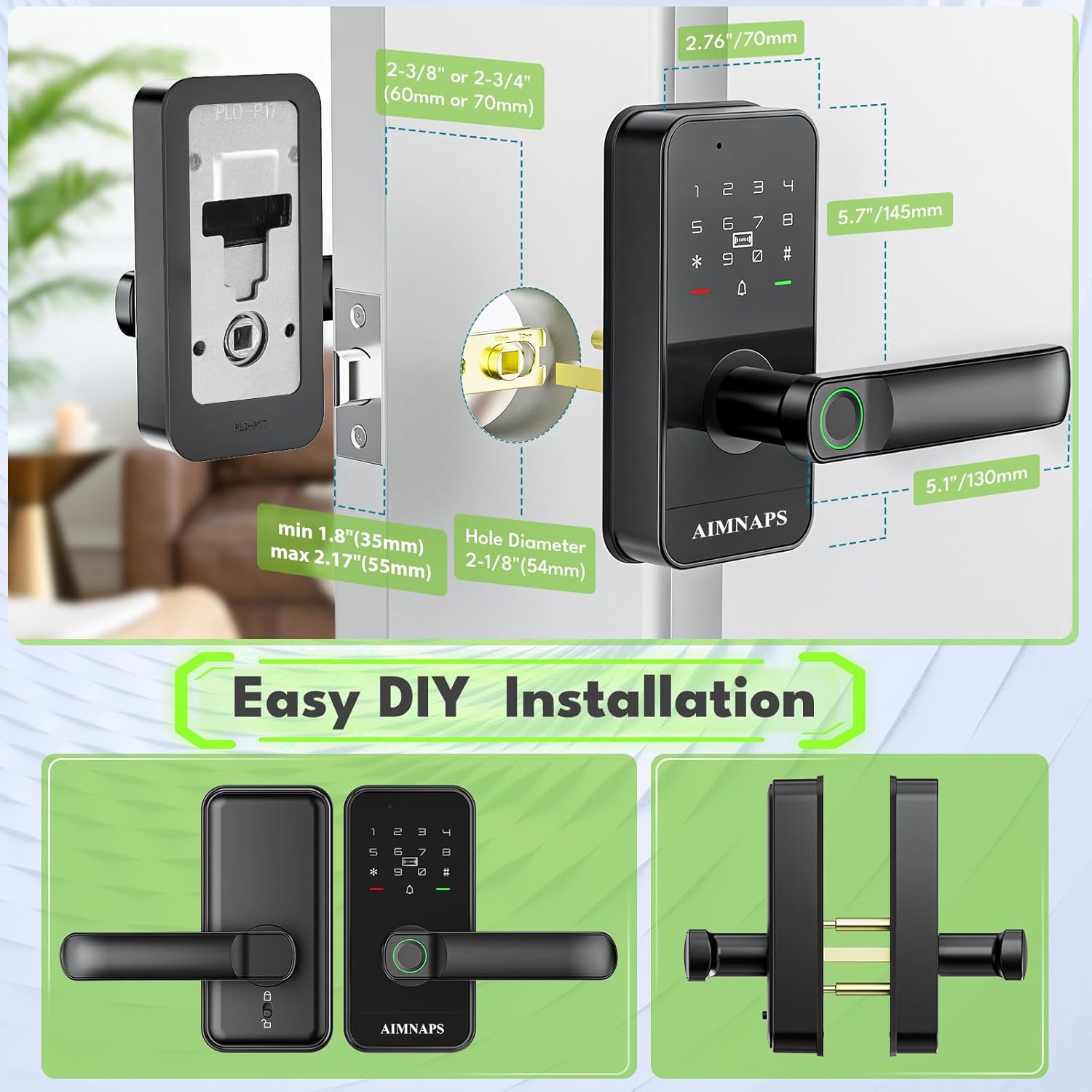
Figure 3.1: Detailed diagram illustrating the dimensions required for door preparation and the main components for DIY installation of the AIMNAPS P17 Smart Door Knob.
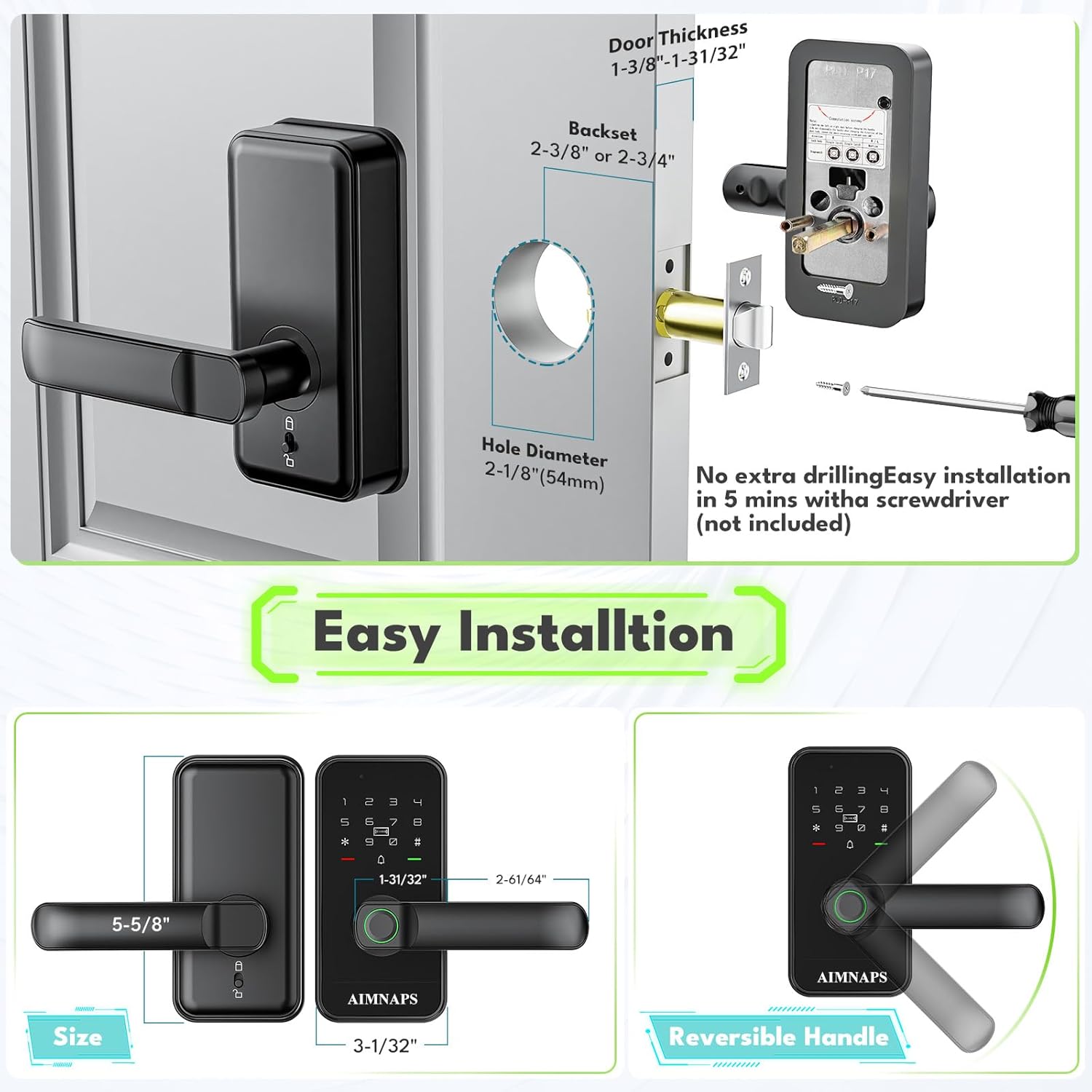
Figure 3.2: Visual guide for installing the AIMNAPS P17 Smart Door Knob, detailing door thickness, backset, and hole diameter specifications for a proper fit.
Reversible Handle:
The handle direction can be easily adjusted to suit left-handed or right-handed doors. Simply unscrew a small screw on the handle to change its orientation.

Figure 3.3: Illustration of the AIMNAPS P17 Smart Door Knob's reversible handle, demonstrating the process to adjust its direction for left or right-hand door configurations.
4. Setup
After physical installation, the smart door knob requires initial setup to configure user access and features.
Initial Programming:
- Install Batteries: Open the battery cover on the interior assembly and insert the required batteries (typically 4x AAA, not included).
- Master Code Setup: Follow the instructions in the full user manual to set up the initial master administrator password. This is crucial for managing other users and settings.
- App Connection: Download the dedicated mobile application (refer to the full manual for app name and QR code). Follow the in-app instructions to pair your smart door knob via Bluetooth or Wi-Fi.
Adding User Access:
- Fingerprint Enrollment: Use the master code or app to enter the fingerprint management menu. Place your finger on the sensor multiple times as prompted until enrollment is complete. The P17 features 0.3-second fingerprint recognition and an AES-256 encrypted chip for security.
- Password Creation: Through the master code or app, create unique numeric passwords for different users.
- Key Fob Registration: Follow the manual's instructions to register the included key fobs with the lock.

Figure 4.1: Features of the AIMNAPS P17 Smart Door Knob's fingerprint access, emphasizing rapid recognition, secure encryption, and a durable, waterproof keypad.
Auto-Lock Mode:
The P17 supports an auto-lock feature, which automatically locks the door after a set period (typically 5-30 seconds) once it closes. This feature can be configured via the mobile application or the lock's settings menu.

Figure 4.2: The AIMNAPS P17 Smart Door Knob in auto-lock mode, demonstrating its ability to automatically secure the door within 5 to 30 seconds after closing.
5. Operating Instructions
The AIMNAPS P17 Smart Door Knob offers multiple ways to unlock your door.
Unlocking Methods:
- Fingerprint: Place your registered finger on the fingerprint sensor located on the handle. The lock will unlock if the fingerprint is recognized.
- Password: Enter your registered numeric password on the keypad, followed by the '#' key.
- Key Fob: Present the registered key fob near the designated sensor area on the lock.
- Mobile App: Open the connected mobile application on your smartphone and use the unlock function.
- Physical Key: In case of battery depletion or electronic malfunction, insert the physical key into the keyhole and turn to unlock.
Locking Methods:
- Automatic Locking: If auto-lock mode is enabled, the door will lock automatically after closing.
- Manual Locking: From the exterior, press the '#' key on the keypad. From the interior, turn the thumb-turn or press the lock button (if available).
6. Maintenance
Regular maintenance ensures the longevity and optimal performance of your smart door knob.
Battery Replacement:
The smart door knob will provide low battery warnings. When prompted, replace all batteries with new ones of the specified type (e.g., 4x AAA alkaline batteries). Ensure correct polarity during installation. Refer to the full manual for specific battery replacement instructions.
Cleaning:
Wipe the exterior surfaces of the lock with a soft, dry cloth. Avoid using abrasive cleaners, solvents, or harsh chemicals, as these can damage the finish and electronic components. Keep the fingerprint sensor and keypad clean for optimal performance.
7. Troubleshooting
If you encounter issues with your AIMNAPS P17 Smart Door Knob, refer to the following common problems and solutions.
- Lock does not respond:
Check battery levels and replace if necessary. Ensure batteries are inserted with correct polarity. If the issue persists, try using the physical key. - Fingerprint not recognized:
Ensure your finger is clean and dry. Try re-enrolling your fingerprint. Ensure the fingerprint sensor is clean and free of debris. - Password not working:
Verify you are entering the correct password. Ensure the keypad is clean and responsive. Try resetting the password via the app or master code. - App connection issues:
Ensure Bluetooth/Wi-Fi is enabled on your phone. Restart the app and try reconnecting. Check if the lock's firmware is up to date. - Door does not lock/unlock smoothly:
Check for any obstructions in the door frame or latch mechanism. Ensure the lock is installed correctly and aligned with the strike plate. Lubricate the latch bolt if necessary (use a silicone-based lubricant). - Voice prompts are too fast or unclear:
Refer to the full user manual or app settings for options to adjust voice prompt speed or language, if available.
For more complex issues or persistent problems, please contact customer support.
8. Specifications
| Feature | Detail |
|---|---|
| Model Number | P17 |
| Brand | AIMNAPS |
| Lock Type | Deadbolt |
| Unlocking Methods | Fingerprint, Password, Key Fob, Mobile App, Physical Key |
| Special Features | Auto-Lock, 0.3s Fingerprint Recognition, AES-256 Encrypted Chip, IP66 Waterproof Keypad |
| Material | Metal |
| Color | Black |
| Item Dimensions (L x W x H) | 25 x 25 x 25 millimeters (approx. 1 x 1 x 1 inch) |
| Product Weight | 18 g |
| Power Source | Batteries (type not specified, typically 4x AAA) |
9. Warranty and Support
For warranty information, please refer to the product packaging or the official AIMNAPS website. If you require technical assistance, have questions about installation, or need support for your AIMNAPS P17 Smart Door Knob, please contact AIMNAPS customer service through the contact details provided with your purchase or on the manufacturer's website.