
1. Introduction
Thank you for purchasing the Hodozzy 1 DIN Car Stereo, Model A4477. This manual provides essential information for the safe and efficient operation of your new car stereo. Please read this manual thoroughly before installation and use, and keep it for future reference.
2. Safety Information
- Installation: Ensure professional installation to prevent damage to the vehicle's electrical system or the unit. Incorrect wiring can cause fire or electric shock.
- Power Supply: Connect the unit only to a 12V DC power supply with a negative ground.
- Driving Safety: Do not operate the unit in a way that distracts you from driving. Always prioritize road safety.
- Volume Control: Keep the volume at a level where you can still hear outside traffic sounds.
- Cleaning: Use a soft, dry cloth for cleaning. Avoid abrasive cleaners or solvents.
- Temperature: Avoid exposing the unit to extreme temperatures or direct sunlight for prolonged periods.
3. Package Contents
Verify that all items are present in the package:
- Hodozzy 1 DIN Car Stereo Unit
- Power Cable
- Horn Cable
- Remote Control
- User Manual
- 12 LED Rear Camera (if included with your purchase)

Image: Package contents and product dimensions.
4. Product Overview
The Hodozzy 1 DIN Car Stereo features a 7-inch HD touchscreen and various connectivity options for an enhanced in-car experience.
Key Features:
- 7-inch HD Touchscreen Display
- Wireless and Wired Apple CarPlay
- Wireless and Wired Android Auto
- MirrorLink Functionality
- Bluetooth 5.2 for Hands-Free Calling and Audio Streaming
- FM Radio Tuner
- Built-in Equalizer (EQ)
- Steering Wheel Control (SWC) Support
- USB and Type-C Ports for Media Playback and Fast Charging
- Reversing Camera Input
- Customizable Colorful Backlight

Image: Hodozzy Car Stereo main features overview.
5. Setup and Installation
Proper installation is crucial for the performance and safety of your car stereo. It is highly recommended to have the unit installed by a qualified professional.
Wiring Diagram:
Refer to the following diagram for correct wiring connections. Ensure all connections are secure and insulated to prevent short circuits.

Image: Wiring diagram for the car stereo and reversing camera.
General Installation Steps:
- Disconnect the vehicle's negative battery terminal before starting any electrical work.
- Remove the existing car stereo from the dashboard.
- Connect the power, speaker, and other necessary cables according to the wiring diagram.
- If installing a reversing camera, route the camera cable and connect it to the unit's video input and the vehicle's reverse light power.
- Mount the Hodozzy car stereo into the 1 DIN slot.
- Reconnect the vehicle's battery.
- Test all functions before fully reassembling the dashboard.
6. Operating Instructions
6.1 Power On/Off
- Power On: Turn the vehicle ignition to ACC or ON. The unit should power on automatically. If not, press the power button on the unit.
- Power Off: Turn the vehicle ignition to OFF. The unit will power off.
6.2 Touchscreen Interface
Navigate through menus and functions by touching the icons on the 7-inch HD display. The interface is designed for intuitive use.

Image: 7-inch HD Touchscreen and connectivity ports.
6.3 Wireless/Wired CarPlay & Android Auto
Connect your smartphone to access navigation, music, calls, and more directly on the car stereo display.
- Wireless Connection: Enable Bluetooth and Wi-Fi on your smartphone. Pair your phone with the car stereo via Bluetooth. Follow the on-screen prompts to initiate CarPlay or Android Auto.
- Wired Connection: Connect your smartphone to the unit's USB or Type-C port using a certified data cable. CarPlay or Android Auto should launch automatically.
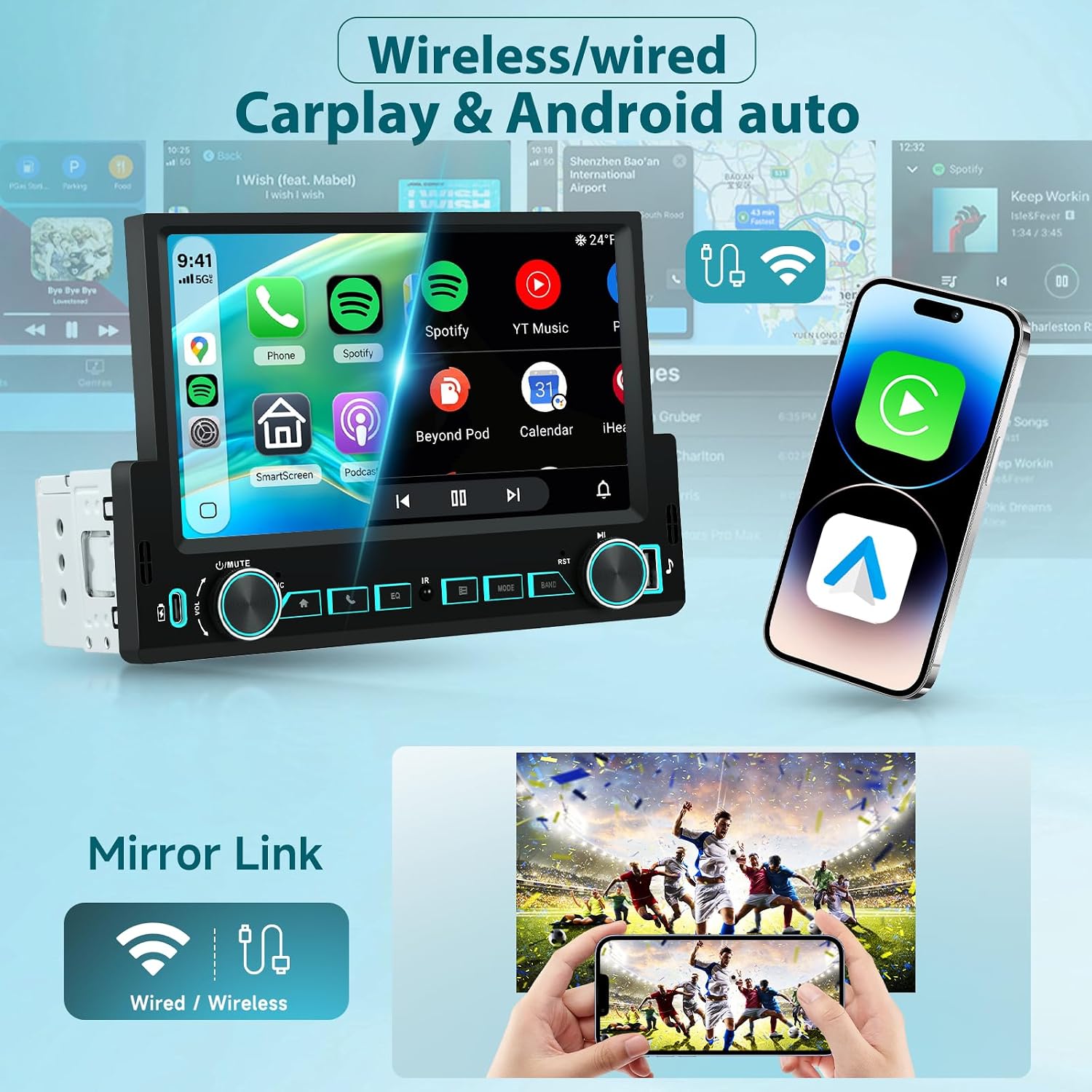
Image: Wireless and wired CarPlay and Android Auto functionality.

Image: CarPlay, Android Auto, and MirrorLink connection methods.
6.4 MirrorLink
MirrorLink allows you to mirror your smartphone's screen onto the car stereo display. Connect your phone via USB/Type-C or wirelessly (if supported by your phone and the unit) and select the MirrorLink option.
6.5 Bluetooth 5.2
- Pairing: Go to the Bluetooth menu on the car stereo. Enable Bluetooth on your phone and search for available devices. Select 'Hodozzy A4477' (or similar name) and confirm pairing.
- Hands-Free Calling: Once paired, you can make and receive calls directly through the car stereo.
- Audio Streaming: Play music from your phone via Bluetooth.

Image: Bluetooth, FM Radio, and EQ interfaces.
6.6 FM Radio
Access the FM radio function from the main menu. Use the touchscreen to scan for stations, manually tune, and save your favorite presets.
6.7 Equalizer (EQ)
Customize your audio experience using the built-in equalizer. Select from various preset sound modes or adjust individual frequency bands to your preference.
6.8 Steering Wheel Control (SWC)
If your vehicle supports SWC, you can program the car stereo to respond to your steering wheel buttons for functions like volume, track change, and call control. Refer to the wiring diagram for SWC connections and the unit's settings menu for programming.

Image: Steering Wheel Control and Reversing Camera display.
6.9 USB/Type-C Media Playback & Charging
Connect USB drives or smartphones to the USB or Type-C ports for media playback (audio/video files) or fast charging your devices.
6.10 Reversing Camera
When the vehicle is shifted into reverse, the car stereo automatically displays the feed from the connected reversing camera, providing a clear view of the area behind your vehicle for safer parking and maneuvering.
6.11 Customizable Backlight
Personalize the unit's button backlight color to match your car's interior or your mood. Access the backlight settings in the system menu to choose from a variety of colors.

Image: Customizable backlight settings and 7-inch HD screen.
7. Maintenance
- Cleaning the Screen: Use a soft, lint-free cloth to gently wipe the touchscreen. For stubborn smudges, slightly dampen the cloth with water or a screen cleaner designed for electronics.
- General Cleaning: Keep the unit free from dust and debris. Use a soft brush or compressed air to clean around buttons and ports.
- Software Updates: Periodically check the Hodozzy official website or contact customer support for any available software updates to ensure optimal performance and new features.
8. Troubleshooting
If you encounter issues with your Hodozzy car stereo, refer to the following common problems and solutions:
| Problem | Possible Cause | Solution |
|---|---|---|
| Unit does not power on. | Incorrect wiring; Blown fuse; Vehicle battery issue. | Check power connections and fuses. Ensure battery is charged. Consult a professional for wiring inspection. |
| No sound. | Volume too low; Mute activated; Incorrect speaker wiring. | Increase volume. Check if mute is on. Verify speaker connections. |
| CarPlay/Android Auto not connecting. | Incorrect cable; Bluetooth/Wi-Fi off; Phone software issue. | Use a certified data cable. Ensure Bluetooth/Wi-Fi is enabled. Restart phone and stereo. |
| Reversing camera not displaying. | Camera not connected; Incorrect wiring; Faulty camera. | Check camera video input and trigger wire connections. Ensure camera is powered. |
| Touchscreen unresponsive. | Temporary software glitch. | Press the reset button (usually a small pinhole) or power cycle the unit. |
If the problem persists after trying these solutions, please contact Hodozzy customer support.
9. Specifications
| Feature | Specification |
|---|---|
| Brand | Hodozzy |
| Model Number | A4477 |
| Display | 7-inch HD Touchscreen |
| Connectivity Technology | Bluetooth 5.2 |
| Special Features | Wireless/Wired Apple CarPlay, Wireless/Wired Android Auto, MirrorLink, Hands-free calling, FM Radio, EQ, SWC, USB/Type-C |
| Compatible Devices | Smartphones |
| Power Supply | 12V DC (Negative Ground) |
| Included Components | Car stereo, Steering wheel controller, Rear view camera (may vary by package) |
| Origin | China |
| Software Update Support | Unknown (check manufacturer's website) |
10. Warranty and Support
This Hodozzy product comes with a 2-year warranty from the date of purchase, covering manufacturing defects. Please retain your proof of purchase for warranty claims.
Customer Support:
For technical assistance, troubleshooting, or warranty inquiries, please contact Hodozzy customer support through the retailer where you purchased the product or visit the official Hodozzy website for contact information.
Website: Hodozzy Brand Store on Amazon
Please have your model number (A4477) and purchase details ready when contacting support.


