
1. Introduction
Thank you for choosing the CiBest AC201 Mini Projector. This manual provides essential information for setting up, operating, and maintaining your projector. Please read it thoroughly before use to ensure optimal performance and safety.
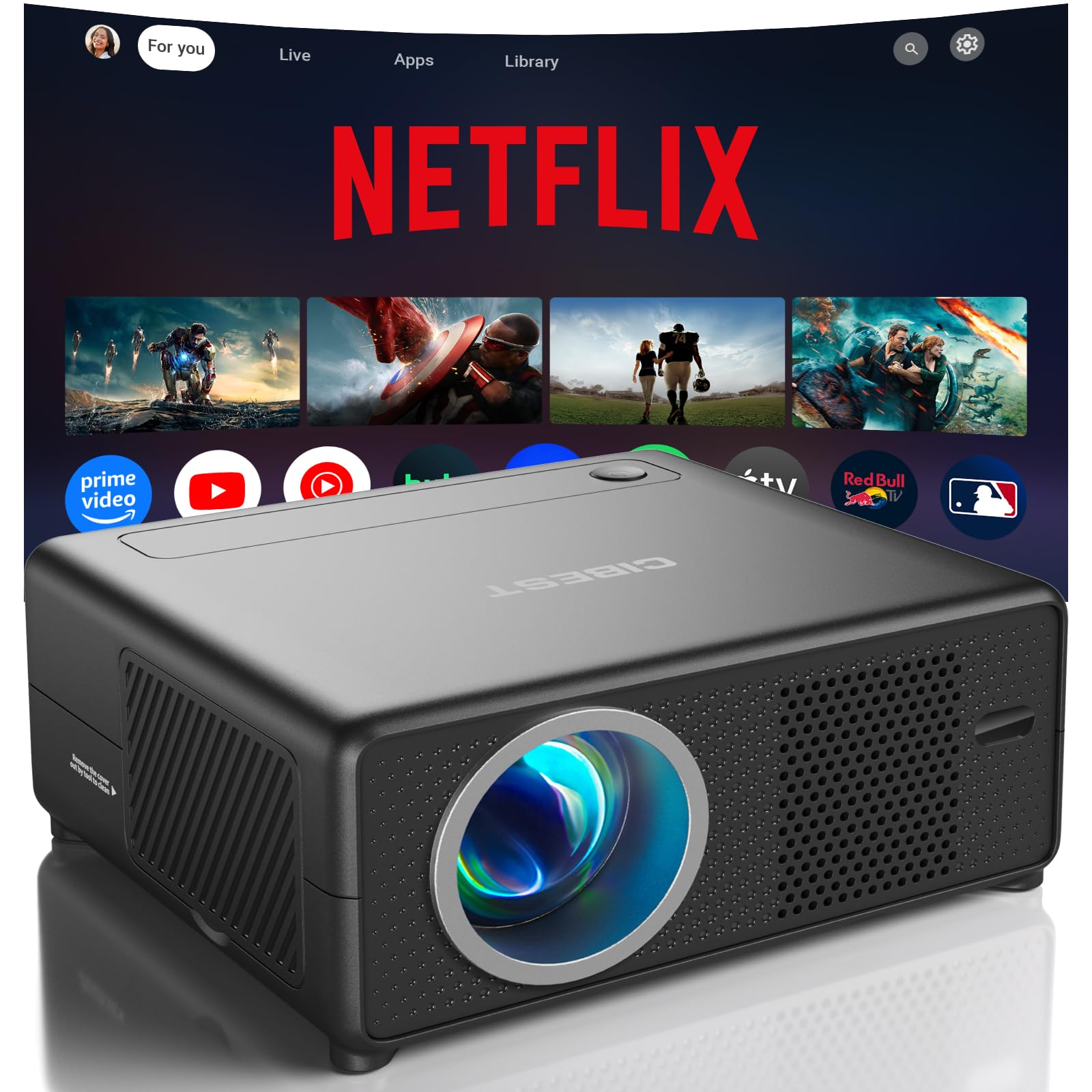
The CiBest AC201 Mini Projector.
2. What's in the Box
- CiBest AC201 Mini Projector
- Remote Control
- Power Cord
- HDMI Cable
- Projector Lens Cover
- User Manual (this document)
3. Setup
3.1 Initial Placement
Place the projector on a stable, flat surface. For optimal viewing, ensure the projector is positioned directly in front of your projection surface (wall or screen). The AC201 features a short-throw design, allowing for a 50-inch image from approximately 3 feet away, and up to 200 inches with increased distance.

Short throw projection diagram illustrating screen sizes at different distances.
3.2 Power Connection
Connect the power cord to the projector's power input and then to a power outlet. The power indicator light will illuminate.
3.3 Focus and Keystone Correction
The CiBest AC201 features electric focus and 4D keystone correction for a clear, rectangular image. Use the remote control to adjust these settings. No manual fiddling is required.

Electric focus and electronic keystone correction features.
3.4 Connecting Devices
The projector supports various connectivity options:
- HDMI: Connect gaming consoles (PS5, Switch, Xbox), streaming sticks, laptops, or DVD players.
- USB: Connect USB drives for media playback.
- 3.5mm Audio Jack: Connect external speakers or headphones.
- WiFi 6: For screen mirroring from compatible devices and faster streaming.
- Bluetooth 5.4: Connect external speakers or use the projector as a Bluetooth speaker.

Overview of projector interfaces and compatible devices.
4. Operating Instructions
4.1 Power On/Off
Press the power button on the projector or the remote control to turn the device on or off.
4.2 Navigation and Source Selection
Use the remote control to navigate the on-screen menu. Select the desired input source (HDMI, USB, Apps) from the main menu.
4.3 Built-in Apps
The projector comes with pre-installed apps like Netflix, YouTube, and Prime Video. Access these directly from the home screen. An app store is also available for additional applications.

The projector's interface showing built-in streaming applications.
4.4 WiFi 6 Connectivity
Connect to your home WiFi network via the settings menu. WiFi 6 ensures smoother 4K streaming and faster screen mirroring with minimal lag, ideal for gaming or live sports.

Visual representation of WiFi 6 connectivity for fast and stable streaming.
4.5 Bluetooth 5.4 Functionality
Pair external Bluetooth speakers or soundbars for enhanced audio. The projector can also function as a standalone Bluetooth speaker for music playback from your mobile device.

Bluetooth 5.4 connectivity for audio devices.
4.6 Video Playback
The projector supports 4K video decoding, delivering sharp and vibrant images with a 10,000:1 contrast ratio and 300 ANSI lumens brightness (12000 marketing lumens). For best results, view in a dark environment.

HDR10 dynamic image processing technology for enhanced visuals.
4.7 Usage Scenarios
The portable design of the AC201 allows for versatile use:
- Home Theater: Enjoy movies and shows in your living room.
- Outdoor Entertainment: Perfect for backyard movie nights or camping trips.
- Gaming: Experience immersive gaming with low latency screen mirroring.

Family enjoying a movie indoors with the projector.

Friends watching sports outdoors.

Family enjoying a movie during a camping trip.
5. Maintenance
5.1 Lens Cleaning
Gently clean the projector lens with a soft, lint-free cloth. Avoid using abrasive cleaners or excessive force, as this can damage the lens coating.
5.2 Dust Removal
Regularly clean the projector's vents to prevent dust buildup, which can affect performance and lead to overheating. Use a soft brush or compressed air.
5.3 Storage
When not in use, store the projector in a cool, dry place, away from direct sunlight and extreme temperatures. Use the provided lens cover to protect the lens.
6. Troubleshooting
6.1 No Image or "No Signal" Message
- Ensure the power cord is securely connected and the projector is turned on.
- Verify that the correct input source (HDMI, USB, etc.) is selected in the projector's menu.
- Check the connection cable (e.g., HDMI) between the projector and the source device. Try a different cable if available.
- Ensure the source device (laptop, streaming stick) is powered on and outputting a signal.
6.2 Blurry Image
- Adjust the electric focus using the remote control until the image is clear.
- Use the keystone correction feature to ensure the image is rectangular and not distorted.
- Ensure the projection distance is within the recommended range for optimal clarity.
6.3 No Audio
- Increase the volume on both the projector and the connected source device.
- Check if external speakers or headphones are properly connected via Bluetooth or the 3.5mm audio jack.
- Ensure the audio output settings on your source device are configured correctly.
6.4 WiFi/Bluetooth Connection Issues
- Ensure the projector is within range of your WiFi router or Bluetooth device.
- Restart the projector and the device you are trying to connect.
- For WiFi, re-enter the password to ensure it is correct.
7. Specifications
| Feature | Detail |
|---|---|
| Model Name | AC201 |
| Native Resolution | 1920 x 1080 (Full HD) |
| Display Resolution Maximum | 1920 x 1080 Pixels (Supports 4K video decoding) |
| Brightness | 300 ANSI Lumens (12000 Marketing Lumens) |
| Contrast Ratio | 10000:1 |
| Connectivity Technology | 3.5mm Jack, Bluetooth 5.4, HDMI, USB, Wi-Fi 6 |
| Special Features | 4K Video Decoding, Built-In Speaker, Compatible with Netflix, YouTube, and Prime Video, Electric Focus and Keystone Correction, WiFi 6 and Bluetooth 5.4 Connectivity |
| Minimum Throw Distance | 2.67 Feet |
| Maximum Throw Distance | 15.32 Feet |
| Minimum Image Size | 30 Inches |
| Maximum Image Size | 200 Inches |
| Item Dimensions (L x W x H) | 6.69"L x 5.71"W x 2.99"H |
| Wattage | 36 watts |
| Voltage | 12 Volts (DC) |
8. Warranty Information
The CiBest AC201 Mini Projector comes with a 3-Year Warranty. This warranty covers manufacturing defects and ensures product reliability. Please retain your proof of purchase for warranty claims.

Graphic showing 24-hour quick reply, 30-day return, and 12-month replacement.
9. Customer Support
For any questions, technical assistance, or warranty claims, please contact CiBest customer support:
- Email: support@cibest-usa.com
- 24/7 Customer Support available.
- Replacement services available within 12 months of purchase.
10. Official Product Video
Watch this official video for a visual guide on the CiBest AC201 Mini Projector's features and usage.
Official video: AC201 mini projector with WiFi and Bluetooth.