
Redragon S164
Contents
Redragon S164 Wireless Mechanical Keyboard and Mouse Combo User Manual
Model: S164
Introduction
Thank you for choosing the Redragon S164 Wireless Mechanical Keyboard and Mouse Combo. This manual provides detailed instructions for setting up, operating, and maintaining your new gaming peripherals. Please read this manual thoroughly before use to ensure optimal performance and longevity of your product.

Image: The Redragon S164 Wireless Mechanical Keyboard and Mouse Combo, showcasing its RGB backlighting and compact design.
Package Contents
Ensure all items are present in your package:
- Keyboard x1
- Mouse x1
- Nano receiver x1 (for 2.4G wireless connection)
- Type C cable x1 (for wired connection and charging)
- User manual x1
- Custom Greywood Switch x4
- 2-in-1 Keycap & Switch Puller x1

Image: A visual representation of the Redragon S164 combo package contents, including the keyboard, mouse, cables, and accessories.
Setup Instructions
1. Charging the Devices
Before initial use, it is recommended to fully charge both the keyboard and mouse.
- Connect the provided Type-C cable to the keyboard/mouse and a USB power source (e.g., computer port, USB wall adapter).
- The keyboard has a 4000mAh battery, and the mouse has a 700mAh battery.
- A battery indicator on the keyboard will show the power status.

Image: Diagram illustrating the battery capacities of the Redragon S164 keyboard (4000mAh) and mouse (700mAh).
2. Connection Modes
The Redragon S164 combo supports three connection modes: 2.4G Wireless, Bluetooth, and USB Wired.
2.1. 2.4G Wireless Connection
- Locate the 2-in-1 nano receiver. This single receiver connects both the keyboard and mouse.
- Plug the nano receiver into an available USB port on your computer.
- Ensure both the keyboard and mouse are switched to 2.4G wireless mode (refer to device-specific switches).
- The devices should connect automatically.

Image: A visual guide to the tri-mode connection options (Bluetooth, 2.4G, USB-C Wired) for the Redragon S164 combo, highlighting the single dongle for both devices.
2.2. Bluetooth Connection
- Switch the keyboard/mouse to Bluetooth mode.
- On your device (laptop, tablet, smartphone), enable Bluetooth and search for new devices.
- Select the Redragon keyboard/mouse from the list of available devices to pair.
- For quick system switching on the keyboard: Press FN+A for Mac mode or FN+W for Windows mode.
2.3. USB Wired Connection
- Connect the provided Type-C cable from the keyboard/mouse to a USB port on your computer.
- The devices will automatically switch to wired mode and begin charging.
3. Software Installation
For advanced customization, including RGB lighting, macro settings, and DPI adjustments, download the official driver software.
- Visit the official Redragon website: redragonzone.com/software.html
- Click on "COMBO".
- Search for model "S164" and download the appropriate driver software.

Image: Screenshot of the Redragon custom software interface, showing options for RGB lighting, custom shortcut keys, macro recording, and DPI/report rate adjustments for the S164 keyboard and mouse.
Operating Instructions
Keyboard Features
- RGB Backlight: The keyboard features a full true RGB backlight with 16 lighting modes.
- Adjust brightness and lighting speed using dedicated keys or software.
- Hot-Swappable Switches: This 87-key TKL keyboard supports both 3-pin and 5-pin switches, allowing for easy customization without soldering. It comes with pre-lubed Redragon linear switches for a smooth and responsive typing experience.
- PBT Keycaps: The side-printed gradient black PBT keycaps are durable, sweat-resistant, and fade-proof. The side legends allow backlight to shine through for a unique aesthetic.
- Anti-Ghosting Keys: Ensures all key presses are registered accurately during intense gaming sessions.
- 5-Layer Sound-Dampening Padding: Reduces hollow cavity noise and provides softer, bouncier typing feedback.

Image: An infographic detailing the key features of the Redragon S164 wireless mechanical keyboard, including BT5.0/2.4G/Wired connectivity, hot-swappable switches, gasket structure, pre-lubed linear switches, RGB backlight, side-printed PBT keycaps, 4000mAh battery, and anti-ghosting keys.
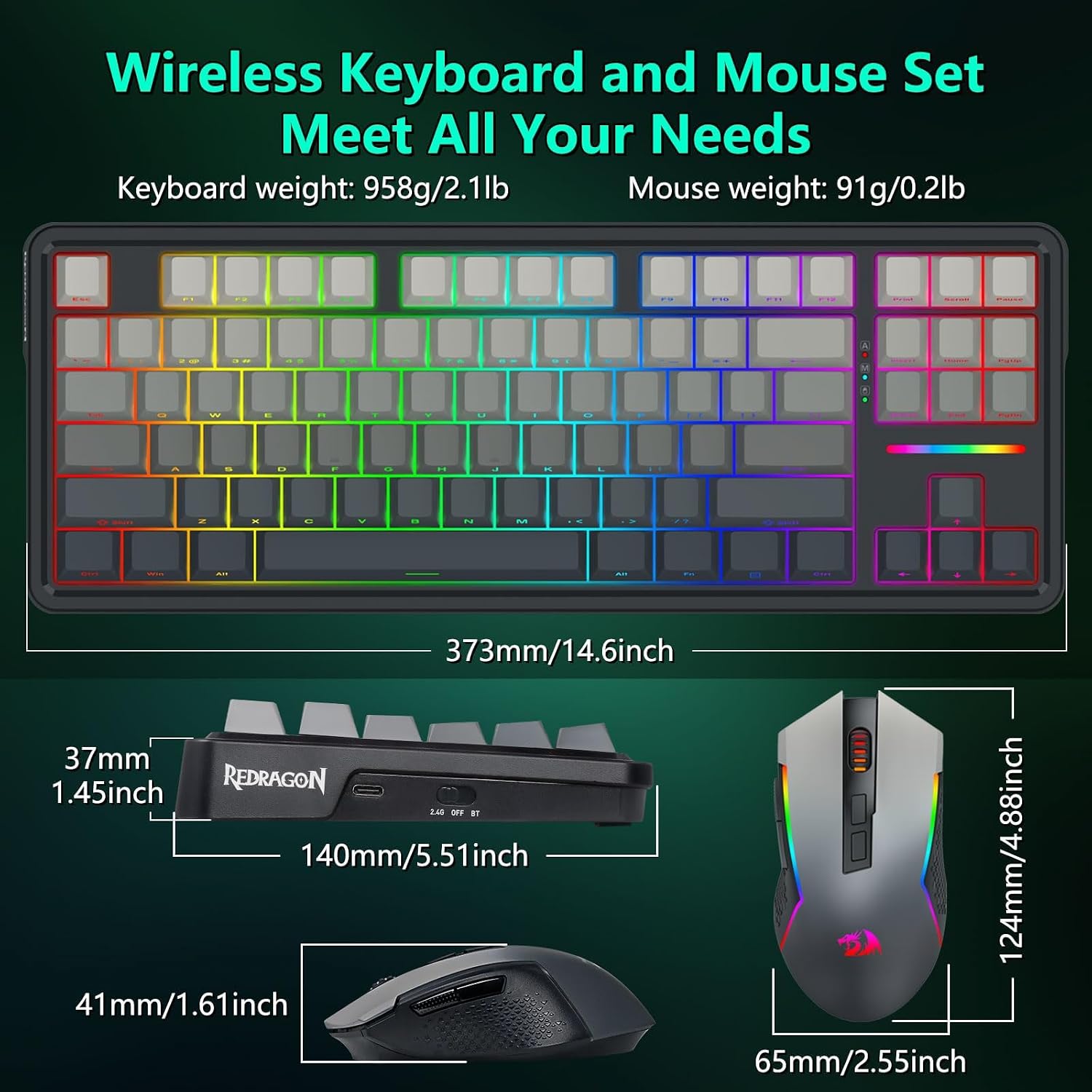
Image: Close-up views of the PCB hot-swappable socket supporting 3-pin/5-pin switches, Redragon linear switches, and double-shot side-printed PBT keycaps.
Video: An official Redragon video demonstrating the features and usage of the S164 Wireless Mechanical Keyboard and Mouse Combo, including its tri-mode connectivity and RGB lighting.
Mouse Features
- Adjustable DPI: The gaming mouse offers 5 preset DPI levels (800/1200/1600/3200/4800). DPI can be customized from 100 to 12800 via software. The scroll wheel light indicates the current DPI setting.
- Programmable Buttons: Features 7 programmable buttons for custom keybindings and macros, configurable through the software.
- Pro Optical Sensor: Ensures precise tracking and rapid response (1ms).
- Durability: Rated for 20 million clicks.

Image: An infographic detailing the key features of the Redragon S164 wireless gaming mouse, including BT5.0/2.4G/Wired connectivity, 12800 DPI Max, 7 macro buttons, 1ms response, 20 million clicks, advanced software support, 700mA battery, and a Pro Optical Sensor.
Auto Power Saving
To conserve battery life, the backlight will automatically turn off when the keyboard and mouse are not in use.
- Keyboard backlight turns off after 3 minutes of inactivity.
- Mouse backlight turns off after 2 minutes of inactivity.
- Press any button on the keyboard or move the mouse to wake them up.
Maintenance
- Cleaning: Use a soft, dry cloth to clean the surfaces of the keyboard and mouse. For deeper cleaning, use a can of compressed air to remove dust and debris from between keycaps. Avoid using harsh chemicals or abrasive materials.
- Switch Replacement: The hot-swappable design allows for easy replacement of switches. Use the provided 2-in-1 keycap and switch puller to carefully remove keycaps and switches. Ensure replacement switches are compatible (3-pin or 5-pin).
- Keycap Care: The PBT keycaps are designed for durability. If cleaning is needed, remove them using the keycap puller and wash gently with mild soap and water, ensuring they are completely dry before reattaching.
- Battery Care: To prolong battery life, avoid fully discharging the devices frequently. Charge them when the battery indicator shows low power.
Troubleshooting
| Problem | Solution |
|---|---|
| Keyboard/Mouse not connecting in 2.4G mode |
|
| Bluetooth connection issues |
|
| RGB backlight not working or stuck |
|
| Keys not responding or double-typing |
|
| Mouse tracking issues or erratic movement |
|
Specifications
| Feature | Detail |
|---|---|
| Brand | Redragon |
| Model Number | S164 |
| Connectivity Technology | 2.4GHz wireless, Bluetooth, USB-C Wired |
| Keyboard Layout | 87-key TKL (Tenkeyless) QWERTY |
| Mechanical Keyboard Switch Model | Redragon linear switches (Hot-swappable 3-pin/5-pin) |
| Keyboard Battery Capacity | 4000mAh |
| Mouse DPI | 100-12800 (5 preset levels: 800/1200/1600/3200/4800) |
| Mouse Buttons | 7 Programmable Buttons |
| Mouse Battery Capacity | 700mAh |
| Keyboard Backlighting | RGB (16 modes) |
| Compatible Operating Systems | Windows, macOS, Linux, Chrome OS, Android |
| Keyboard Weight | 512 g |
| Item Highlight | Bluetooth/2.4Ghz/USB-C Wired, TKL Creamy Gaming Keyboard with Hot Swappable Linear Switches + 12800 DPI Gamer Mouse |

Image: Diagram showing the dimensions and weight of the Redragon S164 keyboard and mouse.
Warranty and Support
Warranty Information
The Redragon S164 Wireless Mechanical Keyboard and Mouse Combo comes with a 1 Year Manufacturer Warranty. Please retain your proof of purchase for warranty claims.
Customer Support
For technical support, warranty inquiries, or further assistance, please visit the official Redragon website or contact their customer service.
- Official Website: redragonzone.com
- Software Download: redragonzone.com/software.html
Documents and downloads
Ask a question about this manual
Ask about setup, troubleshooting, compatibility, parts, safety, or missing instructions. Manuals+ will review the question and use this page’s manual context to help answer it.