
1. Introduction
This manual provides comprehensive instructions for the installation, operation, and maintenance of your SOVMIKU CA43 2K Indoor Security Camera. Please read this manual thoroughly before using the device to ensure proper functionality and safety. Keep this manual for future reference.
2. Product Overview
The SOVMIKU CA43 is a 2K indoor security camera designed for home monitoring. It features AI tracking, 360° pan/tilt capabilities, two-way audio, night vision, and an audible alarm. The camera integrates seamlessly with the Vicohome app for real-time monitoring and alerts.
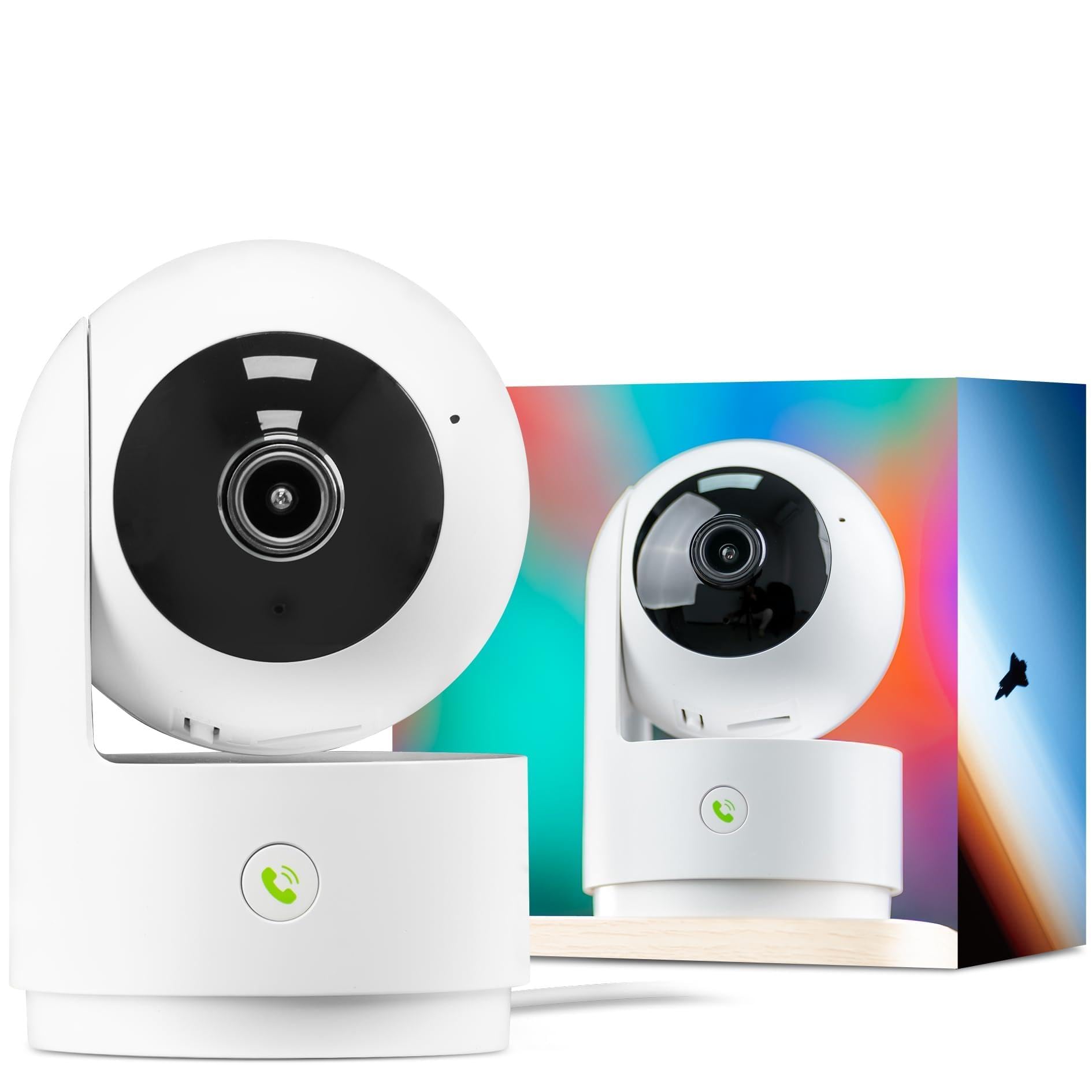
Figure 2.1: SOVMIKU CA43 2K Indoor Security Camera.
3. Setup Instructions
3.1 Powering On the Camera
- Connect the camera to a power source using the provided power adapter and USB cable.
- Ensure the power adapter is securely plugged into a wall outlet. The camera will power on automatically.

Figure 3.1: Connecting the camera to a power source.
3.2 Resetting the Camera
- Locate the reset button on the camera.
- Press and hold the reset button for approximately 6 seconds until you hear an audible confirmation. This will restore the camera to factory settings, preparing it for pairing.
3.3 App Installation and Device Pairing
- Download the "Vicohome" app from the Google Play Store (for Android devices) or the Apple App Store (for iOS devices).
- Open the Vicohome app and sign up for a new account or sign in if you already have one.
- In the app, tap the "+" icon in the top right corner to add a new device.
- Select the appropriate device type (Plug-in device) and confirm that you have heard the sound from the camera.
- Choose your home Wi-Fi network (supports 2.4GHz and 5GHz Wi-Fi) and enter the password.
- Follow the on-screen prompts to complete the pairing process. The camera will connect to the network.
- Once connected, you can name your device and set its location within your home.
Video 3.1: CA43 Installation Guide. This video demonstrates the steps for powering on, resetting, and pairing the SOVMIKU CA43 camera with the Vicohome app.

Figure 3.2: Vicohome app interface showing multiple camera views.
4. Operating Instructions
4.1 Live View
Access the live feed of your camera through the Vicohome app. Tap on the camera's name in the "My House" section to view real-time video.
4.2 Two-Way Audio
The camera supports two-way audio communication. Tap the microphone icon in the live view interface to speak through the camera, and listen to audio from the camera's location.

Figure 4.1: Using the two-way audio feature to communicate through the camera.
4.3 Motion Detection and AI Tracking
The camera can detect motion and track subjects using AI algorithms. When motion is detected, you will receive alerts on your mobile device. The AI tracking feature allows the camera to follow movement within its field of view.

Figure 4.2: The camera's AI auto-tracking feature following a person.
4.4 Emergency SOS Function
The camera includes an emergency SOS feature. In an emergency, a user can press a designated button on the camera to initiate a one-touch call to a pre-configured contact, sending an immediate alert to your mobile device.

Figure 4.3: Activating the Emergency SOS function and receiving a notification.
4.5 Privacy Mode
Activate Privacy Mode through the Vicohome app to temporarily disable recording and live viewing when privacy is desired. This feature allows you to control when the camera is active.

Figure 4.4: The camera entering Privacy Mode.
4.6 Storage Options
The camera supports local storage via a microSD card (up to 128GB, not included) and cloud storage services. Local storage records motion-detected events, while cloud storage offers additional features like 60-day cycle recording and advanced analytics.

Figure 4.5: Inserting a microSD card for local storage.
4.7 Multi-Device Support and Multi-User Sharing
The Vicohome app allows you to manage multiple SOVMIKU cameras (up to 50+) from a single account. You can also share camera access with up to 10 other users, setting different permissions for each.

Figure 4.6: Multi-user sharing and multi-device support.
4.8 Night Vision and Baby Monitor Functionality
The camera is equipped with infrared LEDs for clear black and white night vision, allowing monitoring in low-light conditions without disturbing sleep. This makes it suitable for use as a baby monitor.

Figure 4.7: Baby monitor view showing clear night vision.
5. Maintenance
- Cleaning: Use a soft, dry cloth to clean the camera lens and body. Avoid abrasive cleaners or solvents.
- Firmware Updates: Regularly check the Vicohome app for available firmware updates to ensure optimal performance and security.
- Placement: Ensure the camera is placed in a stable location, away from direct sunlight, heat sources, and moisture.
6. Troubleshooting
- Camera Offline: Check the power connection and Wi-Fi signal strength. Ensure the camera is within range of your router. Try restarting the camera by unplugging and replugging it.
- Cannot Connect to Wi-Fi: Verify that you have entered the correct Wi-Fi password. Ensure your router is broadcasting a 2.4GHz or 5GHz network. If issues persist, try resetting the camera and repeating the pairing process.
- No Motion Alerts: Check the motion detection settings in the Vicohome app. Ensure alerts are enabled and sensitivity is adjusted appropriately.
- Poor Video Quality: Ensure a stable Wi-Fi connection. If the issue persists, try moving the camera closer to the router or reducing the video quality settings in the app.
7. Specifications
| Feature | Description |
|---|---|
| Model | CA43 |
| Resolution | 2K (3MP) |
| Connectivity | 2.4GHz & 5GHz Wi-Fi |
| Pan/Tilt | 360° Horizontal, Vertical movement |
| Audio | Two-Way Audio |
| Night Vision | Infrared Night Vision |
| Storage | MicroSD card (up to 128GB), Cloud Storage |
| Special Features | AI Tracking, Emergency SOS, Privacy Mode, Audible Alarm |
| Dimensions | 4.25 inches x 2.96 inches x 2.96 inches |
| Weight | 0.36 Pounds |

Figure 7.1: Physical dimensions of the SOVMIKU CA43 camera.
8. Warranty and Support
SOVMIKU offers a 180-day no-risk guarantee and a 6-month replacement policy for defects. For any questions or technical assistance, please contact our support team.
Email Support: Sovmiku@163.com

Figure 8.1: Information regarding the 180-day exchange policy.

