
1. Introduction
This manual provides essential information for setting up, operating, and maintaining your URAO 10-inch Android 15 Tablet, Model C108. Please read this guide thoroughly to ensure proper use and to maximize your tablet's performance and longevity. Keep this manual for future reference.
2. Package Contents
Verify that all items listed below are present in your package:
- URAO 10-inch Android 15 Tablet
- Protective Case
- Bluetooth Keyboard
- Wireless Mouse (Note: Mouse does not include batteries.)
- Stylus Pen
- USB Type-C Charging Cable
- Power Adapter (Charger)
- Headphones

Image: URAO Tablet and its complete set of accessories, including the protective case, keyboard, charging cables, mouse, charger, stylus pen, and headphones.
3. Product Overview
Familiarize yourself with the physical components of your URAO Tablet.
3.1 Tablet Components
- Front Camera: For video calls and selfies.
- Rear Camera: For capturing photos and videos.
- Flashlight: Assists with low-light photography.
- Volume Buttons: Adjust audio volume.
- Power Button: Turns the tablet on/off or puts it to sleep.
- Reset Pinhole: For system reset in case of unresponsiveness.
- Speakers: Audio output.
- Type-C Port: For charging and data transfer.
- Micro SD Card Slot: For expandable storage.

Image: Detailed diagram illustrating the location of all external components and ports on the URAO Tablet.
4. Setup
4.1 Charging the Tablet
Before first use, fully charge your tablet. Connect the USB Type-C cable to the tablet's Type-C port and the other end to the power adapter. Plug the adapter into a wall outlet. The battery indicator on the screen will show charging status. A full charge typically takes about 1.5 hours.

Image: The URAO Tablet connected to its charger, displaying a full battery and highlighting its 5000 mAh capacity.
4.2 Powering On/Off
- To Power On: Press and hold the Power button until the URAO logo appears on the screen.
- To Power Off: Press and hold the Power button until a power-off menu appears. Select 'Power off'.
- To Sleep/Wake: Briefly press the Power button to put the tablet to sleep or wake it up.
4.3 Initial Setup
Upon first power-on, follow the on-screen prompts to:
- Select your preferred language.
- Connect to a Wi-Fi network.
- Set up your Google account (optional, but recommended for app downloads).
- Configure date, time, and other basic settings.
4.4 Connecting Accessories (Keyboard, Mouse, Stylus)
Your URAO Tablet supports Bluetooth accessories for a laptop-like experience.
- Enable Bluetooth: Go to Settings > Connected devices > Bluetooth and turn it on.
- Pair Keyboard/Mouse: Put your Bluetooth keyboard or mouse into pairing mode (refer to the accessory's manual). Select the device from the list of available devices on your tablet and confirm pairing.
- Stylus: The included stylus is a passive stylus and does not require Bluetooth pairing. Simply use it directly on the screen.
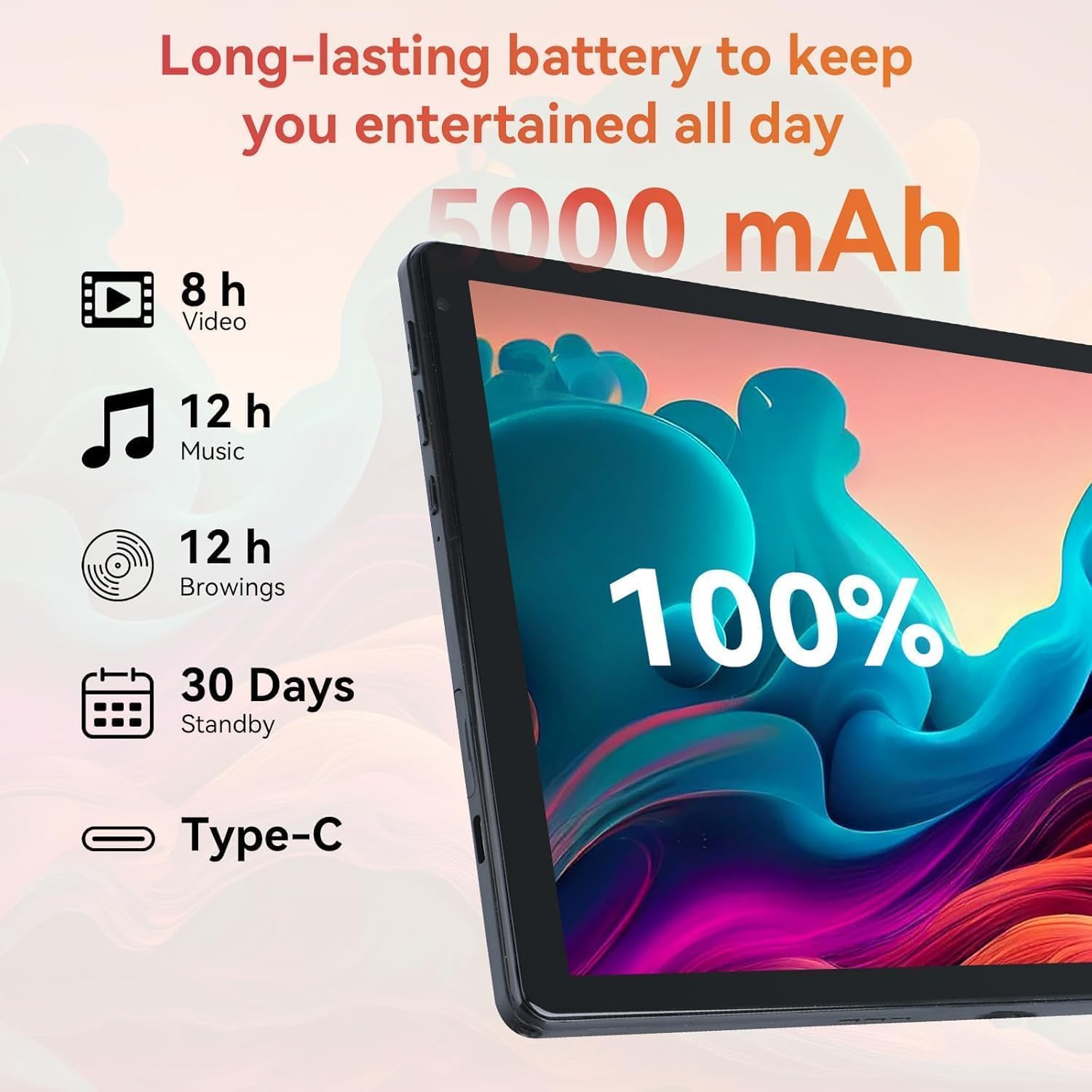
Image: The URAO Tablet configured with its Bluetooth keyboard and mouse, demonstrating its 2-in-1 functionality for productivity.
5. Operating Instructions
5.1 Basic Navigation
The URAO Tablet uses a multi-touch HD IPS display. Common gestures include:
- Tap: Select an item or open an app.
- Swipe: Scroll through pages or lists.
- Pinch-to-Zoom: Zoom in or out on images and web pages.
- Long Press: Access contextual menus or move icons.
5.2 Android 15 Operating System
Your tablet runs on Android 15, offering enhanced privacy controls, improved app permissions, and a user-friendly interface. Explore the Settings app to customize your experience.

Image: The tablet screen showing various applications running, illustrating its multitasking efficiency with the Octa-core processor.
5.3 Storage Management
The tablet comes with 128GB of internal storage and supports up to 1TB external storage via a Micro SD card (not included).
- Internal Storage: View and manage your internal storage in Settings > Storage.
- Expandable Storage: Insert a Micro SD card into the designated slot to expand your storage capacity for apps, photos, and videos.
5.4 Wi-Fi and Bluetooth Connectivity
The tablet features Wi-Fi 6 and Bluetooth 5.0 for fast and stable connections.
- Wi-Fi: Connect to 2.4GHz or 5GHz networks via Settings > Network & internet > Wi-Fi.
- Bluetooth: Pair with headphones, speakers, or other Bluetooth devices via Settings > Connected devices > Bluetooth.

Image: The tablet facilitating a video conference, emphasizing its reliable Dual-band Wi-Fi and Bluetooth 5.0 connectivity.
5.5 Using the Cameras
The tablet is equipped with an 8MP rear camera and a 5MP front camera.
- Open the Camera app to take photos or record videos.
- Switch between front and rear cameras as needed.
- The rear camera includes an LED flash for low-light conditions.

Image: Examples of photos captured with the tablet's 8MP rear and 5MP front cameras, demonstrating its photographic capabilities.
5.6 Face Recognition
The front camera supports face recognition for convenient unlocking.
- Go to Settings > Security & privacy > Device unlock > Face unlock.
- Follow the on-screen instructions to register your facial data.
- Once set up, you can unlock your tablet by looking at the front camera.
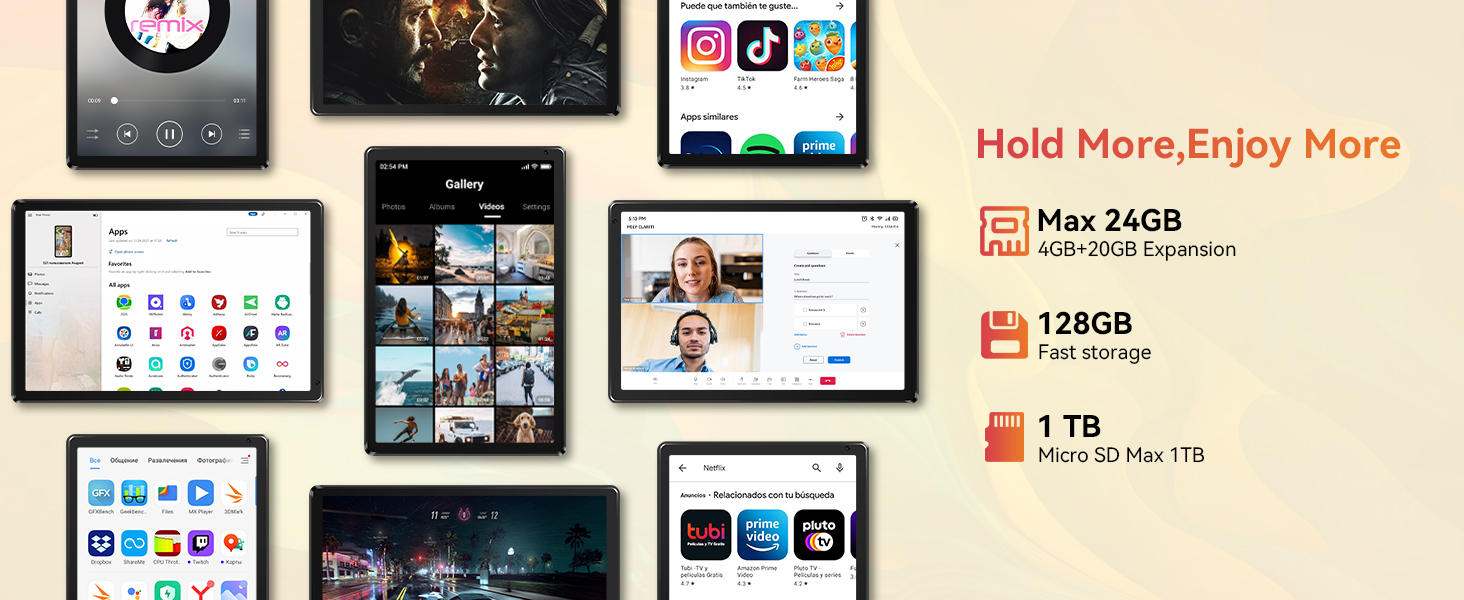
Image: A user demonstrating the Face Unlock feature on the URAO Tablet, highlighting its secure and convenient access method.
6. Maintenance
6.1 Cleaning the Tablet
Use a soft, lint-free cloth to clean the screen and body of the tablet. Avoid using harsh chemicals or abrasive materials that could damage the surface.
6.2 Software Updates
Periodically check for system updates to ensure your tablet has the latest features and security patches. Go to Settings > System > System update.
6.3 Storage Management Tips
- Regularly delete unnecessary files and apps to free up space.
- Move large files (photos, videos) to a Micro SD card if you have one installed.
- Clear app cache data from Settings > Apps > [App Name] > Storage & cache.
7. Troubleshooting
If you encounter issues with your tablet, refer to the following common solutions:
| Problem | Solution |
|---|---|
| Tablet does not turn on | Ensure the battery is charged. Connect the charger and wait a few minutes before attempting to power on again. |
| Tablet is unresponsive | Press and hold the Power button for 10-15 seconds to force a restart. If that fails, use a pin to press the Reset pinhole. |
| Wi-Fi connection issues | Restart your Wi-Fi router. Go to Settings > Network & internet > Wi-Fi, forget the network, and reconnect. |
| Bluetooth device not pairing | Ensure the Bluetooth device is in pairing mode and within range. Turn Bluetooth off and on again on the tablet. |
| Apps crashing or slow performance | Clear app cache, free up storage space, or restart the tablet. Consider uninstalling rarely used apps. |
8. Specifications
Key technical specifications for the URAO 10-inch Android 15 Tablet (Model C108):
- Model Name: C108
- Operating System: Android 15
- Processor: Octa-core, 2.0 GHz
- RAM: 24GB (4GB physical + 20GB virtual expansion)
- Internal Storage: 128GB ROM
- Expandable Storage: Up to 1TB via Micro SD card (not included)
- Screen Size: 10.1 Inches
- Display Type: HD IPS Touchscreen
- Display Resolution: 1280 x 800 Pixels
- Rear Camera: 8 MP
- Front Camera: 5 MP
- Battery: 5000 mAh (up to 8 hours mixed use)
- Connectivity: Wi-Fi 6 (Dual-band 2.4G+5G), Bluetooth 5.0
- Charging Port: USB Type-C
- Dimensions (L x W x Thickness): 10.6" x 7.1" x 0.35" (9mm)
- Weight: Approximately 540g

Image: A visual summary of the URAO Tablet's key technical specifications and features.
9. Warranty and Support
For warranty information and customer support, please refer to the warranty card included in your product packaging or visit the official URAO website. If you encounter any issues not covered in this manual, please contact URAO customer service for assistance.

