
Introduction
This manual provides essential information for setting up, operating, and maintaining your jumper 15.4-inch Android 16 Tablet, Model Z3. Please read this manual thoroughly before using your device to ensure optimal performance and longevity.
Package Contents
Verify that all items listed below are present in your package:
- jumper 15.4-inch Tablet
- Protective Tablet Case (with integrated stand)
- USB Cable
- 20W Power Adapter
- Ejection Pin
- User Manual
Product Overview
The jumper Z3 tablet is designed for versatile use, featuring a large display and robust performance.
Key Features:
- 15.4-inch FHD Display: Features a 1920x1080 resolution with 100% sRGB color space and Widevine L1 support for high-definition streaming.
- Android 16 Operating System: Provides a secure and efficient user experience with access to Google Mobile Services (GMS).
- Helio G99 Octa-Core Processor: Ensures smooth multitasking and responsive performance for applications and gaming.
- 8GB RAM & 256GB ROM: Ample memory for smooth operation and generous storage for files and applications, expandable via TF card.
- 10,000 mAh Battery: Designed for extended usage throughout the day.
- Dual Cameras: Equipped with a 5MP front camera and a 13MP rear camera.
- Connectivity: Supports dual-band Wi-Fi (2.4GHz and 5GHz), Bluetooth 5.2, and precise GPS/BDS/Galileo/GLONASS navigation.
- Integrated Stand & Protective Case: The included case offers protection and an adjustable 135° stand for various viewing angles.

Image: The 15.4-inch FHD display, highlighting 1920x1080 resolution, 100% sRGB, and Widevine L1 support.

Image: Visual representation of the MediaTek Helio G99 Octa-Core processor and Mali-G57 MC2 GPU.

Image: Illustration of the tablet's 8GB RAM, 256GB ROM, and support for up to 512GB TF card expansion.
Setup
1. Initial Charging
Before first use, fully charge your tablet. Connect the USB cable to the tablet's Type-C port and the 20W power adapter, then plug the adapter into a power outlet. The charging indicator will show the charging status.

Image: Visual representation of the 10,000 mAh battery and Type-C charging.
2. Power On/Off
- To Power On: Press and hold the Power button until the screen lights up.
- To Power Off: Press and hold the Power button, then select "Power off" from the options on the screen.
- To Restart: Press and hold the Power button, then select "Restart" from the options.
3. Initial Android Setup
Upon first power-on, follow the on-screen prompts to complete the initial setup:
- Select your language.
- Connect to a Wi-Fi network.
- Sign in with your Google account or create a new one. This is necessary to access the Google Play Store and GMS features.
- Review and accept the terms and conditions.
- Set up screen lock (PIN, pattern, or password).
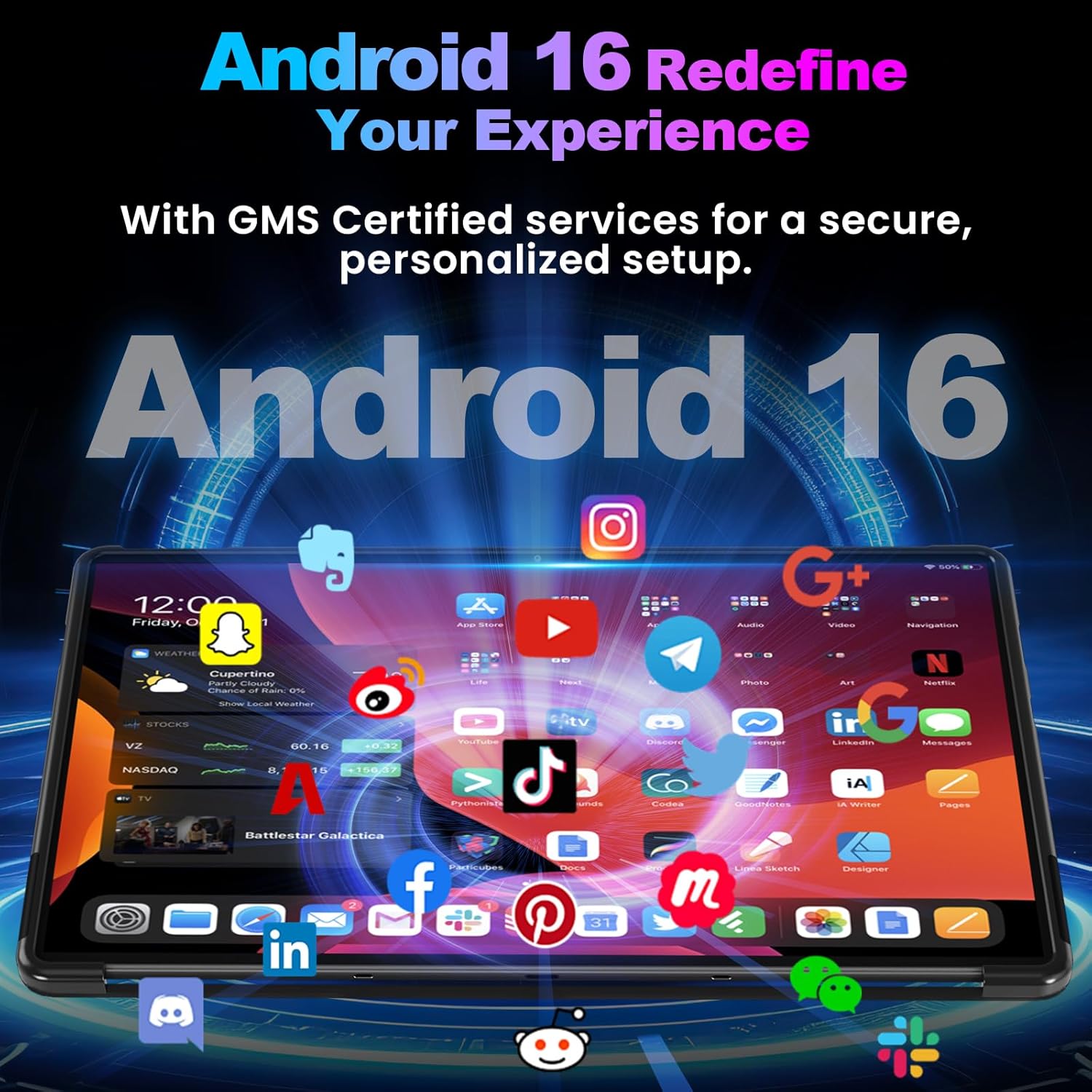
Image: The Android 16 interface on the jumper Z3 tablet, showing various applications and GMS certification.
Operating Instructions
1. Navigating the Android Interface
- Touch Gestures: Use tap, swipe, pinch-to-zoom, and long-press for various interactions.
- Home Screen: Customize with widgets and app shortcuts.
- Notification Panel: Swipe down from the top of the screen to access notifications and quick settings.
- App Drawer: Swipe up from the bottom of the screen to view all installed applications.
2. Split-Screen Functionality
The large 15.4-inch display supports split-screen mode for enhanced productivity. To activate:
- Open the first application.
- Tap the recent apps button (usually a square icon) to view open applications.
- Long-press the icon of the first app at the top of its card, then select "Split screen".
- Choose the second application from the recent apps list or the app drawer to occupy the other half of the screen.

Image: The tablet displaying two applications simultaneously in split-screen mode, demonstrating multitasking capabilities.
3. Connectivity
- Wi-Fi: Go to Settings > Network & internet > Wi-Fi to connect to available networks.
- Bluetooth: Go to Settings > Connected devices > Bluetooth to pair with Bluetooth accessories like keyboards, mice, or headphones.
- GPS: Location services are enabled by default. Ensure GPS is active in Settings > Location for navigation and location-based apps.
4. Using the Integrated Stand and Protective Case
The included protective case features an integrated stand that can be adjusted up to 135 degrees. This allows for comfortable viewing angles for typing, watching videos, or video calls.

Image: The tablet shown with its protective case, illustrating the secure fit and integrated stand.
Maintenance
1. Cleaning the Tablet
- Use a soft, lint-free cloth to clean the screen and body of the tablet.
- For stubborn smudges, lightly dampen the cloth with water or a screen cleaner specifically designed for electronics.
- Avoid using harsh chemicals, abrasive materials, or excessive moisture.
2. Battery Care
- Avoid extreme temperatures, as they can degrade battery life.
- Do not allow the battery to fully discharge frequently. Charge it before it drops below 20%.
- Use only the provided charger and cable or certified replacements.
3. Software Updates
Regularly check for and install software updates to ensure your tablet has the latest features, security patches, and performance improvements. Go to Settings > System > System update.
Troubleshooting
| Problem | Possible Solution |
|---|---|
| Tablet does not power on. | Ensure the battery is charged. Connect the tablet to the charger for at least 30 minutes, then try powering on again. |
| Screen is unresponsive or frozen. | Perform a force restart by pressing and holding the Power button for approximately 10-15 seconds until the device restarts. |
| Cannot connect to Wi-Fi. | Check if Wi-Fi is enabled in settings. Restart your router and the tablet. Ensure you are entering the correct password. |
| Apps are crashing or running slowly. | Close unnecessary background apps. Clear app cache (Settings > Apps > [App Name] > Storage & cache > Clear cache). Restart the tablet. Ensure sufficient storage space. |
| Battery drains quickly. | Reduce screen brightness. Close background apps. Disable unused features like Bluetooth or GPS. Check battery usage in Settings > Battery to identify power-hungry apps. |
Specifications
| Feature | Detail |
|---|---|
| Model Name | Z3 |
| Brand | jumper |
| Operating System | Android 16 |
| Processor | MediaTek Helio G99 Octa-Core (up to 2.2 GHz) |
| GPU | Mali-G57 MC2 |
| RAM | 8 GB |
| Internal Storage (ROM) | 256 GB |
| Expandable Storage | Up to 512 GB via TF card |
| Screen Size | 15.4 inches |
| Display Resolution | 1920 x 1080 Full HD |
| Color Gamut | 100% sRGB |
| Streaming Support | Widevine L1 |
| Rear Camera | 13 Megapixels |
| Front Camera | 5 Megapixels |
| Battery Capacity | 10,000 mAh (Lithium-polymer) |
| Average Battery Life | 8 hours (typical usage) |
| Wi-Fi | Dual-band (2.4GHz & 5GHz), 802.11ac/b/g/n |
| Bluetooth | Bluetooth 5.2 |
| GPS | GPS/BDS/Galileo/GLONASS |
| Ports | 1x USB-C, 1x 3.5mm Headphone Jack |
| Dimensions (L x W x H) | 33.6 x 22.2 x 1.1 cm |
| Weight | 1.22 Kilograms |
| Special Features | GMS Certified, 135° Adjustable Stand, Widevine L1, 100% sRGB Screen |
Warranty and Support
For warranty information, technical support, or service inquiries, please refer to the documentation included with your purchase or contact jumper customer service through their official website. Keep your proof of purchase for warranty claims.


