
1. Introduction
This manual provides detailed instructions for the installation, configuration, and operation of your Keenetic Hero 5G (KN-4110) Modem Router. This device combines a 5G modem with a high-performance Wi-Fi 6 AX3000 router, offering advanced networking capabilities for home and small office environments. Please read this manual thoroughly before using the device to ensure proper setup and optimal performance.
2. Package Contents
Verify that all items are present in your package:
- Keenetic Hero 5G (KN-4110) Device
- Power Adapter
- Ethernet Cable
- Multi-language Quick Start Guide
3. Product Overview
3.1. Front and Side View
The Keenetic Hero 5G router features a sleek design with accessible ports on its side for easy connectivity.

Figure 1: Side view of the Keenetic Hero 5G router, highlighting the USB 3.0, USB 2.0, and dual SIM card slots.
- USB 3.0 Port: For high-speed data transfer with external storage or compatible devices.
- USB 2.0 Port: For connecting printers, USB modems, or other peripherals.
- SIM1 & SIM2 Slots: Dual Nano-SIM card slots for 5G mobile internet connectivity and failover.
3.2. Rear View (Ports and Indicators)
The rear panel provides all necessary wired connections for your network.

Figure 2: Rear view of the Keenetic Hero 5G router, displaying the power input, reset button, and various Ethernet ports.
- Power Input: Connect the provided power adapter here.
- Reset Button: Used to restore factory default settings (press and hold for 10 seconds).
- 2.5-Gigabit LAN Port: A high-speed Ethernet port for devices requiring maximum bandwidth.
- Three Gigabit LAN Ports: Standard Gigabit Ethernet ports for wired devices.
- WAN/LAN Port: Can function as either a WAN (Internet) input or an additional LAN port.
4. Setup
4.1. SIM Card Installation
The Keenetic Hero 5G supports two Nano-SIM cards for 5G connectivity and redundancy.
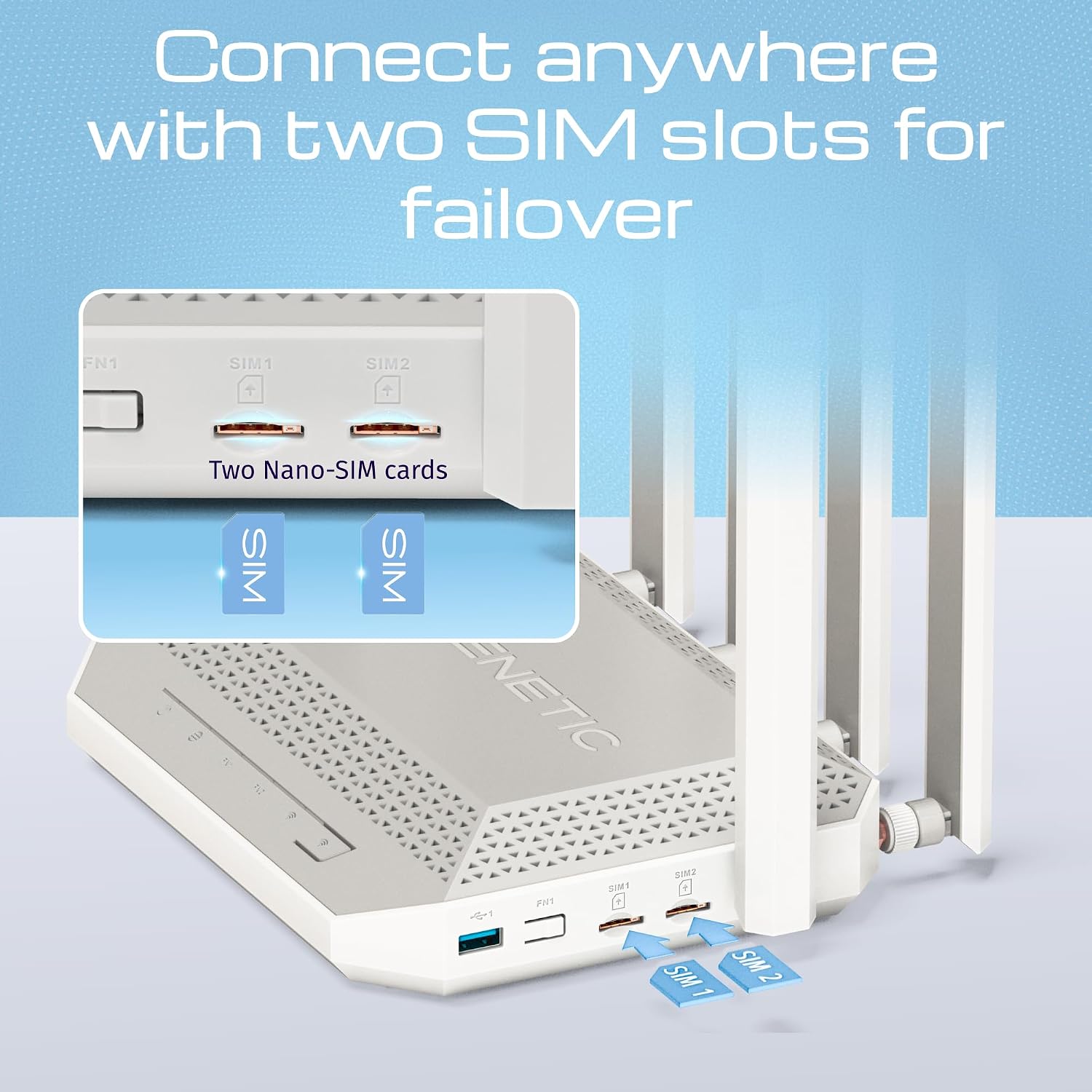
Figure 3: Detailed view of the dual Nano-SIM card slots on the Keenetic Hero 5G router.
- Ensure the router is powered off.
- Locate the SIM1 and SIM2 slots on the side of the router.
- Insert your Nano-SIM cards into the respective slots until they click into place. Ensure the correct orientation as indicated on the device.
- You can use one or two SIM cards for primary and backup internet connections.
4.2. Initial Network Connection
Connect the router to power and your devices.
- Connect the power adapter to the router's power input and plug it into an electrical outlet.
- Wait for the router to boot up. The indicator lights will show its status.
- For wired connection, connect your computer to one of the LAN ports using an Ethernet cable.
- For wireless connection, find the default Wi-Fi network name (SSID) and password printed on the label at the bottom of the router. Connect your device to this network.
4.3. Accessing the Web Interface
To configure your router, access its web interface:
- Open a web browser on a connected device.
- Enter the default IP address (usually
192.168.1.1ormy.keenetic.net) in the address bar and press Enter. - Log in using the default username and password (refer to the label on the router or the quick start guide).
- Follow the on-screen wizard for initial setup, including setting up your internet connection (5G or WAN), Wi-Fi name, and password.
5. Operation
5.1. 5G Mobile Connectivity
The Keenetic Hero 5G provides high-speed 5G LTE connectivity through its dual SIM slots.

Figure 4: The Keenetic Hero 5G router highlighting its 5G LTE and Wi-Fi 6 capabilities.
- The router automatically detects and connects to the 5G network using the installed SIM cards.
- You can configure primary and backup SIM cards for automatic failover in the web interface.
- Monitor signal strength and data usage through the KeeneticOS interface or the mobile app.
5.2. Wi-Fi 6 AX3000 Dual-Band Network
Experience enhanced Wi-Fi performance with Wi-Fi 6 technology across both 2.4 GHz and 5 GHz bands.

Figure 5: Illustration of dual-band Wi-Fi 6 AX3000 technology, showing the benefits of 2.4 GHz for range and 5 GHz for speed.
- 2.4 GHz Wi-Fi Network: Offers greater range and compatibility with older devices. Ideal for general browsing and smart home devices.
- 5 GHz Wi-Fi Network: Provides higher speeds and lower latency, suitable for streaming 4K content, online gaming, and other bandwidth-intensive applications.
- Manage Wi-Fi settings, including SSID, password, and security protocols (WEP, WPA2-PSK, WPA3), via the web interface.
5.3. Wired Connections
Connect your wired devices for stable and high-speed network access.

Figure 6: The router's rear ports, illustrating the 2.5-Gigabit LAN and three Gigabit LAN ports for various wired devices.
- Use the 2.5-Gigabit LAN port for devices like Network Attached Storage (NAS) or high-performance workstations.
- The three Gigabit LAN ports are suitable for Smart TVs, game consoles, and other standard wired devices.
- The WAN/LAN port can be configured as an additional LAN port if not used for an external internet connection.
5.4. USB Functions
The router includes USB 2.0 and USB 3.0 ports for versatile functionality.

Figure 7: Close-up of the USB 2.0 and USB 3.0 ports on the Keenetic Hero 5G router.
- Network Storage: Connect a USB drive to create network-attached storage (NAS) for file sharing and backup.
- Media Server: Set up a media server to stream content to smart TVs and other devices.
- Private Cloud: Access your files remotely via a private cloud setup.
- 4G USB Modems: Use compatible 4G USB modems for additional internet backup.
- VoIP Adapters: Connect Keenetic telephone adapters for VoIP functionality.
5.5. VPN and DNS Filtering
KeeneticOS supports various VPN protocols and DNS filtering options for enhanced security and privacy.

Figure 8: KeeneticOS support for over 50 VPN functions and DNS filters.
- VPN Client/Server: Configure VPN connections using protocols like WireGuard, OpenVPN, and IPSec.
- DNS Filters: Utilize services like AdGuard, Cloudflare, and OpenDNS for content filtering and improved security.
- These features are managed through the KeeneticOS web interface.
5.6. Mesh Wi-Fi and Smart Home Integration
Expand your Wi-Fi coverage and secure your smart home devices.

Figure 9: Smart Home & IoT readiness with network segmentation and cybersecurity.
- Mesh Wi-Fi: Create a seamless whole-home Wi-Fi system by adding compatible Keenetic Mesh extenders.
- Network Segmentation: Isolate smart home devices for enhanced security.
- Cybersecurity: Built-in features to protect your network and connected devices.
5.7. Keenetic App Management
Manage your network conveniently from your smartphone.

Figure 10: The Keenetic App for real-time network control.
- Download the Keenetic App from your device's app store.
- Monitor network status, connected devices, and traffic.
- Adjust Quality of Service (QoS) settings to prioritize specific devices or applications.
- Manage network rules and parental controls.
5.8. KeeneticOS Overview
The Keenetic Hero 5G runs on KeeneticOS, a modular operating system designed for reliability, security, and flexibility.

Figure 11: KeeneticOS, the reliable connectivity core, highlighting its key attributes.
- Always Updated, Always Secure: Regular updates ensure your router has the latest features and security patches.
- Unified Platform: A consistent experience across all Keenetic devices.
- Customizable and Modular: Add or remove components as needed to tailor functionality.
- Long-Term Value: Designed for longevity and adaptability to future networking needs.
6. Maintenance
6.1. Firmware Updates
Regularly update the router's firmware to ensure optimal performance, security, and access to new features.
- Access the KeeneticOS web interface.
- Navigate to the "System" or "Firmware" section.
- Check for available updates and follow the on-screen instructions to install them.
- It is recommended to perform updates during off-peak hours as the router will restart.
6.2. Factory Reset
If you encounter persistent issues or wish to clear all configurations, you can perform a factory reset.
- With the router powered on, locate the Reset button on the rear panel.
- Use a paperclip or a thin object to press and hold the Reset button for approximately 10 seconds.
- Release the button when the indicator lights change or the router restarts.
- The router will revert to its default factory settings, and you will need to reconfigure it.
7. Troubleshooting
7.1. No Internet Connection
- Check SIM Cards: Ensure SIM cards are correctly inserted and active. Verify your mobile data plan.
- Check WAN Connection: If using an external WAN, ensure the Ethernet cable is securely connected and the modem/ONT is working.
- Router Status: Check the router's indicator lights. Refer to the quick start guide for light meanings.
- Reboot: Power cycle the router (unplug, wait 30 seconds, plug back in).
- Web Interface: Access the web interface to check connection status and error messages.
7.2. Slow Wi-Fi Speed
- Interference: Move the router away from other electronic devices (microwaves, cordless phones) that may cause interference.
- Channel Selection: In the web interface, try changing the Wi-Fi channel for both 2.4 GHz and 5 GHz bands to a less congested one.
- Distance and Obstacles: Ensure devices are within optimal range and there are minimal physical obstructions.
- Band Selection: Connect devices to the 5 GHz band for higher speeds if they are close to the router.
- QoS Settings: Check if any QoS rules are limiting bandwidth for certain devices.
7.3. Cannot Access Web Interface
- IP Address: Ensure you are using the correct IP address (e.g.,
192.168.1.1) or hostname (my.keenetic.net). - Network Connection: Verify your device is connected to the router's network (wired or Wi-Fi).
- Browser Cache: Clear your browser's cache and cookies, or try a different browser.
- Firewall/Antivirus: Temporarily disable any firewall or antivirus software on your computer that might be blocking access.
8. Specifications
| Feature | Detail |
|---|---|
| Brand | Keenetic |
| Model Name | KN-4110-01-EU |
| Wi-Fi Generation | Wi-Fi 6 (802.11ax) |
| Data Transfer Rate | Up to 3000 Mbps |
| Frequency Band Class | Dual Band (2.4 GHz, 5 GHz) |
| Connectivity Technology | 5G, USB, Wi-Fi, Ethernet |
| LAN Port Bandwidth | 1 x 2.5 Gbit/s, 4 x 1 Gbit/s |
| USB Ports | USB 3.0, USB 2.0 |
| SIM Slots | 2 (Nano-SIM) |
| Operating System | KeeneticOS |
| Security Protocol | WEP, WPA2-PSK, WPA3 |
| Special Features | Alexa Compatible, QoS Function, Guest Mode |
| Weight | 698 Grams |
| Power Input | 12 Volt (DC) |
9. Warranty and Support
For warranty information, please refer to the documentation included with your product or visit the official Keenetic website. Technical support is available through the Keenetic support channels, which typically include online resources, FAQs, and customer service contact options.
Always ensure you have your product model number (KN-4110) and serial number ready when contacting support.