
Introduction
The Bigme B6 Color eReader is a 6-inch Android 14 e-paper tablet designed for an enhanced reading experience. It features a color E-ink display, adjustable front light, and supports various applications.

Image: The Bigme B6 Color eReader showcasing its slim design and key features like 300PPI HD display, 4 refresh modes, 4GB+64GB storage, Octa-Core CPU, app installation, Hi-Fi speakers, ultra-thin profile, and warm & cold front lights.
What's in the Box
Verify that all items are present in the package:
- 1 x Bigme B6 Color eReader
- 1 x User Manual
- 1 x Giftbox

Image: The Bigme B6 Color eReader, its user manual, and the gift box, illustrating the package contents.
Initial Setup
1. Charging the Device
Before first use, fully charge your Bigme B6 eReader. Connect the device to a power source using a compatible USB-C cable (not included) and power adapter. The charging indicator will show the charging status.
2. Powering On/Off
- Power On: Press and hold the power button (usually located on the side or top edge) for a few seconds until the screen illuminates.
- Power Off: Press and hold the power button, then select "Power Off" from the options that appear on the screen.
- Sleep Mode: Briefly press the power button to put the device into sleep mode and wake it up.
3. Initial Configuration
Upon first startup, follow the on-screen prompts to configure basic settings:
- Language Selection: Choose your preferred language.
- Wi-Fi Connection: Connect to a Wi-Fi network to enable internet access for downloading content and updates. Go to Settings > Network & Internet > Wi-Fi.
- Date and Time: Set the correct date and time, or enable automatic synchronization via network.
4. Google Account Setup
To access the Google Play Store and other Google services, sign in with your Google account. Go to Settings > Accounts > Add account > Google and follow the instructions.
Operating Instructions
1. Basic Navigation
The Bigme B6 features a responsive touchscreen for navigation.
- Tap: Select items or open applications.
- Swipe: Scroll through pages or lists.
- Pinch-to-Zoom: Adjust the zoom level in documents or images.

Image: The Bigme B6 Color eReader display showing various application icons like Calendar, Clock, Translator, Kindle, App Store, Floating Ball, Cloud, Gallery, App Management, Google Play, Music, and Browser.
2. Reading Books
Open your preferred reading application (e.g., Kindle, Google Play Books, or the built-in reader) to access your library.
- Opening a Book: Tap on the book cover in your library.
- Turning Pages: Tap on the left or right side of the screen, or swipe horizontally.
- Font and Display Settings: Most reading apps allow you to adjust font size, font style, line spacing, and margins for comfortable reading.

Image: A close-up of the Bigme B6 Color eReader screen displaying clear text, highlighting its 300PPI HD display, zero blue light, and flicker-free features for comfortable reading.
3. Screen Refresh Modes
The Bigme B6 offers multiple screen refresh modes to optimize performance for different content types. Access these settings through the quick settings panel or display settings.
- Default: Standard mode for general reading.
- Magazine: Optimized for images and graphics.
- Comics: Enhanced for comic books and graphic novels.
- Video: Provides a smoother experience for video playback, though battery consumption will be higher.

Image: The Bigme B6 Color eReader demonstrating its four full refresh modes: Default, Magazine, Comics, and Video, adapting to various reading scenarios.
4. Adjustable Front Light
The device features a 36-level adjustable dual front light (warm and cold) for comfortable reading in any lighting condition.
- Adjusting Brightness: Swipe down from the top of the screen to access the quick settings panel and adjust the light intensity.
- Warm/Cold Tone: Adjust the color temperature to suit your preference, with warmer tones for evening reading and cooler tones for daytime.

Image: The Bigme B6 Color eReader screen displaying a chat interface, with an illustration of the adjustable cold and warm light spectrum below, indicating its 36-level adjustable front light feature for day or night reading.
5. App Installation
As an Android 14 device, the Bigme B6 supports installing third-party applications.
- Google Play Store: Access the pre-installed Google Play Store to download a wide range of compatible Android apps, including additional reading platforms, productivity tools, and more.
- App Management: Manage installed applications through Settings > Apps.
6. Audiobook Functionality
The device supports audiobooks and features Hi-Fi speakers.
- Playing Audiobooks: Use compatible audiobook apps or the built-in media player to listen to audio content.
- Connecting Headphones: Connect Bluetooth headphones or speakers via Settings > Connected devices > Bluetooth for private listening.
7. Storage and File Management
The Bigme B6 comes with 64GB of internal storage and supports expansion up to 1TB via a microSD card (not included).
- Transferring Files: Connect the eReader to a computer using a USB-C cable to transfer e-books, audio files, and other documents. The device will appear as a removable storage device.
- MicroSD Card: Insert a microSD card into the designated slot to expand storage capacity.
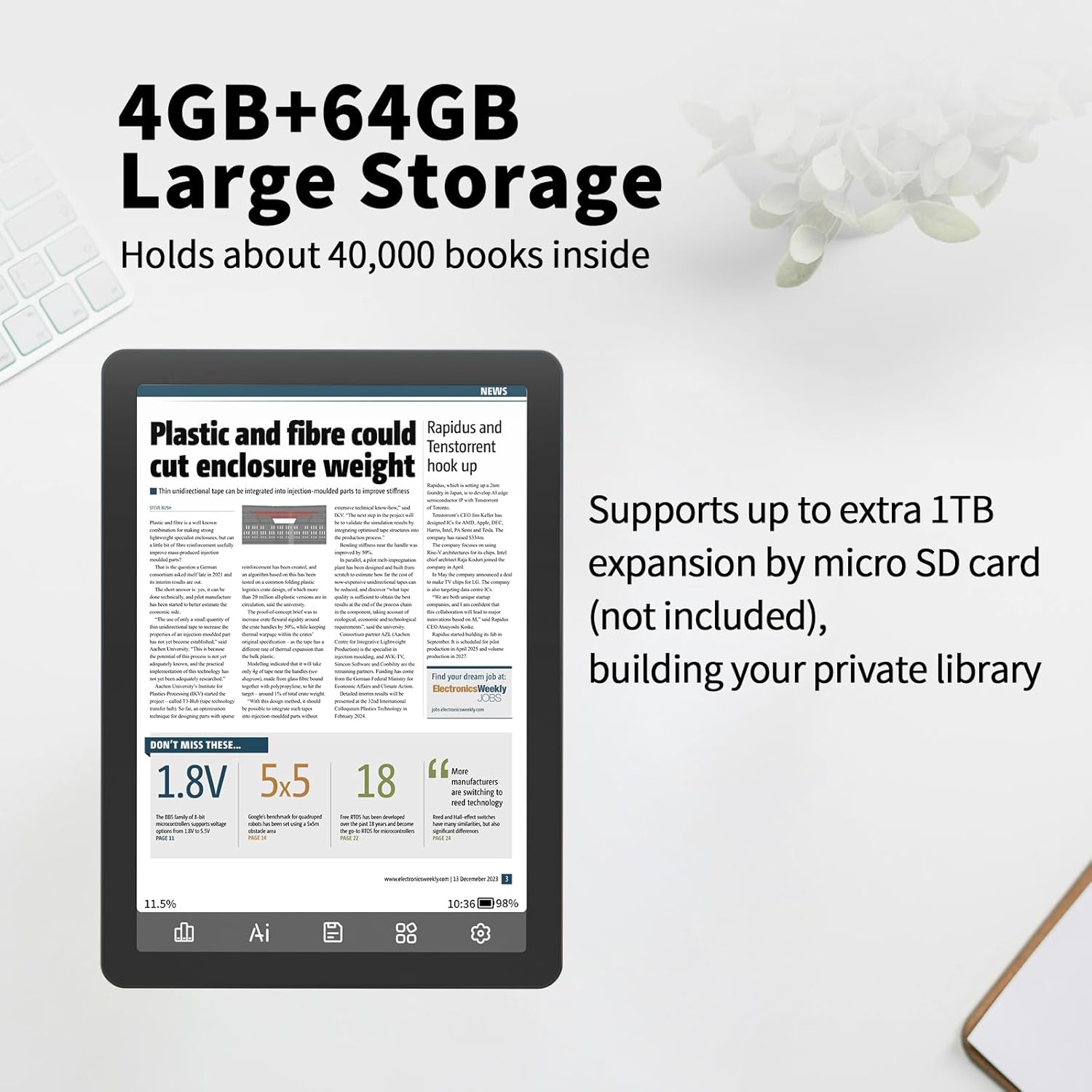
Image: The Bigme B6 Color eReader screen displaying a news article, with text indicating 4GB+64GB large storage (holds about 40,000 books) and support for up to 1TB expansion by micro SD card.
Maintenance
1. Cleaning the Device
- Use a soft, lint-free cloth to gently wipe the screen and body of the eReader.
- Avoid using harsh chemicals, abrasive cleaners, or excessive moisture.
2. Battery Care
- To prolong battery life, avoid fully discharging the battery frequently.
- Store the device in a cool, dry place when not in use for extended periods.
- Use only compatible chargers and cables.
3. Software Updates
Regularly check for and install software updates to ensure optimal performance and access to new features.
- Go to Settings > System > System update to check for available updates.
- Ensure the device is connected to Wi-Fi and has sufficient battery charge before starting an update.
Troubleshooting
- Device does not turn on:
- Ensure the battery is charged. Connect the device to a power source and try again. If unresponsive, press and hold the power button for 10-15 seconds to force a restart.
- Wi-Fi connection issues:
- Check if Wi-Fi is enabled in settings. Restart your router and the eReader. Verify the Wi-Fi password. Try connecting to a different network if available.
- Applications are slow or crashing:
- Close unused applications. Clear the cache of the problematic app (Settings > Apps > [App Name] > Storage & cache > Clear cache). Restart the device. Ensure the app is updated to the latest version.
- Screen display issues (ghosting, artifacts):
- E-ink screens may sometimes show minor ghosting. Perform a full screen refresh (often an option in quick settings or display settings) to clear the display. This is normal for E-ink technology.
- Device is unresponsive:
- Press and hold the power button for approximately 10-15 seconds to force a restart. If the issue persists, a factory reset may be necessary (Settings > System > Reset options > Erase all data (factory reset)). Note: A factory reset will erase all data on the device.
Specifications
| Feature | Detail |
|---|---|
| Brand | Bigme |
| Model Name | HKUS-B6-Black2 |
| Display Technology | Electronic Ink (Color) |
| Screen Size | 6 inches |
| Display Resolution | 1072x1448 (300PPI) |
| Operating System | Android 14 |
| Processor | Octa-Core (2.3GHZ) |
| RAM Memory | 4 GB |
| Internal Storage | 64 GB |
| Expandable Storage | Up to 1TB via Micro SD card (not included) |
| Connectivity | Bluetooth, Wi-Fi (2.4G & 5G) |
| Front Light | 36-level adjustable dual front light (warm & cold) |
| Human-Interface Input | Touchscreen |
| Supported File Formats | DOC/DOCX, EPUB, HTML/HTM, MOBI, PDF, TXT |
| Product Dimensions | 5.3"L x 3.8"W x 0.2"Th |
| Item Weight | 175 g |
| Battery Type | Lithium-Ion |
Warranty Information
The Bigme B6 Color eReader comes with a 1-year manufacturer's warranty. This warranty covers defects in materials and workmanship under normal use.
For warranty claims or detailed information, please refer to the warranty card included in your product packaging or contact Bigme customer support.
Customer Support
If you encounter any issues not covered in this manual or require further assistance, please contact Bigme customer support.
Contact information can typically be found on the Bigme official website or within the product packaging.


