
Introduction
The Monster BC300 Open Ear Bone Conduction Swimming Headphones are designed for active lifestyles, offering an open-ear listening experience combined with IPX8 waterproofing and integrated MP3 storage. This manual provides detailed instructions for the proper use, maintenance, and troubleshooting of your headphones to ensure optimal performance and longevity.
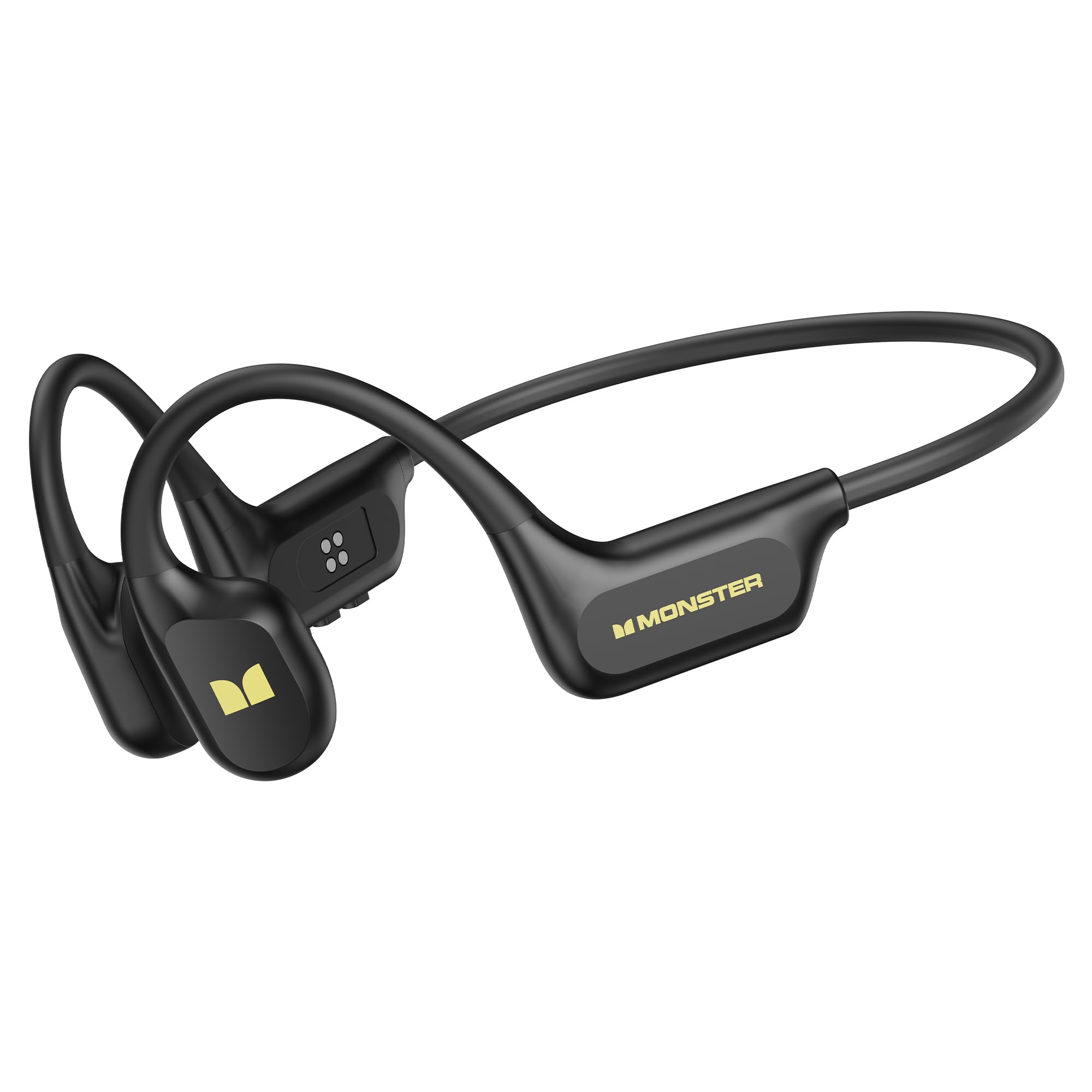
Image: The Monster BC300 Open Ear Bone Conduction Headphones, showcasing their design.
1. Setup Guide
1.1 What's in the Box
- Monster BC300 Open Ear Bone Conduction Headphones
- Magnetic Charging Cable
- User Guide (this document)

Image: An illustration showing the Monster BC300 headphones, magnetic charging cable, and quick start guide.
1.2 Initial Charging
Before first use, fully charge your BC300 headphones. Connect the magnetic charging cable to the charging port on the headphones and plug the USB end into a power source (e.g., computer USB port or USB wall adapter). The charging indicator will show the charging status. A full charge takes approximately 2 hours.
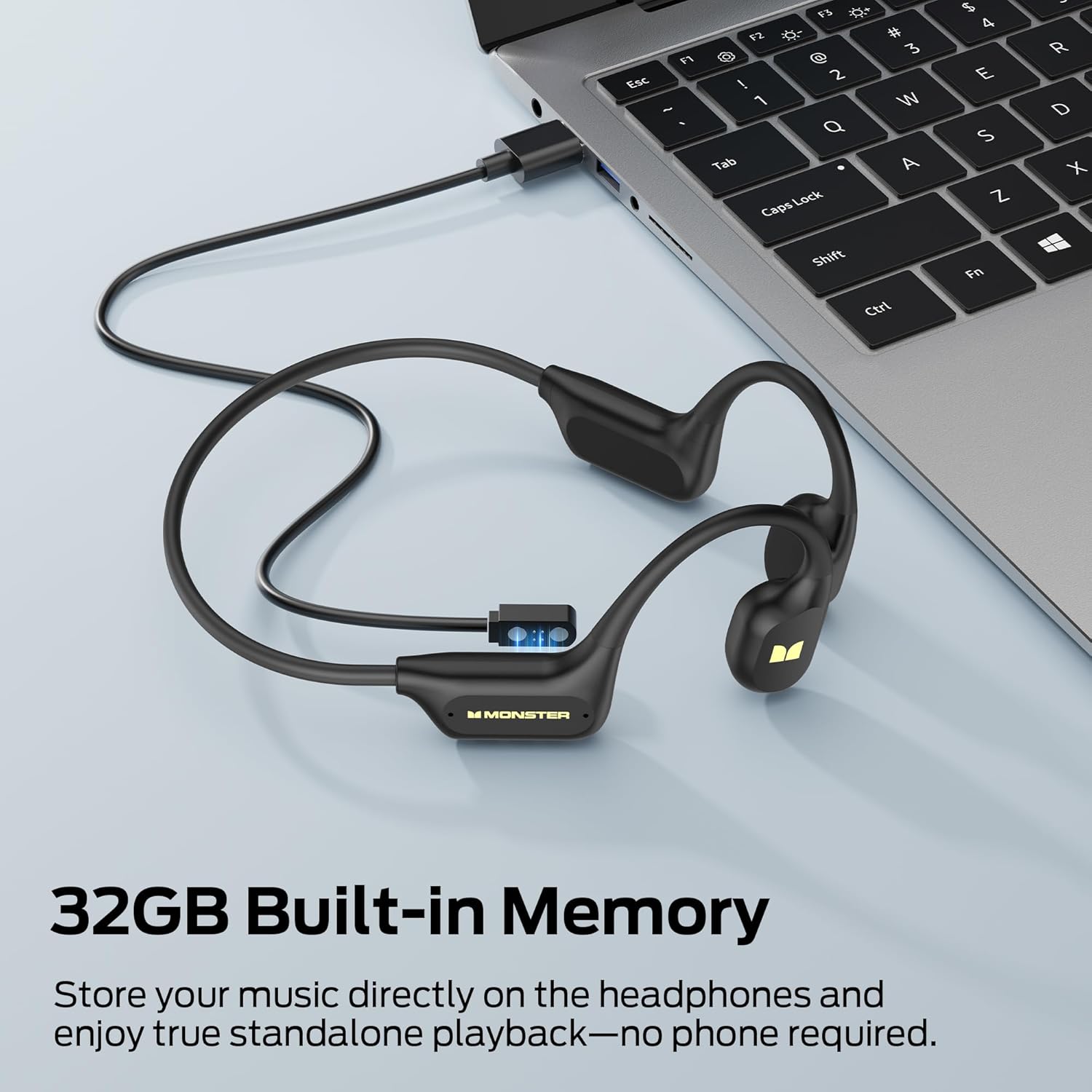
Image: The Monster BC300 headphones connected via their magnetic charging cable to a laptop, illustrating the charging process and the 32GB built-in memory feature.
1.3 Powering On/Off
- Power On: Press and hold the Multi-function button for 3 seconds until the indicator light flashes and you hear a power-on prompt.
- Power Off: Press and hold the Multi-function button for 5 seconds until the indicator light turns off and you hear a power-off prompt.
1.4 Bluetooth Pairing
After powering on, the headphones will automatically enter pairing mode if not connected to a previously paired device. The indicator light will flash red and blue. On your device (smartphone, tablet, etc.):
- Go to your device's Bluetooth settings.
- Search for available devices.
- Select "Monster BC300" from the list.
- Once connected, the indicator light will turn solid blue, and you will hear a connection prompt.
The headphones support Bluetooth 6.0 for stable connections and an extended range of up to 33 feet (10 meters).

Image: An internal diagram highlighting the Bluetooth 6.0 chip within the Monster BC300 headphones, indicating stable connections and lower power usage.
1.5 MP3 Mode File Transfer
The BC300 headphones feature 32GB of built-in storage for MP3 files, allowing for phone-free listening, especially useful for swimming. To transfer files:
- Connect the headphones to your computer using the magnetic charging cable.
- The headphones will appear as a removable disk drive on your computer.
- Drag and drop your MP3 audio files into the headphone's storage folder.
- Safely eject the device from your computer before disconnecting the cable.
Note: Underwater use is supported in MP3 mode only, as water interferes with Bluetooth signal transmission.
2. Operating Instructions
2.1 Wearing the Headphones
Place the headphones around the back of your head with the ear hooks resting over your ears and the transducers positioned on your cheekbones, just in front of your ears. Adjust for a comfortable and secure fit. The flexible memory frame and soft silicone ear hooks ensure stability during activities.

Image: A person wearing the Monster BC300 headphones during a workout, demonstrating the secure and comfortable fit.

Image: A cyclist wearing the Monster BC300 headphones, highlighting the open-ear design that allows awareness of surroundings for safety.
2.2 Button Functions
The headphones feature intuitive button controls for various functions:
- Multi-function Button:
- Press once: Play/Pause music, Answer/End call.
- Press and hold (3s): Power On.
- Press and hold (5s): Power Off.
- Double press: Redial last number.
- Volume Up (+) Button:
- Press once: Increase volume.
- Press and hold: Next track.
- Volume Down (-) Button:
- Press once: Decrease volume.
- Press and hold: Previous track.
- Mode Switch Button:
- Press and hold Volume Up and Volume Down simultaneously for 2 seconds: Switch between Bluetooth mode and MP3 mode.

Image: An illustration detailing the functions of the multi-function button and volume buttons on the Monster BC300 headphones for easy control.
2.3 Making and Receiving Calls
When connected via Bluetooth:
- Answer Call: Press the Multi-function button once.
- End Call: Press the Multi-function button once during a call.
- Reject Call: Press and hold the Multi-function button for 2 seconds.
- Redial: Double-press the Multi-function button.
The dual noise-cancelling microphones ensure clear communication.
2.4 Underwater Use (MP3 Mode Only)
The BC300 headphones are IPX8 waterproof, suitable for submersion up to two meters deep for two hours. For underwater listening, ensure you are in MP3 mode. Bluetooth signals do not transmit effectively through water.

Image: A person swimming underwater with the Monster BC300 headphones, demonstrating their IPX8 waterproof capability.
3. Maintenance
3.1 Cleaning
Regular cleaning helps maintain the headphones' performance and hygiene:
- Wipe the headphones with a soft, damp cloth after each use, especially after workouts or swimming, to remove sweat, chlorine, or salt water.
- Ensure the charging port is dry before connecting the magnetic charging cable.
- Do not use abrasive cleaners or solvents.
3.2 Storage
Store the headphones in a cool, dry place away from direct sunlight and extreme temperatures. Avoid placing heavy objects on them or bending the frame excessively.
3.3 Battery Care
To prolong battery life:
- Charge the headphones regularly, even if not used frequently.
- Avoid fully discharging the battery for extended periods.
- Do not expose the headphones to temperatures above 60°C (140°F).
4. Troubleshooting
| Problem | Possible Cause | Solution |
|---|---|---|
| Headphones do not power on. | Low battery. | Charge the headphones for at least 30 minutes. |
| Cannot pair via Bluetooth. | Headphones not in pairing mode; device's Bluetooth off; too far from device. | Ensure headphones are in pairing mode (flashing red/blue). Turn device's Bluetooth off and on. Move headphones closer to the device. |
| No sound or low volume. | Volume too low; headphones not connected; incorrect mode. | Increase volume on both headphones and connected device. Re-pair headphones. Ensure correct mode (Bluetooth or MP3) is selected. |
| MP3 files not playing. | Not in MP3 mode; no files transferred; incompatible file format. | Switch to MP3 mode. Verify files are transferred correctly. Ensure files are in MP3 format. |
| Charging issues. | Cable not connected properly; faulty cable/adapter; charging port wet. | Ensure magnetic cable is securely attached and dry. Try a different USB port or adapter. Clean and dry the charging port. |
5. Technical Specifications
| Brand | Monster |
| Model Number | BC300 |
| Color | Black |
| Ear Placement | Open Ear (Bone Conduction) |
| Water Resistance Level | IPX8 (Waterproof) |
| Connectivity Technology | Bluetooth |
| Bluetooth Version | 6.0 |
| Bluetooth Range | 33 Feet (10 meters) |
| Built-in Storage | 32GB (up to 8,000 songs) |
| Battery Life | Up to 10 hours |
| Battery Charge Time | 2 hours |
| Frequency Range | 20Hz - 20,000Hz |
| Audio Driver Type | Bone Conduction Driver |
| Control Type | Button Control |
| Enclosure Material | Plastic, Silicone, Memory Frame |
| Compatible Devices | Smartphones, Tablets, Laptops, Desktops, Smart Speakers |
6. Warranty Information
The Monster BC300 headphones come with a 1-Year Manufacturer Warranty. This warranty covers defects in materials and workmanship under normal use. It does not cover damage caused by misuse, accidents, unauthorized modifications, or normal wear and tear. Please retain your proof of purchase for warranty claims.
7. Customer Support
For further assistance, technical support, or warranty inquiries, please visit the official Monster website or contact their customer service department. Refer to the packaging or the official Monster website for the most current contact information.
You can also refer to the Monster Store on Amazon for additional product information and resources.


