
Introduction
This manual provides essential information for setting up, operating, and maintaining your GIGABYTE M27Q2 27-inch QHD Gaming Monitor. The M27Q2 features a 27-inch SuperSpeed IPS display with Quantum Dot Technology, offering a QHD (2560x1440) resolution, a 200Hz (overclockable to 210Hz) refresh rate, and a 1ms GTG response time. It includes Type-C KVM functionality for seamless device switching and supports AMD FreeSync Premium and NVIDIA G-SYNC Compatible technologies for a smooth gaming experience.
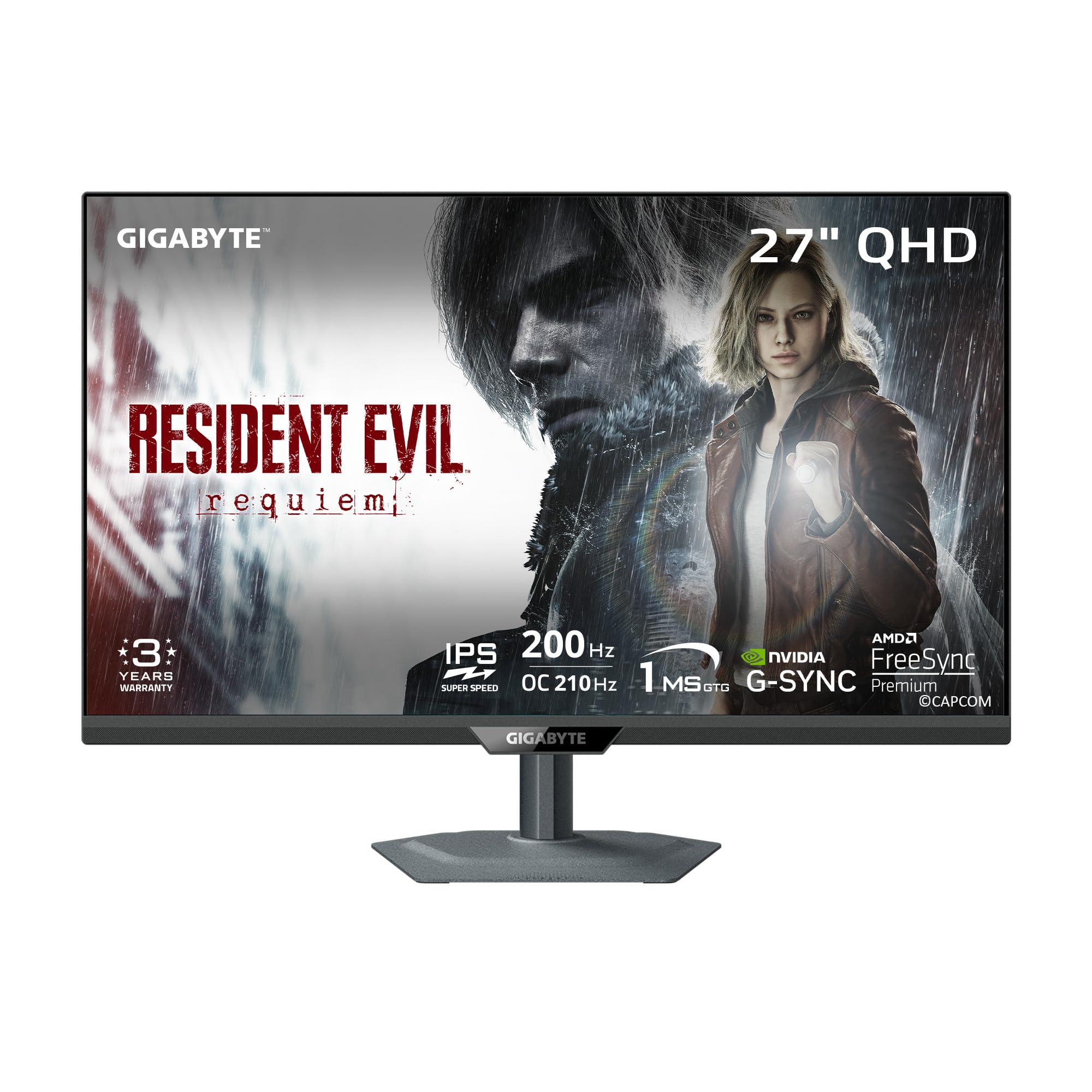
Image: Front view of the GIGABYTE M27Q2 monitor on its stand.
Package Contents
Verify that all items listed below are present in your package. If any items are missing or damaged, contact your retailer.
- Base Unit (Monitor)
- Power cable
- DP cable (DisplayPort cable)
- USB cable
- QSG/Warranty card (Quick Start Guide and Warranty card)

Image: The GIGABYTE M27Q2 monitor displayed next to its retail packaging, showing included accessories.
Setup
1. Assembling the Stand
- Carefully remove the monitor and stand components from the packaging.
- Attach the stand base to the stand neck, securing it with the provided screw.
- Align the assembled stand with the mounting points on the back of the monitor.
- Secure the stand to the monitor using the designated screws or locking mechanism.
2. VESA Wall Mount Installation (Optional)
The monitor supports VESA 100x100mm mounting. If using a VESA mount, remove the original stand and attach the VESA mount bracket to the monitor's rear panel. Ensure the VESA mount is rated for the monitor's weight.

Image: Illustration of the monitor's adjustable stand and a close-up showing the VESA 100x100mm mounting area on the back.
3. Connecting Cables
- Power Cable: Connect the power cable to the monitor's power input and then to a power outlet.
- Video Cable: Connect a DisplayPort (DP) cable, HDMI cable, or USB Type-C cable from your computer's graphics card to the corresponding input on the monitor. For optimal performance (200Hz/210Hz QHD), a DisplayPort 1.4 or USB Type-C (DP Alt Mode) connection is recommended.
- USB Upstream Cable: Connect the USB upstream cable (USB Type-B to USB Type-A) from the monitor to your computer to enable the monitor's USB ports and KVM functionality.
- USB Type-C: If your device supports USB Type-C with DisplayPort Alternate Mode and power delivery, a single USB Type-C cable can provide video, data, and power.

Image: Diagram illustrating the various input/output ports on the back of the GIGABYTE M27Q2 monitor, including HDMI, DisplayPort, USB Type-C, USB 3.2 (downstream), USB 3.2 (upstream), and Earphone Jack.
Operating the Monitor
Power On/Off
Press the power button, usually located on the back or bottom of the monitor, to turn it on or off. The power indicator light will illuminate when the monitor is active.
On-Screen Display (OSD) Menu
Use the joystick or buttons on the back/bottom of the monitor to navigate the OSD menu. This menu allows you to adjust various settings such as brightness, contrast, color modes, input source, and gaming features.
Refresh Rate and Response Time
The M27Q2 offers a native 200Hz refresh rate, overclockable to 210Hz, and a 1ms GTG response time. These settings are crucial for smooth motion in fast-paced games. Ensure your graphics card and connection type support these rates. You may need to adjust the refresh rate in your operating system's display settings.

Image: A split screen comparison on the GIGABYTE M27Q2 monitor, demonstrating the visual difference between 1ms response time at 200Hz and 5ms response time at 60Hz in a gaming scenario.
KVM Feature
The integrated KVM (Keyboard, Video, Mouse) feature allows you to control multiple devices (e.g., two computers) using a single keyboard, mouse, and monitor setup. Connect your keyboard and mouse to the monitor's USB downstream ports, and connect the monitor's USB upstream port to each computer. Use the dedicated KVM switch button on the monitor to toggle control between connected devices.
Adjustable Stand and VESA Mount
The monitor's ergonomic stand provides flexibility for optimal viewing comfort:
- Height Adjustment: Up to 130mm.
- Tilt: -5° to +21°.
- Swivel: ±15°.
- Pivot: 0° to +90° (for portrait mode).
For alternative mounting solutions, the monitor is compatible with VESA 100x100mm standards, allowing attachment to wall mounts or monitor arms (sold separately).
Connectivity
The GIGABYTE M27Q2 monitor offers a variety of input and output ports:
- 2 x HDMI 2.0 ports
- 1 x DisplayPort 1.4 port
- 1 x USB Type-C port (supports DisplayPort Alternate Mode and KVM)
- 3 x USB 3.0 Type-A downstream ports
- 1 x USB 3.0 Type-B upstream port
- 1 x Earphone Jack
Maintenance
To ensure the longevity and optimal performance of your monitor, follow these maintenance guidelines:
- Cleaning the Screen: Gently wipe the screen with a soft, lint-free cloth. For stubborn marks, use a screen-specific cleaning solution applied to the cloth, not directly to the screen.
- Cleaning the Casing: Use a soft, dry cloth to clean the monitor casing. Avoid abrasive cleaners or solvents.
- Ventilation: Ensure the monitor's ventilation openings are clear and not obstructed to prevent overheating.
- Power Off: Always turn off the monitor and unplug it from the power outlet before cleaning or if it will be unused for an extended period.
Troubleshooting
If you encounter issues with your GIGABYTE M27Q2 monitor, refer to the following common troubleshooting steps:
- No Power:
- Check if the power cable is securely connected to both the monitor and the power outlet.
- Verify the power outlet is functional.
- No Signal/Blank Screen:
- Ensure the video cable (DP, HDMI, or USB-C) is firmly connected to both the monitor and your computer.
- Confirm the correct input source is selected on the monitor via the OSD menu.
- Test with a different video cable or port if available.
- Ensure your computer is powered on and not in sleep mode.
- Image Flickering/Distortion:
- Check the video cable for damage or loose connections.
- Adjust the refresh rate in your computer's display settings to match the monitor's capabilities.
- Disable any overclocking settings if recently applied.
- KVM Not Switching:
- Ensure the USB upstream cable is connected from the monitor to both computers.
- Verify that the KVM switch button is being pressed correctly.
- Check if the USB devices (keyboard/mouse) are connected to the correct downstream ports on the monitor.
- Dead/Stuck Pixels:
- While rare, a small number of dead or stuck pixels are inherent to LCD/IPS technology and may not be considered a defect under warranty. Refer to GIGABYTE's pixel policy for details.
Specifications
| Brand | GIGABYTE |
| Model Number | M27Q2 |
| Screen Size | 27 Inches |
| Resolution | QHD Wide 1440p (2560 x 1440 Pixels) |
| Panel Type | SS IPS (SuperSpeed IPS) with Quantum Dot Technology |
| Refresh Rate | 200 Hz (OC 210 Hz) |
| Response Time | 1 Millisecond (GTG) |
| Adaptive Sync | AMD FreeSync Premium, NVIDIA G-SYNC Compatible |
| Brightness | 350 Candela per Square Meter |
| Contrast Ratio | 1000:1 |
| Color Gamut | 99% DCI-P3, 99% Adobe RGB |
| HDR Support | VESA DisplayHDR 400 |
| Viewing Angle | 178 Degrees (Horizontal/Vertical) |
| Connectivity | 2x HDMI 2.0, 1x DisplayPort 1.4, 1x USB Type-C, 3x USB 3.0 Type-A, 1x USB 3.0 Type-B, 1x Earphone Jack |
| Ergonomics | Height, Tilt, Swivel, Pivot Adjustment |
| VESA Mount | 100x100mm |
| Dimensions (WxDxH) | 24.09" x 7.56" x 20.26" (with stand) |
| Color | Black |
Warranty and Support
GIGABYTE provides a 3-year manufacturer warranty for the M27Q2 monitor. This warranty covers defects in materials and workmanship under normal use. For warranty claims, technical support, or service inquiries, please refer to the contact information provided on the included QSG/Warranty card or visit the official GIGABYTE support website.
For the most up-to-date drivers, firmware, and support resources, please visit the GIGABYTE official website.


