
Introduction
The Pomya 2 Key Mini Keypad is a compact, programmable USB mechanical keyboard designed to enhance your gaming experience and streamline workflow with custom shortcuts. Featuring durable red mechanical switches and an aluminum alloy construction, this keypad offers a comfortable and responsive user experience. Its customizable RGB LED lighting adds a personalized touch to your setup.

Image: The Pomya 2 Key Mini Keypad positioned on a desk, showcasing its compact design and two large keys, with a computer setup in the background.
Package Contents
Please verify that all items are present in the package:
- 1 x Pomya 2 Key Mini Keypad
- 1 x USB Data Cable
- 1 x User Manual (this document)
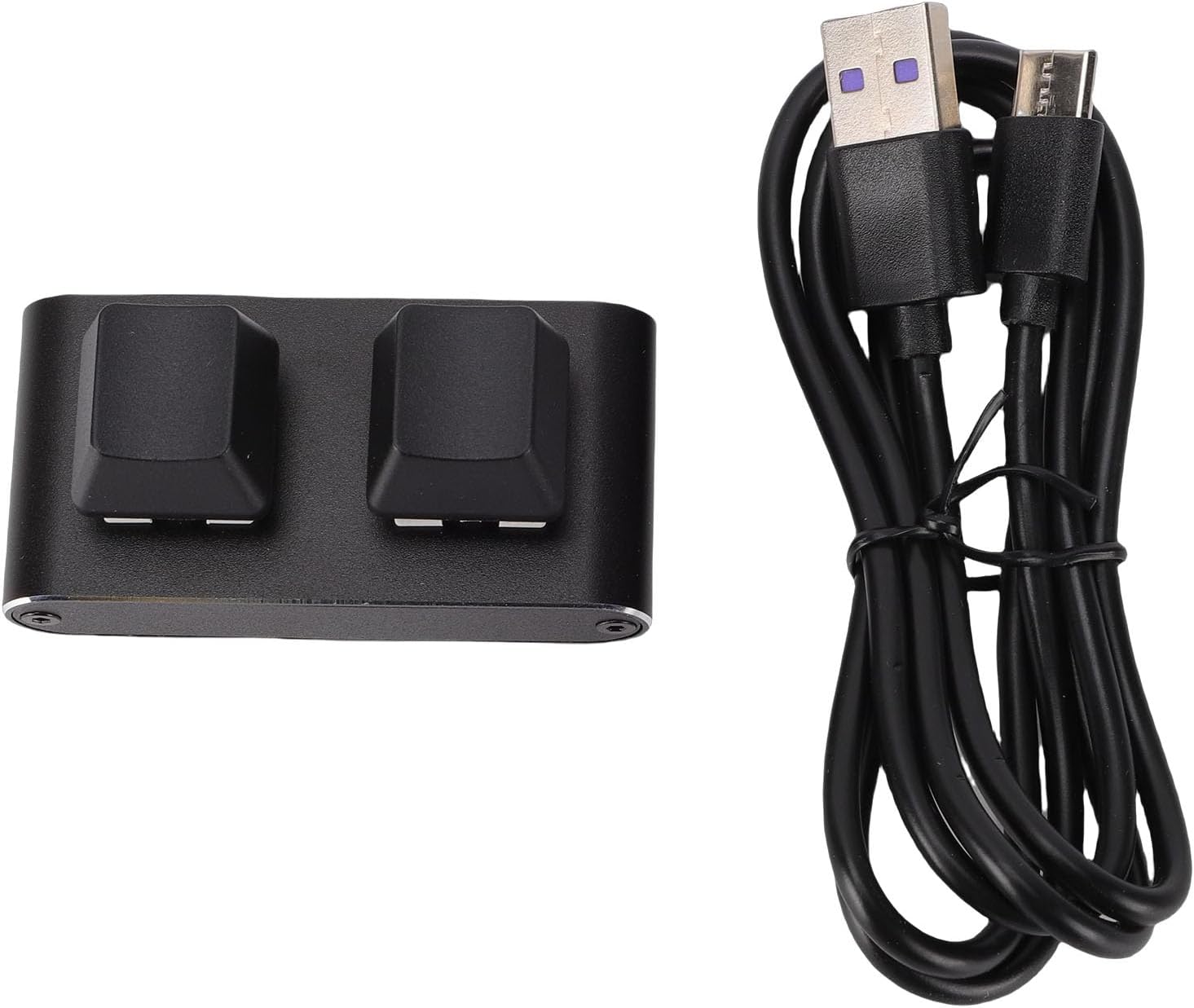
Image: The Pomya 2 Key Mini Keypad displayed alongside its USB data cable, illustrating the items included in the package.
Setup
- Connect the Keypad: Insert the USB data cable into the USB-C port on the back of the Pomya 2 Key Mini Keypad.
- Connect to Computer: Plug the other end of the USB data cable into an available USB port on your computer.
- System Recognition: The keypad is plug-and-play and should be automatically recognized by your operating system (Windows, Vista, Linux, OS X). No drivers are typically required for basic functionality.
- Programming Software: To customize the key functions and RGB LED settings, you will need to download the dedicated programming software. Please refer to the official Pomya website for the latest software and instructions. (Note: Specific software download links are not provided in this manual.)
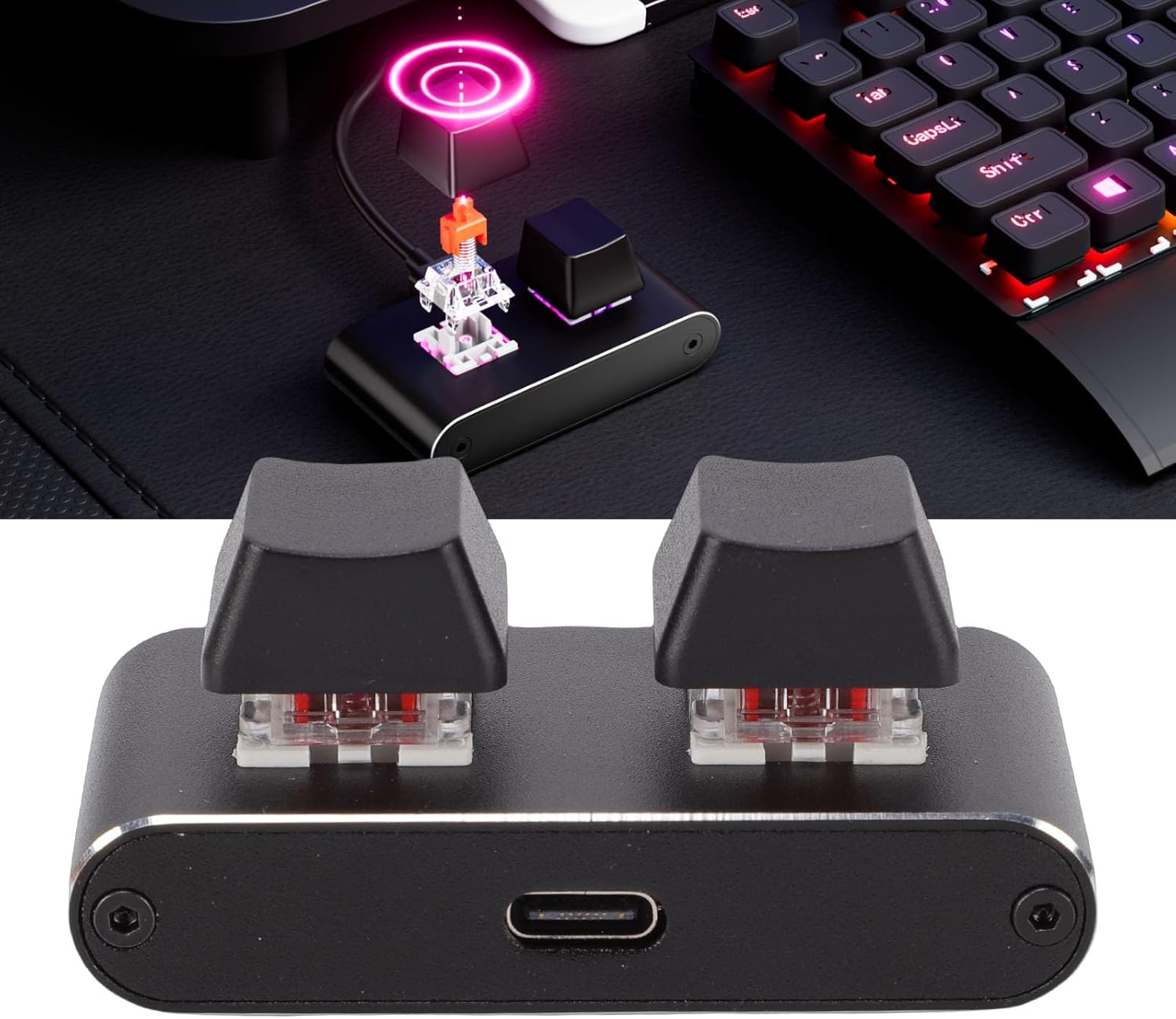
Image: A detailed view of the USB-C connection port on the keypad, highlighting where the data cable should be inserted.
Operating Instructions
Basic Operation
Once connected, the keypad will function immediately with its default settings. The two mechanical keys are ready for use. For basic tasks, simply press the keys as you would on a standard keyboard.
Customizing Key Functions
The primary feature of this keypad is its programmability. To assign custom functions, macros, or shortcuts to each key:
- Ensure the keypad is connected to your computer.
- Launch the Pomya programming software (downloaded during setup).
- Within the software interface, select the key you wish to program.
- Assign the desired function (e.g., single key press, key combination, macro sequence, multimedia control).
- Save the changes to the keypad's onboard memory. The settings will persist even when the keypad is disconnected.
RGB LED Lighting
The keypad features customizable RGB LED lighting. The lighting effects and colors can typically be adjusted through the dedicated programming software. Refer to the software's user guide for detailed instructions on lighting customization.

Image: The keypad displaying its customizable RGB LED lighting, illustrating the visual feedback feature.
Maintenance
Cleaning
- Disconnect the keypad from your computer before cleaning.
- Use a soft, dry cloth to wipe the surface of the keypad.
- For stubborn dirt, a slightly damp cloth with a mild cleaning solution can be used, ensuring no liquid enters the key switches or USB port.
- Avoid using harsh chemicals, abrasive cleaners, or solvents.
Storage
When not in use for extended periods, store the keypad in a cool, dry place away from direct sunlight and extreme temperatures.
Troubleshooting
| Problem | Possible Cause | Solution |
|---|---|---|
| Keypad not recognized by computer. | Loose USB connection, faulty USB port, or damaged cable. |
|
| Keys are not responding or performing incorrect actions. | Incorrect programming, software conflict, or hardware issue. |
|
| RGB LED lighting is not working or incorrect. | Lighting settings not configured, or software issue. |
|
Specifications
| Brand | Pomya |
| Model Name | Pomyalvsqzk064g |
| Item Type | Programmable 2 Key Keyboard |
| Connection | USB Wired |
| Key Type | Red Switch Mechanical Keyboard |
| Material | Aluminum alloy |
| Compatible Devices | Laptop |
| Supported Operating Systems | Windows, Vista, Linux, OS X |
| Special Feature | Adjustable (likely referring to programmable keys/RGB) |
Warranty Information
This product is covered by a manufacturer's warranty for 90 days from the date of purchase. Please retain your proof of purchase for warranty claims. The warranty covers defects in materials and workmanship under normal use. It does not cover damage caused by misuse, accident, unauthorized modification, or external causes.
Customer Support
For further assistance, technical support, or inquiries regarding your Pomya 2 Key Mini Keypad, please visit the official Pomya store or contact their customer service.