
Introduction
This manual provides essential information for the safe and efficient use of your YQSAVIOR 7-inch Android 14 Tablet. Please read this manual thoroughly before operating the device and retain it for future reference.
Package Contents
Verify that all items are present in your package:
- YQSAVIOR 7-inch Android 14 Tablet (Model YQ-Q8M)
- Protective Case
- USB Charging Cable
- Power Adapter
- User Manual (this document)
Device Overview
Familiarize yourself with the tablet's physical features.
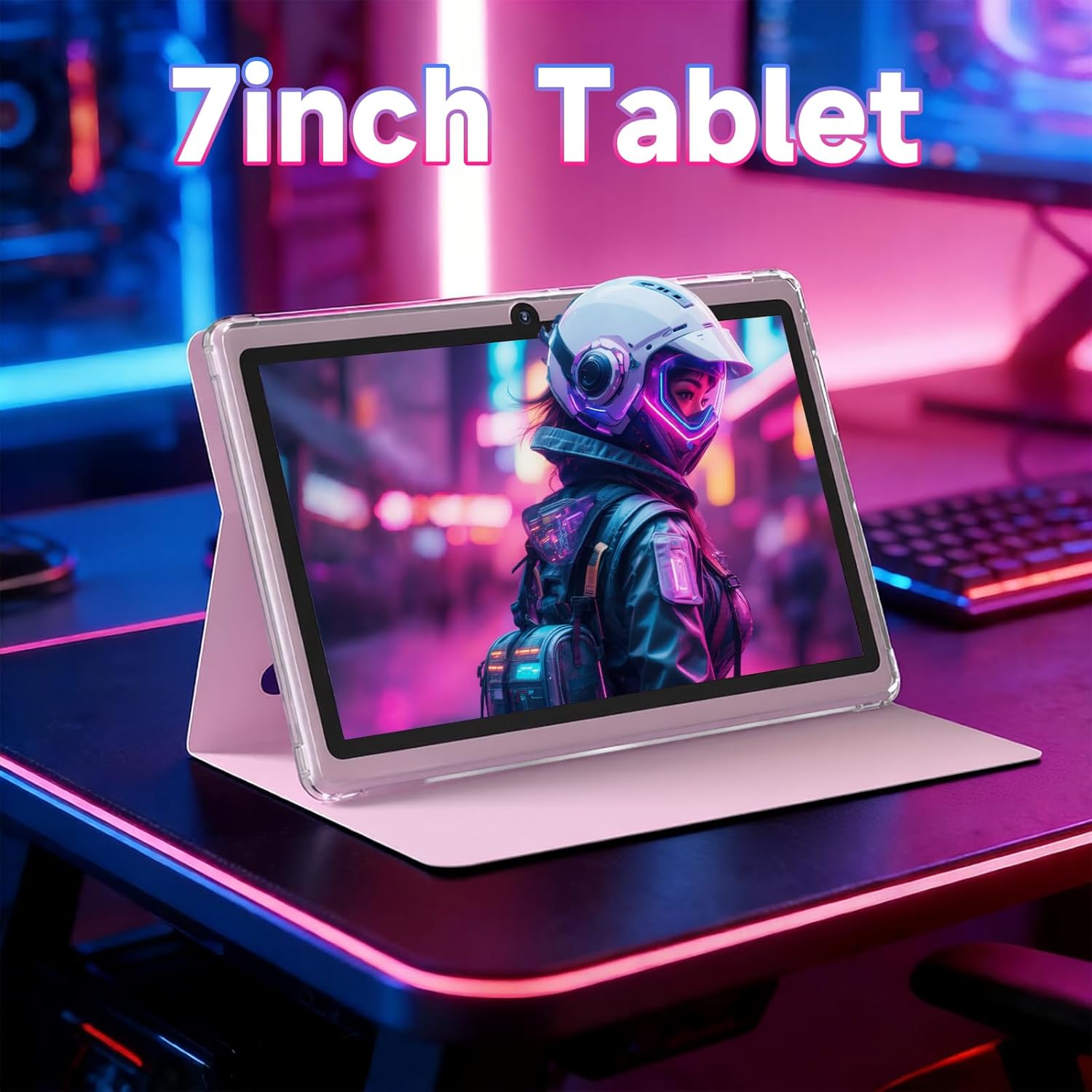
Image: Front view of the YQSAVIOR 7-inch Android 14 Tablet, showcasing its display.
Key Components:
- Power Button: Located on the side, used to turn the tablet on/off or put it to sleep.
- Volume Buttons: Adjust audio levels.
- USB-C Port: For charging and data transfer.
- Headphone Jack: 3.5mm port for audio output.
- MicroSD Card Slot: Expand storage capacity.
- Front Camera: For video calls and selfies (2MP).
- Rear Camera: For photos and videos (5MP).
- Speakers: Audio output.
- Microphone: For voice input.

Image: Close-up view of the tablet's top edge, highlighting the front (2MP) and back (5MP) cameras.
Setup
1. Initial Charging
Before first use, fully charge the tablet. Connect the USB charging cable to the tablet's USB-C port and the power adapter, then plug the adapter into a wall outlet. The charging indicator will show the charging status.
2. Powering On/Off
- To Power On: Press and hold the Power button until the YQSAVIOR logo appears.
- To Power Off: Press and hold the Power button until the power options menu appears, then select "Power off."
- To Restart: Press and hold the Power button until the power options menu appears, then select "Restart."
- To Sleep/Wake: Briefly press the Power button.
3. Initial Configuration
Upon first power-on, follow the on-screen prompts to set up your tablet:
- Select your language.
- Connect to a Wi-Fi network.
- Sign in with your Google Account or create a new one. This is necessary for accessing the Google Play Store and other Google services.
- Review and accept the terms and conditions.
- Set up screen lock (PIN, pattern, or password) for security.
Operating Instructions
1. Basic Navigation
- Touch: Tap an icon to open an app or select an item.
- Touch and Hold: Press and hold an item to access additional options or move it.
- Swipe: Drag your finger across the screen to scroll through pages or content.
- Pinch: Use two fingers to zoom in or out on images and web pages.
2. Connecting to Wi-Fi
- Go to Settings > Network & internet > Wi-Fi.
- Toggle Wi-Fi On.
- Select your desired network from the list.
- Enter the password if prompted, then tap Connect.

Image: Illustrates the tablet's internal components, highlighting the Quad-Core Processor and 5G WiFi capabilities.
3. Bluetooth Pairing
- Go to Settings > Connected devices > Connection preferences > Bluetooth.
- Toggle Bluetooth On.
- The tablet will scan for available devices. Select your device from the list and follow pairing instructions.
4. Storage Management
Your tablet comes with 32GB of internal storage. You can expand this:
- MicroSD Card: Insert a microSD card (up to 1TB) into the designated slot to increase storage for photos, videos, and documents.
- Managing Storage: Go to Settings > Storage to view usage and manage files.

Image: Tablet screen displaying the Android app drawer and indicating mass storage space for applications and media.
5. Camera Usage
Open the Camera app from the home screen or app drawer.
- Tap the shutter button to take a photo.
- Switch between front and rear cameras using the camera toggle icon.
- Select video mode to record videos.
6. App Management
- Install Apps: Download apps from the Google Play Store.
- Uninstall Apps: Touch and hold an app icon, then drag it to "Uninstall" or go to Settings > Apps > See all apps, select the app, and tap "Uninstall."
- Update Apps: Apps are typically updated automatically via the Google Play Store. You can manually check for updates within the Play Store app.
7. Widevine L1 Support
Your tablet supports Widevine L1, enabling high-definition streaming content from compatible services like Netflix, Amazon Prime Video, and Disney+.
Maintenance
1. Cleaning
- Use a soft, lint-free cloth to clean the screen and body.
- Avoid using harsh chemicals, abrasive cleaners, or aerosol sprays.
- Do not spray cleaners directly onto the tablet.
2. Software Updates
Regularly check for and install system updates to ensure optimal performance and security.
- Go to Settings > System > System update.
- Follow the on-screen instructions to download and install any available updates.
3. Battery Care
- Avoid extreme temperatures, which can degrade battery life.
- Do not leave the tablet charging for extended periods after it is fully charged.
- If storing the tablet for a long time, charge it to about 50% and power it off.
Troubleshooting
Common Issues and Solutions:
| Problem | Solution |
|---|---|
| Tablet does not turn on | Ensure the battery is charged. Connect to the charger for at least 30 minutes, then try powering on. |
| Slow performance / Lags | Close unused apps, clear cache (Settings > Storage), restart the tablet, or consider a factory reset if issues persist (back up data first). |
| Battery drains quickly | Reduce screen brightness, disable Wi-Fi/Bluetooth when not in use, close background apps, check for app battery usage in Settings > Battery. |
| Cannot connect to Wi-Fi | Ensure Wi-Fi is enabled, restart the tablet and router, verify password, or try forgetting and re-connecting to the network. |
| Apps crashing | Clear the app's cache and data (Settings > Apps > [App Name] > Storage & cache), update the app, or reinstall it. |
If problems persist, contact YQSAVIOR customer support.
Specifications
| Feature | Detail |
|---|---|
| Brand | YQSAVIOR |
| Model Name | YQ-Q8M |
| Operating System | Android 14 |
| Processor | Quad-Core Processor |
| RAM | 8 GB (3GB physical + 5GB virtual expansion) |
| Internal Storage | 32 GB |
| Expandable Storage | Up to 1 TB via MicroSD card |
| Screen Size | 7 inches |
| Display Resolution | 1024 x 600 pixels |
| Display Type | LED IPS |
| Front Camera | 2 MP |
| Rear Camera | 5 MP |
| Wi-Fi Connectivity | 802.11ac/b/g/n (supports 5GHz Wi-Fi) |
| Bluetooth | Yes |
| Battery Capacity | 3000 mAh Lithium Ion |
| Average Battery Life | Up to 6 hours |
| Special Features | Fast Charging, GMS Certified, Widevine L1 |
| Dimensions (L x W x Th) | 7" x 4" x 0.35" |
| Human-Interface Input | Touchscreen |
Warranty
Your YQSAVIOR tablet comes with a 1-Year Limited Warranty from the date of purchase. This warranty covers manufacturing defects under normal use. It does not cover damage caused by misuse, accidents, unauthorized modifications, or normal wear and tear.
Please retain your proof of purchase for warranty claims.
Support
For technical assistance, warranty claims, or further inquiries, please contact YQSAVIOR customer support through the retailer where you purchased the product or visit the official YQSAVIOR website for contact information.

