
1. Introduction
The FIRSTNUM M6 Mobile Hotspot provides portable Wi-Fi connectivity, allowing you to connect multiple devices to the internet in over 160 countries. This manual provides instructions for setup, operation, maintenance, and troubleshooting to ensure optimal performance of your device.
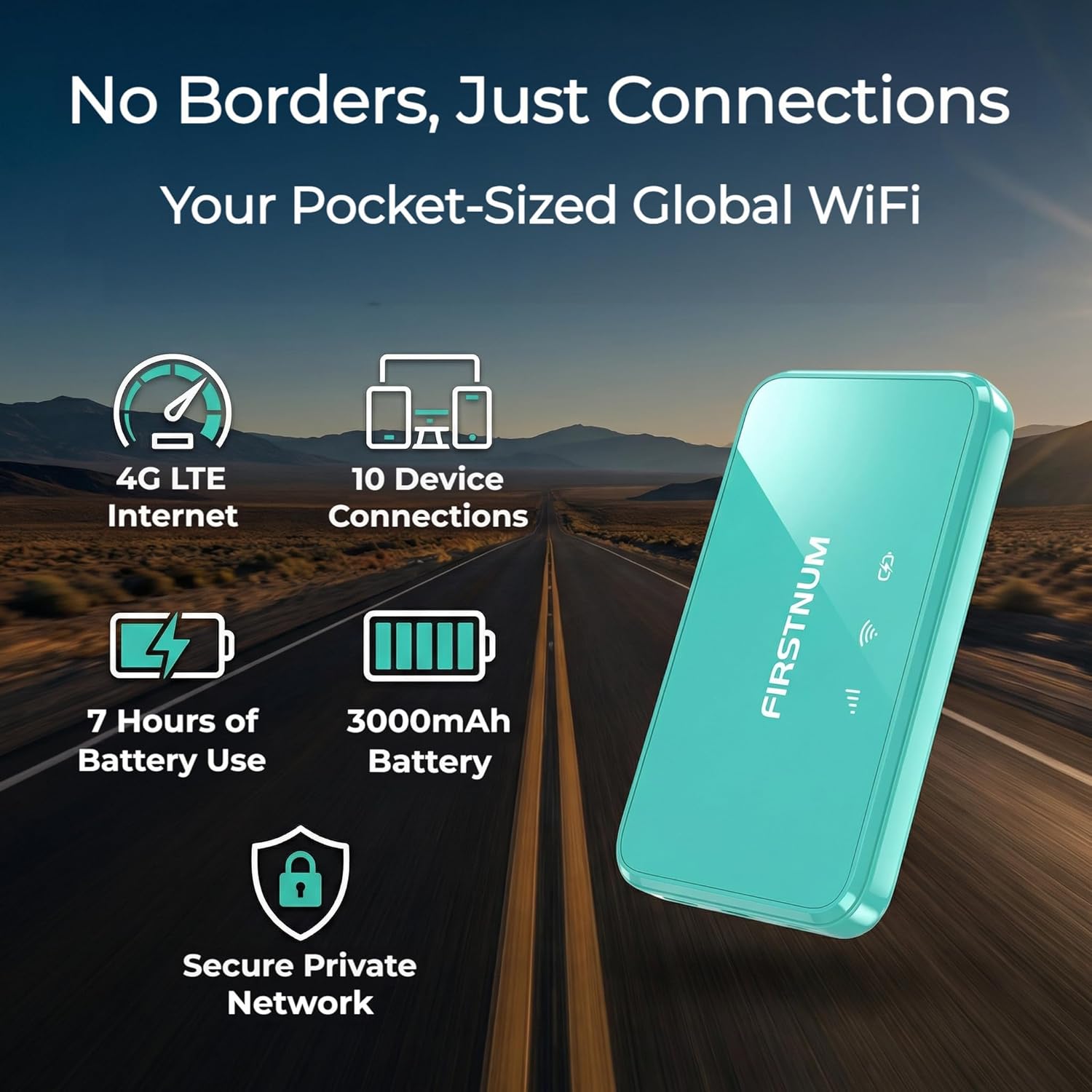
Image: The FIRSTNUM M6 Mobile Hotspot device, showcasing its compact design.

Image: Overview of FIRSTNUM M6 Mobile Hotspot features, including 4G LTE internet, connectivity for up to 10 devices, 7 hours of battery use, a 3000mAh battery, and a secure private network.
2. Package Contents
Ensure all items are present in the package:
- FIRSTNUM M6 Mobile Hotspot Device
- Charging Cable
- 3000mAh Battery
- User Manual (this document)
3. Setup Guide
Follow these steps to set up your FIRSTNUM M6 Mobile Hotspot for the first time.
3.1 Initial Device Assembly and Power On
- Open the Battery Cover: Locate the battery cover on the device. Carefully open it to access the battery compartment. Take note of the Wi-Fi Name (SSID) and Wi-Fi Password printed on the label inside.
- Install the Battery: Insert the provided 3000mAh battery into the compartment, ensuring correct polarity. Close the battery cover securely.
- Power On the Device: Press and hold the power button until the device powers on and indicators light up.

Image: Visual instructions for opening the battery cover, installing the battery, and powering on the device. The label inside the device shows the default Wi-Fi name and password.
3.2 Connecting to Wi-Fi
- Connect to Wi-Fi: On your smartphone, tablet, or computer, go to your Wi-Fi settings. Find the Wi-Fi network name (SSID) that matches the one on the label inside your M6 hotspot (e.g., FN_M6_XX). Select it and enter the Wi-Fi password.
4. Operating Instructions
Learn how to use your FIRSTNUM M6 Mobile Hotspot for internet access.
4.1 Data Plan Activation and Recharge
The FIRSTNUM M6 operates on a prepaid data model. You can activate and recharge data plans as needed.
- Scan QR Code: Open your phone's camera and point it at the small label inside the device (or on the packaging) to scan the QR code. This will provide a link to the data top-up page.
- Select Data Plan: On the webpage, scroll down to select your country and desired data plan (e.g., 1GB monthly global data, US unlimited daily/monthly plans).
- Enter Information and Pay: Provide the required information and proceed with payment to activate your chosen data plan.

Image: Step-by-step guide for charging data, including scanning a QR code, selecting a data plan, and entering payment information. Examples of US data plans are also shown.
4.2 Connecting Multiple Devices
The FIRSTNUM M6 Mobile Hotspot supports connecting up to 10 devices simultaneously. Simply connect each device to the hotspot's Wi-Fi network using the SSID and password.
4.3 Secure and Private Connection
The device utilizes advanced security protocols like WPA2-PSK and WPA3 to provide a secure and private Wi-Fi connection, protecting your data from public Wi-Fi risks.
5. Maintenance
Proper maintenance ensures the longevity and optimal performance of your FIRSTNUM M6 Mobile Hotspot.
- Battery Care: The device includes a 3000mAh battery. For best battery life, avoid extreme temperatures and fully discharge and recharge the battery periodically. Use only the provided charging cable or a compatible charger.
- Cleaning: Use a soft, dry cloth to clean the exterior of the device. Avoid using liquid cleaners or abrasive materials.
- Storage: When not in use for extended periods, store the device in a cool, dry place.
6. Troubleshooting
If you encounter issues with your FIRSTNUM M6, refer to the following troubleshooting steps.
6.1 Checking Signal Strength
To ensure your device is receiving adequate signal, check the signal strength:
- Connect to Wi-Fi: Connect your device (e.g., smartphone) to the M6 hotspot's Wi-Fi network.
- Access Web Interface: Open a web browser and enter
192.168.1.1in the address bar. Log in using the default username and password (usually 'admin' for both, check device label if different). - Find Signal Strength: On the dashboard, locate the 'Signal Strength' indicator. It will display a value in dBm.
Signal Strength Guide:
- Strong Signal: -50 to -70 dBm
- Medium Signal: -71 to -85 dBm
- Weak Signal: -86 to -100 dBm
- No Signal: < -100 dBm
Note: If the signal is weak or non-existent, move to an area with better network coverage. Poor local signal may prevent the product from registering on the network.

Image: Instructions for checking signal strength through the hotspot's web interface, including signal strength indicators and their corresponding dBm values.
6.2 No Internet Connection (with Normal Signal)
If your device shows a normal signal but you cannot access the internet:
- Confirm Signal: Ensure your M6 hotspot indicates a strong or medium signal.
- Check Data Balance: Scan the QR code (as described in Section 4.1) to go to the data top-up page and confirm you have remaining data.
- Reboot MiFi: Access the web interface (
192.168.1.1), navigate to the settings, and select 'Reboot MiFi' to perform a factory reset. Remember your Wi-Fi info will revert to default. - Restart Device: Wait 15 minutes after the MiFi reboot, then long-press the power button to restart the device.
Image: Troubleshooting guide for no network despite normal signal, detailing steps to confirm signal, check data, reboot MiFi, and restart the device.
7. Specifications
| Feature | Description |
|---|---|
| Brand | FIRSTNUM |
| Model Name | FIRSTNUM M6 |
| Special Feature | LED Indicator |
| Frequency Band Class | Single-Band |
| Wireless Communication Standard | 802.11a, 802.11ax, 802.11b, 802.11g, 802.11n |
| Compatible Devices | Personal Computer, Security Camera, Smart Television, Smartphone, Tablet |
| Connectivity Technology | LTE, Wi-Fi |
| Color | Powderblue |
| Operating System | FIRSTNUM Proprietary OS |
| Security Protocol | WPA2-PSK, WPA3 |
| LAN Port Bandwidth | 100 Mbps |
| Battery | 3000mAh |
8. Warranty Information
The FIRSTNUM M6 Mobile Hotspot comes with a 60-day warranty from the date of purchase. This warranty covers manufacturing defects under normal use. Please retain your proof of purchase for warranty claims.
The warranty does not cover damage caused by misuse, accidents, unauthorized modifications, or natural disasters.
9. Customer Support
For further assistance, technical support, or inquiries regarding your FIRSTNUM M6 Mobile Hotspot, please refer to the following resources:
- Online Support: Visit the official FIRSTNUM website for FAQs, updated manuals, and support contact information.
- Email Support: Contact customer service via the email address provided on the product packaging or official website.