
1. Product Overview
The MOKiN USB-C Hub 7-in-1 is a versatile adapter designed to expand the connectivity of your USB-C enabled devices. It integrates multiple essential ports into a single compact unit, providing enhanced functionality for various applications.
Key Features:
- 7-in-1 Port Expansion: Includes 1x HDMI (4K@60Hz), 3x USB 3.1 (10Gbps), 1x USB-C (data), 1x USB 2.0 (480Mbps), 1x RJ45 Gigabit Ethernet, and 1x USB-C PD (100W charging).
- High-Resolution Video Output: Supports 4K@60Hz HDMI output for clear and vibrant visuals, suitable for presentations, video editing, and entertainment.
- Power Delivery (PD) Charging: The USB-C PD port supports up to 100W input (85W output to host device), allowing you to charge your laptop or device while using other hub functions.
- High-Speed Data Transfer: USB 3.1 ports offer data transfer speeds up to 10Gbps, and the USB 2.0 port up to 480Mbps. The dedicated USB-C data port also supports high-speed transfers.
- Stable Wired Network: The RJ45 Ethernet port provides a stable and fast wired internet connection up to 1Gbps, minimizing latency compared to Wi-Fi.
- Wide Compatibility: Compatible with a broad range of USB-C devices including MacBook Pro/Air, MacBook M1/M2, iMac, iPad Pro, Dell XPS, Surface, HP, and more. Supports Windows, macOS, iPadOS, and Android operating systems.
- Durable Design: Constructed from high-quality aluminum alloy for efficient heat dissipation and enhanced durability, featuring overcurrent protection for safe operation.

Figure 1: MOKiN 7-in-1 USB-C Hub showing all available ports and their specifications.
2. Setup Instructions
Follow these steps to set up your MOKiN USB-C Hub:
- Connect to Host Device: Plug the integrated USB-C cable of the MOKiN Hub into an available USB-C port on your laptop, tablet, or smartphone. Ensure your device's USB-C port supports data transfer and video output (DisplayPort Alternate Mode) for full functionality.
- Power Connection (Optional but Recommended): For stable operation, especially when using multiple high-power devices or external displays, connect your original USB-C power adapter to the USB-C PD port on the hub. This will provide power to both the hub and your host device.
- Connect Peripherals:
- HDMI Display: Connect an HDMI cable from the hub's HDMI port to your external monitor or TV.
- USB Devices: Plug in your USB flash drives, external hard drives, keyboards, mice, or other USB peripherals into the USB 3.1 or USB 2.0 ports.
- Ethernet Cable: For a stable wired network connection, connect an Ethernet cable to the RJ45 port on the hub.
- USB-C Data Devices: Connect any USB-C data peripherals to the dedicated USB-C data port.
- Driver Installation: The MOKiN USB-C Hub is generally plug-and-play and does not require additional drivers for most operating systems (Windows, macOS, iPadOS, Android). If any issues arise, ensure your device's operating system is up to date.
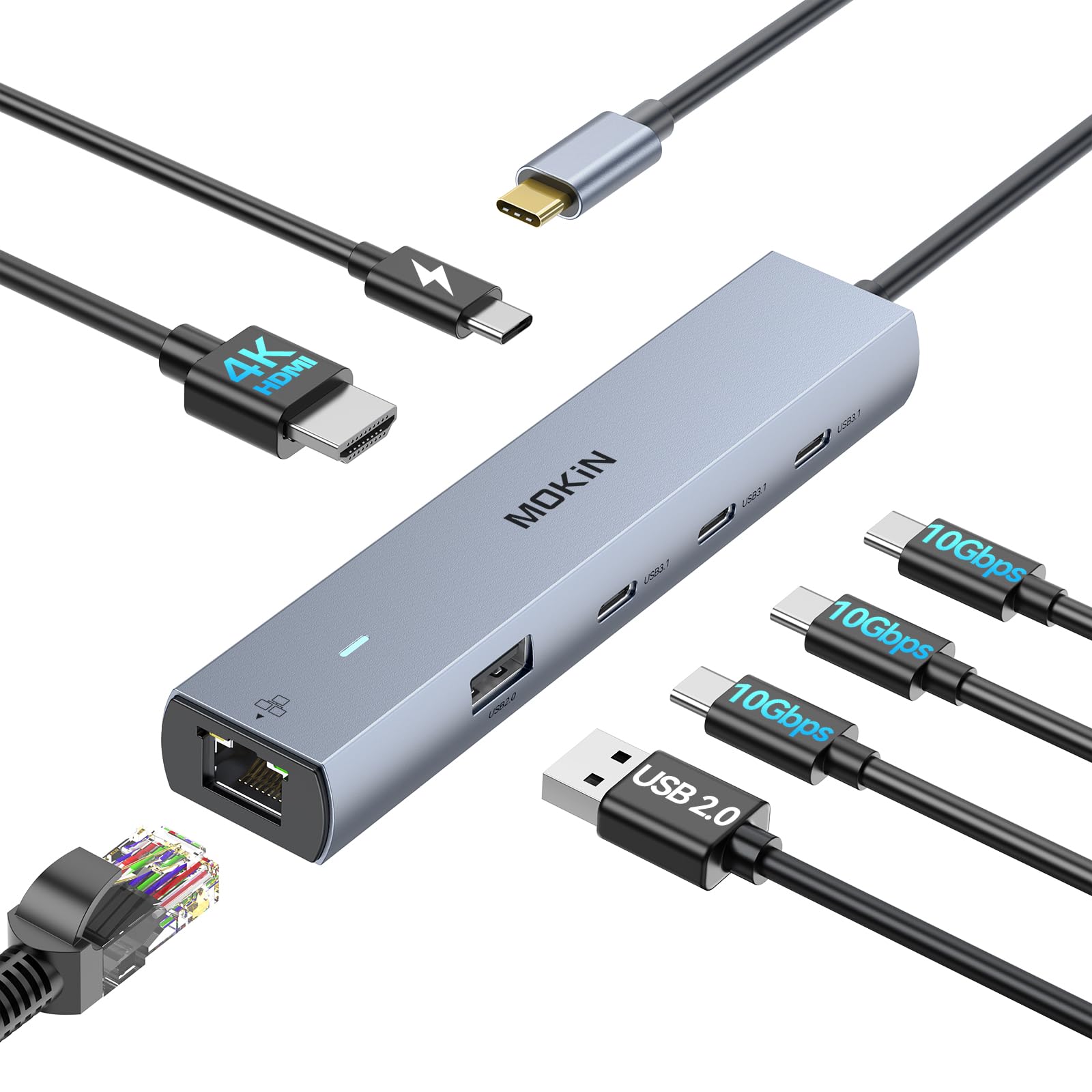
Figure 2: The MOKiN USB-C Hub connected to a laptop, demonstrating its compact size and multiple port access.
3. Operating Instructions
3.1. HDMI Video Output
Connect an HDMI-enabled display to the hub's HDMI port. Your host device should automatically detect the external display. You can configure display settings (mirror, extend) through your operating system's display settings.
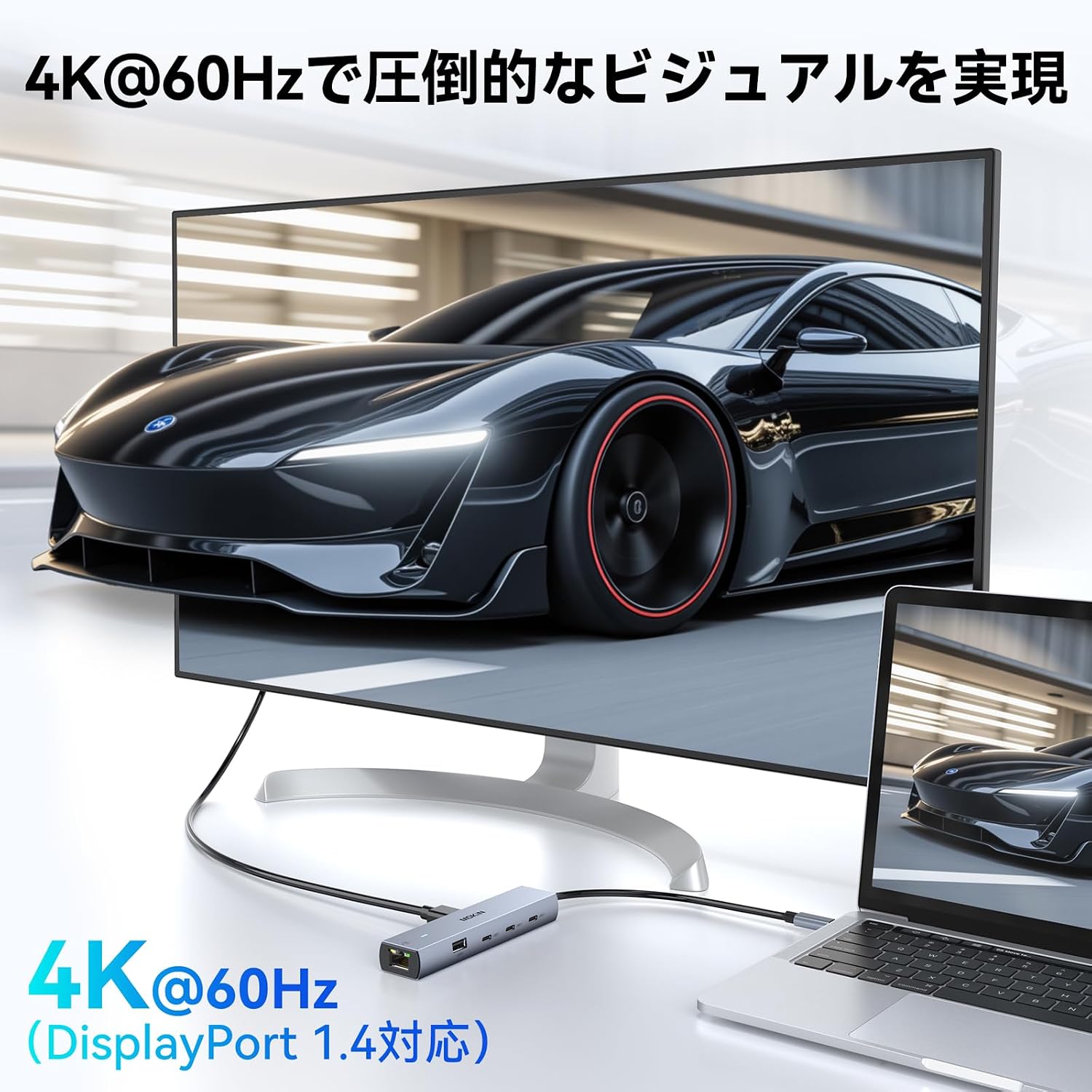
Figure 3: A laptop displaying content on an external 4K monitor through the MOKiN USB-C Hub.
3.2. USB Data Transfer
Plug your USB devices into the available USB 3.1 (10Gbps) or USB 2.0 (480Mbps) ports. For USB-C peripherals, use the dedicated USB-C data port. The hub supports simultaneous connection of multiple USB devices.

Figure 4: The MOKiN USB-C Hub facilitating high-speed data transfer between a laptop and external USB storage devices.
3.3. RJ45 Ethernet Connection
Connect an Ethernet cable from your router or network switch to the RJ45 port on the hub. This provides a stable and high-speed wired network connection up to 1Gbps.

Figure 5: The MOKiN USB-C Hub providing a stable wired Ethernet connection to a laptop.
3.4. Power Delivery (PD) Charging
To charge your host device through the hub, connect a USB-C power adapter (up to 100W) to the hub's USB-C PD port. The hub will pass through power to your device while allowing you to use all other ports simultaneously. The hub itself consumes some power, so the actual output to your device will be approximately 85W.

Figure 6: The MOKiN USB-C Hub enabling 100W Power Delivery charging for a connected laptop.
4. Maintenance
- Cleaning: Use a soft, dry cloth to clean the hub. Avoid using liquid cleaners or aerosols.
- Storage: Store the hub in a cool, dry place away from direct sunlight and extreme temperatures.
- Handling: Avoid dropping or subjecting the hub to strong impacts. The aluminum alloy construction is durable but can be damaged by excessive force.
- Heat Dissipation: The aluminum casing is designed for efficient heat dissipation. Ensure the hub is not covered or placed in an enclosed space during operation to allow for proper airflow.
5. Troubleshooting
| Problem | Possible Cause | Solution |
|---|---|---|
| No display output via HDMI. |
|
|
| USB devices are not recognized or disconnect frequently. |
|
|
| Ethernet connection is unstable or not working. |
|
|
| Host device is not charging via PD port. |
|
|
| Multi-display not working as expected on macOS. | macOS typically supports only Single Stream Transport (SST) mode. | On macOS, external displays will either mirror your primary display or extend it as a single additional display. MST (Multi-Stream Transport) for multiple independent external displays is generally not supported by macOS. |
6. Specifications
| Brand | MOKiN |
| Model Number | MOUC6006 |
| Color | Gray |
| Material | Aluminum Alloy, Plastic |
| Input Interface | USB-C |
| Output Ports |
|
| Supported Operating Systems | Windows, macOS, iPadOS, Android |
| Item Weight | Approximately 120.5g |
| Dimensions (Approx.) | 14 cm x 6 cm x 1.6 cm |
7. Warranty and Support
7.1. Warranty Information
This MOKiN product comes with a 24-month warranty from the date of purchase. This warranty covers manufacturing defects and issues arising from normal use.
Warranty Exclusions: The warranty does not cover damages caused by intentional misuse, unauthorized modifications, accidents, or improper handling by the customer or third parties.
7.2. Customer Support
For any questions, technical assistance, or warranty claims, please contact MOKiN customer support. Japanese language support is available.
Please refer to the contact information provided with your purchase or visit the official MOKiN website for support details.


