
1. Overview
This manual provides instructions for the PICKUTS VSeeBox V6 Plus Remote Control, designed as a replacement or secondary remote for your VSeeBox V6 Plus system. It features a backlit keypad, Bluetooth connectivity, and voice command capabilities for enhanced navigation and control of your entertainment.
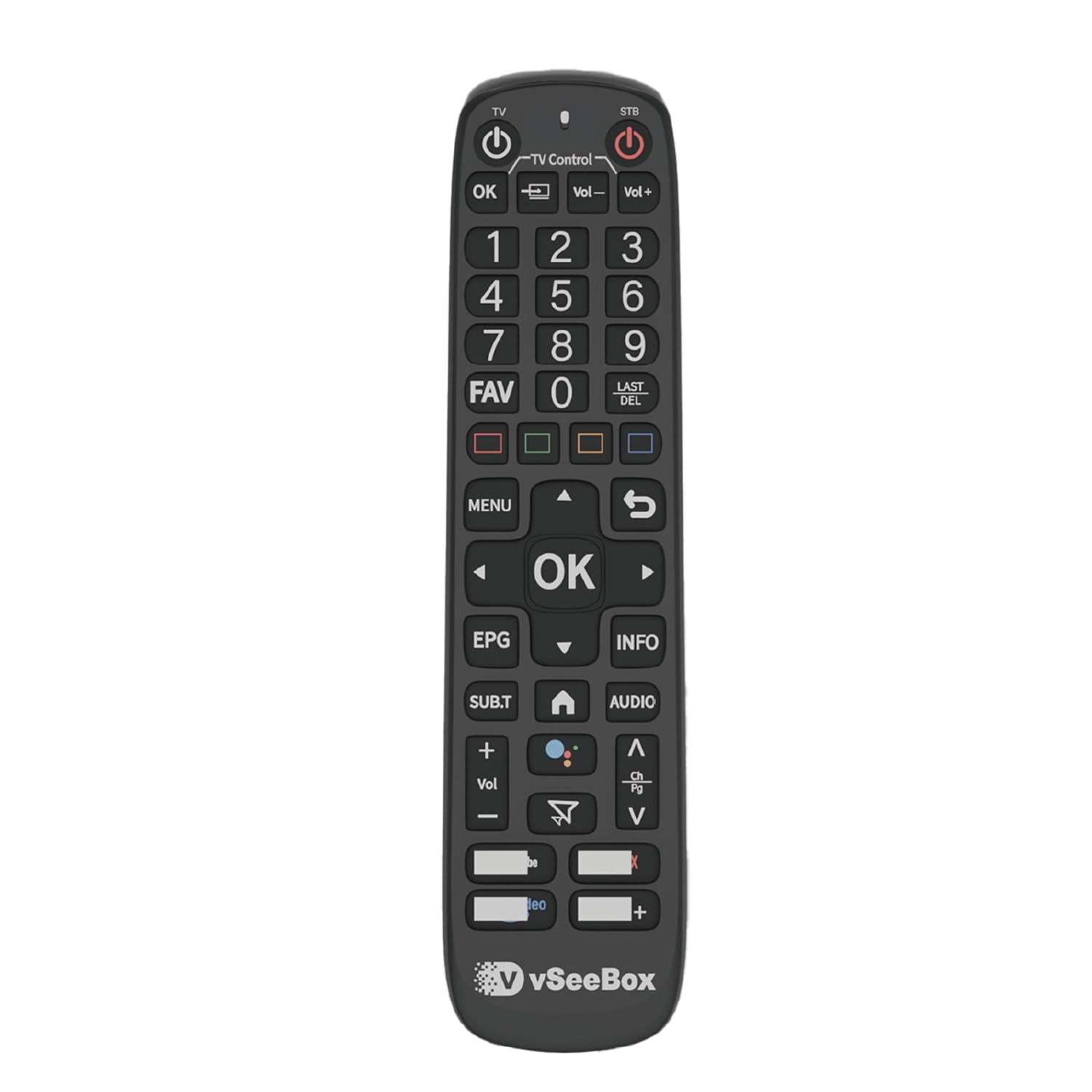
Figure 1: Angled view of the PICKUTS VSeeBox V6 Plus Remote Control, showing the button layout and ergonomic design.
2. Setup
2.1 Battery Installation
- Locate the battery compartment cover on the back of the remote control.
- Slide the cover downwards or press the latch to open the compartment.
- Insert two (2) AAA alkaline batteries, ensuring the positive (+) and negative (-) terminals align with the indicators inside the compartment.
- Close the battery compartment cover securely.
2.2 Bluetooth Pairing
The VSeeBox V6 Plus Remote Control connects via Bluetooth. Follow these steps to pair it with your VSeeBox V6 Plus system:
- Ensure your VSeeBox V6 Plus is powered on and connected to your display.
- Navigate to the Bluetooth settings on your VSeeBox V6 Plus (usually found in System Settings > Bluetooth or Connected Devices).
- On the remote control, press and hold the OK button and the Volume Down (-) button simultaneously for approximately 3-5 seconds until the indicator light on the remote begins to flash. This indicates pairing mode.
- On your VSeeBox V6 Plus, select "Scan for devices" or "Add new device."
- Once "VSeeBox Remote" or a similar name appears in the list of available devices, select it to complete the pairing process. The indicator light on the remote will stop flashing and remain solid for a moment, then turn off, indicating successful pairing.
3. Operating Instructions
The remote control features an intuitive layout for easy navigation. Below are the primary functions:

Figure 2: Top-down view of the remote control, highlighting the button layout for operation.
- Power (TV/STB): Turns the TV or Set-Top Box on/off.
- Navigation Pad (Up, Down, Left, Right): Moves the cursor or selection on the screen.
- OK: Confirms a selection or enters a menu.
- Back / Return: Returns to the previous screen or menu.
- Home: Returns to the main home screen of the VSeeBox.
- Volume Up (+) / Down (-): Adjusts the audio volume.
- Channel Up (CH+) / Down (CH-): Changes channels.
- Menu: Opens the main menu or context menu.
- Info: Displays information about the current program or content.
- Audio: Selects audio tracks or modes.
- EPG (Electronic Program Guide): Accesses the program guide.
- SUB.T (Subtitle): Toggles subtitles on/off or selects subtitle tracks.
- FAV (Favorites): Accesses favorite channels or content.
- LAST / DEL: Returns to the last viewed channel or deletes an item.
- Numeric Keypad (0-9): Enters numbers for channel selection or other inputs.
- Color Buttons (Red, Green, Yellow, Blue): Functionality varies depending on the application or menu.
3.1 Backlight Feature
The remote control features a built-in backlight for easy operation in low-light conditions. The keys will illuminate automatically when the remote is in use or when a button is pressed, allowing for clear visibility of the controls.
3.2 Voice Command
To use the voice command feature:
- Press and hold the dedicated Voice Command button (often indicated by a microphone icon).
- Speak clearly into the microphone located on the remote control.
- Release the button when you have finished speaking. The VSeeBox V6 Plus will process your command.
4. Maintenance
4.1 Cleaning
To clean the remote control, use a soft, dry cloth. Avoid using liquid cleaners, solvents, or abrasive materials, as these can damage the surface or internal components.
4.2 Battery Care
- Replace batteries promptly when the remote's performance degrades or the backlight dims.
- If the remote will not be used for an extended period, remove the batteries to prevent leakage and potential damage.
- Dispose of used batteries according to local regulations.
5. Troubleshooting
- Remote Not Responding:
- Check if the batteries are correctly inserted and have sufficient charge. Replace if necessary.
- Ensure the remote is paired with your VSeeBox V6 Plus. If not, repeat the Bluetooth pairing steps.
- Move closer to the VSeeBox V6 Plus to ensure a strong Bluetooth signal.
- Backlight Not Working:
- Check battery levels. Low batteries may affect backlight functionality.
- Voice Command Not Working:
- Ensure the remote is properly paired via Bluetooth.
- Speak clearly and directly into the microphone.
- Check if there are any obstructions covering the microphone on the remote.
- Intermittent Connectivity:
- Ensure there are no strong interference sources (e.g., Wi-Fi routers, other Bluetooth devices) nearby.
- Try re-pairing the remote with your VSeeBox V6 Plus.
6. Specifications
| Brand | PICKUTS |
| Model Name | remote control v6 plus |
| Model Number | v6 plus |
| Special Feature | Backlit |
| Color | Black |
| Connectivity Technology | Bluetooth |
| Max Number of Supported Devices | 1 |
| Compatible Devices | Set Top Box (VSeeBox V6 Plus) |
| Number of Batteries Required | 2 AAA |
| Battery Type | Alkaline |
| Maximum Range | 20 Meters |
| Item Weight | 0.23 Pounds |
| Item Dimensions (L x W x H) | 7.68"L x 1.97"W x 0.98"H |
7. Warranty and Support
7.1 Warranty Information
This PICKUTS VSeeBox V6 Plus Remote Control comes with a 1 Year Manufacturer Warranty from the date of purchase. This warranty covers defects in materials and workmanship under normal use. It does not cover damage caused by misuse, accidents, unauthorized modifications, or normal wear and tear.
7.2 Customer Support
For technical assistance, warranty claims, or further inquiries, please refer to the contact information provided with your purchase or visit the official PICKUTS website for support resources.