
FUVYMYT Model A
Contents
FUVYMYT 4K Dash Cam User Manual
For Audi 2019-2026 Model A (4K/64GB Set)
1. Product Overview
This FUVYMYT 4K Dash Cam is specifically designed for Audi vehicles manufactured between 2019 and 2026, including models A3-A8, Q3-Q8, S4-S8, TT, Allroad, and e-tron. It features an OEM-style hidden design that integrates seamlessly behind the rearview mirror, ensuring no obstruction to the driver's view. The dash cam records in 4K Ultra HD (2160P) at 30 frames per second, utilizing an f/1.6 aperture and CMOS sensor for clear video quality, even in low-light conditions with Super Night Vision technology.
Key features include:
- OEM Style Hidden Design
- 4K UHD 2160P Video Resolution
- Super Night Vision
- Free App and WiFi Connectivity
- Loop Recording
- G-Sensor for collision detection
- Supports up to 256GB TF card (64GB included)
Compatibility Check
Before installation, please verify your vehicle's compatibility by comparing your rearview mirror housing with the images provided. This model is compatible with 'Model A' mirror designs. If your vehicle has an ADAS (Advanced Driver-Assistance Systems) lens on the back of the rearview mirror, this dash cam may not fit.
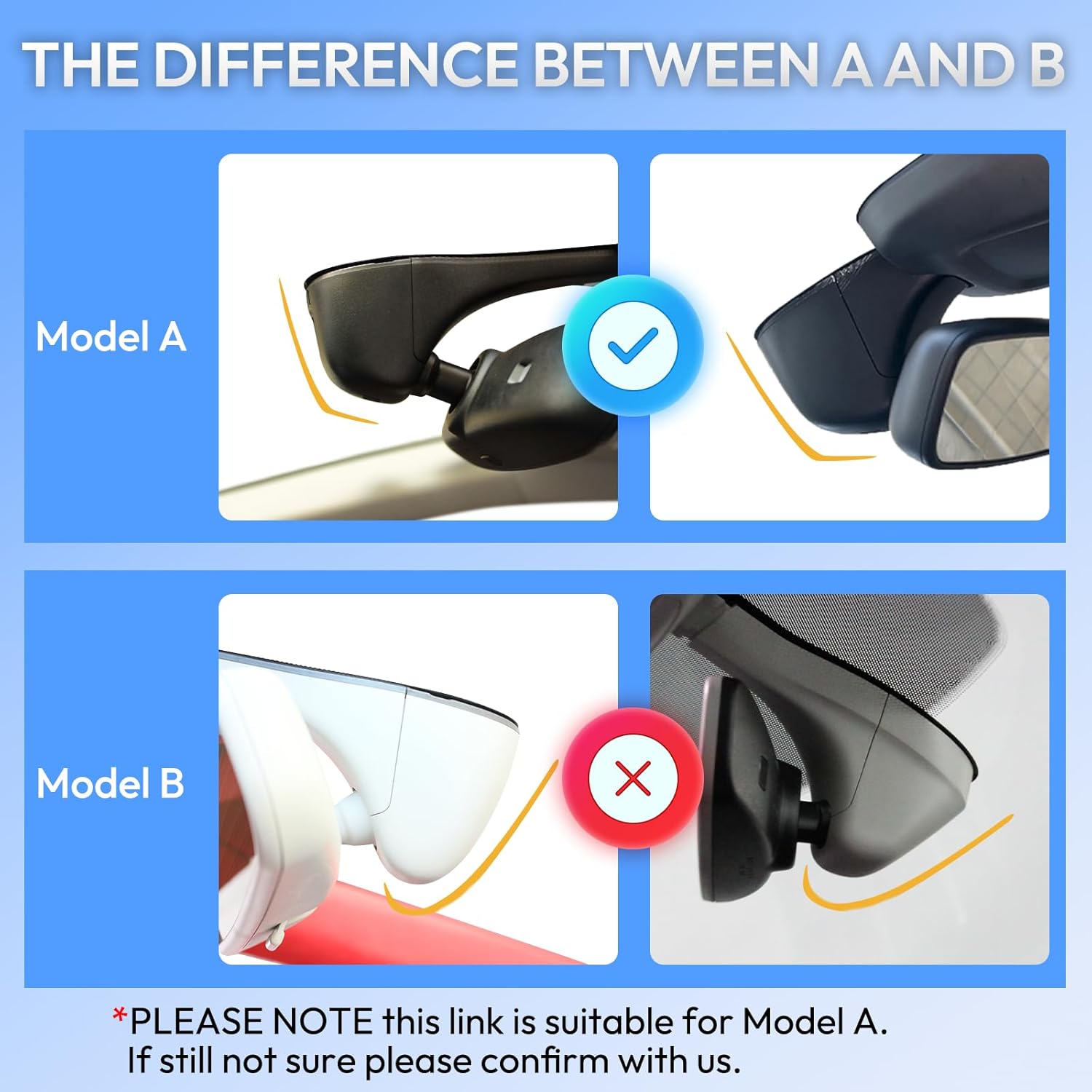
Figure 1: Comparison of Model A and Model B rearview mirror designs. This dash cam is designed for Model A.
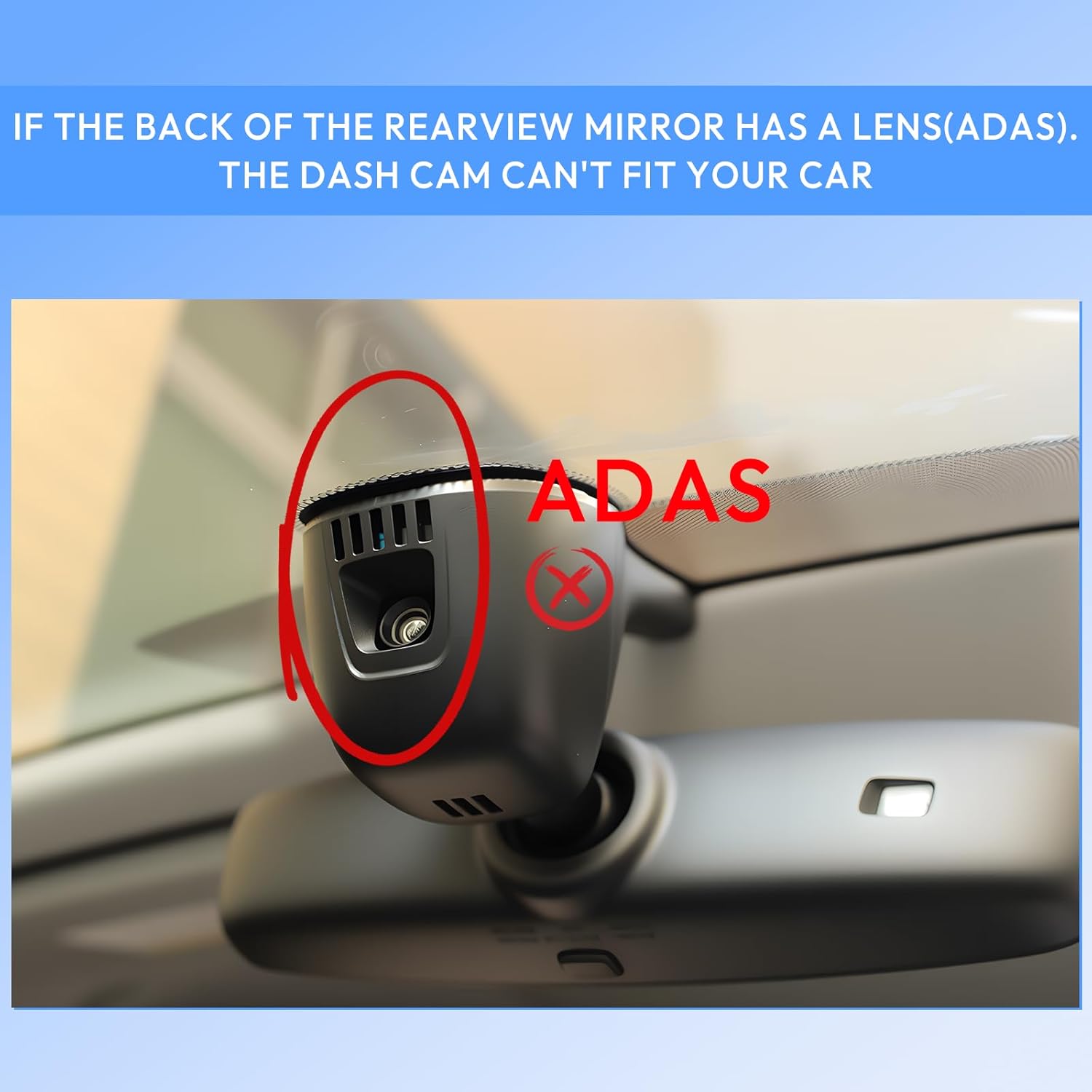
Figure 2: If your rearview mirror has an ADAS lens as shown, the dash cam cannot be installed.

Figure 3: Reference table for Audi model compatibility. Always confirm with your original mirror cover.
2. Package Contents
Please check the package for the following items:
- Front 4K Dash Cam
- 64GB TF Card
- Card Reader
- Y-type Conversion Harness
- Crowbar (Installation Tool)
- Instruction Manual

Figure 4: Contents of the FUVYMYT 4K Dash Cam package.
3. Setup and Installation
The dash cam features a plug-and-play design for easy installation without complex rewiring. Follow these steps for proper setup:
Installation Steps (Method 1)
- Take off the big cover.
- Take off the rear cover.
- Take off the front cover.
- Take off the rain-fall sensor cable.
- Connect the Y-type cable to the rain-fall sensor cable.
- Connect the Y-type cable to the rain-fall sensor.
- Push forward to install the dash cam.
- Install the original rear cover.
- Push forward to install the original big cover and finish.
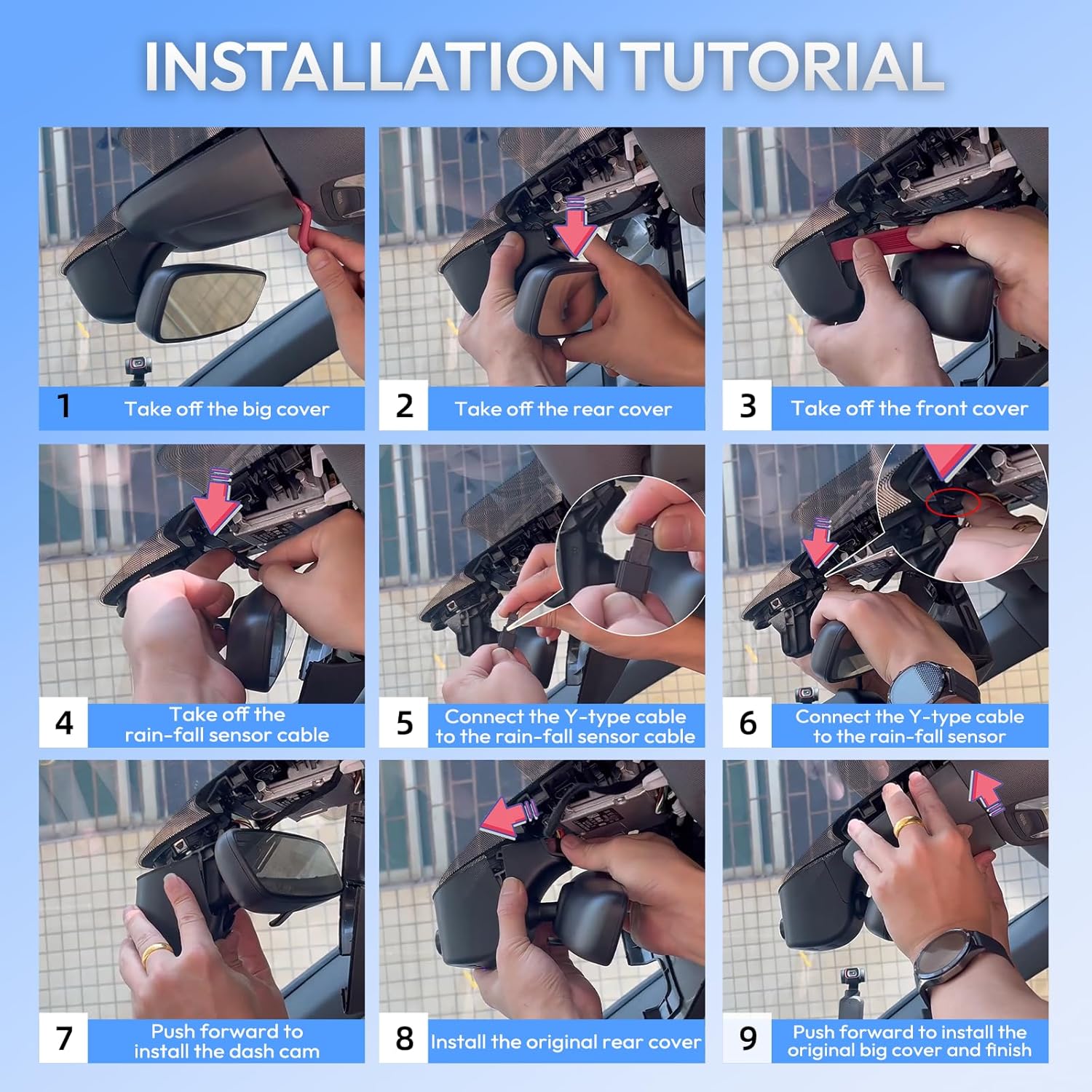
Figure 5: Detailed installation steps for the dash cam (Method 1).
Installation Steps (Method 2)
- Take off the original rear cover.
- Take off the original front cover.
- Take off the power supply of the rain-fall sensor.
- Fix the dashcam on the rearview mirror bracket.
- Connect the power supply to the dash cam.
- Connect the dash cam to the rain-fall sensor.
- Install the original rear cover and finish.

Figure 6: Detailed installation steps for the dash cam (Method 2).
Wiring Connection
Ensure the 3-pin plug connection is correct for power supply.

Figure 7: Correct 3-pin plug connection.
Installation Video Reference
For a visual guide on installation, please refer to the following video:
Video 1: Installation guide for FUVYMYT dash cam with a small cover type.
Video 2: Installation guide for FUVYMYT dash cam with a large cover type.
4. Operating Instructions
Power On/Off
The dash cam will automatically power on and begin recording when your vehicle starts. It will power off automatically when the vehicle is turned off.
Recording Modes
- Loop Recording: The dash cam continuously records video. When the memory card is full, it automatically overwrites the oldest footage with new recordings.
- G-Sensor: In the event of a sudden collision or impact, the built-in G-Sensor detects the event and automatically locks the current video file. This prevents the footage from being overwritten during loop recording, preserving critical evidence.
- Parking Monitor: A 24-hour parking monitoring function is available. This requires an optional hardwire kit (sold separately, search ASIN: B0F53NJRK3) to provide continuous power to the dash cam when the vehicle is parked.

Figure 8: Loop Recording and G-Sensor functionality.

Figure 9: Parking Mode feature (requires optional hardwire kit).
Super Night Vision
The dash cam is equipped with Super Night Vision technology, featuring an f/1.6 aperture and CMOS sensor, to capture clear and detailed footage in low-light conditions and at night. Advanced image processing automatically adjusts exposure for optimal visibility.

Figure 10: Super Night Vision in action.
FUVYMYT App and WiFi Connectivity
Download the free FUVYMYT App to connect your smartphone to the dash cam via WiFi. This allows for:
- Live preview of the recording.
- Downloading recorded videos to your phone.
- Easy sharing of footage.
- Managing recordings and settings.
- GPS tracking and route playback (must be manually enabled in the app).
- Parking spot saving feature.
The dash cam can operate independently without a phone connection. It also works concurrently with Apple CarPlay or Android Auto, only requiring disconnection when linking directly to the dash cam for data transfer.

Figure 11: FUVYMYT App interface.

Figure 12: GPS Functionality for track playback.
One-Click Photo
Instantly capture a high-resolution photo of an event or scene with a single click on the dash cam unit.

Figure 13: One-Click Photo capture.
5. Maintenance
- Memory Card: Regularly format the included 64GB TF card (or any other microSD card up to 256GB) to ensure optimal performance and prevent data corruption. Formatting can typically be done through the FUVYMYT app.
- Cleaning: Use a soft, dry cloth to clean the dash cam lens and body. Avoid using abrasive cleaners or solvents that could damage the device.
- Firmware Updates: Check the FUVYMYT website or app periodically for any available firmware updates to ensure your dash cam has the latest features and bug fixes.

Figure 14: Dash cam supports up to 256GB microSD cards.
6. Troubleshooting
- Dash Cam Not Powering On: Ensure the Y-type conversion harness is correctly connected to the rain-fall sensor cable and the dash cam. Verify the vehicle's ignition is on.
- Recording Issues: Format the TF card regularly. Ensure the card is inserted correctly. If issues persist, try a different compatible TF card.
- WiFi Connection Problems: Ensure your smartphone's WiFi is enabled and you are within close proximity to the dash cam. Restart both the dash cam and your phone.
- App Not Connecting: Make sure you have the latest version of the FUVYMYT app installed. Try reinstalling the app.
- CarPlay/Bluetooth Interference: The dash cam operates independently and should not interfere with CarPlay or Bluetooth. If you experience issues, ensure the dash cam's WiFi is not actively connected to your phone unless you are accessing footage.
- Parking Mode Not Working: Confirm that the optional hardwire kit (ASIN: B0F53NJRK3) is installed correctly and providing continuous power to the dash cam.
7. Specifications
| Feature | Specification |
|---|---|
| Brand | FUVYMYT |
| Vehicle Service Type | Audi (2019-2026), including A3-A8, Q3-Q8, S4-S8 |
| Connectivity Technology | Wi-Fi |
| Special Features | Built-In Microphone, Built-In WiFi, G-Sensor, Loop Recording, Parking Monitor |
| Video Capture Resolution | 2160p (4K UHD) |
| Included Components | 64 GB Card, Installation Tool, User Manual |
| Mounting Type | Rearview Mirror Mount |
| Field Of View | 145 degrees |
| Control Method | App, Push Button |
| Optical Sensor Technology | CMOS |
| Flash Memory Type | microSD |
| Maximum Aperture | f/1.6 |
| Included Memory Card Size | 64 GB |
| Flash Memory Supported Size Maximum | 256 GB |
| Frame Rate | 30 fps |
| Item Dimensions (D x W x H) | 3.9"D x 5.5"W x 3.5"H |
| Item Weight | 4.8 ounces |
8. Warranty and Support
- Warranty: This product comes with a 1-year manufacturer's warranty.
- Return Policy: A free 30-day refund/replacement guarantee is provided.
- Customer Support: For any issues or inquiries, please contact customer support via Amazon. 12-hour customer support is available.
Ask a question about this manual
Ask about setup, troubleshooting, compatibility, parts, safety, or missing instructions. Manuals+ will review the question and use this page’s manual context to help answer it.