
1. Introduction
This manual provides detailed instructions for the safe operation, setup, and maintenance of your Dazlen Drone with 1080P Camera, Model X31. Please read this manual thoroughly before operating the drone to ensure proper function and to prevent damage or injury.
The Dazlen X31 is a foldable remote control quadcopter featuring a 1080P HD adjustable camera, stable hover capabilities, and various intelligent flight modes designed for both beginners and experienced users.
2. What's in the Box
Verify that all components are present in the package:
- RC Drone (1)
- Remote Controller (1)
- Battery (2)
- User Manual (2)
- Spare Blade (4)
- Protective Guard (4)
- Type-C Charging Cable (2)
- Screwdriver (1)
- Carrying Case (1)

Image: All components included in the Dazlen X31 Drone package.
3. Setup
3.1 Battery Installation and Charging
The Dazlen X31 drone uses modular rechargeable batteries. Ensure batteries are fully charged before first use.
- Insert the drone battery into the designated compartment on the drone.
- Charge the batteries using the provided Type-C charging cable. Connect the cable to a USB power source. The charging indicator will show the charging status.
- For the remote controller, insert 3x AAA batteries (not included) into the battery compartment.
Video: This video demonstrates the unboxing and initial setup of the Dazlen X31 drone, including battery installation and charging.
3.2 Propeller Guard Installation
For enhanced safety, especially during initial flights or indoor use, attach the propeller guards.
- Identify the four propeller guards.
- Carefully snap each guard onto the corresponding motor arm of the drone. Ensure they are securely fastened.

Image: The Dazlen X31 drone shown with and without propeller guards for full protection.
3.3 App Installation and Connection
Download the "DAZLEN FPV" app from your mobile device's app store. This app enables real-time FPV viewing and access to intelligent flight features.
- Power on the drone and the remote controller.
- On your mobile device, connect to the drone's Wi-Fi network (usually named "DAZLEN_XXXXXX").
- Open the "DAZLEN FPV" app. The live video feed from the drone's camera should appear, indicating a successful connection.
Important: Ensure your phone is connected to the drone's Wi-Fi, not Bluetooth, for app control and FPV functionality.
4. Operating Instructions
4.1 First Flight Considerations
- For your first flight, choose an indoor location or a calm, windless open space.
- Keep the drone's altitude below 6 meters and distance within 30 meters.
- Always ensure propeller guards are attached for safety during initial flights.
4.2 Basic Flight Controls
- One-Key Start/Landing: Press the dedicated button on the remote or in the app to automatically take off or land the drone.
- Altitude Hold: The drone maintains a stable altitude, allowing for easier control of horizontal movement. This is enabled by Optical Flow Positioning.
- Headless Mode: In this mode, the drone's orientation is relative to the pilot, regardless of the drone's front direction. This simplifies control for beginners.
- 3-Speed Switches: Adjust the drone's speed settings (Low, Middle, High) to match your skill level and flying environment.
- Gravity Control: Use your mobile device's tilt to control the drone's direction when using the app.

Image: Key beginner-friendly flight features including Altitude Hold, One-Key Start/Landing, Headless Mode, and Optical Flow Positioning.

Image: The drone demonstrating a 360-degree flip and its three adjustable speed modes.
4.3 Camera Operation and FPV
The drone is equipped with a 1080P HD camera with a 90° motorized adjustable lens.
- Adjustable Camera: Use the remote control or app to adjust the camera angle during flight to capture various perspectives.
- FPV (First Person View): Connect to the "DAZLEN FPV" app to view real-time video transmission from the drone's camera on your mobile device.
- Gesture Control: Use specific hand gestures to trigger photo or video recording. A "V" sign for photos and a palm gesture for video recording.
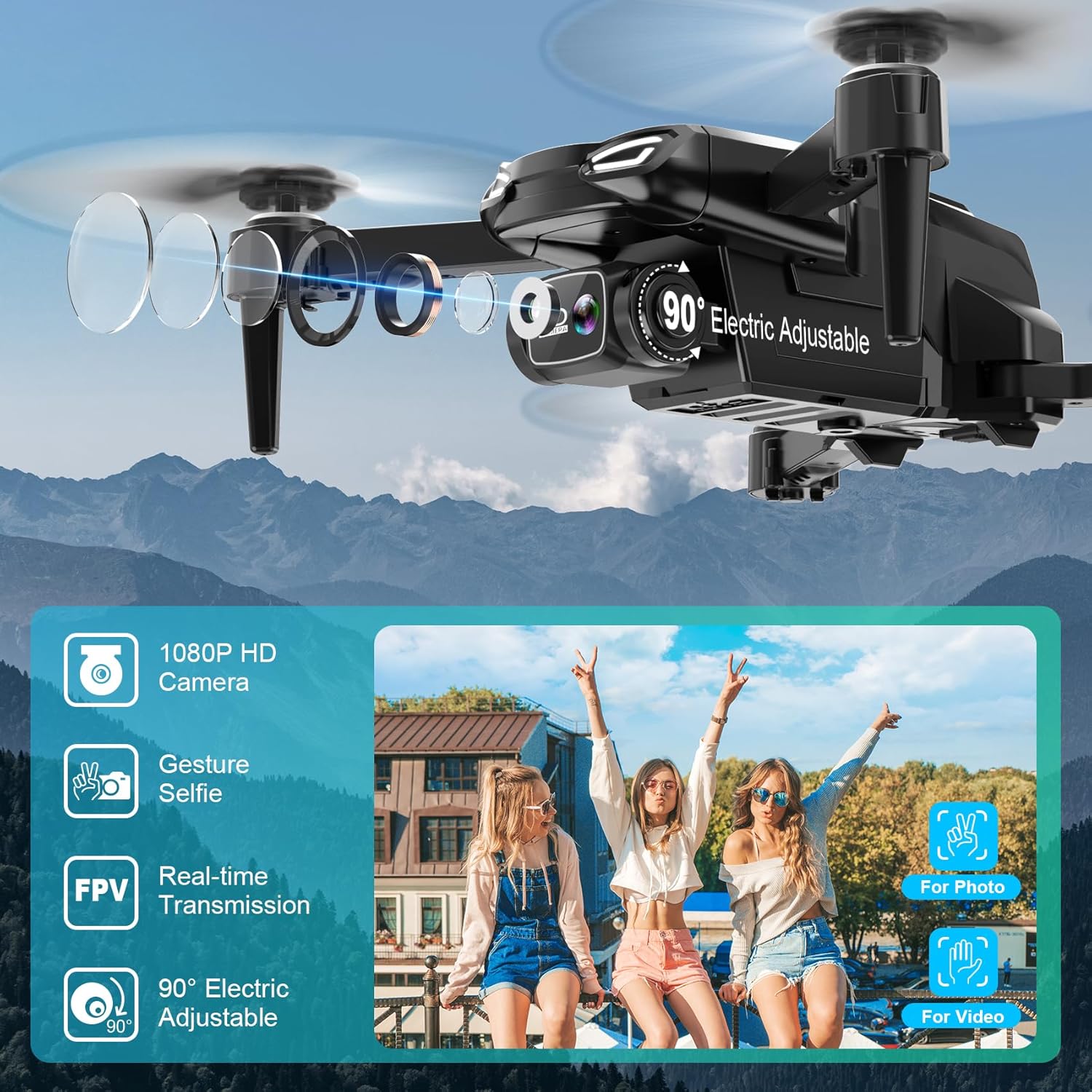
Image: The drone's 1080P HD camera with 90-degree adjustment, highlighting FPV and gesture control capabilities.
Video: This video demonstrates the Dazlen X31 drone's flight capabilities and various intelligent features, including camera usage.
4.4 Intelligent Flight Modes
- 360° Flips: Execute aerial acrobatics with a single button press.
- Waypoint Fly (Trajectory Flight): Draw a custom flight path on the app screen, and the drone will automatically follow it.
- Optical Flow Positioning: This feature uses a downward-facing camera to sense ground texture, allowing the drone to maintain a stable hover position both indoors and outdoors.

Image: The drone showcasing Waypoints Fly, Gravity Control, and in-app video editing features.
5. Maintenance
- Cleaning: Use a soft, dry cloth to clean the drone and remote controller. Avoid using liquids or solvents.
- Propeller Inspection: Regularly check propellers for any damage or cracks. Replace damaged propellers with spare ones immediately using the provided screwdriver.
- Battery Care: Store batteries in a cool, dry place. Do not overcharge or over-discharge. If not used for extended periods, charge them to about 50% capacity.
- Storage: When not in use, store the drone and its accessories in the provided carrying case to protect them from dust and physical damage.
6. Troubleshooting
| Problem | Possible Cause | Solution |
|---|---|---|
| Drone does not respond to remote. | Low battery in drone or remote; not paired correctly. | Charge drone battery, replace remote batteries, re-pair drone and remote as per instructions in the full user manual. |
| Poor video feed or no FPV. | Not connected to drone's Wi-Fi; weak signal. | Ensure your mobile device is connected to the drone's Wi-Fi network (not Bluetooth). Fly closer to the drone. |
| Drone drifts during flight. | Calibration needed; strong wind interference. | Perform gyroscope calibration. Avoid flying in strong winds. |
| Short flight time. | Battery not fully charged; old battery. | Ensure batteries are fully charged. Consider replacing old batteries if performance degrades significantly. |
7. Specifications
| Feature | Detail |
|---|---|
| Brand | Dazlen |
| Model Name | Dazlen 1080P (X31) |
| Camera | 1080P HD, 90° Motorized Adjustable Lens |
| Special Features | FPV Technology, Intelligent Flight Modes, Optical Flow Positioning, 3D Flips, Gesture Control, Waypoint Fly, Headless Mode, 3-Speed Switches, One-Key Start/Landing |
| Connectivity | Wi-Fi |
| Battery Capacity | 1000 mAh (per battery) |
| Max Flight Time | Up to 26 minutes (with 2 batteries) |
| Maximum Range | 30 meters |
| Item Weight | 102 g |
| Dimensions (L x W x H) | 6"L x 4"W x 3"H |
8. Warranty and Support
For any questions, technical support, or warranty inquiries, please contact Dazlen customer service. Refer to the contact information provided in the separate warranty card or the full user manual included in your package.
Note: The product includes a 30-day return/replacement policy. Protection plans are available for purchase separately.
