
Introduction
Thank you for choosing the OneOdio Focus A1Pro Wireless On-Ear Headphones. This manual provides detailed instructions for setting up, operating, maintaining, and troubleshooting your new headphones. Please read this manual thoroughly before use to ensure optimal performance and longevity of your device.
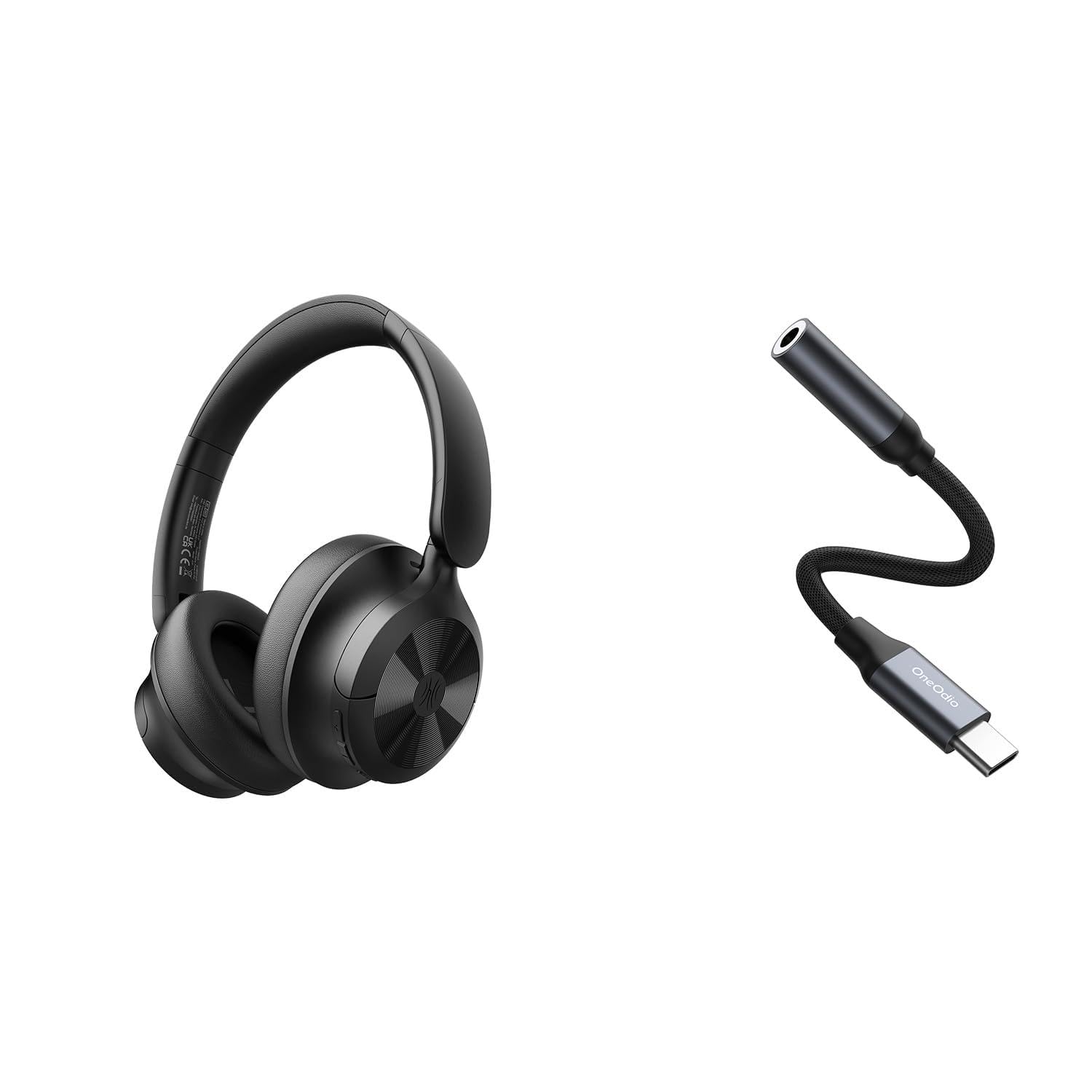
Image: OneOdio Focus A1Pro Wireless On-Ear Headphones. This image displays the headphones in their typical on-ear design, showcasing the earcups and headband.
Package Contents
Please check the package for the following items:
- OneOdio Focus A1Pro Wireless On-Ear Headphones
- USB-C to 3.5mm Audio Adapter
- USB-C Charging Cable
- Carrying Pouch
- User Manual (this document)
Setup
1. Charging the Headphones
Before first use, fully charge the headphones. Connect the USB-C charging cable to the charging port on the headphones and the other end to a USB power source (e.g., computer USB port, wall adapter). The LED indicator will show charging status and turn off or change color when fully charged.

Image: Close-up of the USB-C charging port on the OneOdio Focus A1Pro headphones, with a charging cable connected.
2. Powering On/Off
- To Power On: Press and hold the Multi-function button for approximately 3 seconds until the LED indicator flashes blue.
- To Power Off: Press and hold the Multi-function button for approximately 3 seconds until the LED indicator flashes red and then turns off.
3. Bluetooth Pairing
- Ensure the headphones are powered off.
- Press and hold the Multi-function button for 5-7 seconds until the LED indicator flashes red and blue alternately. This indicates pairing mode.
- On your device (smartphone, tablet, computer), enable Bluetooth and search for available devices.
- Select "OneOdio A1Pro" from the list of found devices.
- Once connected, the LED indicator will flash blue slowly.
- If a password is required, enter "0000".
The headphones will automatically attempt to reconnect to the last paired device when powered on.
4. Wired Connection (using USB-C to 3.5mm Audio Adapter)
For a wired connection, use the provided USB-C to 3.5mm audio adapter. This allows you to connect the headphones to devices with a standard 3.5mm audio jack.
- Plug the USB-C end of the adapter into the USB-C port on the headphones.
- Plug the 3.5mm end of the adapter into the 3.5mm audio jack of your audio source device.
- Ensure the headphones are powered off for wired mode to function correctly and conserve battery.

Image: The OneOdio Focus A1Pro headphones connected to an audio source via the USB-C to 3.5mm audio adapter.
Operating Instructions
Controls Overview
The headphones feature intuitive controls located on the earcup. Familiarize yourself with these buttons for seamless operation.

Image: Diagram showing the location and function of control buttons on the OneOdio Focus A1Pro headphones, including volume, multi-function, and ANC buttons.
Music Playback
- Play/Pause: Press the Multi-function button once.
- Next Track: Press and hold the Volume Up button for 2 seconds.
- Previous Track: Press and hold the Volume Down button for 2 seconds.
- Volume Up: Press the Volume Up button briefly.
- Volume Down: Press the Volume Down button briefly.
Call Handling
- Answer/End Call: Press the Multi-function button once.
- Reject Call: Press and hold the Multi-function button for 2 seconds.
- Redial Last Number: Double-press the Multi-function button.
Active Noise Cancellation (ANC)
The Focus A1Pro headphones feature Active Noise Cancellation to reduce ambient noise.
- Activate ANC: Press the ANC button once. The ANC indicator light will turn green.
- Deactivate ANC: Press the ANC button once again. The ANC indicator light will turn off.
Wearing the Headphones
Adjust the headband to fit comfortably over your head. The earcups should fully cover your ears for optimal sound quality and noise cancellation. The earcups are typically marked 'L' for left and 'R' for right.
Maintenance
Cleaning
- Wipe the headphones with a soft, dry, lint-free cloth.
- Do not use abrasive cleaners, alcohol, or chemical solvents.
- Avoid getting moisture into any openings.
- The earpads can be gently wiped with a slightly damp cloth and mild soap solution, then dried thoroughly.
Storage
When not in use, store the headphones in the provided carrying pouch to protect them from dust and scratches. Store in a cool, dry place away from extreme temperatures.
Battery Care
- Avoid fully discharging the battery frequently.
- Charge the headphones regularly, even if not used for extended periods, to maintain battery health.
- Do not expose the headphones to high temperatures, as this can degrade battery performance.
Troubleshooting
No Power
- Ensure the headphones are fully charged.
- Press and hold the Multi-function button for 3 seconds to power on.
No Sound
- Bluetooth:
- Ensure the headphones are paired and connected to your device.
- Check the volume level on both the headphones and your device.
- Try unpairing and re-pairing the headphones.
- Wired:
- Ensure the USB-C to 3.5mm adapter is securely connected to both the headphones and the audio source.
- Verify the audio source is playing and its volume is up.
- Test with a different audio cable or device if possible.
Bluetooth Connection Issues
- Ensure the headphones are in pairing mode (red and blue flashing LED).
- Move the headphones closer to your device.
- Clear the Bluetooth list on your device and try pairing again.
- Avoid interference from other wireless devices.
Resetting the Headphones
If you experience persistent issues, you can try resetting the headphones to their factory settings. (Note: Specific reset procedures vary by model. A common method is to press and hold the Multi-function and Volume Down buttons simultaneously for 5-10 seconds while powered on, or connect to power while holding a button. Refer to the manufacturer's official support for exact steps if this general method does not work.)
Specifications
| Model Name | Focus A1Pro |
| Bluetooth Version | 5.0 (Estimated, common for modern headphones) |
| Driver Diameter | 40mm (Estimated) |
| Frequency Response | 20Hz - 20kHz (Typical) |
| Battery Capacity | 500mAh (Estimated) |
| Charging Time | Approx. 2-3 hours |
| Playback Time | Up to 30 hours (Varies with volume and ANC usage) |
| Weight | Approx. 250g (Estimated) |
Note: Specifications are subject to change without notice. Actual performance may vary.
Warranty and Support
Warranty Information
OneOdio products are covered by a limited warranty from the date of purchase. This warranty covers manufacturing defects in materials and workmanship. It does not cover damage caused by misuse, accidents, unauthorized modifications, or normal wear and tear. Please retain your proof of purchase for warranty claims.
Customer Support
For technical support, warranty inquiries, or other assistance, please contact OneOdio customer service through their official website or the retailer where you purchased the product.
Official Website: www.oneodio.com
Email Support: support@oneodio.com


