
1. Product Overview
The vibeadio tv soundbar system delivers enhanced audio for your entertainment. It includes a soundbar and a powerful 5.9-inch subwoofer, designed to provide clear vocals, rich bass, and immersive sound. Multiple connectivity options ensure compatibility with various devices.
1.1. Components

Image: The vibeadio soundbar and its accompanying subwoofer.
- Soundbar: Main unit for clear audio output.
- Subwoofer: 5.9-inch powerful subwoofer for deep bass.
- Remote Control: For convenient operation and mode switching.
- Power Adapter: To supply power to the soundbar.
- Cables: Includes HDMI ARC cable, 3.5mm AUX cable, and Optical cable for various connections.
1.2. Key Features
- Excellent Sound Quality: Crystal-clear vocals, rich bass, and immersive surround sound with advanced DSP technology.
- Independent Subwoofer: Delivers powerful, distortion-free low frequencies.
- Three Equalizer Modes: Switch between Movie, Music, and News modes for optimized audio.
- Multiple Connectivity: Supports eARC/ARC, Optical, 3.5mm AUX, and Bluetooth 5.4.
- User-Friendly Design: Intuitive controls via remote and top-mounted buttons, adaptable for tabletop or wall-mount placement.
1.3. Product Controls and Ports

Image: Rear view of the soundbar showing connectivity ports.
- Power Button (⏻): Short press to turn on, long press (2 seconds) to turn off. Short press to switch modes (BT-HDMI-AUX-OPT-BT).
- Volume + / Next Button: Short press to increase volume, long press to switch to the previous song (in Bluetooth mode).
- Volume - / Previous Button: Short press to decrease volume, long press to switch to the next song (in Bluetooth mode).
- Play / Pause Button: Short press to play/pause songs (in Bluetooth mode).
- ARC Socket: For HDMI ARC connection.
- OPT Socket: For Optical connection.
- SUB Interface: For subwoofer connection.
- AUX Socket: For 3.5mm auxiliary connection.
- DC IN Socket: For power input.
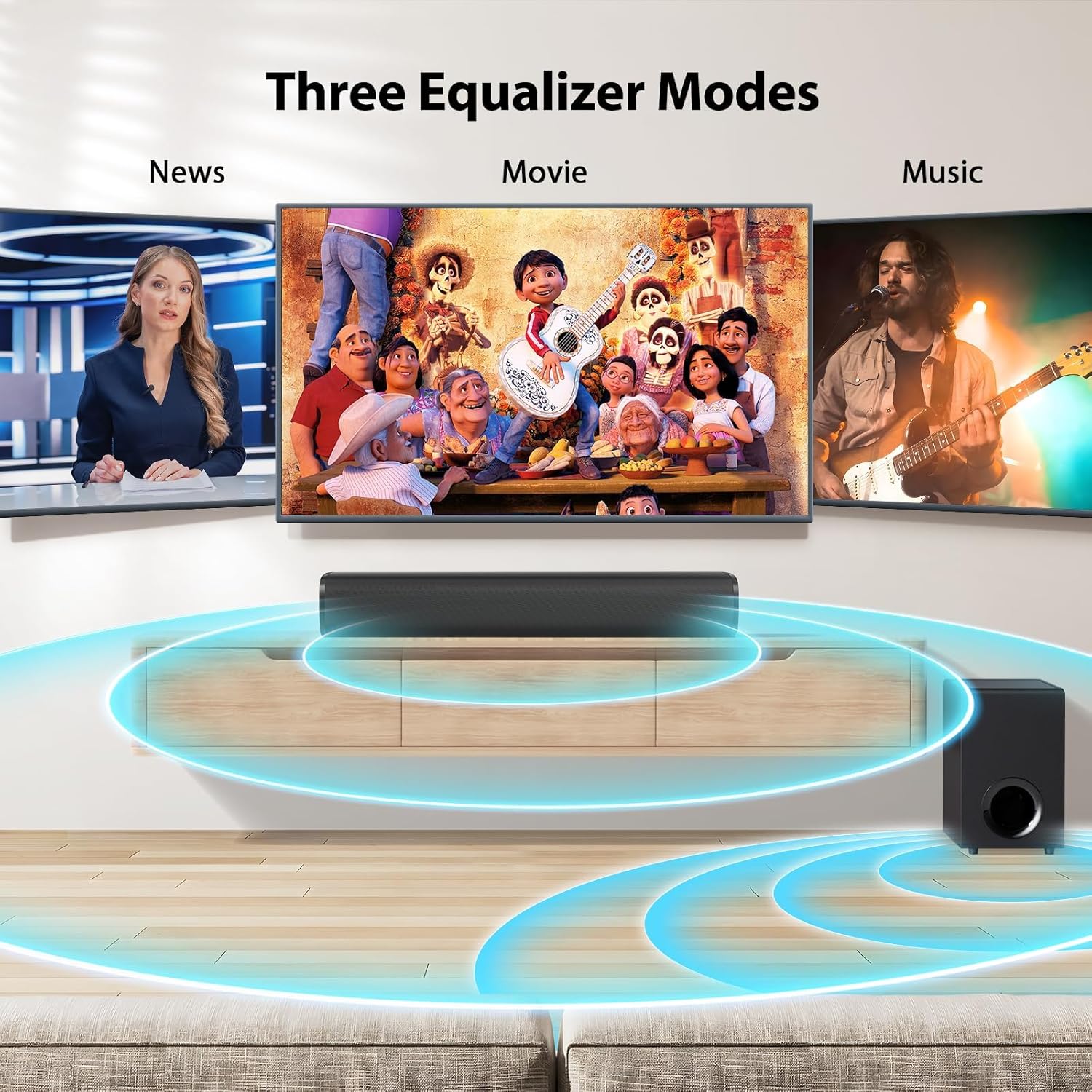
Image: Remote control with buttons for power, input, volume, mute, sound field, bass, and voice.
2. Setup
2.1. Power On
- Connect the power cord to the DC IN port on the back of the soundbar.
- Plug the other end of the power cord into an AC (mains) power outlet.
Video: Demonstrates connecting the power cord to the soundbar and plugging it into an outlet (from 01:53 to 02:05 in the "KY-MiniE operation video").
2.2. Connect the Subwoofer
- Connect the subwoofer's included cable to the SUB port on the soundbar.
- Press the power button on the soundbar remote to turn it on. The LED will flash blue (default Bluetooth mode).
Video: Shows connecting the subwoofer cable and powering on the soundbar (from 02:06 to 02:18 in the "KY-MiniE operation video").
2.3. Connecting to Your TV
The soundbar supports multiple audio formats and connection types. Choose the method that best suits your TV.
2.3.1. HDMI ARC Connection
- Remove the protective caps from both ends of the HDMI ARC cable.
- Insert one end of the HDMI ARC cable into your TV's HDMI eARC or ARC port.
- Insert the other end of the cable into the ARC port on the back of the soundbar.
- Press the "INPUT" button on the soundbar's remote until the LED shows orange (ARC mode).
- On your TV, go to Sound Settings and select HDMI ARC as your audio output.
- Find the Digital Sound Out or Digital Audio Format settings in your TV and select PCM or Passthrough.
- If there is no sound, enable HDMI-CEC device control in your TV settings.
Video: Instructions for connecting via HDMI ARC (from 02:18 to 03:22 in the "KY-MiniE operation video").
2.3.2. Optical Connection (OPT Mode)
- Remove the protective caps from both ends of the optical cable.
- Insert one end of the optical cable into your TV's optical output port.
- Insert the other end of the optical cable into the OPT port on the soundbar.
- Press the "INPUT" button on the soundbar's remote until the LED turns solid green (OPT mode).
- On your TV, go to Sound Settings and select Optical as your audio output.
- Find the Digital Sound Out or Digital Audio Format settings in your TV and select PCM or Passthrough.
Video: Instructions for connecting via Optical cable (from 03:22 to 04:07 in the "KY-MiniE operation video").
2.3.3. AUX Connection (AUX Mode)
- Insert one end of the 3.5mm AUX cable into your TV's 3.5mm AUX port (headphone jack).
- Insert the other end of the cable into the AUX port on the soundbar.
- Press the "INPUT" button on the soundbar's remote until the LED shows white (AUX mode).
- On your TV, go to Sound Settings and set the headset as your TV speaker.
Video: Instructions for connecting via AUX cable (from 04:07 to 04:40 in the "KY-MiniE operation video").
2.3.4. Bluetooth Connection
- Press the "INPUT" button on the soundbar's remote until the LED turns blue and flashes (Bluetooth pairing mode).
- Turn on the Bluetooth feature on your device (e.g., smartphone, tablet).
- Select "KY-MiniE" from the list of available Bluetooth devices.
- Once connected, the LED light on the soundbar will remain solid blue.
Video: Instructions for connecting via Bluetooth (from 04:40 to 05:00 in the "KY-MiniE operation video").
3. Operating Instructions
3.1. Remote Control Functions
Image: Detailed view of the remote control buttons.
- Power Button (⏻): Turns the soundbar on or off.
- INPUT Button: Switches between input modes (Bluetooth, HDMI ARC, AUX, Optical).
- Mute Button (🔇): Mutes or unmutes the sound.
- Volume + / - Buttons: Adjusts the master volume level.
- Previous (⏮) / Next (⏭) Buttons: Skips to the previous or next track in Bluetooth mode.
- Play/Pause (⏯) Button: Plays or pauses audio in Bluetooth mode.
- SOUND FIELD Button: Cycles through equalizer modes (Movie, Music, News).
- BASS + / - Buttons: Adjusts the bass level of the subwoofer.
- VOICE Button: Enhances vocal clarity.
3.2. Equalizer Modes
The soundbar offers three preset equalizer modes to optimize your listening experience:
- Movie Mode: Enhances dialogue and special effects for an immersive cinematic experience.
- Music Mode: Provides a balanced sound profile for music playback, emphasizing clarity and bass.
- News Mode: Optimizes vocal frequencies for clear and crisp speech, ideal for news broadcasts or podcasts.

Image: Illustration of Music Mode in use.

Image: Illustration of Movie Mode in use.

Image: Illustration of News Mode in use.
4. Maintenance
- Cleaning: Use a soft, dry cloth to clean the surfaces of the soundbar and subwoofer. Do not use liquid cleaners or aerosols.
- Placement: Ensure the soundbar and subwoofer are placed on a stable, flat surface or securely wall-mounted. Avoid placing them near heat sources, direct sunlight, or in areas with high humidity.
- Ventilation: Do not block any ventilation openings. Proper airflow is essential to prevent overheating.
- Power: Unplug the soundbar from the power outlet during lightning storms or when unused for long periods.
5. Troubleshooting
| Problem | Solution |
|---|---|
| No power | Ensure the power cord is securely connected to the soundbar and a working power outlet. Check if the power outlet is functional. |
| No sound |
|
| Distorted sound |
|
| Remote control not working |
|
| Bluetooth pairing issues |
|
6. Specifications
| Feature | Detail |
|---|---|
| Brand | vibeadio |
| Model Name | tv soundbar |
| Speaker Type | Soundbar with external Subwoofer |
| Speaker Maximum Output Power | 110 Watts |
| Connectivity Technology | Bluetooth 5.4, HDMI ARC, Optical, 3.5mm AUX |
| Mounting Type | Tabletop Mount, Wall Mount |
| Additional Features | Bass Boost, Volume Boost, 3 EQ Modes (Movie, Music, News) |
| Color | Black |
| Item Dimensions (D x W x H) | 17.56"D x 7.09"W x 13.19"H |
7. Warranty and Support
This vibeadio tv soundbar comes with an 18-month warranty from the date of purchase.
For technical support, troubleshooting assistance, or warranty claims, please contact vibeadio customer service. Refer to the product packaging or the official vibeadio website for the most up-to-date contact information.