
1. Introduction
This manual provides essential instructions for the safe operation, setup, maintenance, and troubleshooting of your Wipkviey T28 Drone with Camera. Please read this manual thoroughly before operating the drone to ensure proper function and to prevent damage or injury. Keep this manual for future reference.
The Wipkviey T28 is an advanced drone designed for ease of use, featuring a high-quality camera, GPS capabilities, auto-follow function, and long-range FPV (First Person View) for an enhanced aerial experience.
2. Safety Guidelines
Adhering to these safety guidelines is crucial for preventing accidents, injuries, and property damage.
- Local Regulations: Always check and comply with local drone regulations and restrictions before flying. This includes no-fly zones, altitude limits, and privacy laws.
- Pre-Flight Check: Before each flight, ensure the drone, remote control, and batteries are in good working condition. Check propellers for damage.
- Environmental Conditions: Do not fly in strong winds, rain, snow, or fog. Optimal flight conditions are clear, calm weather.
- Line of Sight: Maintain visual line of sight with the drone at all times during flight.
- Obstacle Avoidance: Keep the drone away from people, animals, buildings, trees, power lines, and other obstacles.
- Battery Safety: Use only approved chargers and batteries. Do not overcharge or puncture batteries. Store batteries in a cool, dry place away from flammable materials.
- Respect Privacy: Be mindful of others' privacy when using the camera.
- Age Restriction: This drone is intended for adult use.
3. Package Contents
Verify that all items listed below are present in your package:
- Wipkviey T28 Drone
- Remote Control
- Drone Battery (Lithium Ion, 1200 mAh)
- USB Charging Cable
- Spare Propellers
- Screwdriver
- User Manual (this document)
4. Component Identification
Familiarize yourself with the main components of your Wipkviey T28 Drone and its remote control.
4.1 Drone Components
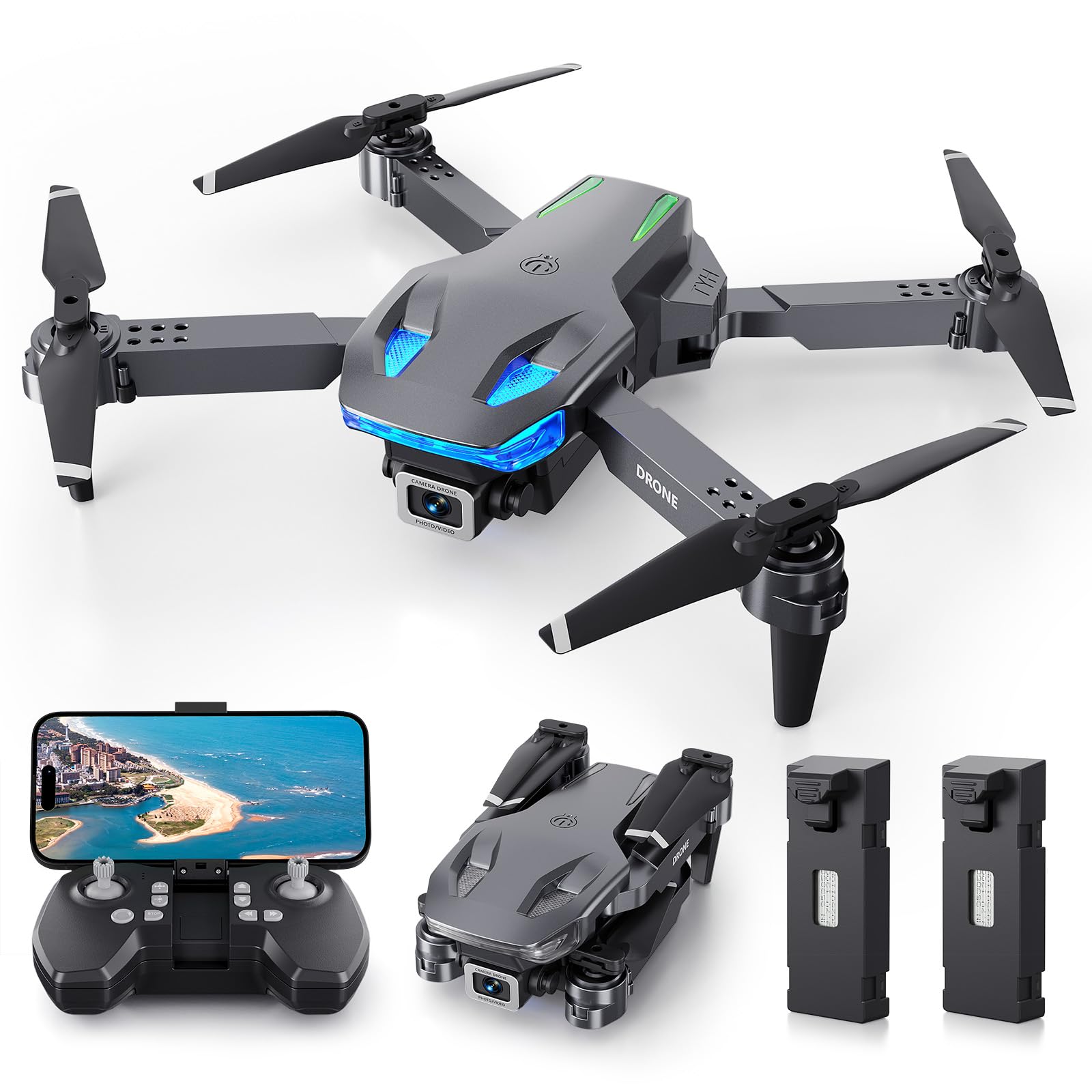
Image 1: Wipkviey T28 Drone. This image shows the drone from a top-down perspective, highlighting its four arms, propellers, central body, and integrated camera.
- Propellers: Four rotating blades that provide lift and thrust.
- Motors: Drive the propellers.
- Camera: Integrated camera for capturing 1080p/4K video and photos.
- Battery Compartment: Located on the underside of the drone, houses the flight battery.
- LED Indicators: Lights on the drone arms indicate status (e.g., power, GPS signal, battery level).
- GPS Module: Enables precise positioning and advanced flight modes.
4.2 Remote Control Components

Image 2: Wipkviey T28 Remote Control. This image displays the remote control with its joysticks, various buttons for flight functions, and a smartphone holder.
- Left Joystick: Controls throttle (up/down) and yaw (rotate left/right).
- Right Joystick: Controls pitch (forward/backward) and roll (left/right).
- Power Button: Turns the remote control on/off.
- One-Key Takeoff/Landing Button: Initiates automatic takeoff or landing.
- Return-to-Home (RTH) Button: Commands the drone to return to its takeoff point.
- Photo/Video Button: Captures photos or starts/stops video recording.
- Speed Mode Switch: Toggles between different flight speeds.
- Smartphone Holder: Secures your smartphone for FPV viewing via the app.
5. Setup
Follow these steps to prepare your Wipkviey T28 Drone for its first flight.
5.1 Charging Batteries
- Drone Battery: Connect the drone battery to the USB charging cable, then plug the cable into a 5V/2A USB power adapter (not included). The indicator light on the battery will show charging status and turn off when fully charged. Charging typically takes 2-3 hours.
- Remote Control Batteries: The remote control uses 2 P76 batteries (included). Open the battery compartment on the back of the remote and insert the batteries, observing polarity.

Image 3: Drone Battery Charging. This image illustrates the drone battery connected to its USB charging cable, ready to be plugged into a power source.
5.2 Propeller Installation
The propellers are labeled 'A' and 'B'. Match them to the corresponding motor arms. Ensure they are securely fastened.
- Identify the 'A' and 'B' markings on the propellers and drone motor arms.
- Place the correct propeller onto its motor shaft.
- Use the provided screwdriver to tighten the propeller screws firmly, but do not overtighten.

Image 4: Propeller Installation. This image demonstrates the correct method for attaching a propeller to a drone motor arm using a screwdriver.
5.3 App Download and Connection
Download the official Wipkviey drone app from your smartphone's app store. This app enables FPV, advanced flight modes, and camera control.
- Search for "Wipkviey Drone" in the App Store (iOS) or Google Play Store (Android).
- Install the app on your smartphone.
- Power on the drone and remote control.
- On your smartphone, go to Wi-Fi settings and connect to the drone's Wi-Fi network (usually named "Wipkviey-T28-XXXXXX").
- Open the Wipkviey Drone app. The live video feed should appear, indicating a successful connection.
5.4 GPS and Compass Calibration
Calibration is essential for stable flight and accurate GPS functions. Perform calibration outdoors in an open area, away from magnetic interference.
- Place the drone on a flat, level surface.
- Power on the drone, then the remote control. Pair them.
- Follow the on-screen instructions in the app or refer to the remote control's LED indicators for calibration mode.
- Typically, this involves rotating the drone horizontally and vertically until calibration is complete.
6. Operating
This section details how to fly your Wipkviey T28 Drone and utilize its features.
6.1 Pre-Flight Checklist
- Drone battery fully charged and securely installed.
- Remote control batteries installed.
- Propellers correctly installed and tightened.
- Flight area is clear of obstacles and people.
- GPS signal acquired (drone LEDs indicate status).
- Compass calibrated.
- Smartphone connected to drone Wi-Fi and app open (if using FPV).
6.2 Takeoff and Landing
- Automatic Takeoff: Press the One-Key Takeoff/Landing button on the remote control. The drone will ascend to a safe altitude and hover.
- Manual Takeoff: Push both joysticks down and outwards simultaneously to arm the motors. Then, slowly push the left joystick up to ascend.
- Automatic Landing: Press the One-Key Takeoff/Landing button again. The drone will descend and land gently.
- Manual Landing: Slowly pull the left joystick down to descend. Once landed, pull both joysticks down and inwards to disarm the motors.
6.3 Flight Controls
The remote control uses a standard Mode 2 configuration:
- Left Joystick (Throttle/Yaw):
- Up/Down: Increase/Decrease altitude (Throttle).
- Left/Right: Rotate drone left/right (Yaw).
- Right Joystick (Pitch/Roll):
- Up/Down: Fly forward/backward (Pitch).
- Left/Right: Fly left/right (Roll).
6.4 Special Features
- Auto-Follow: In the app, select the auto-follow mode. The drone will use GPS and visual tracking to follow a designated subject (e.g., the remote control or a person). Ensure clear line of sight and sufficient space.
- Long Range FPV: The drone's Wi-Fi connectivity allows for real-time video transmission to your smartphone over a significant distance. Ensure your phone is securely mounted on the remote control.
- GPS Positioning: The integrated GPS module provides stable hovering, precise return-to-home functionality, and allows for waypoint navigation (if supported by the app).
- Return-to-Home (RTH): Press the RTH button on the remote control. The drone will automatically fly back to its recorded takeoff point. Ensure the RTH point is clear of obstacles.
6.5 Camera Operation
The drone's camera can capture high-resolution photos and videos.
- Taking Photos: Press the Photo button on the remote control or tap the camera icon in the app.
- Recording Video: Press the Video button on the remote control or tap the video icon in the app to start recording. Press again to stop.
- Storage: Photos and videos are typically saved to your smartphone via the app, or to an inserted microSD card (if applicable and not specified in product details).
7. Maintenance
Regular maintenance ensures the longevity and optimal performance of your drone.
- Cleaning: Use a soft, dry cloth to clean the drone body and camera lens. Avoid using harsh chemicals or solvents.
- Propeller Replacement: Inspect propellers regularly for cracks, bends, or chips. Replace damaged propellers immediately using the provided spare parts and screwdriver. Ensure correct 'A' and 'B' propeller placement.
- Battery Care:
- Do not fully discharge batteries.
- Charge batteries before storage if they will not be used for an extended period.
- Store batteries in a cool, dry place.
- If a battery appears swollen or damaged, discontinue use and dispose of it properly.
- Firmware Updates: Periodically check the Wipkviey official website or the drone app for available firmware updates. Follow instructions carefully to update the drone's software.
8. Troubleshooting
Refer to this section for solutions to common issues.
| Problem | Possible Cause | Solution |
|---|---|---|
| Drone does not power on. | Battery not charged or not installed correctly. | Ensure battery is fully charged and securely inserted. |
| Remote control does not connect to drone. | Incorrect pairing procedure; out of range; low remote battery. | Ensure both are powered on. Re-pair according to instructions. Check remote battery. Move closer to drone. |
| Unstable flight or drifting. | Drone not calibrated; strong winds; damaged propellers. | Perform GPS and compass calibration. Avoid flying in windy conditions. Replace damaged propellers. |
| No FPV video feed in app. | Smartphone not connected to drone Wi-Fi; app not open. | Verify Wi-Fi connection to drone. Ensure app is running and permissions are granted. |
| Return-to-Home (RTH) not working accurately. | Weak GPS signal; RTH point not properly recorded. | Ensure strong GPS signal (multiple satellites locked). Perform calibration in an open area. |
9. Specifications
Key technical specifications for the Wipkviey T28 Drone:
- Model Name: T28
- Brand: Wipkviey
- Dimensions: 6"L x 7"W x 2"H
- Item Weight: 90 Grams (3.17 ounces)
- Material: Plastic
- Color: Light Grey
- Battery Capacity: 1200 Milliamp Hours (Lithium Ion)
- Video Capture Resolution: 1080p, 4K
- Video Capture Format: MP4
- Connectivity Technology: Wi-Fi, RF
- Control Type: Remote Control
- Special Features: Auto-Follow, Long Range FPV, GPS
- Age Range (Description): Adult
- Manufacturer Part Number: TY28
10. Warranty and Support
Wipkviey products are manufactured to high-quality standards. For specific warranty details, please refer to the warranty card included in your product packaging or visit the official Wipkviey website.
If you encounter any issues or have questions not covered in this manual, please contact Wipkviey customer support. Contact information can typically be found on the product packaging, the official website, or through your retailer.
Please retain your proof of purchase for warranty claims.