
Introduction
This manual provides comprehensive instructions for the Vibox IV-773 Gaming PC. Designed for demanding gamers and creative professionals, this high-end gaming PC delivers exceptional performance. It features a modern multi-core processor, a powerful dedicated graphics card, and ultra-fast memory, effortlessly handling the latest AAA games in 1440p or 4K at maximum settings. Built for speed, power, and durability, this is the ideal computer for intense gaming and intensive processing tasks.
What's in the Box
Upon unpacking your Vibox IV-773 Gaming PC, please ensure all the following components are present:
- Vibox IV-773 Gaming PC Tower
- 27-inch Monitor
- Gaming Keyboard
- Gaming Mouse
- Headphones
- LED Mouse Pad
- USB AX1300 Adapter with WiFi 6 and Bluetooth 5.4 (dual-band support)
- Power Cable(s)
- Documentation (this manual, warranty information)

Image: The Vibox IV-773 Gaming PC tower, showcasing its internal components and RGB lighting.
Setup Instructions
Follow these steps to set up your new Vibox IV-773 Gaming PC:
1. Unpacking and Placement
- Carefully remove all components from their packaging.
- Place the PC tower on a stable, flat surface with adequate ventilation. Ensure there is enough space around the tower for proper airflow.
- Remove any protective films or internal packaging materials from the PC tower.

Image: Physical dimensions of the PC tower, indicating optimal placement for airflow.
2. Connecting Peripherals
- Monitor: Connect the 27-inch monitor to the graphics card (Nvidia RTX 5070) using an HDMI or DisplayPort cable. Ensure the cable is securely fastened.
- Keyboard and Mouse: Connect the gaming keyboard and mouse to the available USB ports on the rear or front of the PC.
- Headphones: Plug your headphones into the audio jack on the front or rear of the PC.
- Network: For wired internet, connect an Ethernet cable to the LAN port on the rear. For wireless, plug in the provided USB AX1300 WiFi/Bluetooth adapter into an available USB port.
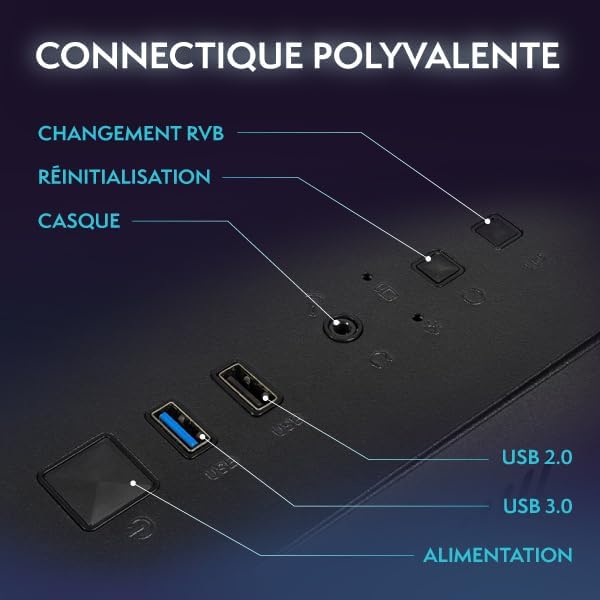
Image: Close-up of the PC's front panel, showing USB 2.0, USB 3.0, headphone jack, power, and reset buttons.
3. Power Connection
- Connect the power cable to the power supply unit (PSU) at the rear of the PC.
- Plug the other end of the power cable into a grounded electrical outlet.
- Ensure the power switch on the PSU (if present) is in the 'ON' position.
4. Initial Boot-up
- Press the power button on the front of the PC tower.
- The system will boot into Windows 11 Home. Follow the on-screen instructions for initial setup, including language, region, and user account creation.
- Ensure all drivers are installed and updated for optimal performance.
Operating Instructions
Your Vibox IV-773 comes pre-installed with Windows 11 Home, offering a streamlined and powerful operating experience for gaming and productivity.
Windows 11 Features for Gaming
- DirectStorage: Experience faster load times in supported games.
- Auto HDR: Automatically enhances visuals for a more vibrant gaming experience.
- Xbox Game Pass Integration: Seamless access to a vast library of games (subscription sold separately).
- Optimized CPU Performance: Enhanced performance for demanding applications and games.

Image: Key features of Windows 11 Home, highlighting benefits for gaming.
Cooling System
The Vibox IV-773 features an advanced cooling system to maintain optimal temperatures during intense usage:
- Vibox AIO 120mm Liquid Cooler: Ensures efficient CPU temperature management.
- HEX RGB Infinity 120mm Fans: Provide excellent airflow and customizable RGB lighting.
- Optimized Airflow: The chassis design promotes inverse airflow for superior cooling performance.

Image: The Vibox AIO 120mm liquid cooler, showcasing its compact design and RGB illumination.

Image: An illustration demonstrating the inverse airflow design for enhanced cooling efficiency within the PC chassis.

Image: Vibox HEX RGB Infinity 120mm fans, highlighting customizable colors and RGB modes.
RGB Lighting Control
Your PC features customizable RGB lighting for fans and internal components. Refer to the specific software provided by Vibox or your motherboard manufacturer for detailed control over lighting effects and colors. A dedicated RGB change button may also be present on the front panel for quick adjustments.
Maintenance
Regular maintenance ensures the longevity and optimal performance of your Vibox IV-773 Gaming PC.
- Dust Cleaning: Periodically clean dust from the PC's interior, especially fans and heatsinks, using compressed air. Ensure the PC is powered off and unplugged before cleaning.
- Software Updates: Keep your Windows operating system, graphics drivers (Nvidia), and other software up to date to ensure stability and performance.
- Antivirus Protection: Install and regularly update antivirus software to protect against malware and viruses.
- Cable Management: Ensure internal cables are neatly managed to prevent obstruction of airflow.
- System Backups: Regularly back up important data to an external drive or cloud service.
Troubleshooting
This section addresses common issues you might encounter with your Vibox IV-773 Gaming PC.
No Power
- Check if the power cable is securely connected to both the PC and the wall outlet.
- Ensure the power switch on the PSU (at the back of the PC) is in the 'ON' position.
- Test the wall outlet with another device to confirm it has power.
No Display on Monitor
- Verify that the monitor's power cable is connected and the monitor is turned on.
- Ensure the video cable (HDMI/DisplayPort) is securely connected to both the graphics card (RTX 5070) on the PC and the monitor.
- Try a different video cable or monitor if available.
- Ensure the monitor's input source is correctly selected (e.g., HDMI 1, DisplayPort).
System Freezes or Crashes
- Ensure all drivers, especially graphics drivers, are up to date.
- Check system temperatures using monitoring software; overheating can cause instability.
- Run a memory diagnostic tool to check for RAM issues.
- Perform a system scan for malware or viruses.
Poor Gaming Performance
- Ensure your graphics drivers are the latest version.
- Check in-game settings; reduce resolution or graphics quality if necessary.
- Close unnecessary background applications to free up system resources.
- Monitor CPU and GPU temperatures to ensure they are not throttling due to overheating.
Specifications
| Component | Detail |
|---|---|
| Brand | Vibox |
| Model Number | IV-773 |
| CPU Model | AMD Ryzen 7 9700X (8 Cores) |
| CPU Speed | 3.8 GHz (Base), 5.5 GHz (Max Boost) |
| Graphics Coprocessor | Nvidia GeForce RTX 5070 (12GB GDDR7) |
| RAM Installed | 32 GB DDR5 (4800 MHz) |
| Storage Capacity | 1 TB SSD (SATA) |
| Operating System | Windows 11 Home |
| Connectivity | Ethernet, HDMI, USB, Wi-Fi 6, Bluetooth 5.4 |
| Video Output | HDMI, DisplayPort |
| Cooling Method | Liquid Cooling (AIO 120mm) |
| Included Monitor Size | 27 Inches (1920x1080 Pixel, LED, 16:9) |
| Dimensions (Item) | 42 x 28 x 43.5 cm |
| Color | Black |
| Power Plug Type | Type C/EF - 2 pin (EU/FR-DE hybrid) |
| Product Uses | Photo Editing, Gaming, Video Editing |
Warranty and Support
Your Vibox IV-773 Gaming PC comes with a comprehensive warranty to ensure your peace of mind.
- Product Warranty: 2 years.
- Labor Warranty: Lifetime.
- Spare Parts Availability (EU): 2 years.
For technical support, warranty claims, or any questions regarding your Vibox product, please contact Vibox customer service. Refer to the contact information provided with your purchase documentation or visit the official Vibox website for support details.