
Introduction
Thank you for choosing the OTVOC V10 Plus tablet. This manual provides essential information for setting up, operating, maintaining, and troubleshooting your device. The OTVOC V10 Plus is a high-performance tablet designed for a wide range of uses, from daily tasks to work and study, offering a smart and secure operating experience.
Setup
1. Unboxing Your OTVOC V10 Plus
Carefully open the product packaging and ensure all components are present. The box typically contains the tablet, a charger, a USB cable, a SIM card pin, and this instruction manual.
Video: Unboxing the Bpad Mini SE tablet. This video demonstrates the unboxing process and initial setup steps for a similar tablet model, providing a visual guide to what to expect when opening your OTVOC V10 Plus.
2. SIM Card and TF Card Installation
To install your SIM card for 4G LTE connectivity or a TF (microSD) card for expanded storage, use the provided SIM ejector tool to open the card tray. Carefully place the cards into their respective slots as indicated on the tray, then reinsert the tray into the tablet.
Video: How to insert a SIM card into the Bpad Mini SE. This video illustrates the correct procedure for inserting a SIM card and TF card into a tablet, which is applicable to the OTVOC V10 Plus.
3. Initial Power On and Language Setup
Press and hold the power button until the OTVOC logo appears. Follow the on-screen prompts to select your preferred language, connect to a Wi-Fi network, and complete the initial setup process. Face recognition is available for quick and secure unlocking.

Image: Android 13 OS features on the OTVOC V10 Plus tablet. This image highlights the customizable home screen, privacy features, and face recognition for quick access.
Operating Your Tablet
1. Android 13 Operating System
The OTVOC V10 Plus runs on the latest Android 13 OS, offering enhanced customization, privacy protection, and accessibility features. Enjoy a smarter and more secure experience for all your activities.

Image: Android 13 features. This image illustrates the updated design, improved functionality, enhanced privacy protection, and accessibility features of Android 13.
2. Desktop Mode (PC Mode)
Activate Desktop Mode to transform your tablet into a PC-like interface, allowing you to open multiple windows and applications simultaneously for improved productivity. This mode is ideal for multitasking, work, and study.
Video: About PC Mode. This video demonstrates how to activate and use the Desktop Mode (PC Mode) on a tablet, showing how to manage multiple windows and applications.
3. Display and Media Consumption
The 10.5-inch FHD+ (1920x1200) In-Cell display with 400cd/m² brightness and a 178° viewing angle provides clear and vibrant visuals. With Widevine L1 support, you can enjoy HD streaming from platforms like Amazon Prime Video, Netflix, YouTube, and Disney+.

Image: 10.5-inch FHD display. This image highlights the tablet's large, high-resolution display, ideal for document creation, video viewing, and online learning.
4. Performance and Storage
Equipped with a high-performance Unisoc T616 8-core processor (up to 1.8GHz, 12nm process) and Mali-G57 GPU, the V10 Plus ensures smooth multitasking and seamless operation for demanding apps and games. It features 8GB LPDDR4 RAM (expandable with 8GB virtual RAM) and 256GB internal storage, expandable up to 1TB via microSD card.

Image: High-performance Unisoc T616 8-core CPU and Mali-G57 GPU. This image illustrates the powerful processor and GPU for smooth performance in videos and 3D games.

Image: Large memory and abundant storage. This image shows the 16GB RAM (8GB physical + 8GB virtual) and 256GB internal storage, expandable up to 1TB with a microSD card.
5. Battery Life and Charging
The tablet features a large 7500mAh battery, providing over 6 hours of continuous video playback. It supports Type-C charging and includes an independent 3.5mm audio jack, allowing you to listen to music or make calls while charging.
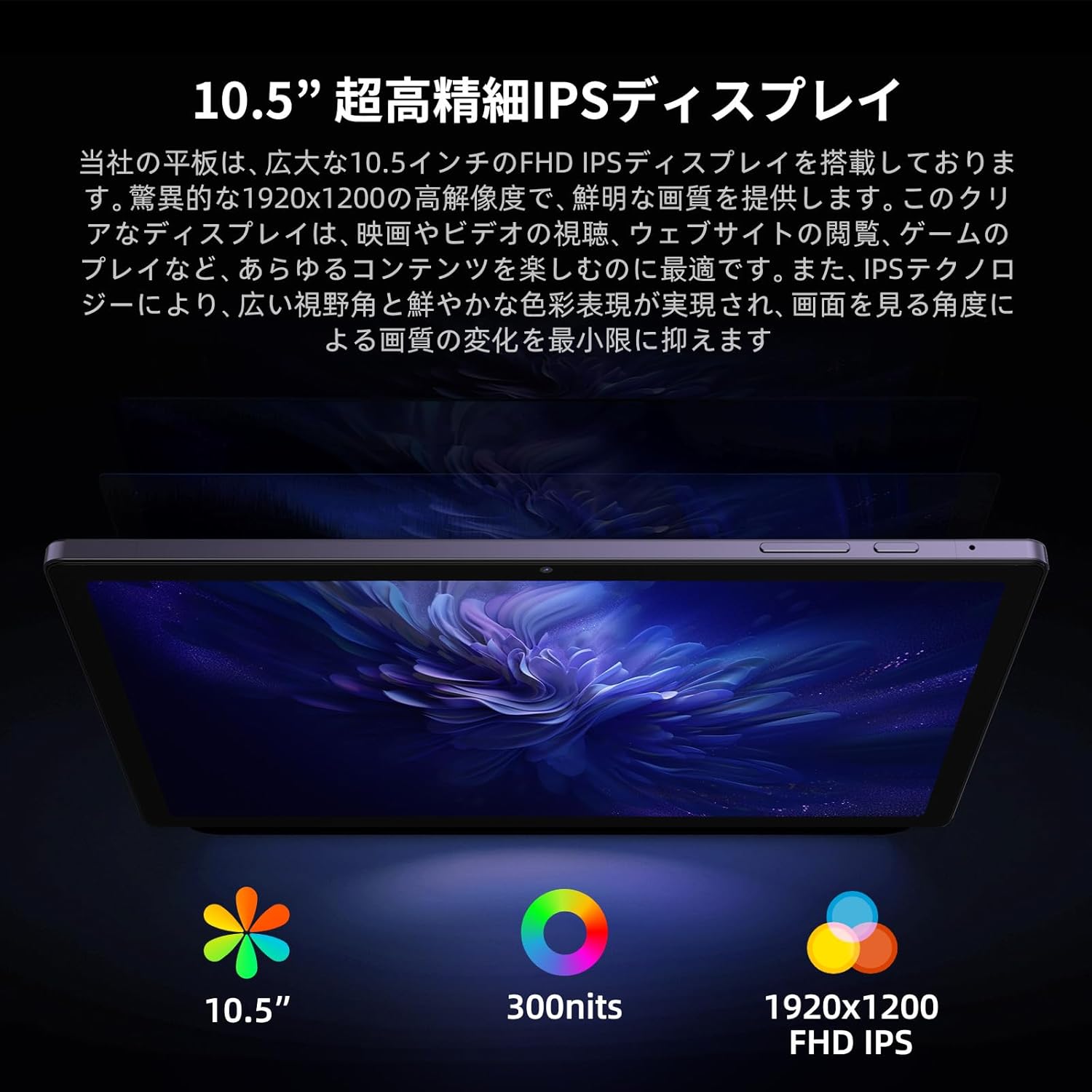
Image: Long-lasting 7500mAh battery. This image highlights the tablet's large battery capacity and Type-C charging port, ensuring extended usage.
6. Connectivity
The OTVOC V10 Plus supports 4G LTE SIM-free connectivity (Bands: 1/3/8/18/19/26/28/40/41), Wi-Fi (802.11ac), Bluetooth 5.0, and GPS/Glonass/Beidou for reliable navigation. Please refer to the SIM card compatibility details for optimal network performance in your region.

Image: Comprehensive connectivity options. This image displays the tablet's support for 4G LTE, Bluetooth 5.0, dual-band Wi-Fi, and multiple satellite navigation systems.
7. Camera Usage
Capture life's moments with the 8MP front camera and 13MP rear camera. The high-quality cameras allow you to take clear selfies, beautiful landscapes, and record important moments.

Image: Front and rear cameras. This image highlights the tablet's 8MP front camera and 13MP rear camera for capturing photos and videos.
Maintenance
1. General Care
- Keep your tablet away from extreme temperatures, direct sunlight, and moisture.
- Clean the screen with a soft, lint-free cloth. Avoid abrasive cleaners.
- Protect your tablet from drops and impacts by using a protective case.
2. Software Updates
Regularly check for and install software updates to ensure your tablet has the latest features, security patches, and performance improvements. You can usually find this option in the device's settings under 'System' or 'About tablet'.
3. Battery Care
- Avoid fully discharging the battery frequently.
- Do not leave the tablet charging for extended periods after it reaches 100%.
- Use only the original charger and cable provided with your device.
Troubleshooting
Common Issues and Solutions
- Device not turning on: Ensure the battery is charged. Connect the charger and wait a few minutes before attempting to power on again. If it still doesn't turn on, try holding the power button for 10-15 seconds.
- Wi-Fi/4G connectivity issues: Check if Wi-Fi is enabled and you are connected to the correct network. For 4G, ensure your SIM card is properly inserted and your data plan is active. Try restarting the tablet or toggling airplane mode.
- Applications crashing or freezing: Close background applications. Clear the cache of the problematic app in 'Settings > Apps'. If the issue persists, try uninstalling and reinstalling the app.
- Slow performance: Close unused apps, clear cache, and ensure sufficient storage space. Consider performing a factory reset if performance issues continue after trying other solutions (back up your data first).
Specifications
| Feature | Specification |
|---|---|
| Brand | OTVOC |
| Model Name | V10 Plus |
| Operating System | Android 13 |
| Screen Size | 10.5 Inches |
| Display Resolution | 1920 x 1200 (FHD+) |
| CPU Brand | Unisoc T616 (8-core, 1.8 GHz) |
| RAM Capacity | 8 GB |
| HDD Capacity | 256 GB |
| Expandable Storage | Up to 1 TB (microSD) |
| Graphics Accelerator | Mali-G57 |
| Connectivity | Wi-Fi (802.11ac), 4G LTE, Bluetooth 5.0 |
| Battery Capacity | 7500 mAh |
| Battery Life | Approx. 6 hours (video playback) |
| Product Weight | 500 g |
Warranty and Support
Your OTVOC V10 Plus tablet comes with a manufacturer's warranty. Please refer to the warranty card included in your product packaging for specific terms and conditions. For technical support, troubleshooting assistance, or any inquiries, please contact OTVOC customer service through the official website or the contact information provided in your product documentation.
We are committed to providing you with the best possible experience with your OTVOC V10 Plus tablet.