
Product Overview
The Akko Dash Max is an ultra-lightweight wireless gaming mouse designed for precision and speed. Featuring an advanced PAW3395 sensor, Akko Custom Optical Micro-switches, and versatile connectivity options (2.4G, Bluetooth, Wired), it offers a high-performance experience for various gaming and computing needs. Its ergonomic, symmetrical design ensures comfort for different grip styles.
Video: An official overview of the Akko Dash Wireless Mouse, highlighting its key features and design.
Package Contents
Please ensure all items are present in the package:
- Akko Dash Max Wireless Gaming Mouse
- USB Receiver (2.4G)
- USB-C Charging Cable
- User Manual
Setup and Connectivity
1. Charging the Mouse
Connect the provided USB-C cable to the charging port on the front of the mouse and the other end to a USB power source (e.g., computer USB port, USB wall adapter). The LED indicator on the mouse will show the charging status.
2. Connectivity Modes
The Akko Dash Max supports three connection modes: 2.4G Wireless, Bluetooth, and Wired USB.

Image: The Akko Dash Max mouse supports 2.4G wireless, wired USB, and Bluetooth connectivity.
2.1. 2.4G Wireless Mode
- Locate the USB receiver, typically stored in a compartment on the underside of the mouse.
- Plug the USB receiver into an available USB port on your computer.
- On the bottom of the mouse, slide the switch to the "2.4G" position.
- The mouse should connect automatically. If not, press the pairing button (if available) or refer to the software for pairing instructions.
2.2. Bluetooth Mode
- On the bottom of the mouse, slide the switch to the "BT" position.
- On your computer or device, open Bluetooth settings and search for new devices.
- Select "Akko Dash Max" from the list of available devices to pair. The LED indicator may flash during pairing and become solid once connected.
2.3. Wired USB Mode
- Connect the USB-C cable to the mouse and the other end to your computer's USB port.
- The mouse will automatically switch to wired mode. This mode also charges the mouse battery.
Operating Instructions
1. DPI Adjustment
The mouse features 8 adjustable DPI levels, allowing you to fine-tune sensitivity for different games and playstyles. Use the dedicated DPI button (typically located behind the scroll wheel) to cycle through the settings.
- Available DPI settings: 400, 800, 1200, 1600, 3200, 6400, 10000, and 26000.
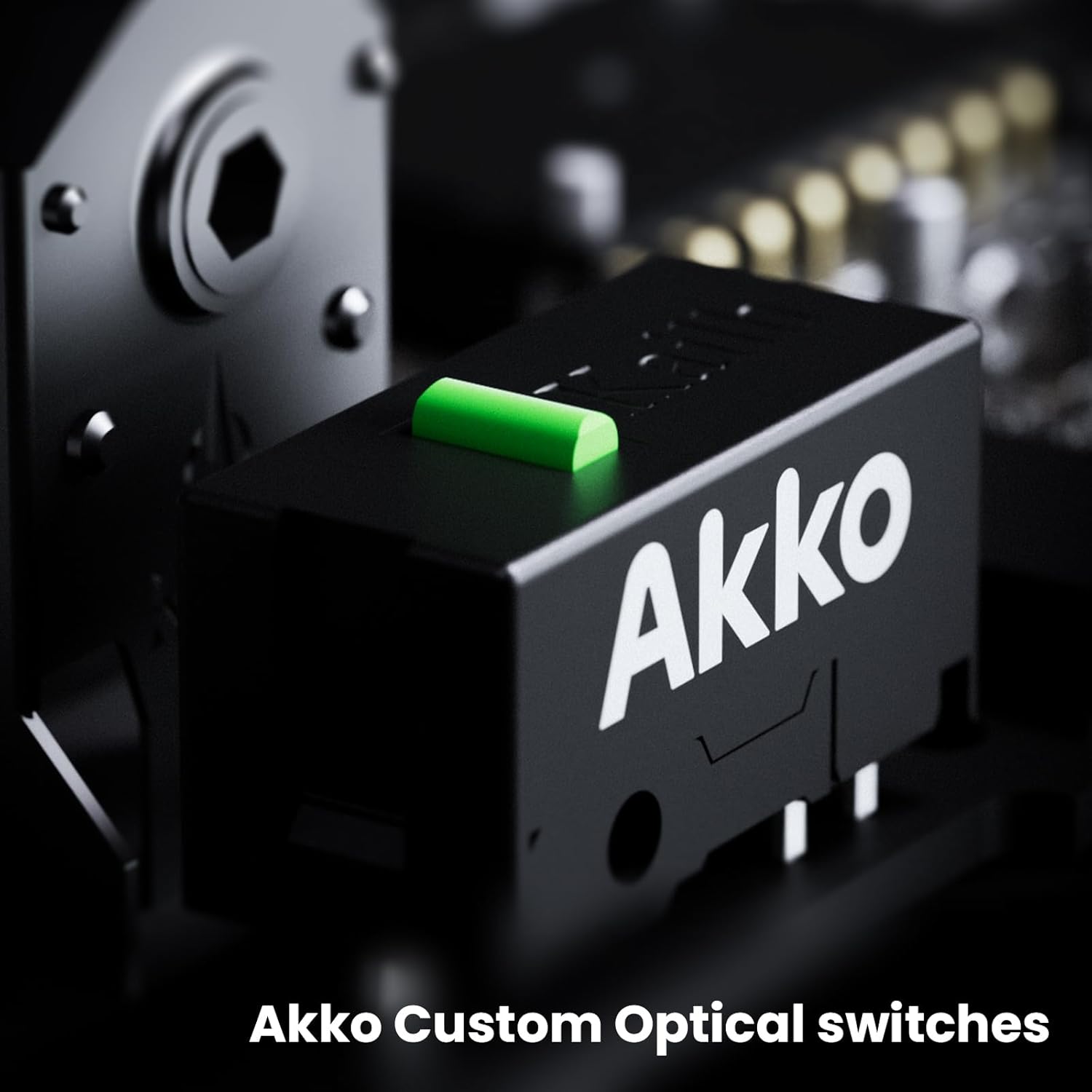
Image: Visual representation of the 8 adjustable DPI levels and smooth tracking capability.
2. Polling Rate
The Akko Dash Max supports up to an 8000Hz polling rate, providing minimal input lag for competitive gaming. The polling rate can typically be adjusted via the Akko software (if available) or through your operating system's mouse settings.
3. Akko Custom Optical Micro-switches
The mouse is equipped with Akko Custom Optical Micro-switches, engineered for a 150-million click lifespan. These switches offer consistent, firm clicks and rapid response times.

Image: Detail of the Akko Custom Optical Micro-switch.
4. Ergonomic Grip Styles
The symmetrical shape of the Akko Dash Max is ergonomically designed to accommodate various grip styles, including fingertip grip, palm grip, and claw grip, ensuring comfort during extended use.

Image: Examples of different mouse grip styles: palm, fingertip, and claw.
Maintenance
- Cleaning: Use a soft, dry, lint-free cloth to clean the mouse surface. Avoid using harsh chemicals, solvents, or abrasive materials, as these can damage the finish or internal components.
- Storage: Store the mouse in a dry environment away from direct sunlight, extreme temperatures, and high humidity.
- Battery Care: For optimal battery longevity, avoid fully discharging the mouse frequently. Charge the mouse when the battery indicator suggests low power.
Troubleshooting
Mouse Not Responding
- Check Battery: Ensure the mouse is sufficiently charged. Connect it via USB-C cable to charge.
- Check Connection Mode: Verify that the switch on the bottom of the mouse is set to the correct mode (2.4G, BT, or OFF).
- 2.4G Mode: Ensure the USB receiver is securely plugged into an active USB port on your computer. Try a different USB port.
- Bluetooth Mode: Confirm that Bluetooth is enabled on your device and that the mouse is properly paired. Try removing and re-pairing the device in your Bluetooth settings.
- Wired Mode: Connect the mouse directly to your computer using the USB-C cable to rule out wireless connectivity issues.
Intermittent Connection or Lag
- Distance: Ensure the mouse is within optimal range of the USB receiver or Bluetooth device.
- Interference: Minimize interference from other wireless devices (e.g., Wi-Fi routers, other wireless peripherals) by moving them further away.
- Battery Level: A low battery can affect wireless performance. Charge the mouse.
DPI Not Changing
- DPI Button: Ensure you are pressing the correct DPI adjustment button.
- Software Conflict: If you have Akko software installed, check if any custom profiles or settings are overriding the hardware DPI adjustments.
Specifications
| Feature | Detail |
|---|---|
| Model | Akko Dash Max |
| Sensor | PAW3395 |
| DPI Levels | 400, 800, 1200, 1600, 3200, 6400, 10000, 26000 |
| Polling Rate | Up to 8000Hz |
| Weight | Approx. 40g |
| Switches | Akko Custom Optical Micro-switches (150-million click lifespan) |
| Connectivity | 2.4G Wireless, Bluetooth, Wired USB |
| Buttons | 7 |
| Hand Orientation | Right |
| Dimensions | 175.6 × 90.9 × 37.1mm |
Warranty Information
The Akko Dash Max Wireless Gaming Mouse comes with a 2-year warranty from the date of purchase. This warranty covers manufacturing defects and ensures lasting quality. Please retain your proof of purchase for all warranty claims.
Support
For further assistance, technical support, or warranty inquiries, please visit the official Akko website or contact Akko customer service.
Official Akko Website: www.akkogear.com