
1. Introduction
This manual provides detailed instructions for the installation, operation, and maintenance of your CHIGEE AIO-5 EVO Motorcycle Smart Riding System. Please read this manual thoroughly before using the device to ensure proper function and safety.
2. Product Overview
The CHIGEE AIO-5 EVO is an advanced motorcycle smart riding system designed to enhance your riding experience with integrated connectivity, safety, and recording features.
Key Features:
- Wireless CarPlay & Android Auto: Seamlessly integrate your smartphone for navigation, music, and communication.
- Dual 1080P Front & Rear Dash Cams: Record high-definition video from both perspectives for security and ride documentation.
- Blind Spot Detection (BSD): Enhance safety with alerts for vehicles in your blind spots.
- 5-inch Waterproof Display: A rugged, high-brightness touchscreen designed for outdoor visibility and durability (IP69K rated).
- Parking Mode: Monitor and record incidents while your motorcycle is parked.
- App Connectivity: Manage footage and settings via the dedicated Chigee Go app.
- Pro-Grade Ride Data: View real-time speed, trip distance, heading, voltage, and optional tire pressure monitoring.
- OTA Updates: Receive new features and performance improvements wirelessly.

Image: The CHIGEE AIO-5 EVO display unit, showcasing its sleek design and robust build.
3. Package Contents
Verify that all items are present in the package:
- 5-Inch Motorcycle CarPlay Screen (AIO-5 EVO)
- (Additional components such as cameras, cables, and mounting hardware are typically included but not explicitly listed in the provided 'whats_in_the_box' data.)
4. Setup and Installation
Proper installation is crucial for the performance and safety of the AIO-5 EVO. It is recommended to have this system installed by a qualified professional if you are unfamiliar with motorcycle electrical systems.
4.1 Mounting the Display Unit
- Choose a secure and visible location on your motorcycle's handlebars or dashboard that does not obstruct your view or control.
- Attach the mounting bracket securely using the provided hardware. Ensure it is tightened to prevent vibration.
- Mount the AIO-5 EVO display unit onto the bracket.
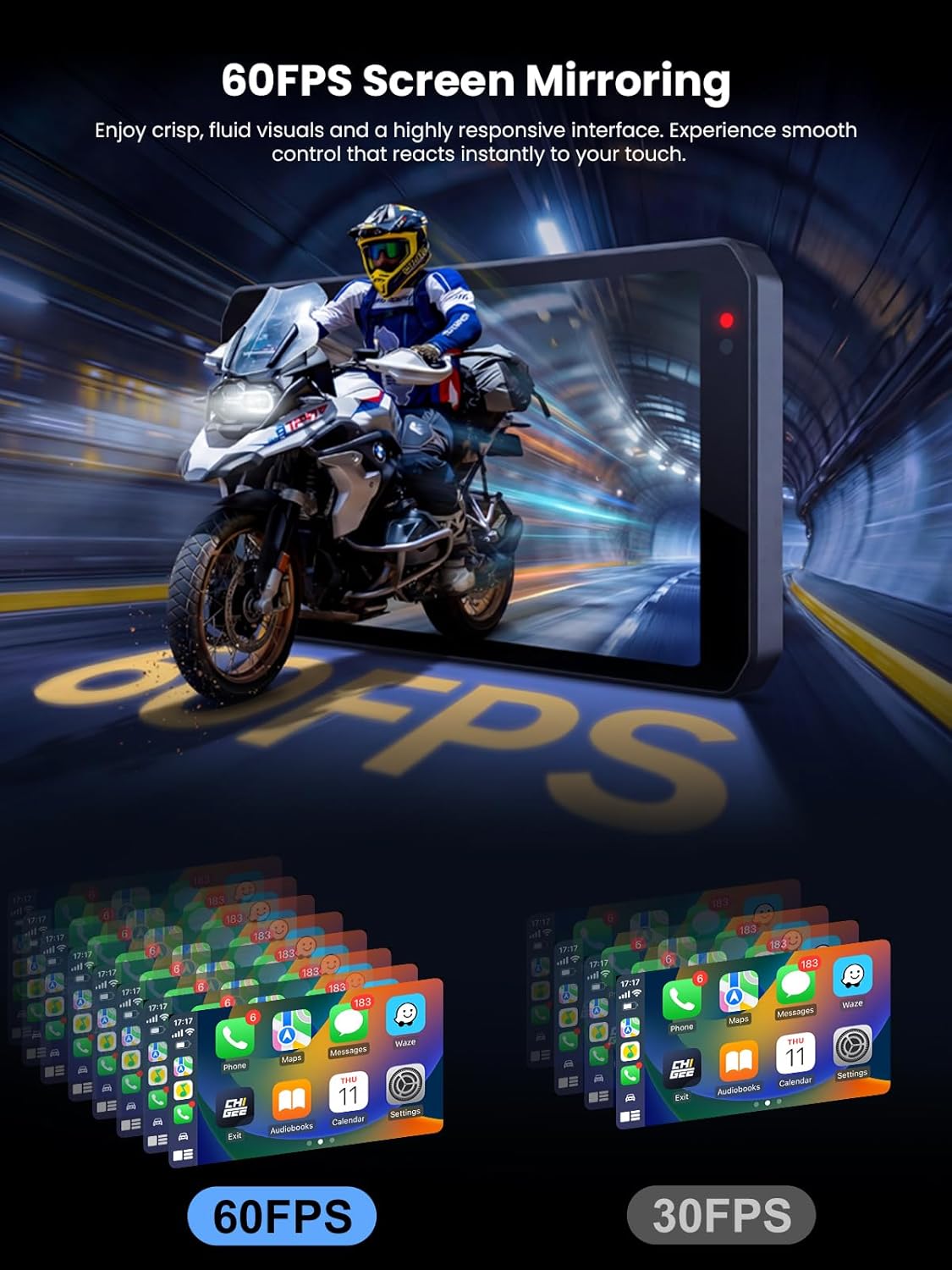
Image: The AIO-5 EVO display unit securely mounted on a motorcycle, showing its position relative to the rider's view.
4.2 Camera Installation
- Install the front camera in a location that provides a clear, unobstructed view of the road ahead, typically near the headlight or front fairing.
- Install the rear camera in a location that provides a clear view of the road behind, typically near the taillight or rear fender.
- Route the camera cables securely, avoiding moving parts and heat sources. Ensure all connections are waterproof.

Image: A visual guide illustrating the recommended mounting positions for the front and rear 1080P cameras on a motorcycle.
4.3 Power Connection
- Connect the main power cable to your motorcycle's 12V power source. It is recommended to connect to a switched power source that turns off with the ignition to prevent battery drain.
- Ensure all electrical connections are secure and properly insulated to prevent short circuits and water damage.
4.4 Initial Power On and Pairing
- Turn on your motorcycle's ignition. The AIO-5 EVO display should power on.
- Follow the on-screen prompts to select your language and initial settings.
- To use Wireless CarPlay or Android Auto, enable Bluetooth and Wi-Fi on your smartphone.
- On the AIO-5 EVO, navigate to the CarPlay/Android Auto section and select "Connect New Device".
- On your smartphone, search for the AIO-5 EVO in your Bluetooth settings and pair with it. Confirm any pairing codes.
- Once Bluetooth is connected, the system will automatically establish a Wi-Fi connection for CarPlay/Android Auto functionality.
5. Operating Instructions
5.1 Wireless CarPlay & Android Auto
After successful pairing, your smartphone interface will be mirrored on the AIO-5 EVO display. You can access navigation, music, calls, and other compatible apps directly from the unit.
- Navigation: Use your preferred navigation app (e.g., Google Maps, Apple Maps) for turn-by-turn directions.
- Music: Control music playback from streaming services or your phone's library.
- Calls: Make and receive calls hands-free.

Image: The AIO-5 EVO screen displaying the Apple CarPlay interface, providing access to phone, music, maps, and messages.

Image: The AIO-5 EVO in split-screen mode, showing navigation on one side and a live camera feed on the other, enhancing situational awareness.
5.2 Dual Dash Cams (1080P)
The integrated dual dash cams continuously record footage from the front and rear of your motorcycle. This footage can be crucial for accident evidence or for capturing scenic rides.
- Recording: Recording typically starts automatically when the device powers on.
- Loop Recording: Older files are overwritten when the storage card is full.
- G-Sensor: In case of an impact, the G-sensor will lock the current recording to prevent it from being overwritten.
- Accessing Footage: Footage can be viewed and downloaded via the Chigee Go app or by removing the microSD card.

Image: A smartphone screen showing a live camera feed from the AIO-5 EVO, integrated with GPS data for route tracking and video synchronization.
5.3 Blind Spot Detection (BSD)
The BSD system uses sensors to monitor your motorcycle's blind spots. When a vehicle is detected in a blind spot, the system will provide a visual or audible alert to the rider.
- Alerts: Pay attention to BSD alerts, especially when changing lanes.
- Calibration: Ensure sensors are clean and unobstructed for optimal performance.
5.4 Parking Mode
When your motorcycle is parked, Parking Mode activates to detect and record any significant events or impacts, providing security monitoring.
- Activation: Parking Mode typically activates automatically after the ignition is turned off.
- Event Recording: The system records short video clips when motion or impact is detected.
5.5 Chigee Go App Connectivity
The dedicated Chigee Go app allows you to connect to your AIO-5 EVO via Wi-Fi for various functions:
- Live View: See real-time camera feeds.
- File Management: Browse, download, and delete recorded videos and photos.
- Settings: Adjust device settings, camera resolution, and other preferences.
- Firmware Updates: Initiate Over-The-Air (OTA) updates.
5.6 Ride Data Display
The AIO-5 EVO can display various ride data in real-time, including speed, trip distance, heading, and voltage. Optional TPMS sensors can also provide tire pressure and temperature data.

Image: The AIO-5 EVO display showing real-time tire pressure and temperature data from optional TPMS sensors.
6. Maintenance
- Cleaning: Use a soft, damp cloth to clean the display and camera lenses. Avoid abrasive cleaners.
- Waterproofing: Ensure all cable connections are securely fastened and sealed to maintain the IP69K waterproof rating.
- Firmware Updates: Regularly check for and install OTA firmware updates to ensure optimal performance and access to new features.
- Storage Card: Periodically format the microSD card (at least once a month) to prevent data corruption and ensure continuous recording. Back up important footage before formatting.
- Cable Inspection: Periodically inspect all cables for wear, fraying, or damage. Replace damaged cables immediately.
7. Troubleshooting
| Problem | Possible Cause | Solution |
|---|---|---|
| Device does not power on. | No power connection; Blown fuse; Incorrect wiring. | Check power cables and connections. Verify fuse. Consult installation guide or professional. |
| CarPlay/Android Auto not connecting. | Bluetooth/Wi-Fi off on phone; Incorrect pairing; Interference. | Ensure phone's Bluetooth/Wi-Fi is on. Re-pair device. Restart both phone and AIO-5 EVO. |
| Dash cams not recording. | MicroSD card full or corrupted; Card not inserted; Camera cable disconnected. | Check microSD card insertion. Format card (backup data first). Check camera cable connections. |
| Inaccurate speed readings. | GPS signal obstruction; GPS module malfunction. | Ensure clear line of sight to sky for GPS module. Check GPS module connection. Perform a factory reset if issue persists. |
| Display is dim or unreadable in sunlight. | Brightness setting too low; Extreme direct sunlight. | Adjust display brightness settings. While the display is high-brightness, extreme direct sunlight can still affect visibility. |
| OTA update fails. | Poor Wi-Fi connection; Insufficient storage; Interrupted download. | Ensure stable Wi-Fi connection. Check available storage. Do not interrupt update process. Try updating via the Chigee Go app. |
8. Specifications
| Feature | Detail |
|---|---|
| Brand | CHIGEE |
| Model Name | AIO-5 EVO |
| Vehicle Service Type | Motorcycle |
| Screen Size | 5 inches |
| Special Feature | IP69K Waterproof |
| Connectivity Technology | Wireless CarPlay & Android Auto |
| Map Type | Worldwide |
| Mounting Type | Panel Mount |
| Touch Screen Type | Capacitive |
| Display Type | Touch Screen |
| Control Method | App, Touch |
| Supported Satellite Navigation System | GPS |
| Manufacturer | CHIGEE |
9. Warranty Information
The CHIGEE AIO-5 EVO comes with a 1-year warranty from the date of purchase. This warranty covers manufacturing defects and malfunctions under normal use. It does not cover damage caused by improper installation, accidents, misuse, unauthorized repairs, or natural disasters.
Please retain your proof of purchase for warranty claims.
10. Support
For technical assistance, troubleshooting, or warranty inquiries, please contact CHIGEE customer support through the following channels:
- Website: Visit the official CHIGEE website for FAQs and support resources.
- Email: Refer to your product packaging or the official website for customer service email.
- Online Store: You can also visit the CHIGEE Store on Amazon for product information and updates.


