
1. Introduction
This manual provides essential information for the safe and efficient operation of your Cello Voyager C24TZR-VOY 24-inch Smart TV. Please read these instructions carefully before using the product and retain them for future reference.
The Cello Voyager C24TZR-VOY is a versatile 24-inch smart television designed for both home and mobile use, featuring dual 12V/230V power options, an integrated 5G Wi-Fi router, Samsung Tizen OS, and a triple tuner for comprehensive entertainment on the go or at home.

Figure 1: Front view of the Cello Voyager C24TZR-VOY 24-inch Smart TV.
2. Safety Information
Always follow basic safety precautions when using this product to reduce the risk of fire, electric shock, and injury.
- Do not expose the TV to rain or moisture.
- Ensure proper ventilation to prevent overheating.
- Use only the power adapters and cables supplied or recommended by the manufacturer.
- Do not open the TV casing; refer all servicing to qualified personnel.
- Keep batteries out of reach of children.
3. Package Contents
Verify that all items are present in the package:
- Cello Voyager C24TZR-VOY 24-inch Smart TV
- Remote Control (2 AAA batteries included)
- Power Cable (230V AC)
- 12V DC Power Cable
- TV Stand
- User Manual (this document)
4. Setup
4.1 Assembling the TV Stand
Carefully place the TV face down on a soft, clean surface. Attach the TV stand to the designated slots on the bottom of the TV using the provided screws. Ensure the stand is securely fastened before placing the TV upright.
4.2 Power Connection (12V / 230V)
Your Cello Voyager TV supports dual power input for versatile use.
- For 230V AC (Home/Campsite Hook-up): Connect the standard power cable to the TV's AC input and then to a wall socket.
- For 12V DC (Vehicle/Boat): Connect the supplied 12V DC power cable to the TV's 12V input and then to a compatible 12V power source (e.g., cigarette lighter socket in a vehicle).

Figure 2: The included 12-volt power cable for mobile applications.
4.3 Antenna Connections
The TV features a triple tuner (DVB-T2/C/S2) for various signal sources.
- Terrestrial (DVB-T2): Connect a terrestrial antenna cable to the "RF IN" port.
- Cable (DVB-C): Connect a cable TV signal to the "RF IN" port.
- Satellite (DVB-S2): Connect a satellite dish cable to the "SAT IN" port.

Figure 3: Rear panel connections, including antenna inputs.
4.4 Initial Setup Wizard
Upon first power-on, the TV will guide you through the initial setup process. This includes:
- Language selection.
- Network connection (Wi-Fi or Ethernet).
- Channel scanning for DVB-T2/C/S2.
- Time zone and other basic settings.
4.5 SIM Card Installation for 5G Wi-Fi Router
To utilize the built-in 5G Wi-Fi router, a compatible SIM card with a data plan is required. Locate the SIM card slot (refer to the diagram in the full manual if needed) and insert the SIM card carefully. Ensure the TV is powered off before inserting or removing the SIM card.

Figure 4: The TV features an integrated 5G Wi-Fi router.
5. Operating Instructions
5.1 Remote Control
The supplied remote control allows you to access all TV functions. Insert the two AAA batteries (included) into the remote control, observing the correct polarity.
- Power Button: Turns the TV on/off.
- Navigation Buttons: For menu navigation.
- Volume +/-: Adjusts the volume.
- Channel +/-: Changes TV channels.
- Smart Hub Button: Accesses the Samsung Tizen OS Smart Hub.
- Source Button: Selects input sources (HDMI, USB, TV).
5.2 Smart TV Features (Samsung Tizen OS)
The Cello Voyager TV runs on Samsung Tizen OS, providing access to a wide range of streaming services and applications.
- Streaming Apps: Access popular services like Netflix, Prime Video, Disney+, Apple TV, and YouTube. An internet connection and possibly subscriptions are required.
- Samsung Gaming Hub: Stream cloud games directly to your TV without a console. An internet connection and compatible controller may be required.
- Samsung TV Plus: Enjoy free live and on-demand entertainment.

Figure 5: Integrated entertainment features of the Cello Voyager TV.

Figure 6: Samsung Gaming Hub interface.
5.3 5G Wi-Fi Router and Hotspot
With a SIM card installed, your TV acts as a 5G Wi-Fi router, allowing you to share a mobile internet connection with up to 32 devices.
- Ensure a SIM card with an active data plan is inserted.
- Navigate to the network settings on your TV.
- Enable the "Mobile Hotspot" feature.
- Set a network name (SSID) and password for your hotspot.
- Connect your other devices (smartphones, tablets, laptops) to the TV's Wi-Fi network.

Figure 7: Connectivity features, including the 5G Wi-Fi router and hotspot functionality.

Figure 8: The TV's hotspot can connect up to 32 devices.
5.4 Bluetooth Connectivity
Connect compatible wireless headphones or speakers to your TV via Bluetooth 5.1 for a personalized audio experience.
- Go to the TV's settings menu and select "Sound" or "Bluetooth".
- Enable Bluetooth and put your audio device into pairing mode.
- Select your device from the list on the TV screen to pair.
5.5 Connecting External Devices
The TV offers multiple ports for connecting external devices:
- HDMI (x3): Connect gaming consoles, Blu-ray players, or other HDMI-enabled devices.
- USB (x2 USB 2.0, x1 USB 3.0): Connect USB drives for media playback or external storage.
- Optical Audio Out: For connecting to external sound systems.
- Ethernet: For a wired internet connection.

Figure 9: Side panel with HDMI and USB ports.
6. Maintenance
6.1 Cleaning the TV
- Screen: Gently wipe the screen with a soft, lint-free cloth. For stubborn marks, use a screen cleaning solution specifically designed for TVs, applied to the cloth, not directly to the screen.
- Casing: Wipe the casing with a soft, dry cloth. Do not use abrasive cleaners or solvents.
- Always unplug the TV from the power source before cleaning.
6.2 Software Updates
The TV may receive software updates to improve performance and add new features. It is recommended to keep your TV connected to the internet to receive these updates automatically. You can also check for updates manually through the TV's settings menu.
7. Troubleshooting
If you encounter issues with your TV, refer to the following common problems and solutions:
| Problem | Possible Solution |
|---|---|
| No power | Check power cable connections (12V or 230V). Ensure the power outlet is functional. Try a different power source. |
| No picture, but sound is present | Check the input source. Ensure the antenna/cable/satellite connection is secure. Try a different channel or input. |
| No sound, but picture is present | Check volume level. Ensure Mute is not active. Check audio output settings if external speakers are connected. |
| Wi-Fi connection issues | Ensure the 5G SIM card is correctly inserted and has an active data plan. Restart the TV and your Wi-Fi devices. Check network settings. |
| Remote control not working | Replace the AAA batteries. Ensure there are no obstructions between the remote and the TV's IR sensor. |
For further assistance, please contact Cello customer support.
8. Specifications
| Feature | Detail |
|---|---|
| Model Number | C24TZR-VOY |
| Screen Size | 24 Inches |
| Display Technology | LED |
| Resolution | 720p |
| Refresh Rate | 60 Hz |
| Operating System | Tizen |
| Connectivity | Bluetooth 5.1, HDMI (x3), RF, USB (x2 USB 2.0, x1 USB 3.0), Wi-Fi, Ethernet |
| Tuner Technology | DVB-T2, DVB-C, DVB-S2 |
| Power Input | 12V DC / 100-240 VAC 50-60 Hz |
| Wattage | 36 Watts |
| Product Dimensions (D x W x H) | 7.5 x 54 x 31.8 cm |
| Weight | 3.4 kg |
| VESA Mounting Standard | 100 x 100 mm |
| Included Components | Remote Control, Power Cable, 12V Cable, TV Stand |

Figure 10: TV size comparison for reference.
9. Warranty and Support
Your Cello Voyager C24TZR-VOY Smart TV comes with a 3-year manufacturer's warranty. This warranty covers manufacturing defects and ensures peace of mind for your product's lifespan.
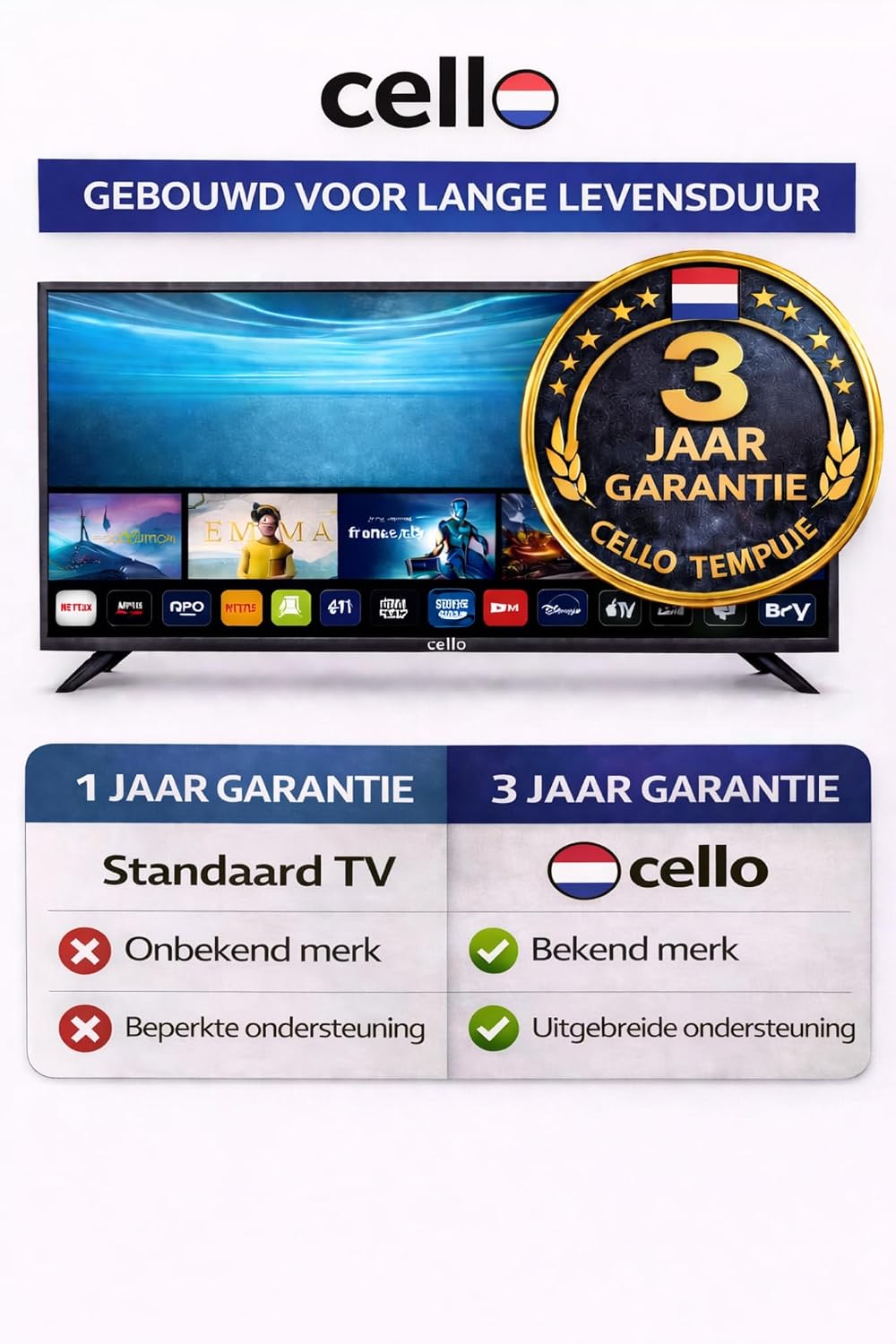
Figure 11: Cello's 3-year manufacturer's warranty.
For warranty claims, technical support, or service inquiries, please contact Cello customer service. Refer to the official Cello website or your purchase documentation for contact details.
Availability of Spare Parts: Spare parts for this product are available in the EU for a duration of 7 years.


