
1. Product Overview
The Akko Dash Max is an ultra-lightweight wireless gaming mouse designed for high-performance gaming. It features an 8K polling rate, a PAW3395 sensor with up to 26000 DPI, and durable Akko Custom Optical Switches. The mouse offers versatile connectivity options including Bluetooth, 2.4G wireless, and wired USB-C, making it suitable for various setups and preferences.
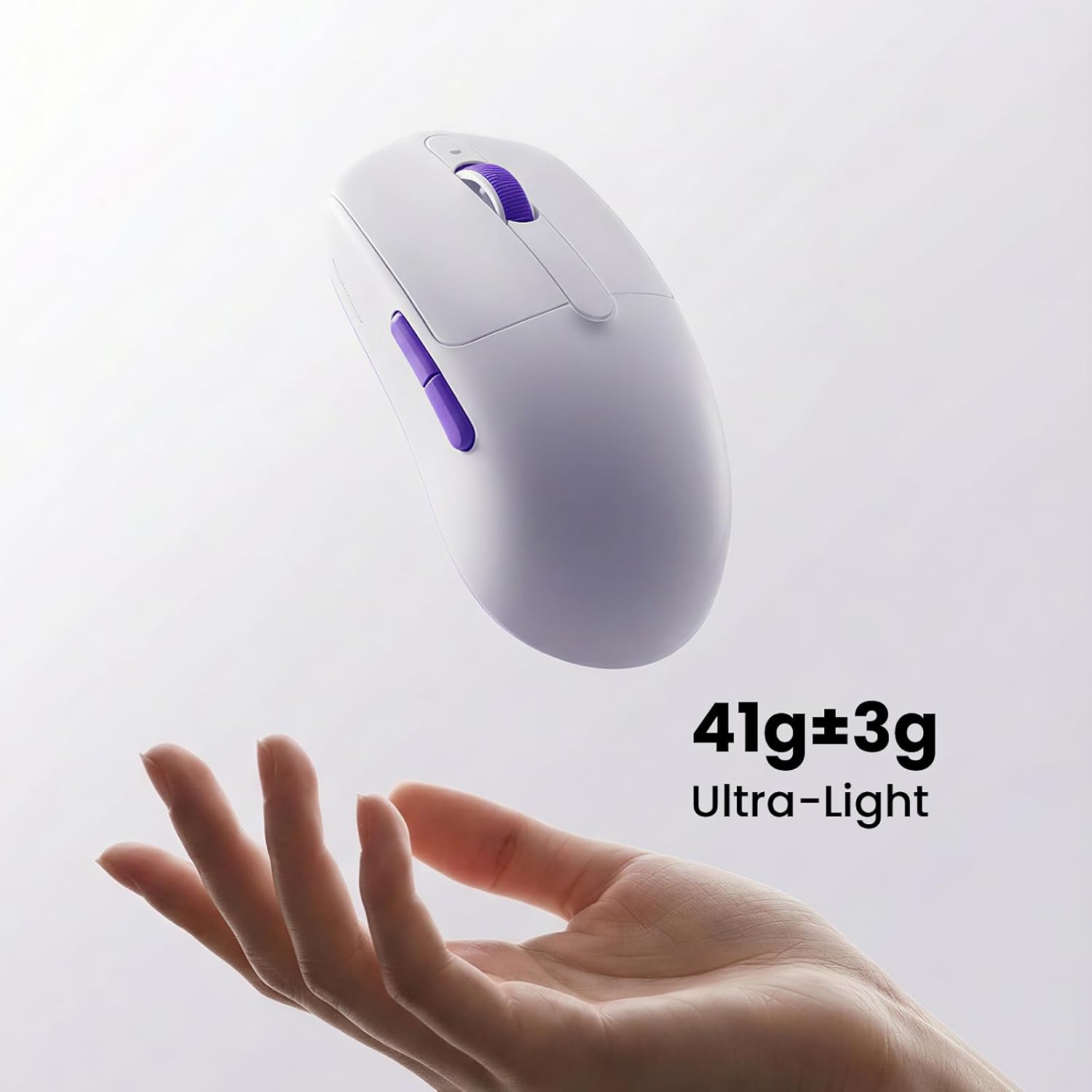
Image 1.1: The Akko Dash Max mouse, demonstrating its ultra-light 41g weight.
2. Setup Instructions
2.1 Package Contents
- Akko Dash Max Wireless Gaming Mouse
- USB-C to USB-A Cable
- 2.4G USB Receiver
- User Manual
2.2 Charging the Mouse
Connect the mouse to your computer using the provided USB-C cable. The mouse will charge automatically. A full charge typically takes approximately 2-3 hours. The LED indicator on the mouse will show charging status.
2.3 Connectivity Modes
The Akko Dash Max supports three connectivity modes: 2.4G Wireless, Bluetooth, and Wired. Use the switch on the bottom of the mouse to select your desired mode.

Image 2.1: Connectivity options for the Akko Dash Max mouse.
2.3.1 2.4G Wireless Mode
- Locate the 2.4G USB receiver. It may be stored in a compartment on the underside of the mouse.
- Plug the 2.4G USB receiver into an available USB port on your computer.
- Switch the mode selector on the bottom of the mouse to "2.4G".
- The mouse should connect automatically.
2.3.2 Bluetooth Mode
- Switch the mode selector on the bottom of the mouse to "BT".
- On your computer, open Bluetooth settings and search for new devices.
- Select "Akko Dash Max" from the list of available devices to pair.
2.3.3 Wired Mode
- Connect the USB-C end of the cable to the mouse and the USB-A end to your computer.
- The mouse will automatically switch to wired mode and begin charging.
3. Operating Instructions
3.1 DPI Adjustment
The Akko Dash Max features 8 adjustable DPI levels, allowing you to customize sensitivity for different tasks or games. The default DPI settings are 400, 800, 1200, 1600, 3200, 6400, 10000, and 26000. You can cycle through these settings using the dedicated DPI button, usually located behind the scroll wheel.

Image 3.1: Visual representation of adjustable DPI levels and polling rate.
3.2 Button Functions
The mouse is equipped with 7 programmable buttons:
- Left Click: Standard primary action.
- Right Click: Standard secondary action.
- Scroll Wheel: Scrolls up/down, and acts as a middle click button.
- DPI Button: Cycles through preset DPI levels.
- Side Buttons (2): Typically for forward/backward navigation in browsers or custom functions in games.
3.3 Software Customization
For advanced customization, including remapping buttons, creating macros, and fine-tuning DPI settings, download the Akko Gaming Hub software. This software is compatible with Windows operating systems. A web driver is also available for both Windows and Mac (Chrome browser only).
Video 3.1: Official Akko video demonstrating the Akko Dash Wireless Mouse features and customization options.
4. Key Features
- 41g Ultra Lightweight: Engineered for effortless control and faster movement, the lightweight build reduces fatigue and enhances precision, empowering users with greater speed and agility.
- Akko Custom Optical Micro-switches: Precisely tuned with a 150-million click lifespan for long-lasting durability and firm click. These switches offer exceptional precision stability combined with fast response times.
- 8 Adjustable DPI Levels: Fine-tune sensitivity for different games and playstyles. Switch seamlessly between 400, 800, 1200, 1600, 3200, 6400, 10000, and 26000 DPI.
- Optimized for Small to Medium Hands: Ergonomically designed with a symmetrical shape for fingertip grip, palm grip, and claw grip. Compact dimensions (117.56 × 60.91 × 37.01mm) ensure a natural grip, balanced force distribution, smooth control, and long-lasting comfort.
- Compatible with Driver: Akko Gaming Hub supports Windows OS and offers extensive customization options, including DPI Setting, Parameter Setting, and Macro Setting. A web driver is available for Win & Mac (Chrome only).

Image 4.1: Ergonomic design supporting various grip styles.

Image 4.2: Detailed view of the PAW3395 sensor.
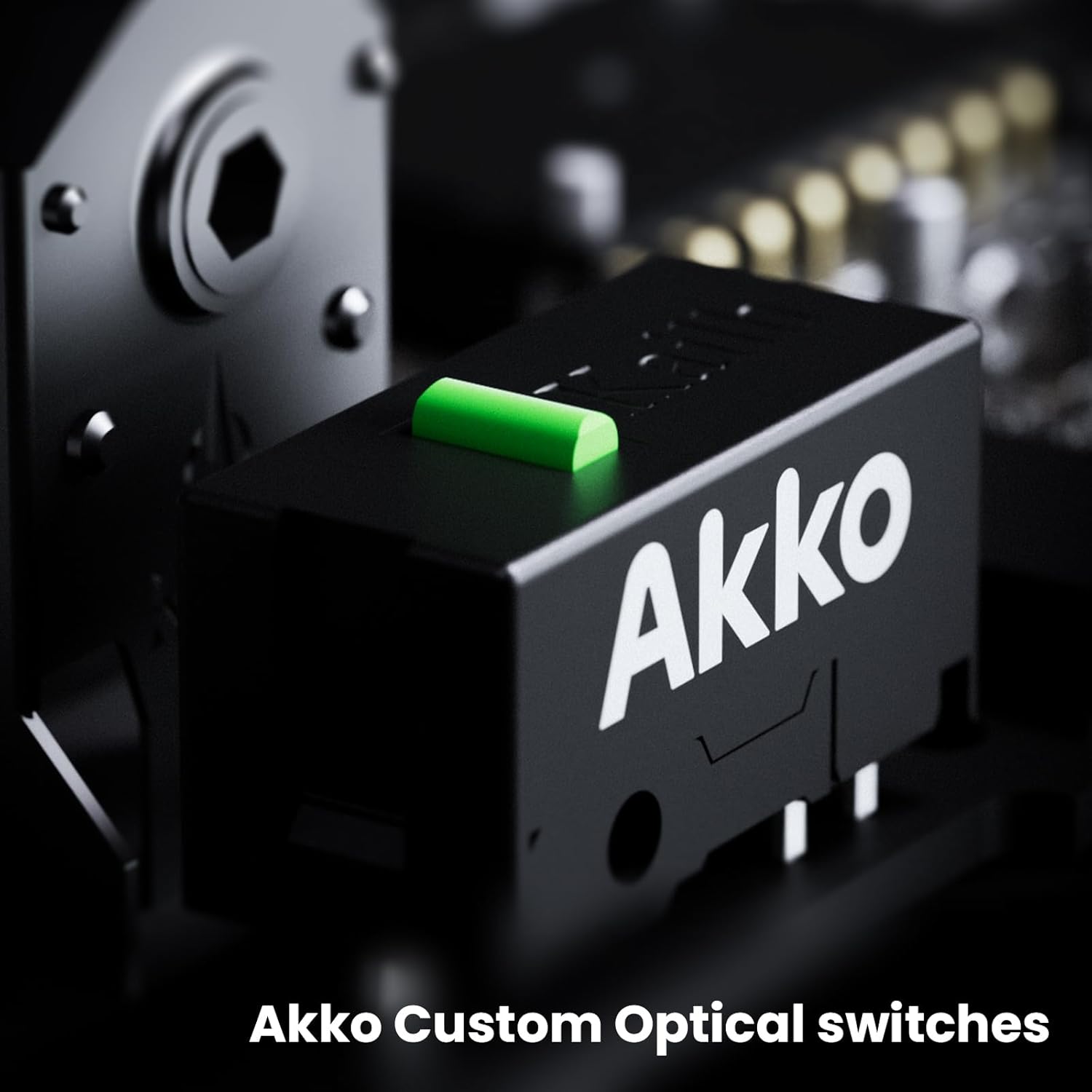
Image 4.3: Akko Custom Optical Switches for durability and response.
5. Maintenance
5.1 Cleaning
To maintain optimal performance and hygiene, regularly clean your mouse. Use a soft, dry, lint-free cloth to wipe the surface. For stubborn dirt, slightly dampen the cloth with water or a mild cleaning solution. Avoid using harsh chemicals or abrasive materials.
5.2 Storage
When not in use, store the mouse in a cool, dry place away from direct sunlight and extreme temperatures. If storing for an extended period, ensure the mouse is fully charged to preserve battery health.
5.3 Battery Care
To prolong the lifespan of the mouse's internal battery, avoid fully discharging it frequently. Charge the mouse when the battery indicator is low. If the mouse will not be used for a long time, charge it to about 50% before storage.
6. Troubleshooting
6.1 Mouse Not Responding
- Check Battery: Ensure the mouse is charged. Connect it via USB-C cable to charge.
- Check Connectivity: Verify the mode switch on the bottom of the mouse is set correctly (2.4G, BT, or Wired).
- 2.4G Wireless: Ensure the USB receiver is securely plugged into a working USB port. Try a different USB port.
- Bluetooth: Re-pair the mouse in your computer's Bluetooth settings. Ensure Bluetooth is enabled on your computer.
- Wired: Ensure the USB-C cable is securely connected to both the mouse and the computer. Try a different USB port or cable.
6.2 Erratic Tracking or Cursor Movement
- Clean Sensor: Dust or debris on the optical sensor can cause tracking issues. Clean the sensor area on the bottom of the mouse with a soft cloth.
- Surface: Ensure you are using the mouse on a suitable, non-reflective surface. A mouse pad is recommended.
- DPI Setting: Adjust the DPI setting to a level that feels comfortable and stable for your use.
6.3 Buttons Not Working
- Software Conflict: If you have custom software installed, try resetting button assignments to default within the Akko Gaming Hub.
- Physical Obstruction: Check for any physical obstructions preventing the button from clicking properly.
7. Specifications
| Feature | Specification |
|---|---|
| Brand | Akko |
| Model | Dash Max |
| Color | Max White-Akko Custom Optical |
| Connectivity Technology | 2.4G, Bluetooth, Wired |
| Movement Detection Technology | Optical (PAW3395 Sensor) |
| Button Quantity | 7 |
| Hand Orientation | Right |
| Compatible Devices | PCs |
| Power Source | Battery Powered |
| Mouse Maximum Sensitivity | 26000 Dots per Inch (DPI) |
| Polling Rate | Up to 8000Hz |
| Weight | 41g |
| Dimensions | 117.56 × 60.91 × 37.01mm |
8. Warranty and Support
8.1 Warranty Information
Akko products are covered by a limited warranty against manufacturing defects. Please refer to the warranty card included with your product or visit the official Akko website for detailed warranty terms and conditions specific to your region.
8.2 Customer Support
For technical assistance, troubleshooting, or any product-related inquiries, please visit the official Akko support website or contact their customer service team. Contact information can typically be found on the Akko website or in your product packaging.