
Introduction
This manual provides detailed instructions for the setup, operation, and maintenance of your JRHC 1D CCD Wireless Barcode Scanner, Model 1D-Wireless-2209WH. This device offers both 2.4GHz wireless and USB wired connectivity, designed for efficient barcode scanning in various environments such as retail stores, supermarkets, and warehouses.
The scanner features a 32-bit CPU for fast and accurate reading of 1D codes from paper and screens, including damaged or reflective barcodes. It comes with a smart charging stand that also acts as a wireless receiver.
Package Contents
- 1 x Barcode Scanner
- 1 x Base Receiver
- 1 x 1.2m USB cable
- 1 x User Manual (this document)
Setup
1. Connecting the Scanner
The JRHC 1D CCD Wireless Barcode Scanner supports two connection methods: 2.4GHz Wireless and USB Wired.
2.4GHz Wireless Connection (Recommended)
- Connect the charging stand (which acts as the receiver) to your computer or POS system using the provided USB cable.
- Ensure the scanner is charged. Place the scanner onto the charging stand.
- The system will automatically recognize the device. No additional software or drivers are required.
- The scanner is now ready for wireless operation. The wireless transmission range is up to 200m (656ft) in barrier-free environments and up to 50m (164ft) with obstacles.

Image: The JRHC 1D Wireless Barcode Scanner with its charging base, illustrating the 2.4GHz wireless and USB 2.0 wired connection capabilities.

Image: Diagram showing the long transmission range of the scanner. It can transmit up to 50m (164ft) through obstacles like a brick wall and up to 200m (656ft) in a barrier-free environment to a laptop connected to the receiver.
USB Wired Connection
- Connect the scanner directly to your computer or POS system using the provided USB cable.
- The device is plug-and-play and will be recognized automatically.
- No additional software or drivers are required.
2. Charging the Scanner
The scanner features a built-in 2000mAh Li-Ion battery. To charge:
- Place the scanner onto the smart charging stand. The stand connects via Lightning connectors to charge the scanner.
- A full charge provides approximately 48 hours of continuous hands-free scanning, or up to 100,000 scans.
Operating Instructions
1. Scanning Barcodes
The scanner is equipped with a 32-bit CPU and an advanced sensor, allowing it to read 1D barcodes quickly and accurately at speeds up to 300 scans per second. It can capture codes from both paper and digital screens, including Code128, UPC/EAN Add on 2 or 5, and even deformed, smudged, damaged, fuzzy, or reflective barcodes.

Image: The JRHC barcode scanner demonstrating its ability to read various 1D barcode types from paper and digital screens. Examples include barcodes like UPC/EAN (e.g., 2184864564880) and ISBN (e.g., 9780733426094).

Image: Close-up of the scanner's head, highlighting its 1500PPI resolution and scanning speed of 300 times per second for fast and accurate data transfer.
2. Scanning Modes
The scanner supports two primary scanning modes:
- Manual Trigger Mode: Press the trigger button to initiate a scan.
- Always-On Mode: The scanner continuously scans without needing to press the trigger. This mode is suitable for hands-free operation.
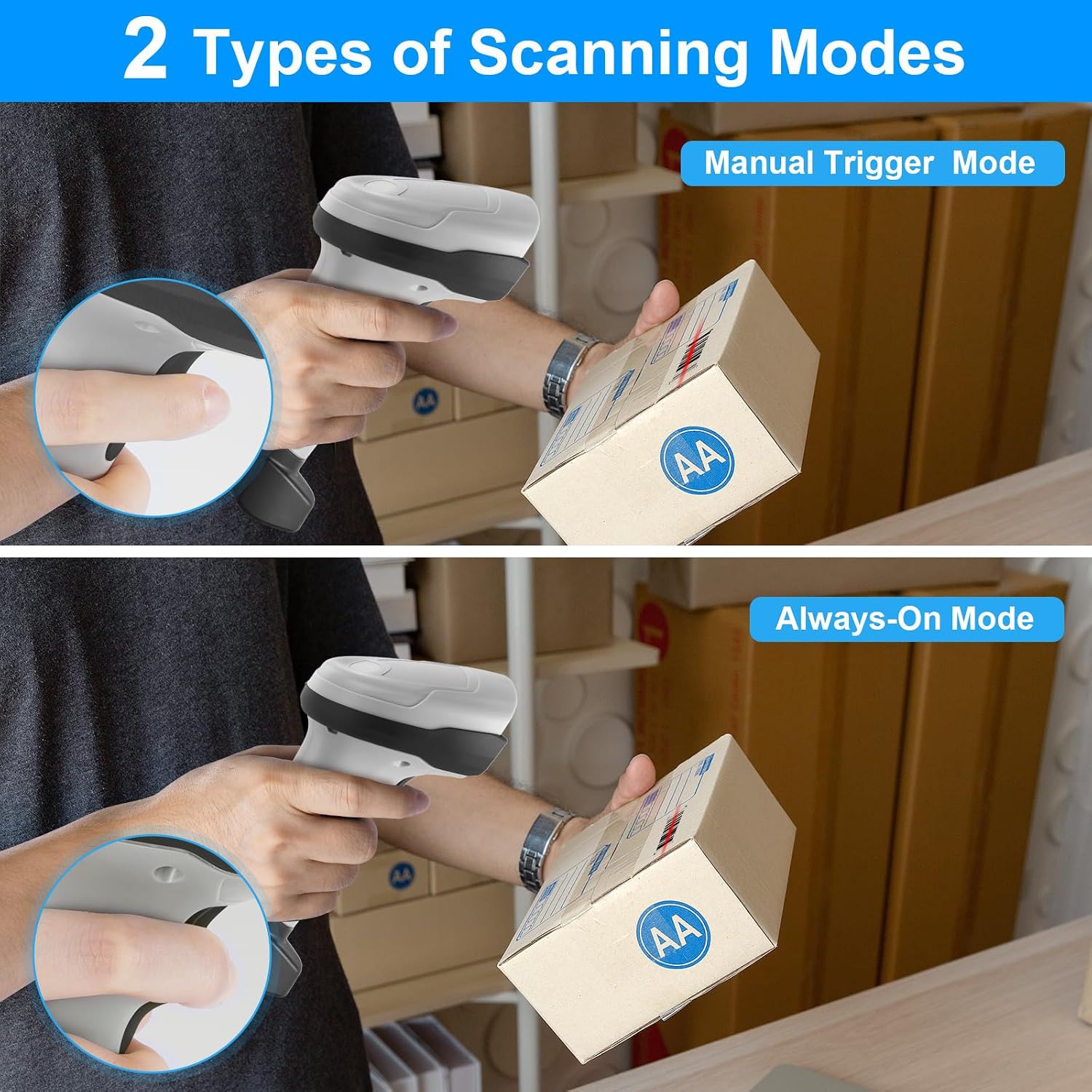
Image: Illustration showing the two scanning modes: Manual Trigger Mode, where the user presses a button to scan, and Always-On Mode, where the scanner continuously operates.
3. Configuration Options
The scanner offers multiple customization options to suit specific operational needs. These include:
- Hiding Barcode Characters: Configure the scanner to hide specific characters from the scanned barcode data.
- Adding Prefix or Suffix: Add custom characters before or after the scanned barcode data.
- Volume Adjustment: Adjust the sound level of the scanner's feedback.
- Beep Setting: Turn the scanning beep sound on or off.

Image: Beep setting options, showing icons for turning sound on and off.

Image: Examples of powerful edit functions, including adding prefixes, suffixes, and hiding front/end characters of a barcode.

Image: Illustration of the scanner's internal 32-bit high-speed CPU, indicating its processing power.
For detailed instructions on configuring these options, please refer to the specific programming barcodes provided in the full user manual (if applicable) or contact JRHC support.
Maintenance
1. Durability and Protection
The scanner is designed with anti-shock silicone (IP54 rated) to protect against collision damage and withstand drops of up to 5 feet, ensuring durability in demanding environments.

Image: Diagram illustrating the anti-shock silicone design (IP54 rated) of the scanner, showing its ability to withstand drops and prevent damage.
2. Battery Care
To maximize battery life and performance:
- Charge the scanner fully before first use.
- Avoid completely draining the battery frequently.
- Store the scanner in a cool, dry place when not in use for extended periods.
3. Cleaning
Use a soft, dry cloth to clean the scanner's exterior. For the scanning window, use a lens cleaning cloth to avoid scratches. Do not use harsh chemicals or abrasive materials.
Troubleshooting
If you encounter issues with your JRHC barcode scanner, please refer to the following common troubleshooting steps:
- Scanner Not Connecting:
- Ensure the USB receiver/charging stand is securely plugged into your computer's USB port.
- For wireless mode, ensure the scanner is within range of the receiver.
- Try connecting the scanner directly via USB cable to rule out wireless issues.
- Restart your computer and try reconnecting.
- Scanner Not Reading Barcodes:
- Ensure the barcode is 1D. This scanner does not support 2D barcodes (e.g., QR codes).
- Check if the barcode is clear and not excessively damaged, smudged, or reflective.
- Ensure the scanner is in the correct operating mode (Manual Trigger or Always-On).
- Verify that the scanner's battery is sufficiently charged.
- Try scanning a known good barcode to test functionality.
- No Sound/Vibration Feedback:
- Check the beep settings to ensure the sound is enabled.
- The vibration function is designed for noisy environments; ensure it is enabled if desired.
- Incorrect Barcode Data Output:
- Review the configuration options for prefixes, suffixes, or hidden characters. Reset to default settings if necessary.
If these steps do not resolve the issue, please contact JRHC customer support for further assistance.
Specifications
| Feature | Detail |
|---|---|
| Model | 1D-Wireless-2209WH |
| Brand | JRHC |
| Connectivity Technology | 2.4GHz Wireless, USB Wired |
| Compatible Devices | Desktop, Laptop (Windows, Mac, Linux compatible) |
| Barcode Type Support | 1D barcodes (e.g., Code128, UPC/EAN Add on 2 or 5) |
| Scanning Speed | Up to 300 scans/sec |
| CPU | 32-bit high-speed CPU |
| Battery | 2000mAh Lithium Polymer (included) |
| Battery Life | Approx. 48 hours continuous scanning (100,000 scans) |
| Wireless Transmission Range | Up to 200m (656ft) in barrier-free environment; 50m (164ft) with obstacles |
| Durability | Anti-shock silicone (IP54), withstands drops up to 5 ft |
| Item Weight | 280 g |
Warranty and Support
For warranty information, please refer to the documentation included with your purchase or contact the seller directly. JRHC products typically come with a standard manufacturer's warranty.
If you require technical assistance, have questions about product customization, or need to report an issue, please contact JRHC customer support. You can often find contact information on the manufacturer's official website or through your point of purchase.
JRHC Official Store: Visit the JRHC Store on Amazon