
1. Overview
The COLORROOM A30 Android 16 Tablet (Model K10) is a versatile 10-inch device designed for entertainment, education, and productivity. Featuring an Octa-Core CPU, ample storage, and a long-lasting battery, it offers a smooth user experience. This manual provides essential information for setting up, operating, maintaining, and troubleshooting your tablet.
2. What's in the Box
Upon unboxing your COLORROOM A30 Tablet, please ensure all the following items are present:
- Android 16 Tablet (COLORROOM A30)
- Shock-proof case
- User Manual (this document)
- USB Cable

Image: Contents of the COLORROOM A30 Tablet box.
This image displays the COLORROOM A30 Tablet, a shock-proof case, a USB charging cable, and the user manual, which are all included in the product packaging.
3. Product Features
The COLORROOM A30 Tablet is equipped with advanced features to enhance your digital experience:
3.1. Performance and Storage
Powered by a 2.0GHz Octa-Core Processor and running on the latest Android 16 operating system, the tablet offers a 40% faster processing speed compared to standard Quad-Core devices. It comes with 24GB (4GB+20GB) RAM and 64GB of internal storage, expandable up to 512GB via a TF card, providing ample space for applications and media.

Image: Tablet showcasing its powerful Octa-core CPU and expandable storage capabilities.
This image illustrates the tablet's robust Octa-core CPU and its significant storage capacity, including 24GB RAM and 64GB internal storage with 512GB expansion, suitable for various applications and media storage.
3.2. Display and Visuals
The 10.1-inch screen features a 1280x800 display resolution, ideal for home entertainment and office tasks. The eye-protection screen ensures comfortable viewing for extended periods.

Image: Tablet screen displaying a movie, emphasizing the 10.1-inch eye-protection touchscreen.
The tablet is shown displaying a high-quality video, demonstrating its 10.1-inch eye-protection touchscreen, which provides a clear and comfortable viewing experience for movies and other content.
3.3. Battery and Charging
Equipped with a 6000mAh large battery, the tablet provides 8-12 hours of usage for reading or video playback on a single charge. It supports 18W fast charging. For optimal battery life, use a 10W or 18W charger and charge for at least 2 hours before first use.
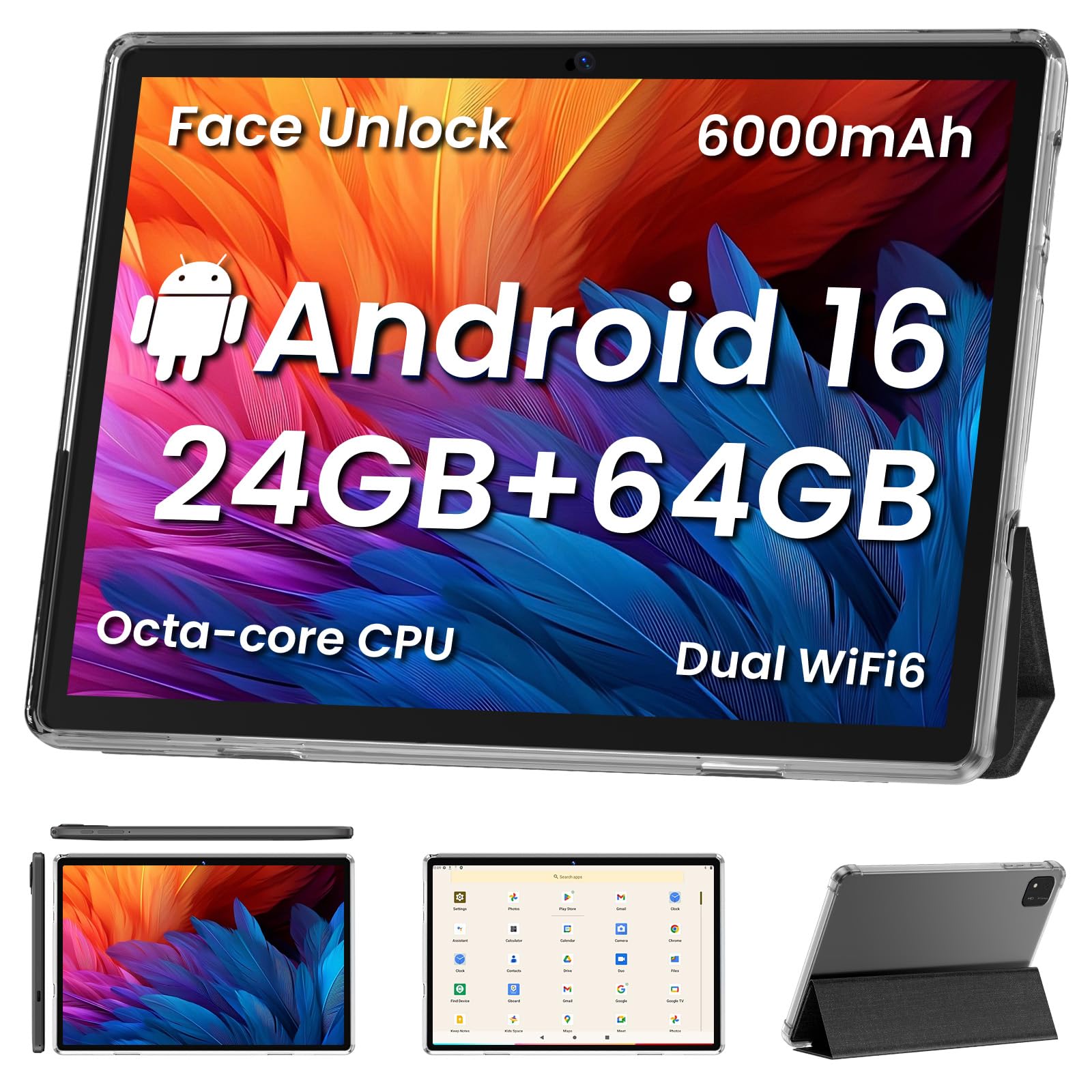
Image: Tablet highlighting its 6000mAh battery capacity and 18W fast charging capability.
This image emphasizes the tablet's long-lasting 6000mAh battery and its support for 18W fast charging, ensuring extended usage and quick power replenishment.
3.4. Connectivity
The tablet features a new AX WiFi module for incredible and reliable dual-band Wi-Fi speeds, along with Bluetooth 5.2 for seamless pairing with accessories. It includes a 3.5mm audio jack and a USB Type-C port.
3.5. Cameras
The tablet is equipped with dual cameras: a rear camera and a front-facing camera, suitable for video calls and capturing moments.
3.6. Google Kids Space & Parental Control
Pre-installed with Google Kids Space, the tablet offers educator-endorsed apps for children aged 3 and above, including activities like coloring, crafts, stories, and puzzles. User-friendly parental controls allow content filtering, educational goal setting, and time restrictions for a safe online environment.

Image: Tablet in a protective case, illustrating its family-friendly features like Google Kids Space.
This image shows the tablet enclosed in a protective case, highlighting its design for family use and the integration of Google Kids Space for child-friendly content and parental controls.
3.7. Widevine L1 Support
The tablet is compatible with Widevine L1, allowing high-quality streaming from services like Amazon Prime Video, Disney+, and Hulu. Note that some services, such as Netflix, may impose device-specific restrictions, potentially resulting in Widevine L3 image quality.
4. Setup
4.1. Initial Power On
- Press and hold the power button located on the side of the tablet until the screen lights up.
- Follow the on-screen prompts to select your language, region, and accept the terms and conditions.
4.2. Wi-Fi Connection
- During initial setup or via Settings > Network & internet > Wi-Fi, select your desired Wi-Fi network.
- Enter the Wi-Fi password if prompted and tap Connect.
4.3. Google Account Setup
- Sign in with your existing Google account or create a new one. This is necessary to access the Google Play Store and other Google services.
- Follow the prompts to set up payment methods, backup options, and other preferences.
4.4. Pre-loaded Applications
Your tablet comes with essential Google apps pre-installed, including the Google Play Store, YouTube, and more. You can download additional applications from the Google Play Store.

Image: Tablet home screen showing pre-loaded applications.
This image shows the tablet's home screen populated with various pre-installed applications, including Google services and other utilities, ready for immediate use.
5. Operating the Tablet
5.1. Basic Navigation
- Tap: Touch the screen once to select an item or open an app.
- Swipe: Drag your finger across the screen to scroll through pages or switch between home screens.
- Pinch-to-Zoom: Place two fingers on the screen and move them apart or together to zoom in or out.
- Long Press: Press and hold an item to access additional options or move icons.
5.2. App Management
- Open Apps: Tap on an app icon from the home screen or app drawer.
- Close Apps: Swipe up from the bottom of the screen (or tap the square navigation button) to view recent apps, then swipe the app card upwards to close it.
- Install Apps: Open the Google Play Store, search for your desired app, and tap Install.
- Uninstall Apps: Long-press an app icon, then drag it to the Uninstall option that appears, or go to Settings > Apps > See all apps, select the app, and tap Uninstall.
5.3. Picture-in-Picture Mode
The tablet supports Picture-in-Picture (PiP) mode, allowing you to watch videos in a small, floating window while performing other tasks. When watching a video, tap the home button, and the video may automatically shrink into a PiP window. You can drag this window around the screen and tap it to expand or close it.
6. Maintenance
6.1. Battery Care
- Avoid fully discharging the battery frequently.
- Use the provided USB cable and a compatible 10W or 18W charger for optimal charging.
- Do not use chargers exceeding 18W (e.g., 20W or 30W) as this may damage the battery.
- Store the tablet in a cool, dry place when not in use for extended periods.
6.2. Storage Management
- Regularly clear unnecessary files and app caches to free up internal storage.
- Utilize the TF card slot for expanding storage for photos, videos, and large files.
- Go to Settings > Storage to view storage usage and manage files.
6.3. Screen and Case Protection
The tablet comes with a free screen protector and a shock-proof case. It is recommended to use these accessories to protect your device from scratches, drops, and impacts.
7. Troubleshooting
If you encounter any issues with your COLORROOM A30 Tablet, refer to the following common solutions:
7.1. Tablet Not Turning On
- Ensure the battery is charged. Connect the tablet to its charger and wait a few minutes before attempting to power it on again.
- Press and hold the power button for 10-15 seconds to perform a forced restart.
7.2. Slow Performance
- Close unused applications running in the background.
- Clear app caches and temporary files (Settings > Storage).
- Restart the tablet.
- Ensure there is sufficient free storage space.
7.3. Wi-Fi Connection Issues
- Toggle Wi-Fi off and on in Settings > Network & internet > Wi-Fi.
- Restart your Wi-Fi router.
- Forget the network and reconnect (Settings > Network & internet > Wi-Fi > [Your Network] > Forget > Connect).
7.4. Apps Crashing or Not Responding
- Force close the app (Settings > Apps > See all apps > [App Name] > Force stop).
- Clear the app's cache and data (Settings > Apps > See all apps > [App Name] > Storage & cache > Clear cache / Clear storage).
- Update the app to its latest version via the Google Play Store.
8. Specifications
| Feature | Detail |
|---|---|
| Brand | COLORROOM |
| Model Name | Android 16 tablet |
| Model Number | K10 |
| Operating System | Android 16 |
| Screen Size | 10.1 Inches |
| Display Resolution | 1280 x 800 pixels |
| Processor | Octa-core 2.0 GHz (MediaTek) |
| RAM Memory | 4 GB |
| Internal Storage | 64 GB |
| Expandable Storage | Up to 1 TB (TF Card) |
| Battery Capacity | 6000 mAh |
| Battery Average Life | 8-12 Hours |
| Charging | 18W Fast Charging (USB Type-C) |
| Wireless Connectivity | Dual WiFi (802.11ac), Bluetooth 5.2 |
| Cameras | Rear and Front |
| Audio Jack | 3.5 mm |
| Special Features | Google Kids Space, Parental Control, Widevine L1, Stereo Speakers, Supports USB OTG |
9. Warranty & Support
9.1. Product Warranty
The COLORROOM A30 Tablet comes with a 3-year limited warranty. This warranty covers manufacturing defects and ensures your product functions as intended under normal use. Please retain your proof of purchase for warranty claims.
9.2. Customer Support
For any questions, technical assistance, or warranty inquiries, please refer to the contact information provided on the product packaging or the official COLORROOM website. Our support team is available to assist you with any issues you may encounter.

