
1. Important Safety Information
Please read all safety instructions before using the printer to ensure safe and proper operation. Keep this manual for future reference.
- Do not expose the printer to water or excessive moisture.
- Avoid extreme temperatures. Operate and store the printer in a cool, dry environment.
- Use only the provided charging cable and approved power adapters.
- Do not attempt to disassemble or repair the printer yourself. Contact customer support for assistance.
- Keep the printer away from children.
2. Product Overview
The Bewinner Portable Pocket Printer is a compact and lightweight thermal label printer designed for on-the-go printing needs. It connects wirelessly to smartphones and tablets via an app, offering a variety of templates for labels, lists, and messages.

The Bewinner Portable Pocket Printer, a compact thermal label printer.
Key Features:
- Portable Design: Compact and lightweight for easy carrying.
- Wireless Connectivity: Seamless connection to iOS and Android smartphones via app.
- Rich Functions: One-click printing with various templates for labels, lists, and messages.
- Multipurpose Use: Ideal for clothing and jewelry labels, price tags, address labels, QR codes, and study aids.
- Safe Printing: Inkless thermal printing technology for clear prints without odors.
3. Package Contents
Ensure all items are present in the package:
- 1 x Portable Thermal Printer
- 1 x Charging Cable
- 1 x User Manual
4. Setup
4.1 Charging the Printer
Before initial use, fully charge the printer. Connect the provided Type-C charging cable to the printer's charging port and plug the other end into a compatible USB power adapter (not included).
- The charging indicator light will show the charging status.
- A full charge typically takes approximately 2-3 hours.
4.2 Installing Thermal Paper
The printer uses thermal paper rolls with a size of approximately 57x50mm (2.2x2.0 inches).
- Open the printer's cover by gently pressing the release button or lifting the designated area.
- Insert the thermal paper roll into the compartment, ensuring the printing side of the paper faces the print head.
- Pull a small portion of the paper out of the printer's exit slot.
- Close the printer cover firmly until it clicks into place.

View of the printer with its cover open, demonstrating the correct way to install the thermal paper roll.
4.3 App Installation
The Bewinner Portable Pocket Printer operates via the 'Eleph-label' mobile application.
- Search for the 'Eleph-label' app on your device's app store (e.g., Apple App Store for iOS, Google Play Store for Android).
- Download and install the application.
- Follow the on-screen instructions within the app to complete the setup.
For more information or support regarding the app, you may visit: http://gzhztz.com/en/?case/105.html
5. Operating Instructions
5.1 Powering On/Off
- To Power On: Press and hold the power button until the indicator light illuminates.
- To Power Off: Press and hold the power button again until the indicator light turns off.
5.2 Connecting to Your Device
The printer connects to your smartphone or tablet via Bluetooth through the 'Eleph-label' app.
- Ensure the printer is powered on and within range of your mobile device.
- Open the 'Eleph-label' app on your smartphone or tablet.
- Within the app, navigate to the device connection settings.
- Select the Bewinner printer from the list of available Bluetooth devices to establish a connection.

The printer's wireless connectivity with both smartphones and tablets for convenient operation.

The printer connected wirelessly to a smartphone, demonstrating the mobile printing function.
5.3 Printing Labels
Once connected, you can begin creating and printing labels using the 'Eleph-label' app.
- Open the 'Eleph-label' app and select a template or create a new label design.
- Customize the text, images, and layout as desired. The app offers various material themes and options for different label types.
- Confirm the label content and settings.
- Initiate printing with the one-click print function within the app.
- The printer will automatically print the label. Tear off the printed label along the serrated edge.
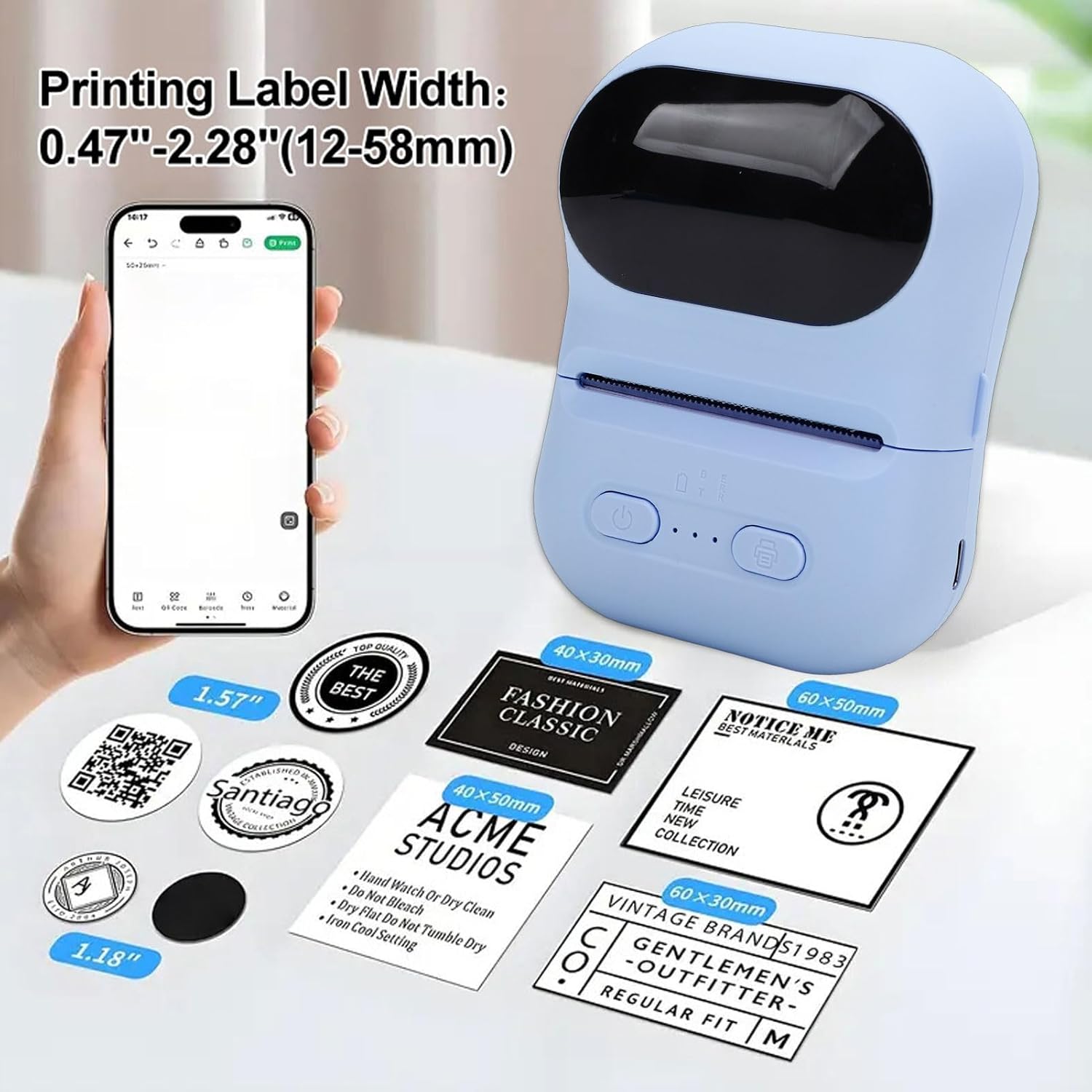
Examples of labels printed by the device, illustrating different widths and designs.

Illustrations of the printer's versatility for small business applications, including price tags, clothing labels, address labels, and QR codes.
6. Maintenance
6.1 Cleaning the Print Head
To maintain print quality, periodically clean the print head.
- Ensure the printer is powered off.
- Open the printer cover.
- Gently wipe the print head with a cotton swab lightly dampened with isopropyl alcohol.
- Allow the print head to dry completely before closing the cover and powering on the printer.
6.2 Storing the Printer and Thermal Paper
- Store the printer in a cool, dry place away from direct sunlight and extreme temperatures.
- Keep thermal paper rolls in their original packaging or in a dark, dry place to prevent premature fading or damage.
7. Troubleshooting
If you encounter issues with your printer, refer to the following common problems and solutions:
| Problem | Possible Cause | Solution |
|---|---|---|
| Printer does not power on. | Low battery; Power button not pressed correctly. | Charge the printer; Press and hold the power button for a few seconds. |
| Cannot connect to the app. | Bluetooth is off; Printer is out of range; App issue. | Ensure Bluetooth is enabled on your device; Move printer closer; Restart the app and printer. |
| Poor print quality or blank prints. | Thermal paper installed incorrectly; Print head dirty; Low battery. | Reinstall paper with printing side facing up; Clean the print head; Charge the printer. |
| Paper jam. | Paper not aligned; Foreign object in paper path. | Open cover, remove jammed paper carefully, and reinstall correctly; Check for obstructions. |
8. Specifications
| Feature | Specification |
|---|---|
| Brand | Bewinner |
| Model Name | Bewinnerwxo0u51g32-13 |
| Printing Method | Thermal Printing |
| Printing Parameter | 200DPI |
| Battery Type | Lithium Ion Battery |
| Battery Capacity | 1100mAh |
| Charging Interface | Type C |
| Connection Method | Bluetooth (via Eleph-label APP) |
| Paper Size | Approx. 57x50mm (2.2x2.0 inches) |
| Product Dimensions | 5.51"D x 3.94"W x 2.76"H |
9. Warranty Information
This product is covered by a manufacturer warranty for 90 days from the date of purchase. Please retain your proof of purchase for warranty claims. The warranty covers defects in materials and workmanship under normal use.
The warranty does not cover:
- Damage caused by accident, abuse, misuse, flood, fire, earthquake, or other external causes.
- Damage caused by operating the product outside the permitted or intended uses described by Bewinner.
- Damage caused by service performed by anyone who is not a representative of Bewinner.
10. Customer Support
For further assistance, technical support, or warranty inquiries, please contact Bewinner customer service through the retailer where the product was purchased or refer to the official Bewinner website for contact information.
Please have your model number (Bewinnerwxo0u51g32-13) and proof of purchase ready when contacting support.