
OTTOCAST Mini Pot (USB-A)
OTTOCAST Mini Pot Wireless 2-in-1 CarPlay & Android Auto Adapter (USB-A) User Manual
Model: Mini Pot (USB-A)
1. Introduction
The OTTOCAST Mini Pot is a compact wireless adapter designed to convert your vehicle's existing wired CarPlay or Android Auto system into a wireless connection. This device allows for seamless integration of your smartphone's features onto your car's infotainment screen without the need for cables, enhancing convenience and reducing clutter.
This manual provides detailed instructions for setting up, operating, and maintaining your OTTOCAST Mini Pot adapter, along with troubleshooting tips and product specifications.

Image: The compact OTTOCAST Mini Pot adapter, highlighting its small form factor.
2. Compatibility
Before using the OTTOCAST Mini Pot, please verify your vehicle and smartphone compatibility:
- Vehicle Requirement: Your car must have a factory-installed wired CarPlay or wired Android Auto system. This adapter is not compatible with vehicles that already have built-in wireless CarPlay or Android Auto, or vehicles without any CarPlay/Android Auto system.
- Display Type: The vehicle's infotainment system must feature a touchscreen display.
- Smartphone Compatibility:
- iPhone: Requires iOS 10 or later (iPhone 6 or newer).
- Android: Requires Android 11 or later.
- Port Type: This specific model (USB-A) is designed for vehicles with a USB-A port. Ensure your car has a compatible USB-A port for connection.
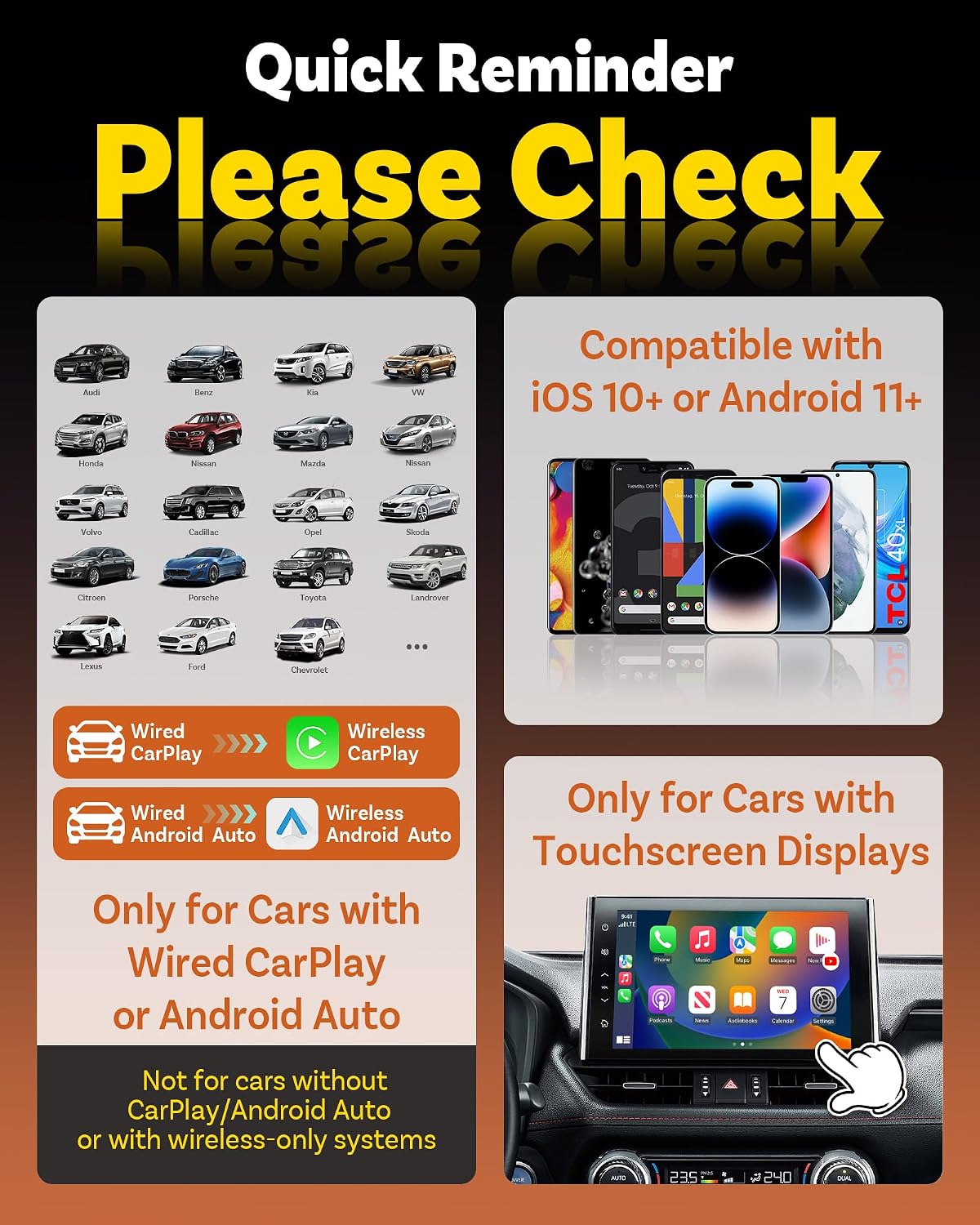
Image: Quick reminder for compatibility, illustrating supported car brands, phone operating systems, and the need for a touchscreen.
3. Package Contents
Verify that all items are present in your package:
- 1 x OTTOCAST Mini Pot Wireless Adapter (USB-A)
- 1 x User Manual (this document)
- 1 x Quick Start Guide

Image: Visual representation of the items included in the OTTOCAST Mini Pot product package.
4. Setup Instructions
Follow these steps to set up your OTTOCAST Mini Pot adapter for wireless CarPlay or Android Auto:
- Plug In the Adapter: Connect the OTTOCAST Mini Pot adapter into your car's original USB-A port that supports wired CarPlay or Android Auto.
- Enable Bluetooth & Wi-Fi: On your smartphone, ensure both Bluetooth and Wi-Fi are turned on.
- Pair with the Adapter: On your smartphone's Bluetooth settings, search for and select the device named "CAR2-XXXX" (where XXXX is a unique identifier). Confirm the pairing request.
- Connect Wirelessly: Once paired, your car's infotainment system should automatically detect the wireless CarPlay or Android Auto connection. Select the device on your car's screen if prompted.
The initial setup typically takes about 30 seconds. Subsequent connections will be automatic and faster, usually within 3-8 seconds after starting your car.

Image: Visual guide demonstrating the three simple steps to set up the OTTOCAST Mini Pot adapter.
5. Operating Instructions
5.1 General Operation
Once connected, the OTTOCAST Mini Pot provides a stable and seamless wireless experience for both Apple CarPlay and Android Auto. You can access all your favorite navigation, music, messaging, and communication apps directly from your car's touchscreen display.
- Automatic Connection: The adapter will automatically connect to your paired smartphone each time you start your vehicle.
- Interface: The interface on your car's screen will be identical to the wired CarPlay or Android Auto experience, allowing you to use your car's original controls (touchscreen, steering wheel buttons, knob control, voice control).
- Cable-Free Convenience: Enjoy a clutter-free console and keep your phone accessible without being tethered by cables.

Image: Illustration of the adapter converting wired CarPlay and Android Auto to wireless functionality.

Image: Demonstrates using the car's original controls for navigation, music, messages, and phone calls via the adapter.
5.2 AI Assistant Features (for iOS 26.3+ CarPlay)
The OTTOCAST Mini Pot supports advanced AI assistant integration for CarPlay users running iOS 26.3 or higher, offering enhanced conversational capabilities beyond standard voice commands.
How to Use AI Assistant in CarPlay:
- Download AI Assistant: Install a compatible AI assistant app (e.g., ChatGPT, Gemini, Claude) on your iPhone.
- Add App to CarPlay: In your iPhone's CarPlay settings, add the AI app widget to your CarPlay interface.
- Activate AI: Tap the AI icon on your car's CarPlay screen, or open the app directly on your phone to begin interacting with the AI assistant.

Image: Step-by-step instructions for integrating and using an AI assistant within CarPlay.
Note for AI Setup:
- Your iPhone must be updated to iOS 26.3 or higher.
- Compatible AI apps must be installed on your iPhone.
- AI widgets must be added to your CarPlay settings.

Image: Demonstrates asking an AI assistant various questions while driving, covering travel, research, and creative ideas.
6. Maintenance
To ensure the longevity and optimal performance of your OTTOCAST Mini Pot adapter, follow these maintenance guidelines:
- Cleaning: Use a soft, dry cloth to gently wipe the adapter. Avoid using liquid cleaners, solvents, or abrasive materials, as these can damage the device.
- Storage: When not in use for extended periods, store the adapter in a cool, dry place away from direct sunlight and extreme temperatures.
- Handling: Handle the adapter with care. Avoid dropping it or subjecting it to strong impacts, which could damage internal components.
- Heat Dissipation: The adapter is designed with an aluminum-alloy construction for efficient heat dissipation. Ensure it is not covered or obstructed during operation to allow for proper airflow.
7. Troubleshooting
If you encounter issues with your OTTOCAST Mini Pot adapter, refer to the following troubleshooting steps:
| Problem | Possible Cause | Solution |
|---|---|---|
| Adapter not connecting automatically. | Bluetooth or Wi-Fi is off on phone; adapter not properly plugged in; previous connection issue. |
|
| Intermittent connection or lag. | Signal interference; outdated firmware; phone issues. |
|
| CarPlay/Android Auto not appearing on screen. | Incompatible car/phone; incorrect USB port used; car's system not recognizing adapter. |
|
| AI Assistant not working. | Incorrect iOS version; AI app not installed/added to CarPlay. |
|
8. Specifications
| Feature | Detail |
|---|---|
| Brand | OTTOCAST |
| Model | Mini Pot (USB-A) |
| Hardware Interface | 802.11 ac/b/g/n (2.4GHz/5GHz Wi-Fi), Bluetooth 4.2 |
| Data Link Protocol | USB |
| Compatible Devices | Cars with Wired CarPlay, Cars with Wired Android Auto, Smartphones (iOS 10+ / iPhone 6+, Android 11+ Supported) |
| Minimum Required OS | Android 11.0, iOS 10 |
| Construction Material | Premium Aluminum-Alloy (for heat dissipation) |
9. Warranty and Support
OTTOCAST provides comprehensive support and warranty for the Mini Pot adapter:
- Warranty: The product comes with a 2-year manufacturer's warranty, ensuring quality assurance and technical testing.
- Technical Support: For any questions, technical assistance, or support needs, please contact OTTOCAST customer service. Our team guarantees a response within 24 hours. Contact options typically include phone, email, or live chat, as detailed on the official OTTOCAST website or product packaging.
- Firmware Updates: Periodically check the official OTTOCAST website for firmware updates to ensure optimal performance and compatibility.
Related documentsMini Pot (USB-A)


Ask a question about this manual
Ask about setup, troubleshooting, compatibility, parts, safety, or missing instructions. Manuals+ will review the question and use this page’s manual context to help answer it.