
1. Product Overview
The Xiaomi Robot Vacuum H50 EU is an intelligent 2-in-1 robot vacuum and mop designed for efficient home cleaning. It features smart navigation, powerful suction, and can be controlled via the Xiaomi Home App, offering automated convenience for daily cleaning tasks.
Key Features
- Intelligent Navigation: Precise mapping and route planning for thorough cleaning.
- 2-in-1 Vacuum and Mop: Simultaneously vacuums and mops for comprehensive floor care.
- Efficient Suction: Powerful suction to handle dirt, debris, and pet hair.
- Xiaomi Home App Control: Manage cleaning schedules, zones, and settings from your smartphone.
- Multi-functional Self-Cleaning Base Station: Automates dustbin emptying and mop cleaning/drying.
- Automatic Mop Lifting: Lifts mops when detecting carpets to prevent wetting.
- Voice Control: Compatible with Google Home and other smart assistants.
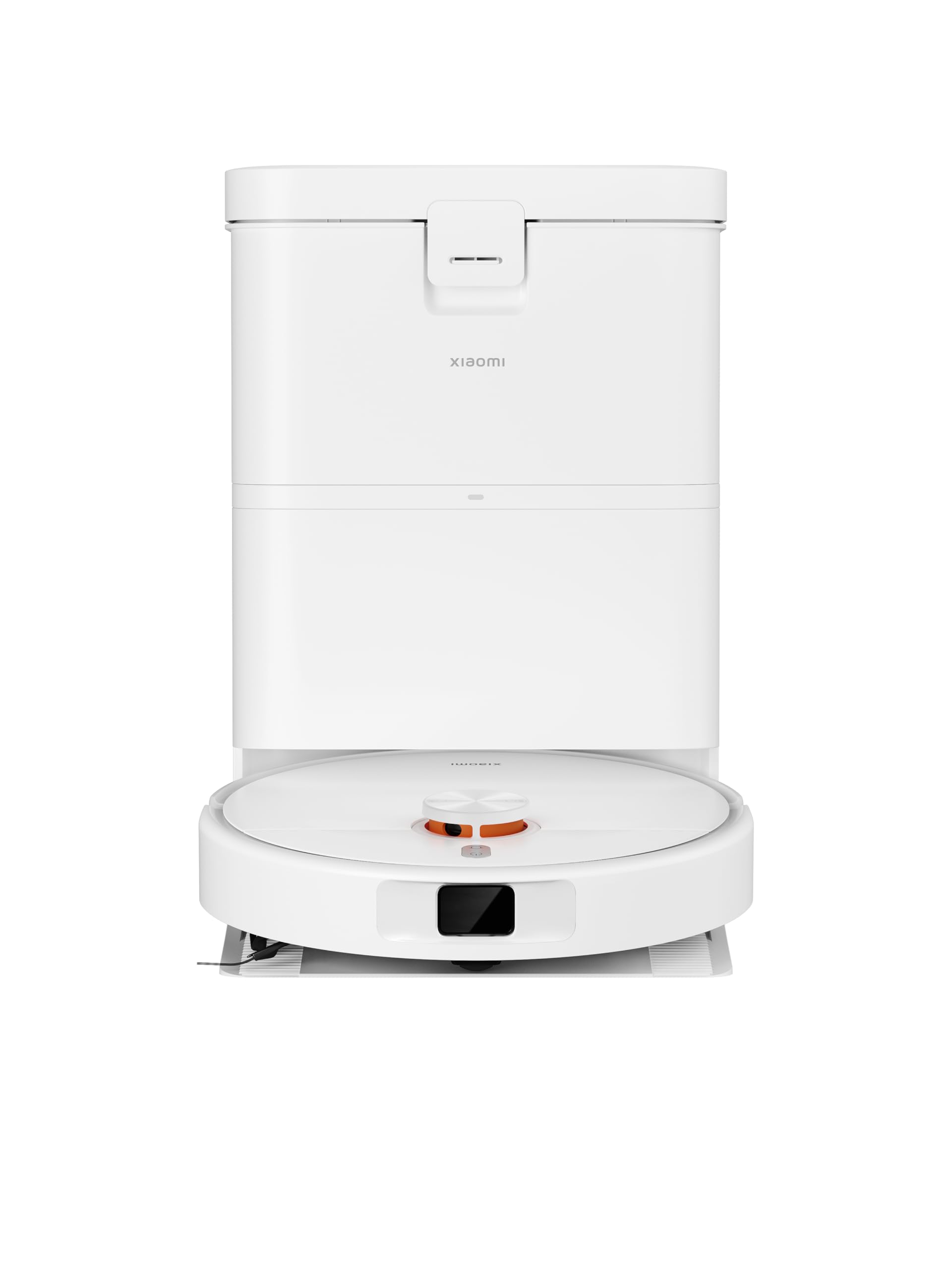
Image: The Xiaomi Robot Vacuum H50 EU docked at its self-cleaning base station.
2. Initial Setup
Unpacking
Carefully remove all components from the packaging. Ensure all protective films and packing materials are removed from the robot and the base station before use.
Placing the Self-Cleaning Base Station
Place the base station against a wall in an open area with good Wi-Fi signal. Ensure there is at least 0.5 meters (1.6 feet) of clear space on both sides and 1.5 meters (4.9 feet) in front of the station for the robot to dock properly. Connect the power cable to the base station and plug it into a power outlet.
Initial Charging
Place the robot vacuum onto the charging contacts of the base station. The robot will automatically align and begin charging. For first-time use, fully charge the robot before operation, which typically takes several hours.
Connecting to Xiaomi Home App
- Download the "Xiaomi Home" app from your smartphone's app store (available on iOS and Android).
- Open the app and create an account or log in to your existing Xiaomi account.
- Tap the "+" icon in the top right corner to add a new device. The app should automatically detect the robot vacuum. If not, manually search for "Xiaomi Robot Vacuum H50 EU" or scan the QR code located on the device.
- Follow the in-app instructions to connect the robot to your home Wi-Fi network. Ensure your phone is connected to a 2.4GHz Wi-Fi network during setup.
- Once connected, you can name your robot and begin mapping your home.
3. Operation Guide
Starting a Cleaning Cycle
- Via Robot Buttons: Press the power button on the robot once to start a standard cleaning cycle. Press again to pause. Hold the button to send the robot back to the base station.
- Via Xiaomi Home App: Open the app, select your robot, and tap "Clean" to start. You can choose specific rooms, zones, or full-house cleaning.
- Via Voice Control: Use compatible smart assistants (e.g., "Hey Google, start cleaning with my robot vacuum").
Cleaning Modes
- Vacuum Only: Ideal for dry debris and dust.
- Mop Only: For light floor washing (ensure the clean water tank is filled).
- Vacuum & Mop: Performs simultaneous vacuuming and mopping. The robot will automatically lift mops when detecting carpets to prevent wetting.
Advanced App Features
- Map Management: The robot will create a detailed map of your home during its first cleaning. You can edit maps, set virtual walls, and define no-go zones to restrict cleaning areas.
- Scheduled Cleaning: Set specific times for the robot to clean automatically.
- Suction Power & Water Flow: Adjust these settings according to your floor type and cleaning needs for optimal results.
4. Maintenance and Care
Regular maintenance ensures optimal performance and extends the lifespan of your robot vacuum. Always power off the robot and unplug the base station before performing any maintenance.
Dustbin and Filter
- Emptying the Dustbin: Empty the dustbin after each cleaning cycle.
- Cleaning the Filter: Clean the filter regularly by tapping out debris. Do not wash the HEPA filter with water unless specified.
- Replacing the Filter: Replace the filter every 3-6 months, depending on usage, to maintain suction efficiency.
Water Tanks (Clean and Dirty)
For models with a self-cleaning base station, ensure the clean water tank is filled with fresh water and the dirty water tank is emptied regularly. Clean both tanks thoroughly to prevent mold, odors, and bacterial growth.
Brushes
- Main Brush: Remove the main brush cover and lift out the brush. Use the provided cleaning tool to remove tangled hair and debris. Clean every 1-2 weeks.
- Side Brush: Check for tangled hair and debris. Remove and clean as needed. Replace if bristles are worn or damaged.
Sensors and Charging Contacts
Wipe all sensors (cliff sensors, wall sensor) and charging contacts on both the robot and the base station with a dry, soft cloth monthly to ensure proper functionality.
Mop Pads
Remove and wash mop pads after each use. Allow them to air dry completely before reattaching. Replace worn-out mop pads to maintain effective mopping performance.
5. Troubleshooting Guide
This section addresses common issues you might encounter with your Xiaomi Robot Vacuum H50 EU.
| Problem | Possible Cause | Solution |
|---|---|---|
| Robot does not start | Low battery; Power switch off | Charge the robot fully; Ensure the main power switch on the robot is turned on |
| Robot cannot charge | Charging contacts dirty; Base station unplugged or unpowered | Clean charging contacts on both robot and base station; Ensure base station is plugged in and receiving power |
| Poor cleaning performance | Full dustbin; Clogged filter; Worn brushes | Empty dustbin; Clean or replace filter; Clean or replace main/side brushes |
| Robot gets stuck frequently | Obstacles (cables, small objects); Uneven surfaces | Clear obstacles from the cleaning path; Use the app to set no-go zones around problematic areas |
| Mops not lifting on carpet | Carpet detection issue; Carpet too thick | Ensure carpet detection is enabled in the app; Manually set carpet zones in the app; Avoid very thick carpets that exceed the robot's climbing ability |
| App connection issues | Weak Wi-Fi signal; Incorrect Wi-Fi password; Router issues | Ensure strong 2.4GHz Wi-Fi signal; Re-enter password carefully; Restart your router and the robot |
If problems persist after attempting these solutions, please refer to the full user manual available on the Xiaomi website or contact customer support for further assistance.
6. Technical Specifications
| Feature | Detail |
|---|---|
| Brand | XIAOMI |
| Model Number | BHR08GUEU |
| Surface Recommendation | Tile |
| Special Features | Multi-functional self-cleaning base station |
| Color | White |
| Product Dimensions (L x W x H) | 33 cm x 25 cm x 7 cm |
| Control Type | Voice Control, Application |
| Filter Type | Cartridge |
| Voltage | 14.4 Volts |
| Power Source | Electric Power |
| Batteries Included | Yes |
| Compatible Devices | Google Home, Smartphones |
| Form Factor | Robotic |
| Item Weight | 10.3 Kilograms |
| Noise Level | 65 Decibels |
| Portable | Yes |
| Manufacturer | Xiaomi |
| Year of Manufacture | 2025 |
| Quantity | 1 |
7. Warranty and Customer Support
Warranty Information
This product comes with a 90-day warranty from the date of purchase, covering manufacturing defects. Please retain your proof of purchase (receipt or invoice) for any warranty claims. The warranty does not cover damage caused by misuse, accidents, unauthorized modifications, or normal wear and tear.
Customer Support
For technical assistance, troubleshooting, or warranty inquiries, please visit the official Xiaomi support website or contact their customer service hotline. Up-to-date contact information and detailed support resources can typically be found on the product packaging or the official Xiaomi global website.