
Product Overview
The NEWFAST AC1200 Dual Band WiFi Extender is designed to expand your wireless network coverage and eliminate Wi-Fi dead zones. It supports high-speed data transfer up to 1200 Mbps, utilizing both 2.4 GHz and 5 GHz frequency bands for optimal performance. Equipped with four high-gain antennas, this extender ensures broad signal coverage and stable connections for multiple devices.
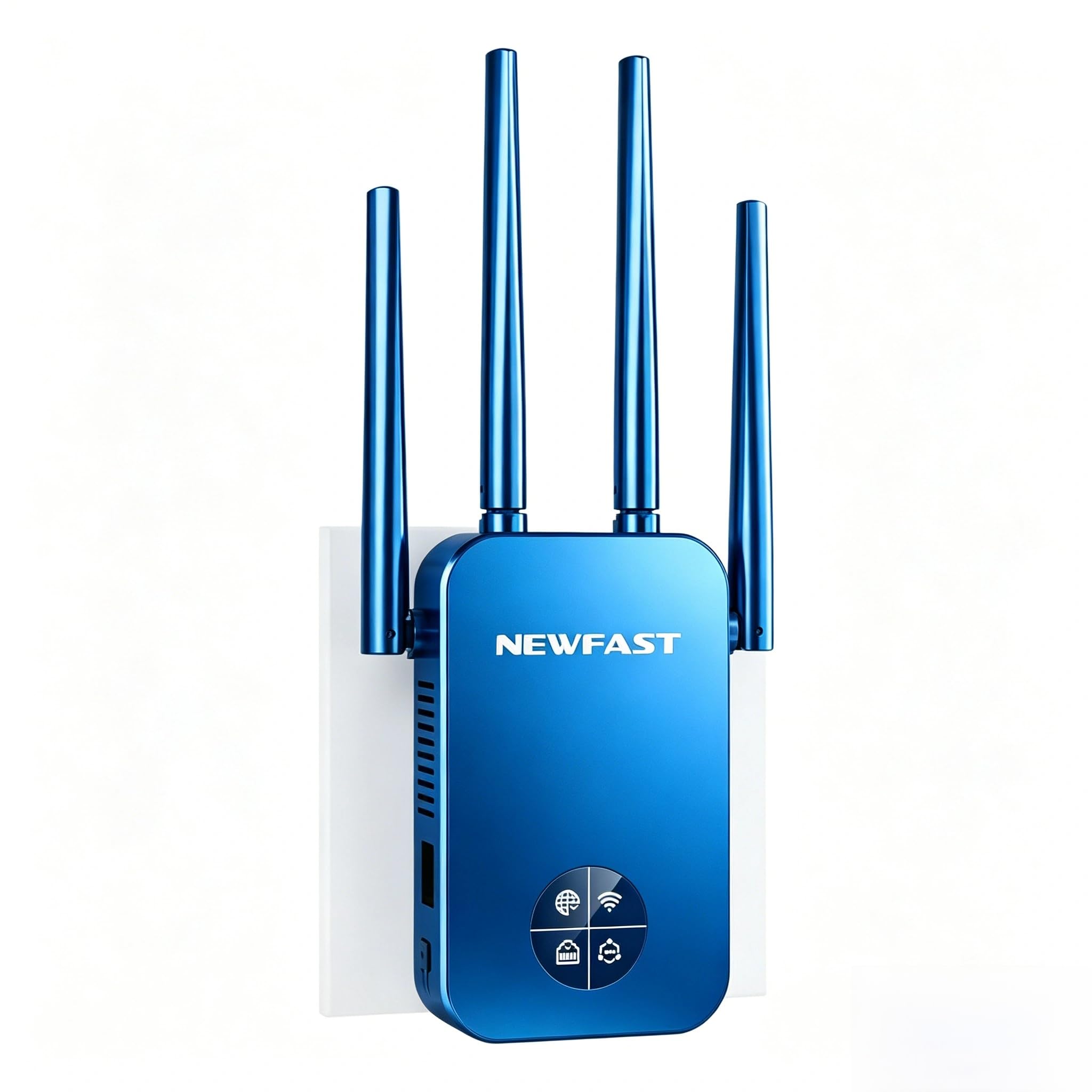
Image: The NEWFAST AC1200 WiFi Extender, showcasing its four adjustable antennas and front LCD display.
Key features include easy setup via WPS or a web interface, multiple operating modes (Repeater, Bridge, AP, Router, Client), and robust WPA/WPA2 security protocols to protect your network.
Setup Instructions
Method 1: WPS (Wi-Fi Protected Setup)
If your main router supports the WPS function, you can set up the extender quickly using the WPS button.
- Plug the NEWFAST AC1200 WiFi Extender into a power outlet near your main router.
- Wait for the extender to power on completely.
- Press the WPS button on your main router.
- Within two minutes, press the WPS/Reset button on the NEWFAST AC1200 WiFi Extender.
- The extender's OLED screen will flash, indicating a successful connection.
- Once connected, you can unplug the extender and move it to a desired location within your router's Wi-Fi range.
Method 2: Web Interface Setup
For routers without WPS or for more advanced configuration, use the web interface.
- Plug the NEWFAST AC1200 WiFi Extender into a power outlet.
- On your computer or mobile device, connect to the extender's default Wi-Fi network (e.g., "NEWFAST-2G" or "NEWFAST-5G"). No password is required initially.
- Open a web browser and enter the default IP address: 192.168.10.1 in the address bar.
- Enter the default password: admin and click "LOGIN".
- Follow the on-screen instructions to select your main Wi-Fi network and enter its password.
- Configure the extender's network name (SSID) and password if desired.
- Save the settings and wait for the extender to restart.
- Reconnect your devices to the new extended Wi-Fi network.
Operating Modes
The NEWFAST AC1200 WiFi Extender supports five different operating modes to suit various network requirements:
- Repeater Mode: Extends the existing Wi-Fi coverage of your main router. This is the most common mode for eliminating dead zones.
- Bridge Mode: Connects two separate networks, allowing devices on both networks to communicate.
- AP (Access Point) Mode: Converts a wired network connection into a wireless one. Ideal for creating a new Wi-Fi hotspot from an Ethernet port.
- Router Mode: Functions as a primary router, creating a new private network. This mode is suitable if you have a modem but no router.
- Client Mode: Allows wired devices (e.g., smart TV, gaming console) to connect to a wireless network via the extender's Ethernet port.
The Ethernet port on the side of the extender can be used to connect wired devices or for AP/Router mode configurations.
Maintenance
Resetting the Extender
If you encounter issues or wish to reconfigure the extender, you may need to perform a factory reset. There are two methods:
- Method 1: Hardware Reset
- With the extender powered on, press and hold the WPS/Reset button until the OLED screen flashes three times.
- Release the button immediately.
- The extender will reset to its factory default settings.
- Method 2: Software Reset (via Web Interface)
- Connect to the extender's Wi-Fi network (e.g., "NEWFAST-2G" or "NEWFAST-5G").
- Open a web browser and navigate to 192.168.10.1.
- Log in with the password admin.
- On the settings page, locate and click the "Homepage" button (usually in the upper right corner).
- Select "Restore by default" or "Factory Reset" to reset the extender.
Troubleshooting
Slow Speed After Setup
If you experience slow network speeds after setting up the extender, consider the following:
- Extender Placement: Ensure the extender is not too far from your main router. While extenders increase coverage, optimal performance requires a good signal from the source. Adjust the extender's position to be within a strong signal area of your main router.
- Signal Source: Wi-Fi extenders primarily extend the coverage of wireless signals; they do not increase the actual internet speed provided by your ISP. The speed of the extended signal is determined by the speed of your main router's signal.
- Interference: Walls, large metal objects, and other electronic devices can interfere with Wi-Fi signals. Try repositioning the extender away from such obstacles.
- Band Selection: For higher speeds, ensure your devices are connecting to the 5 GHz band of the extender, if supported by both the device and the extender's configuration. The 2.4 GHz band offers better range but lower speeds.
Connection Drops or Instability
- Firmware Update: Check the NEWFAST website for any available firmware updates for your AC1200 extender. Updating firmware can resolve known issues and improve stability.
- Channel Interference: In the web interface, try changing the Wi-Fi channel for both 2.4 GHz and 5 GHz bands to a less congested one.
- Overloaded Network: If too many devices are connected to the extender, it might lead to instability. Consider reducing the number of connected devices or upgrading your main router if the issue persists.
Specifications
| Feature | Detail |
|---|---|
| Standard | IEEE802.11ac/a/b/g/n |
| Antennas | 4 x 3dBi High-Gain, 180° Rotatable |
| Data Transfer Rate | Up to 1200 Mbps (300 Mbps for 2.4 GHz, 867 Mbps for 5 GHz) |
| Frequency Band | Dual Band (5 GHz / 2.4 GHz) |
| Security | WPA-PSK/WPA2-PSK/WPA2 |
| Compatibility | Compatible with all IEEE802.11ac/a/b/g/n compliant routers/modems |
| Special Features | WPS One-Click Setup, Repeater/Router/AP Mode, Smart LCD Screen, Ethernet Port |
| Color | Black |
| Included Components | 1x AC1200 WiFi Extender, 1x Ethernet Cable, 1x Multi-language User Manual |
Safety and Security
The NEWFAST AC1200 WiFi Extender supports WPA-PSK / WPA2-PSK WPA / WPA2 encryption to ensure the security of your network and block unauthorized access. Always use strong, unique passwords for your Wi-Fi network and the extender's administration interface.
Important Note: The range of signal extension will be influenced by factors such as house structure and usage environment. The signal transmission speed after extension primarily depends on the upstream equipment (your main router/ISP speed).
Warranty and Support
Specific warranty information is not provided in this document. Please refer to the warranty card included in the product packaging or contact NEWFAST customer support for details regarding warranty coverage and service.
If you have any questions or require further assistance, please do not hesitate to contact NEWFAST customer support. Contact information can typically be found on the official NEWFAST website or in the included documentation.


