
1. Introduction
Thank you for choosing the HiSpyCam Mini Wireless Security Camera Clock S53. This device combines a functional digital clock with a discreet, high-definition security camera, offering 1080p video resolution, 140-degree wide-angle coverage, and invisible night vision. It is designed for indoor surveillance, providing real-time monitoring and motion-activated alerts via a smartphone application. This manual provides detailed instructions for setup, operation, and maintenance to ensure optimal performance.

Image 1.1: The HiSpyCam S53 camera clock is suitable for various indoor surveillance applications, including home security, nanny monitoring, and office use.
2. Package Contents
Please check the package for the following items:
- HiSpyCam S53 Camera Body
- USB Charging Cable
- User Manual
- Reset Pin (if applicable)
3. Product Overview
The HiSpyCam S53 is designed to blend seamlessly into any environment as a standard digital clock. Its compact form factor discreetly houses a camera lens, infrared LEDs for night vision, and essential control ports.
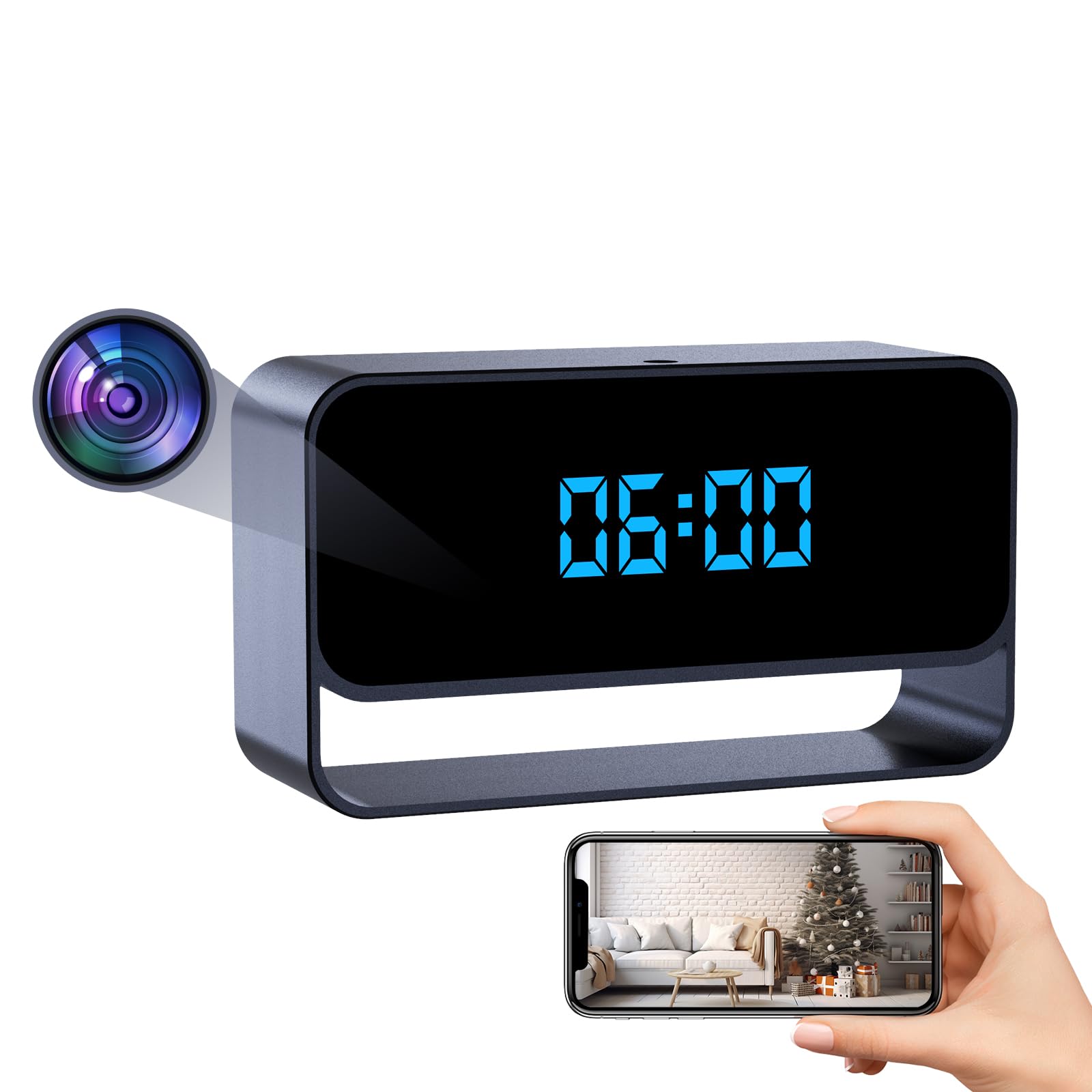
Image 3.1: The HiSpyCam S53 camera clock, featuring a clear digital time display.
Key Components:
- Camera Lens: Discreetly located on the front panel.
- Digital Clock Display: Shows time in 12/24 hour format.
- USB Charging Port: For power and charging.
- MicroSD Card Slot: For local video storage (up to 256GB, card not included).
- Power Button/Mode Button: For device control.
- Reset Button: To restore factory settings.
4. Setup
4.1. Charging the Device
Before first use, fully charge the camera using the provided USB cable and a standard 5V USB power adapter (not included). The charging indicator light will typically turn off or change color once fully charged.
4.2. MicroSD Card Installation
For local video storage, insert a MicroSD card (Class 10 or higher, up to 256GB) into the designated slot. Ensure the card is inserted correctly until it clicks into place. The device supports recording to the SD card even without a Wi-Fi connection.
4.3. App Installation
Download the companion mobile application from your smartphone's app store (iOS or Android). Search for the app name provided in the package or scan the QR code in the quick start guide. Follow the on-screen instructions to create an account and log in.
4.4. Connecting the Camera to Your Smartphone
The HiSpyCam S53 offers three connection methods:
- Plug & Play (MicroSD Card Recording): Insert a MicroSD card. The camera will automatically begin recording video to the card. No Wi-Fi or app connection is needed for this basic function. To view recordings, remove the card and insert it into a computer or compatible device.
- AP Connection (Camera's Hotspot): This method allows direct connection to the camera's built-in Wi-Fi hotspot for local viewing without an internet router. Connect your smartphone to the camera's Wi-Fi network (usually named with the device ID). Open the app to view live feed and manage settings within the camera's Wi-Fi range.
- Remote Access (Wi-Fi Network Needed): For remote viewing from anywhere, connect the camera to your home or office Wi-Fi network. In the app, select 'Add Device' and follow the prompts to connect the camera to your 2.4GHz Wi-Fi network. Once connected, you can access live video and settings via the app from any location with internet access.

Image 4.1: Visual guide to the three available connection methods for the camera.
5. Operating Instructions
5.1. Live View
Once the camera is connected to your smartphone via AP or remote access, open the app to view the live video feed. You can monitor your space in real-time from anywhere.

Image 5.1: Remote access and live video viewing through the mobile application.
5.2. Recording
The camera supports various recording modes:
- Continuous Recording: Records video continuously to the MicroSD card.
- Motion Detection Recording: The camera uses AI-powered motion analysis to detect significant movement and automatically starts recording. You will receive instant alerts on your smartphone.
- Scheduled Recording: Set specific times for the camera to record via the app settings.

Image 5.2: Motion notifications and snapshots are sent to your phone when activity is detected.
5.3. Night Vision
The camera features automatic invisible infrared night vision, allowing for clear monitoring in low-light conditions up to 15 feet without emitting visible light.
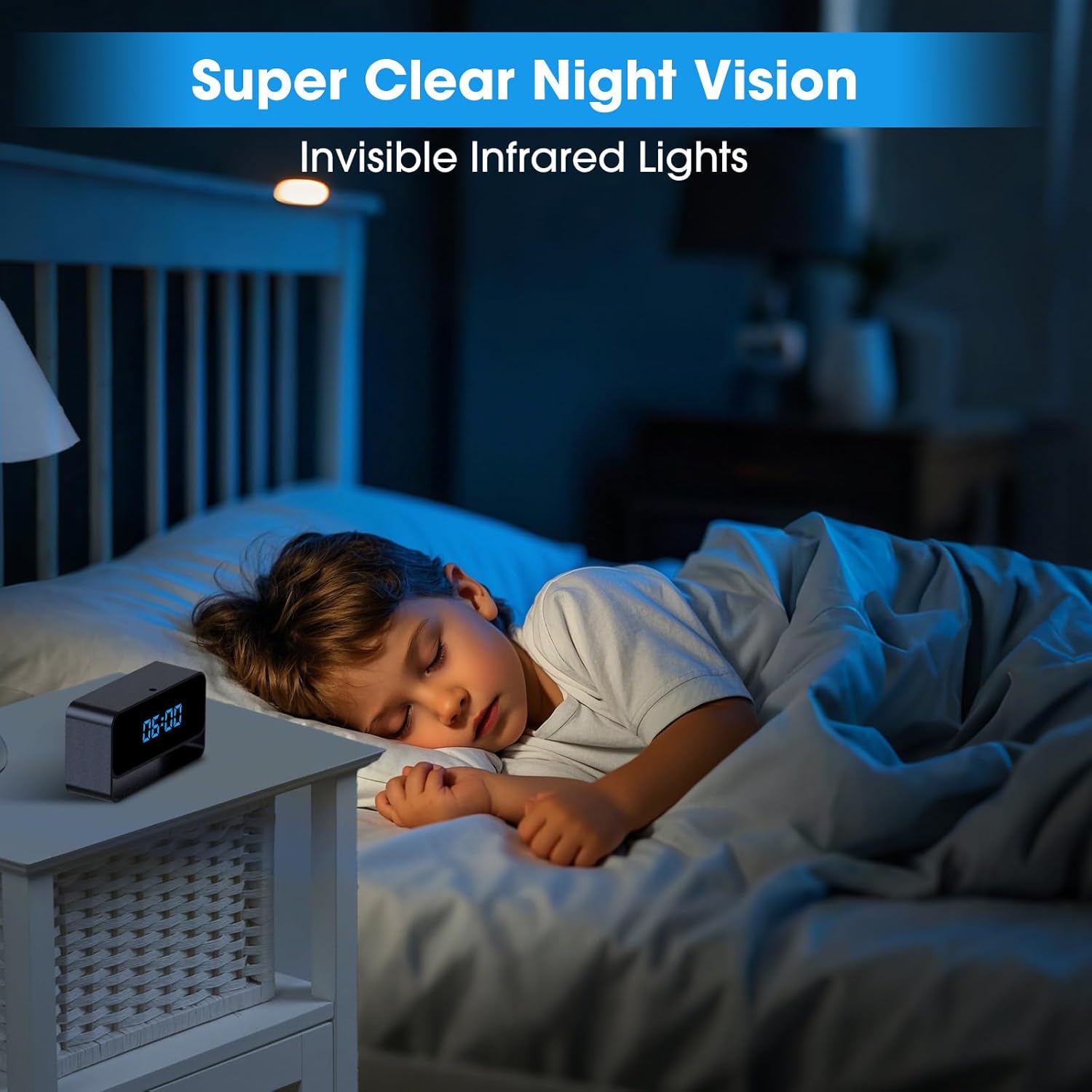
Image 5.3: The camera provides clear night vision using invisible infrared lights.
5.4. Privacy Mode
Activate Privacy Mode through the app to temporarily disable recording and live viewing, ensuring your privacy when needed.
5.5. Clock Display
The digital clock display can be set to either 12-hour or 24-hour format via the app settings.
6. Maintenance
- Cleaning: Use a soft, dry cloth to clean the camera's exterior. Do not use liquid cleaners or aerosols.
- Battery Care: To prolong battery life, avoid extreme temperatures and fully charge the device periodically if not in continuous use.
- Firmware Updates: Check the app regularly for available firmware updates to ensure optimal performance and security.
7. Troubleshooting
- Camera not turning on: Ensure the device is fully charged. Connect it to a power source and wait a few minutes before attempting to power it on.
- Cannot connect to Wi-Fi: Ensure your Wi-Fi network is 2.4GHz. Verify the Wi-Fi password. Try resetting the camera and your router.
- Poor video quality: Check your internet connection speed. Ensure the camera lens is clean and free from obstructions.
- No motion detection alerts: Verify that motion detection is enabled in the app settings and that notification permissions are granted for the app on your smartphone.
- MicroSD card not recording: Ensure the MicroSD card is inserted correctly, formatted (if necessary, via the app), and not full. Try using a different compatible MicroSD card.
- Device unresponsive: Use the reset pin to press the reset button for a few seconds to restart the device.
8. Specifications
| Model Name | ClockCam (S53) |
| Video Capture Resolution | 1080p Full HD |
| Viewing Angle | 140 Degrees |
| Night Vision Range | 15 Feet (Invisible Infrared) |
| Connectivity Technology | Wireless (Wi-Fi) |
| Compatible Devices | Smartphone (App Controlled) |
| Power Source | Battery Powered |
| Local Storage | MicroSD Card (up to 256GB, sold separately) |
| Indoor/Outdoor Usage | Indoor |
| Material | Acrylonitrile Butadiene Styrene (ABS) |
| Product Dimensions | 1 x 1 x 1 inches |
| Item Weight | 4.8 ounces |
9. Warranty and Support
For warranty information and technical support, please refer to the documentation included with your product or visit the official HiSpyCam website. Keep your purchase receipt for warranty claims.