
Introduction
This manual provides instructions for the proper setup, operation, and maintenance of your Klanata S20W Handheld Wireless Bluetooth 2D Barcode Scanner. Please read this manual thoroughly before using the device to ensure optimal performance and longevity.
Package Contents
Verify that all items are present in the package:
- 1 x Scanning Gun (Klanata S20W Barcode Scanner)
- 1 x User Manual
- 1 x USB Cable
- 1 x Receiver (USB Dongle for wireless connection)
Product Overview
The Klanata S20W is a versatile handheld barcode scanner designed for efficient data capture in various environments. It features a durable ABS housing and an ergonomic design for comfortable use.
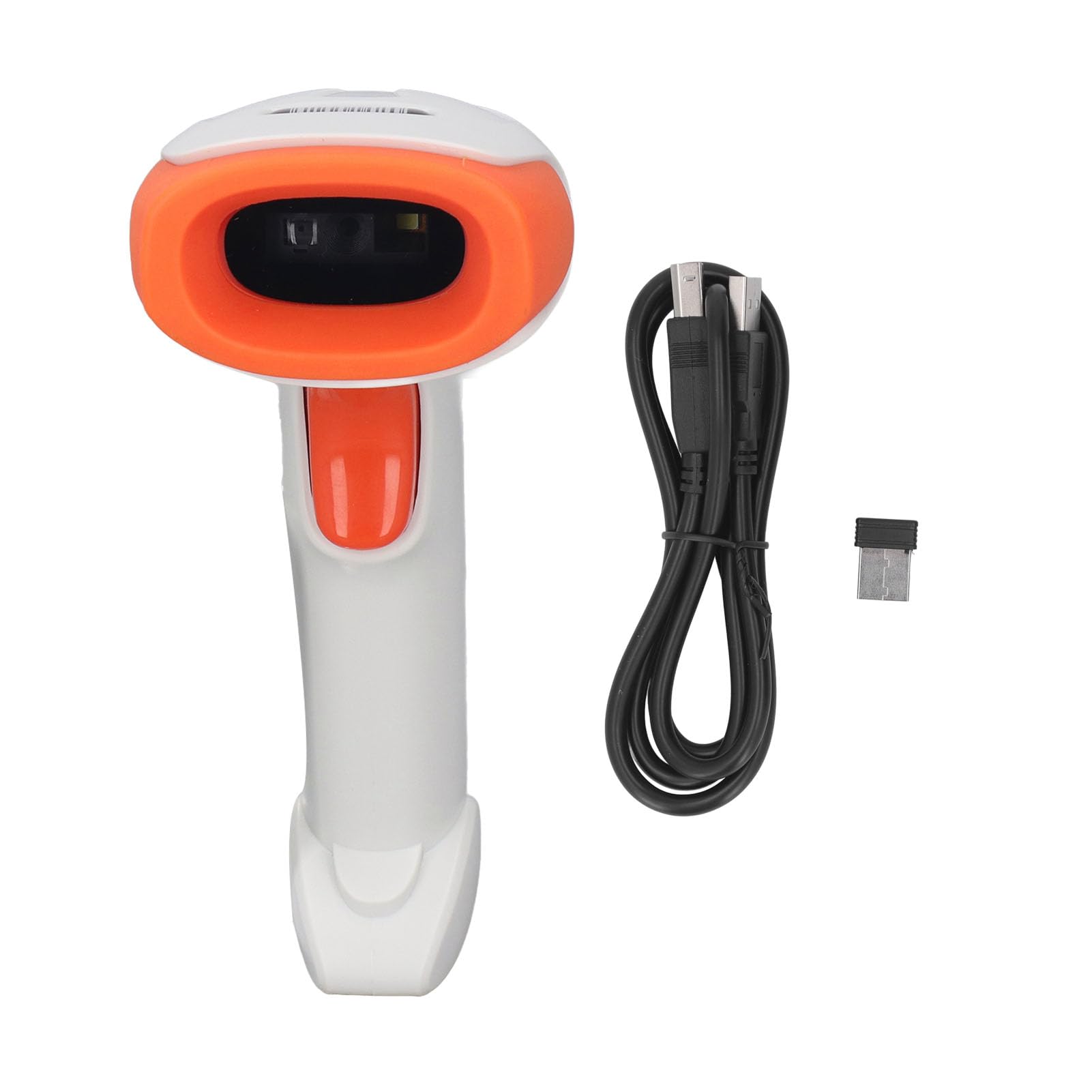
Figure 1: General view of the Klanata S20W Barcode Scanner.

Figure 2: Front angled view highlighting the scanning window and trigger button.

Figure 3: Top view displaying the indicator lights for status updates.

Figure 4: Product dimensions for reference.
Specifications
| Feature | Description |
|---|---|
| Model | S20W |
| Material | ABS |
| 1D Decoding Types | EAN13, EAN 8, UPC A, UPC E0, UPC E1, Code128, Code39, Code93, Interleaved 2 of 5, Industrial 25, Code11, CodeBar, RSS 14, RSS Ltd, RSS Exp, Standard 2 of 5, Plessey, ChinaPost 25, GS1 Composite |
| 2D Decoding Types | QR Code, PDF417, Han Xin, Micro PDF417, Micro QRCode, MaxiCode, Aztec Code, Code16K |
| Scanning Accuracy | 5mil |
| Power Supply | Built-in Lithium Battery |
| Battery Capacity | 2000mAh |
Setup
1. Charging the Scanner
Before initial use, fully charge the scanner. Connect the provided USB cable to the scanner's charging port and to a USB power adapter (not included) or a computer's USB port. The indicator light will show charging status and turn off when fully charged.
2. Connecting the Receiver (Wireless Mode)
- Insert the USB receiver into an available USB port on your computer or host device.
- The system will automatically install the necessary drivers.
- The scanner should automatically pair with the receiver. A successful connection is usually indicated by a specific sound or light on the scanner.
3. Bluetooth Pairing (Bluetooth Mode)
To connect via Bluetooth without the receiver:
- Ensure the scanner is powered on.
- On your host device (computer, tablet, smartphone), enable Bluetooth and search for available devices.
- Select "Klanata S20W" (or similar device name) from the list to pair.
- A successful connection will be confirmed by an audible beep or indicator light on the scanner.
Operating Instructions
1. Power On/Off
To power on the scanner, press and hold the trigger button for a few seconds until you hear a beep and the indicator light illuminates. To power off, press and hold the trigger button again until the scanner powers down.
2. Scanning Barcodes
- Point the scanning window at the barcode you wish to scan.
- Press the trigger button. A red aiming beam will appear.
- Position the aiming beam to cover the entire barcode.
- Upon a successful scan, the scanner will emit a beep and the indicator light will flash. The decoded data will be transmitted to your connected device.
3. Scanning 1D and 2D Codes
The Klanata S20W is capable of decoding both 1D (linear) and 2D (matrix) barcodes, including QR codes, PDF417, and Data Matrix. Ensure the entire code is within the aiming beam for optimal scanning.
Maintenance
1. Cleaning
Regularly clean the scanning window with a soft, lint-free cloth. For stubborn dirt, slightly dampen the cloth with water or a mild, non-abrasive cleaning solution. Do not use harsh chemicals or abrasive materials, as these can damage the scanning window.
2. Battery Care
To prolong battery life, avoid fully discharging the battery frequently. Charge the scanner when the low battery indicator appears. If the scanner will not be used for an extended period, charge it to approximately 50% and store it in a cool, dry place.
3. Storage
Store the scanner in a clean, dry environment away from extreme temperatures, direct sunlight, and corrosive materials. Protect it from drops and impacts.
Troubleshooting
Scanner Not Responding
- Ensure the scanner is fully charged.
- Verify the USB receiver is securely plugged into the host device.
- If using Bluetooth, ensure the scanner is paired and within range.
- Restart the scanner and the host device.
Unable to Scan Barcodes
- Check if the barcode is damaged or poorly printed.
- Ensure the scanning window is clean and free of obstructions.
- Adjust the distance and angle between the scanner and the barcode.
- Verify that the barcode type is supported by the scanner (refer to Specifications).
Data Not Transmitting
- Confirm the scanner is successfully connected to the host device (via receiver or Bluetooth).
- Check if the input focus is on the correct application or text field on your host device.
Warranty and Support
For warranty information and technical support, please refer to the documentation included with your purchase or contact Klanata customer service through their official website or the retailer where the product was purchased. Please have your model number (S20W) and purchase details ready.