
FULLJA B0GH85W9PM
FULLJA 32-inch Digital Picture Frame Instruction Manual
Model: B0GH85W9PM
1. Introduction
Thank you for choosing the FULLJA 32-inch Digital Picture Frame. This device is designed to display your cherished photos and videos with a vivid 1080p IPS screen. It offers versatile display options, including portrait and landscape modes, and features dual-WiFi connectivity for easy content sharing via the VPhoto app. With 64GB of internal storage and support for external memory, you can keep a vast collection of memories on display. This manual provides detailed instructions to help you set up, operate, and maintain your digital picture frame.
Key Features:
- 32-inch FHD IPS Screen with 1920x1080 Resolution and 16:9 Aspect Ratio
- Dual-WiFi (2.4GHz & 5GHz) for fast and reliable connectivity
- 64GB Internal Storage, expandable via Micro SD card and USB drive (up to 32GB recommended)
- VPhoto App (iOS & Android) for secure photo and video sharing from your smartphone
- Automatic Photo Rotation for optimal display in any orientation
- Remote Control for easy navigation and settings adjustment
- Features include Slideshow, Alarm Clock, Music Playback, Sleep Mode, Split-Screen Mode, Weather Station, and Wall-Mounting capabilities
2. What's in the Box
Upon unpacking, please ensure all the following items are present and in good condition:
- FULLJA 32-inch Digital Picture Frame
- Power Adapter
- Remote Control
- User Manual (this document)
- Wall Mount Kit (if applicable, check packaging)
Note: Specific accessories may vary. Refer to your product packaging for a complete list.
Video: Unboxing the 32-inch Electronic Picture Frame. This video demonstrates the unboxing process and shows the included accessories, providing a visual guide to what you should find in your package.
3. Setup
3.1 Initial Power On and Language Selection
- Connect the power adapter to the frame and plug it into a power outlet.
- The frame will power on automatically.
- Use the remote control to select your preferred language from the on-screen options.
Video: Customer Unboxing and Initial Setup. This video guides you through the initial power-on sequence, including language selection and basic navigation.
3.2 Wi-Fi Connection
- From the main menu, navigate to 'Settings' and select 'Wi-Fi'.
- Choose your desired 2.4GHz or 5GHz network from the list.
- Enter your Wi-Fi password using the on-screen keyboard and remote control.
- Confirm the connection. A successful connection will be indicated on the screen.
3.3 VPhoto App Installation and Pairing
- On your smartphone or tablet, download the 'VPhoto' app from the App Store (iOS) or Google Play Store (Android).
- Open the VPhoto app and create an account or log in.
- On your digital picture frame, navigate to the 'Bind Device' or 'Add Device' section. A QR code or device ID will be displayed.
- In the VPhoto app, select 'Add Device' and scan the QR code displayed on your frame or manually enter the device ID.
- Follow the on-screen prompts to complete the pairing process.

Image: Sharing Photos and Videos Anytime & Anywhere. This image illustrates the ease of sharing content to the digital frame using the VPhoto app on a smartphone, highlighting the wireless connectivity.
3.4 Placement and Mounting
The FULLJA digital picture frame supports both horizontal and vertical orientations and can be placed on a surface or wall-mounted.
- Surface Placement: Ensure the frame is placed on a stable, flat surface away from direct sunlight or heat sources.
- Wall Mounting: Use a compatible VESA mount (not always included, check your package) and follow the instructions provided with the mount. The frame features auto-rotation, so it will adjust the display orientation automatically.
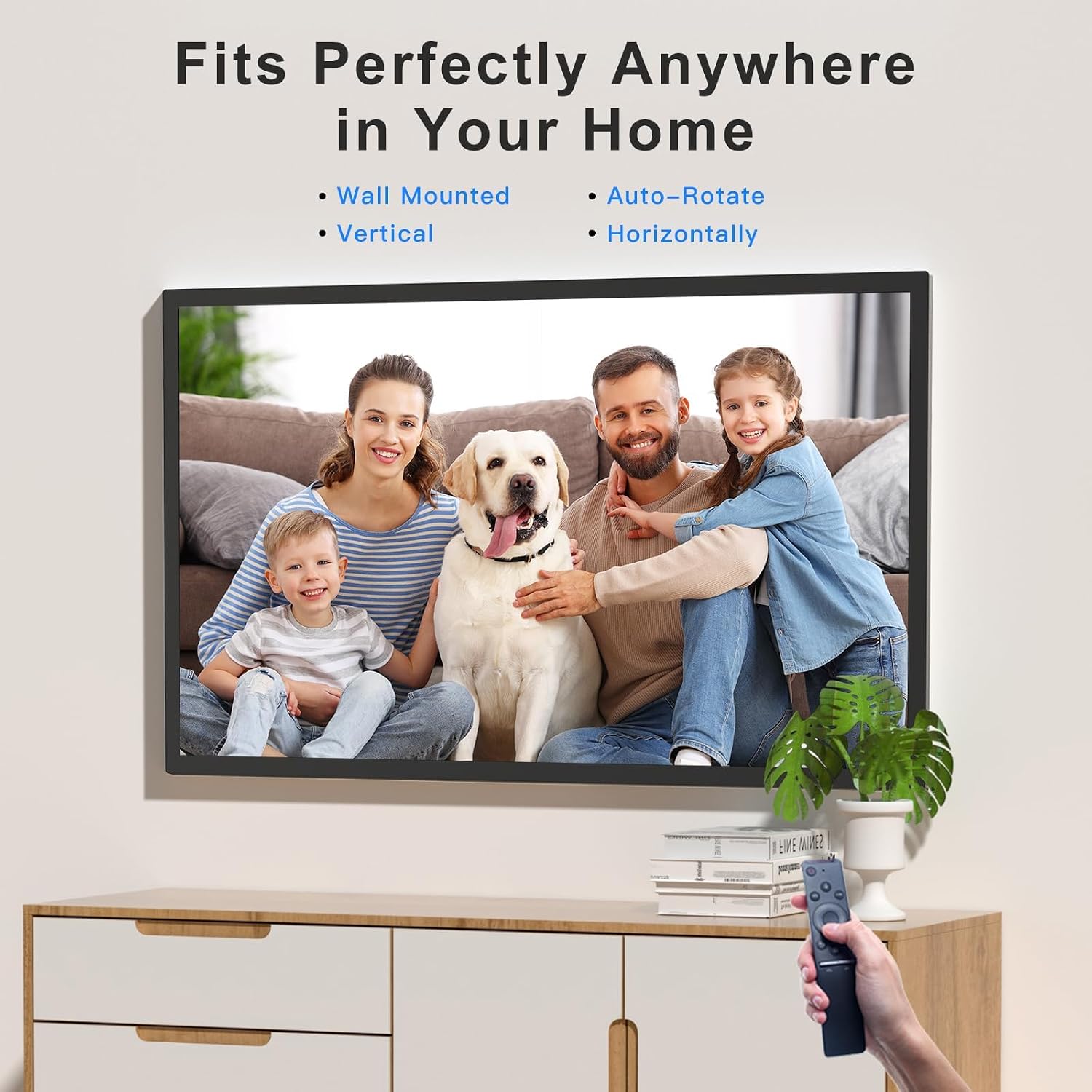
Image: Fits Perfectly Anywhere in Your Home. This image demonstrates the frame's flexibility for placement, showing it both wall-mounted and on a surface, and highlighting its auto-rotate feature for vertical or horizontal display.
Video: Wall-mountable Design. This video showcases the frame's wall-mounting capabilities and its ability to display content in both landscape and portrait orientations.
4. Operating Instructions
4.1 Sharing Photos and Videos
There are multiple ways to add content to your digital picture frame:
- Via VPhoto App: Open the VPhoto app on your smartphone, select the photos or videos you wish to share, choose your connected frame, and send. Content will appear on the frame almost instantly.
- Via Email: The frame can be configured to receive photos and videos via email. Refer to the VPhoto app settings for your frame's unique email address and instructions.
- Via USB Drive or Micro SD Card: Insert a FAT32-formatted USB drive or Micro SD card (up to 32GB recommended) containing your media files into the designated slot on the frame. The frame will detect the storage and allow you to import or play content directly.
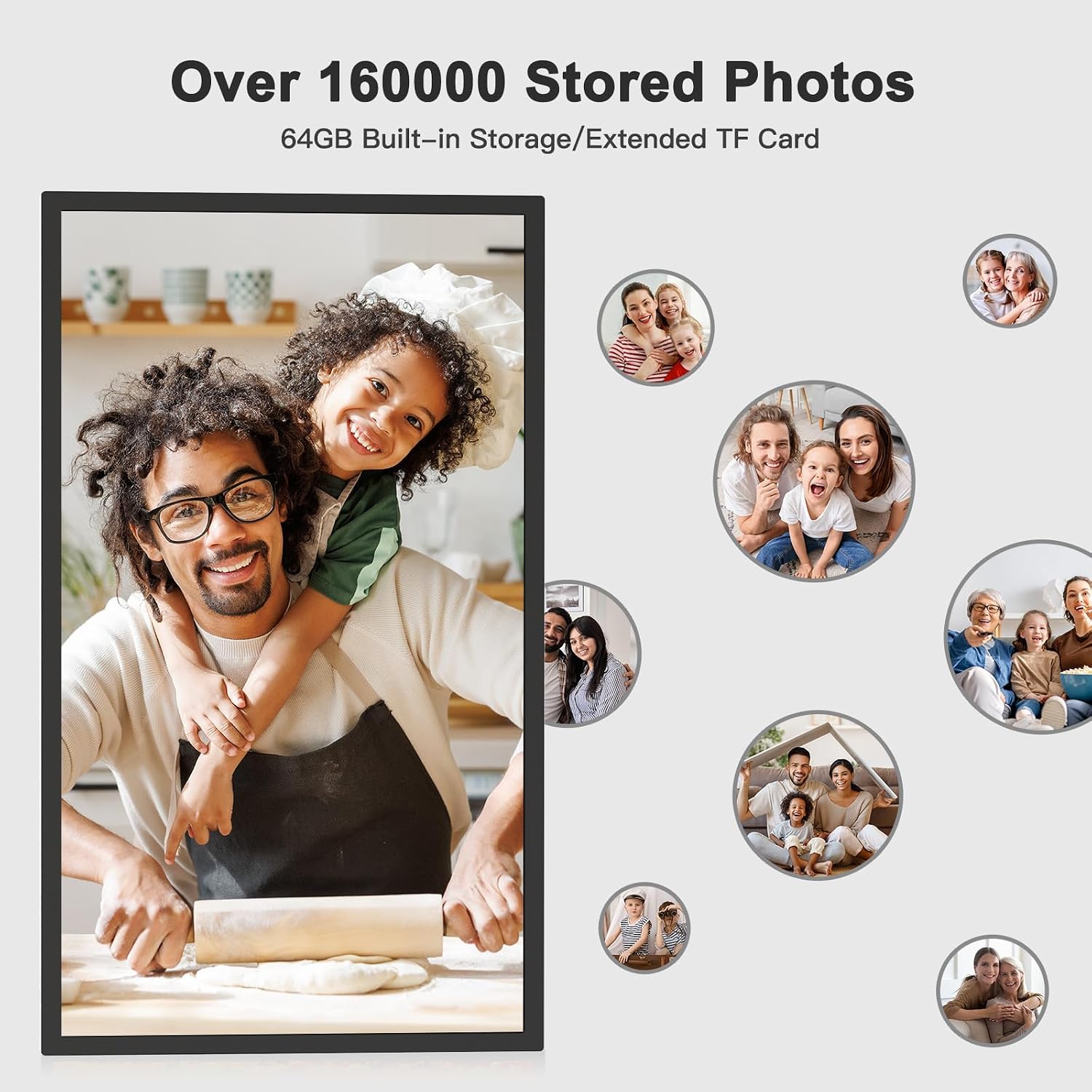
Image: Over 160,000 Stored Photos. This image highlights the frame's substantial 64GB built-in storage capacity, capable of holding a large number of photos and videos.
Video: Showcase of Photos and Videos. This video demonstrates how photos and videos are displayed on the large screen, including slideshow functionality.
Video: Music Playback. This video illustrates the process of playing music on the digital picture frame, including inserting a USB drive.
4.2 Slideshow and Display Settings
Use the remote control to access the frame's settings and customize your viewing experience:
- Slideshow Interval: Adjust the duration each photo is displayed.
- Transition Effects: Choose from various transition styles between photos.
- Display Mode: Select full-screen or split-screen mode. Split-screen allows displaying multiple items simultaneously.
- Auto-Rotate: The frame automatically adjusts photo orientation based on its physical position.

Image: Screen Mirror. This image demonstrates the screen mirroring capability, showing how content from a smartphone can be displayed on the frame, including automatic rotation.
4.3 Additional Functions
- Alarm Clock: Set alarms directly from the frame's interface.
- Weather Station: View current weather conditions and forecasts for your selected location.
- Sleep Mode: Schedule automatic on/off times to conserve energy and avoid unnecessary display.
- Music Playback: Play background music during slideshows or as a standalone feature.
Video: Weather and Calendar Functionality. This video demonstrates how to access and use the weather station and calendar features on the digital picture frame.
Video: Alarm Clock Reminder. This video shows how to set and manage alarm clock functions on the digital photo frame.
5. Maintenance
To ensure the longevity and optimal performance of your FULLJA Digital Picture Frame, follow these maintenance guidelines:
- Cleaning the Screen: Gently wipe the screen with a soft, lint-free cloth. For stubborn smudges, slightly dampen the cloth with water or a screen-safe cleaning solution. Avoid harsh chemicals or abrasive materials.
- Cleaning the Frame: Use a dry, soft cloth to wipe the frame's exterior.
- Storage: If storing the frame for an extended period, power it off, unplug it, and store it in a cool, dry place away from direct sunlight and extreme temperatures.
- Software Updates: Periodically check for firmware updates through the frame's settings or the VPhoto app to ensure you have the latest features and bug fixes.
6. Troubleshooting
If you encounter issues with your digital picture frame, refer to the following common problems and solutions:
| Problem | Possible Cause | Solution |
|---|---|---|
| Frame does not power on. | Power adapter not connected or faulty. | Ensure the power adapter is securely connected to the frame and a working power outlet. Try a different outlet. |
| Cannot connect to Wi-Fi. | Incorrect password, out of range, or network issue. | Verify the Wi-Fi password. Move the frame closer to the router. Restart your router and the frame. Ensure your network is 2.4GHz or 5GHz compatible. |
| Photos/Videos not appearing from VPhoto app. | Frame not paired, app not connected, or network issue. | Ensure the frame is online and correctly paired with your VPhoto app. Check your internet connection on both the frame and your phone. Restart the app and the frame. |
| Email photo transfer fails. | Incorrect email address for the frame, email service issues, or file size limits. | Double-check the frame's unique email address in the VPhoto app. Ensure the file size of the photos/videos is within acceptable limits. Check your email service provider for any sending restrictions. |
| USB drive/SD card not recognized. | Incorrect format, incompatible capacity, or faulty card/drive. | Ensure the USB drive or Micro SD card is formatted to FAT32. Recommended maximum capacity is 32GB. Try a different card or drive. |
| Screen display is dim or distorted. | Brightness settings, faulty display, or external interference. | Adjust brightness settings using the remote control. If the issue persists, contact customer support. |
7. Specifications
| Feature | Detail |
|---|---|
| Brand | FULLJA |
| Model Number | B0GH85W9PM |
| Screen Size | 32 Inches |
| Resolution | 1920x1080 (1080p) |
| Aspect Ratio | 16:9 |
| Display Type | IPS |
| Memory Storage Capacity | 64 GB |
| Connectivity Technology | USB, Wi-Fi (2.4GHz & 5GHz) |
| Control Method | Remote Control |
| Compatible Devices | Personal Computer, Smartphone |
| Power Source | Corded Electric |
| Frame Material | Plastic |
| Item Dimensions (L x W) | 17.05"L x 29.02"W |
| UPC | 607611394674 |
8. Warranty Information
The FULLJA 32-inch Digital Picture Frame comes with a 1-Year Manufacturer Warranty. This warranty covers defects in materials and workmanship under normal use. It does not cover damage caused by misuse, accidents, unauthorized modifications, or external causes.
Please retain your proof of purchase for warranty claims. For detailed terms and conditions, refer to the warranty card included in your product packaging or contact customer support.
9. Customer Support
If you have any questions, require technical assistance, or need to make a warranty claim, please contact FULLJA customer support through the following channels:
- Refer to the contact information provided in your product packaging.
- Visit the official FULLJA website for support resources and contact details.
- For issues related to the VPhoto app, refer to the app's help section or support contact.
Please have your product model number (B0GH85W9PM) and proof of purchase ready when contacting support.
Related documentsB0GH85W9PM


Ask a question about this manual
Ask about setup, troubleshooting, compatibility, parts, safety, or missing instructions. Manuals+ will review the question and use this page’s manual context to help answer it.