
1. Introduction
This manual provides essential information for the safe and efficient operation, maintenance, and troubleshooting of your Vexilar W15 Robot Vacuum Cleaner. Please read this manual thoroughly before using the product and retain it for future reference.
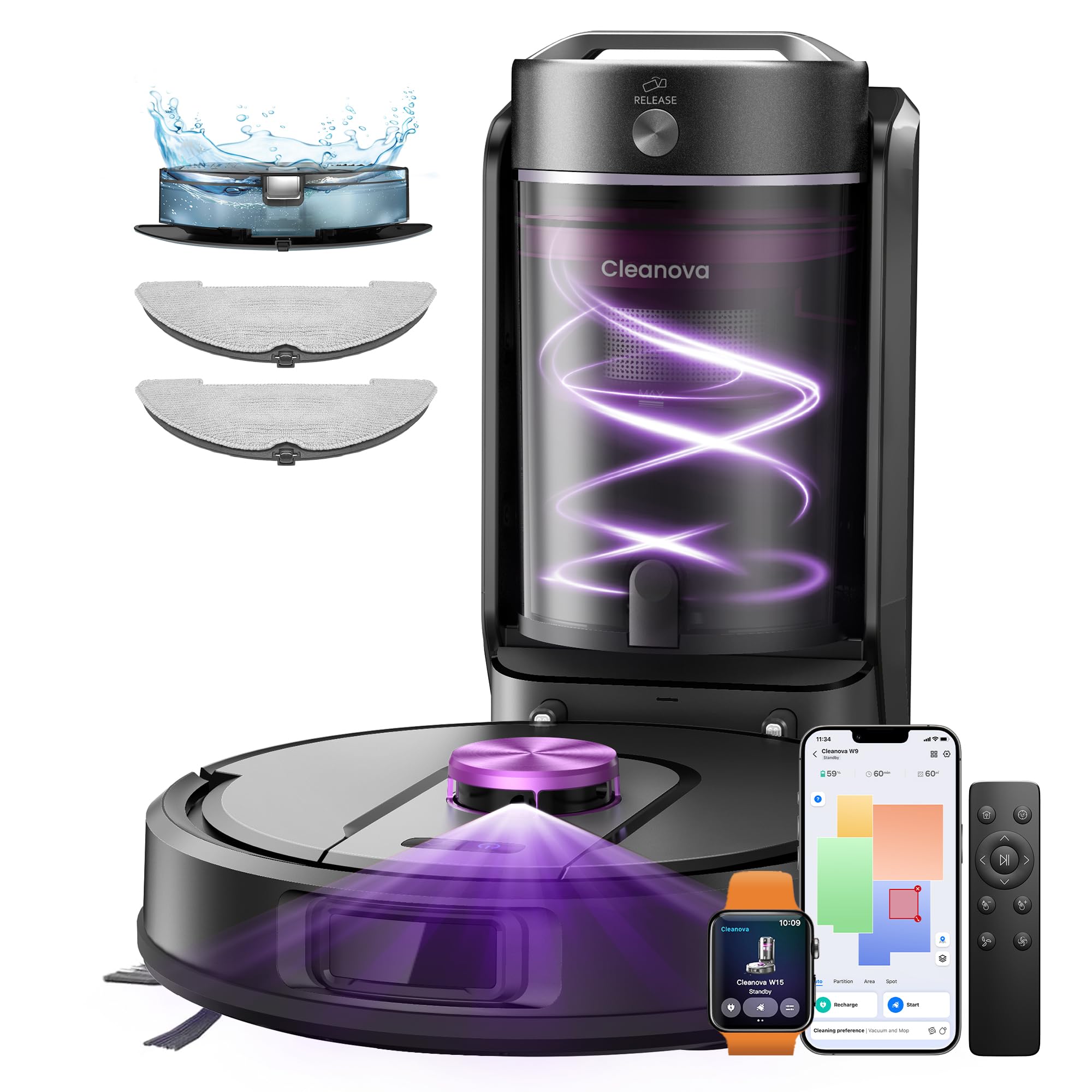
Image: The Vexilar W15 Robot Vacuum Cleaner with its auto-emptying station.
2. Safety Instructions
To reduce the risk of injury or damage, read and follow all safety precautions. This appliance is for household use only.
- Do not allow children to play with the robot. Supervise children and pets when the robot is operating.
- Ensure the charging station is placed on a flat, stable surface against a wall, with at least 1 meter of clear space on each side and 2 meters in front.
- Do not use the robot in wet environments or on wet surfaces.
- Remove any loose cables, small objects, or fragile items from the floor before operation to prevent entanglement or damage.
- Do not operate the robot near open flames or flammable materials.
- Use only the original power adapter and charging station provided with the product.
- Do not attempt to repair or modify the robot yourself. Contact customer support for service.
3. Product Overview
3.1 Components
The Vexilar W15 package includes the following items:
- Vexilar W15 Robot Vacuum Cleaner (x1)
- W15 GreenBin Auto-Emptying Station (x1)
- Mop Holder (x2)
- Remote Control (batteries included) (x1)
- HEPA Filter (x2)
- Side Brush (x1)
- Cleaning Tool (x1)
- User Manual (x1)

Image: Close-up view of the robot vacuum's technical components.
3.2 Key Features
- Automatic Emptying: The GreenBin station automatically empties the robot's dustbin, preventing particle dispersion and direct contact with dirt. Bagless design saves on disposable bags.
- Large Dustbin Capacity: The 4-liter GreenBin allows for weeks of operation without manual emptying.
- LiDAR Navigation: 360° LiDAR system scans the environment 2160 times per second, creating precise real-time maps for efficient cleaning paths and obstacle avoidance.
- Powerful Suction: Equipped with a brushless motor, offering up to 10,000 Pa suction power for effective removal of dust, debris, and pet hair from various surfaces.
- Quiet Operation: Operates at approximately 60 dB in quiet mode, comparable to a normal conversation.
- 3-in-1 Functionality: Sweeping, vacuuming, and mopping combined in one device.
- Extended Battery Life: 180 minutes of runtime, covering up to 200 m² on a single charge.
- Smart Control: Connects to 2.4 GHz Wi-Fi for control via a dedicated mobile app, remote control, or voice commands (Alexa, Google Assistant, Siri).
- Customized Cleaning: Stores up to 5 floor plans and supports up to 15 no-go zones or virtual walls.
4. Setup
4.1 Unpacking and Placement
- Carefully remove all components from the packaging.
- Choose a suitable location for the GreenBin auto-emptying station. Ensure it is placed against a wall on a hard, level surface.
- Maintain at least 1 meter of clear space on both sides of the station and 2 meters in front to allow the robot to dock and maneuver freely.
- Plug the power cord of the GreenBin station into a wall outlet.

Image: Technical diagrams illustrating step-by-step installation or assembly instructions.
4.2 Initial Charging
Place the robot onto the charging station. Ensure the charging contacts on the robot align with those on the station. The robot will automatically begin charging. For first-time use, fully charge the robot before its initial cleaning cycle.
4.3 App Connection
- Download the Vexilar app from your smartphone's app store.
- Follow the in-app instructions to create an account and add your Vexilar W15 robot. Ensure your Wi-Fi network is 2.4 GHz.
- Once connected, you can control the robot, schedule cleanings, view maps, and set no-go zones from your smartphone.
5. Operating Instructions
5.1 Cleaning Modes
The Vexilar W15 offers three cleaning modes:
- Suction Only Mode: Effectively captures dust and hair.
- Mopping Only Mode: Provides quiet and thorough wet cleaning.
- Simultaneous Vacuuming and Mopping Mode: Attach the mop holder for combined cleaning in one pass.

Image: The robot vacuum demonstrating its mopping function on a hard floor.
5.2 LiDAR Navigation and Mapping
The robot uses 360° LiDAR technology to scan your home and create accurate maps. This allows for systematic cleaning and efficient navigation, avoiding random cleaning patterns. The robot can store up to 5 floor plans for multi-level homes.

Image: A green laser beam effect, illustrating the LiDAR navigation system.
5.3 Virtual Boundaries and No-Go Zones
Using the mobile app, you can easily set up to 15 virtual no-go zones or virtual walls. This prevents the robot from entering specific areas, such as pet feeding zones or delicate carpeted areas.
5.4 Smart Control Options
- Mobile App: Start/stop cleaning, schedule tasks, view cleaning maps, and set restricted areas.
- Remote Control: Use the included remote for basic control functions.
- Voice Control: Compatible with Alexa, Google Assistant, and Siri for hands-free operation.
5.5 Automatic Return and Resume
When the battery level is low (below 15%) or a cleaning task is complete, the robot will automatically return to its charging station. If the battery was low during a cleaning cycle, it will resume cleaning from where it left off once charged to 80%.
6. Maintenance
Regular maintenance ensures optimal performance and extends the lifespan of your Vexilar W15.
6.1 Emptying the GreenBin Station
The 4-liter GreenBin station can hold debris for up to 60 days, depending on household usage. To empty:
- Press the release button on the GreenBin.
- Remove the dust container using its handle.
- Open the flap and empty the contents into a trash bin.
- The container is fully washable; rinse with clean water and allow to air dry completely before reinserting.
6.2 Cleaning the Robot's Dustbin and Filter
Although the GreenBin auto-empties, occasional manual cleaning of the robot's internal dustbin and HEPA filter is recommended.
- Remove the robot's dustbin and empty its contents.
- Tap the HEPA filter to dislodge dust. Do not wash the HEPA filter unless specified by the manufacturer.
- Clean the filter compartment with the provided cleaning tool.
6.3 Cleaning Brushes and Sensors
- Regularly check and clean the main brush and side brushes for tangled hair or debris using the cleaning tool.
- Wipe the charging contacts on both the robot and the station with a dry cloth.
- Clean the LiDAR sensor and other sensors on the robot with a soft, dry cloth.
7. Troubleshooting
If you encounter issues with your Vexilar W15, refer to the following common problems and solutions:
| Problem | Possible Cause | Solution |
|---|---|---|
| Robot does not turn on | Low battery; Power switch off | Place on charging station; Ensure power switch is ON. |
| Robot cannot find charging station | Station obstructed; Robot too far | Clear area around station; Manually place robot closer. |
| Poor cleaning performance | Full dustbin/filter; Tangled brushes | Empty dustbin and clean filter; Clean main and side brushes. |
| Robot gets stuck frequently | Obstacles; High thresholds | Remove obstacles; Set no-go zones for problematic areas. |
| App connection issues | Incorrect Wi-Fi; App error | Ensure 2.4 GHz Wi-Fi; Restart app/robot; Re-pair device. |
If the problem persists, please contact Vexilar customer support.
8. Technical Specifications
| Feature | Specification |
|---|---|
| Brand | Vexilar |
| Model Name | W15 |
| Suction Power | 10,000 Pa |
| Battery Life | 180 Minutes |
| Battery Type | Lithium-ion |
| Battery Voltage | 14.4 Volts |
| Dustbin Capacity (GreenBin) | 4 Liters |
| Noise Level | 60 Decibels (Quiet Mode) |
| Dimensions (L x W x H) | 30.6 x 30.6 x 9.8 cm |
| Item Weight | 5.4 Kilograms |
| Filter Type | Material (HEPA) |
| Controller Type | App, Remote Control, Voice (Alexa, Google Assistant, Siri) |
| Recommended Surface | Multi-Surface, Carpet, Wood, Tile |
| Indoor/Outdoor Use | Indoor |
9. Warranty and Support
Vexilar is committed to providing reliable products and excellent customer service.
- 24/7 Customer Service: Support is available 24 hours a day, 7 days a week.
- 30-Day Refund Policy: Option for refund within 30 days of purchase.
- 24-Month Warranty: The product is covered by a 24-month warranty.
- Express Delivery: (This refers to product delivery, not support, but included as per source)

Image: An overview of Vexilar's service guarantees, including 24/7 support, 30-day refund, and 24-month warranty.
For further assistance or warranty claims, please refer to the contact information provided in your product packaging or visit the official Vexilar website.


