
1. Introduction
Thank you for purchasing the YOWHICK DP03 Projector. This manual provides essential information for setting up, operating, and maintaining your projector to ensure optimal performance and longevity. Please read this manual thoroughly before using the product and retain it for future reference.
2. What's in the Box
Upon unpacking, please verify that all the following items are included:
- 1080P Projector x 1
- User Manual x 1
- HDMI Cable x 1
- AV Cable x 1
- Power Cable x 1
- Lens Cap x 1
- Remote Control (Battery Not Included) x 1

Image: The YOWHICK DP03 projector and its accessories laid out on a white surface, including the projector unit, remote control, power cable, HDMI cable, AV cable, and user manual.
3. Product Overview
3.1 Front View

Image: Front view of the YOWHICK DP03 projector, highlighting the main projection lens and front ventilation grilles.
3.2 Top View

Image: Top view of the YOWHICK DP03 projector, showing the control panel with power, navigation, and OK buttons, along with focus and keystone adjustment wheels.
3.3 Rear View (Ports)

Image: Rear view of the YOWHICK DP03 projector, displaying the various input/output ports including HDMI, USB1, USB2, AV, and 3.5mm audio jack.
4. Setup
4.1 Placement Options
The YOWHICK DP03 projector supports multiple placement methods:
- Desktop Placement: Place the projector on a flat surface in front of the projection screen or wall.
- Tripod Installation: Secure the projector to a compatible tripod using the mounting screw hole on the bottom.
- Ceiling Installation: Mount the projector to the ceiling using a compatible ceiling mount kit (not included). Ensure the projector is securely fastened.

Image: Illustration demonstrating various projector placement options: on a desktop, mounted on a tripod, and suspended from the ceiling, all projecting onto a large screen.
4.2 Power Connection
- Connect the power cable to the projector's power input port.
- Plug the other end of the power cable into a standard electrical outlet (AC 100V-240V, 50/60Hz).
- Press the power button on the projector or remote control to turn it on.
4.3 Focus and Keystone Adjustment
To achieve a clear and rectangular image:
- Adjust the Focus Ring (located near the lens) until the image appears sharp and clear.
- Adjust the Keystone Correction Ring (located next to the focus ring) to correct any trapezoidal distortion, ensuring the image is rectangular. The projector supports ±15° keystone correction.
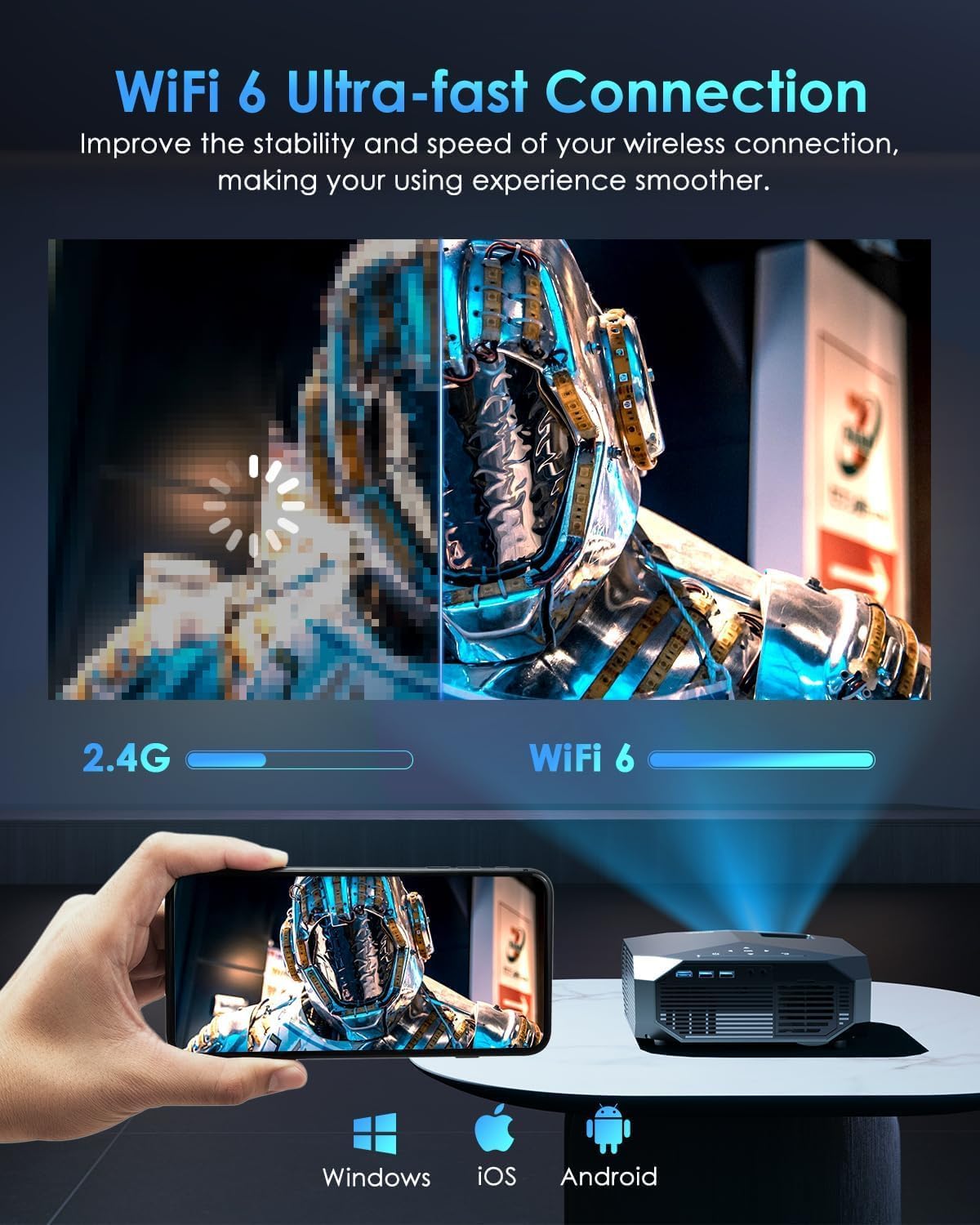
Image: A hand adjusting the focus and keystone wheels on the top of the YOWHICK DP03 projector, with labels indicating "FOCUS" and "KEYSTONE".
5. Operating Instructions
5.1 Initial Setup Menu
When you first power on the projector, you will see the main menu. Use the navigation buttons on the projector or remote to select options.

Image: The projector's main interface projected onto a wall, displaying various input options such as HDMI, USB, AV, Screen Mirroring, WiFi, and Bluetooth, along with settings and 'About Us' sections.
5.2 Connecting to Wi-Fi
- From the main menu, select "WiFi".
- Choose your desired Wi-Fi network (supports WiFi 6 and 2.4G Dual-Band WiFi).
- Enter the password and connect.
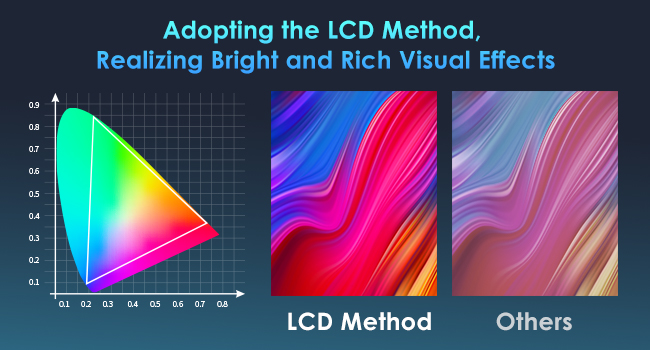
Image: A multi-panel diagram illustrating the process of connecting the projector to Wi-Fi and then initiating screen mirroring for both iOS and Android devices.
5.3 Screen Mirroring (iOS & Android)
To mirror your smartphone or tablet screen:
- Ensure your projector and mobile device are connected to the same Wi-Fi network.
- From the projector's main menu, select "Screen Mirroring".
- Choose either "iOS Screen" or "Android Screen" based on your device.
- On your mobile device, activate the screen mirroring function (e.g., "Screen Mirroring" for iOS, "Smart View" or "Cast" for Android) and select the projector from the list of available devices.
Note: Due to copyright restrictions, streaming services like Netflix, Hulu, Amazon Prime Video, etc., do not support direct screen mirroring. To watch content from these services, connect a TV stick (e.g., Fire TV Stick, Roku), HDMI device, or laptop to the projector.
5.4 Bluetooth Connection
The projector features advanced Bluetooth 5.3 for audio connectivity.
- Connect to Bluetooth Speaker: Pair the projector with external Bluetooth speakers for enhanced audio.
- Use as Bluetooth Speaker: The projector can also function as a standalone Bluetooth speaker, allowing you to play audio from your mobile device through its built-in dual stereo speakers.

Image: A diagram showing the YOWHICK DP03 projector's two-way Bluetooth 5.3 connectivity, allowing it to connect to a Bluetooth speaker or be used as a Bluetooth speaker itself, streaming content from a smartphone.
5.5 Zoom Function
The projector offers a 50%-100% zoom function, allowing you to adjust the projected image size without physically moving the projector. This is useful for fine-tuning the display to fit your screen or wall.
6. Connectivity
The YOWHICK DP03 projector provides versatile connectivity options:
- HDMI: Connect TV sticks, laptops, gaming consoles (PS5), DVD players, etc.
- USB: Two USB ports for connecting USB drives to play media files.
- AV: Connect older devices using the included AV cable.
- 3.5mm Audio: Connect external headphones or speakers via the audio output jack.
- WiFi 6 & 2.4G Dual-Band WiFi: For wireless screen mirroring and internet connectivity.
- Bluetooth 5.3: For wireless audio connections.

Image: The YOWHICK DP03 projector positioned on a table, with an overlay illustrating its compatibility with various devices and input ports like HDMI, USB, AV, and audio, along with logos of streaming services.
7. Maintenance
7.1 Cleaning the Lens
Use a soft, lint-free cloth or lens cleaning paper to gently wipe the projector lens. Avoid using abrasive cleaners or excessive force, as this can scratch the lens.
7.2 Cleaning the Projector Body
Wipe the exterior of the projector with a soft, dry cloth. Do not use liquid or aerosol cleaners directly on the unit.
7.3 Ventilation
Ensure that the projector's ventilation openings are not blocked to prevent overheating. The advanced cooling system is designed for quiet and efficient operation, but proper airflow is crucial.
8. Troubleshooting
| Problem | Possible Cause | Solution |
|---|---|---|
| No image or blurry image | Incorrect focus, keystone, or input source. | Adjust the focus and keystone rings. Verify the correct input source is selected (HDMI, USB, AV). |
| No sound | Volume too low, mute activated, or incorrect audio output. | Increase volume. Check if mute is on. Ensure external speakers/headphones are properly connected or Bluetooth is paired. |
| Screen mirroring issues | Not on the same Wi-Fi network, copyright restrictions. | Connect both devices to the same Wi-Fi. For streaming apps (Netflix, Hulu), use a TV stick or HDMI connection. |
| Projector overheating | Blocked ventilation. | Ensure adequate space around the projector for airflow. Clear any obstructions from the vents. |
9. Specifications
- Brand: YOWHICK
- Model: DP03
- Native Resolution: 1920 x 1080 (Native 1080P)
- Display Resolution Maximum: 1980 x 1080 Pixels (4K Support)
- Brightness: 300 ANSI Lumens (equivalent to 20000 Lux/Lumen as per product description, but ANSI is the standard)
- Contrast Ratio: 20000:1
- Display Type: LCD
- Connectivity Technology: HDMI/USB*2/AV/3.5mm Audio/WiFi 6/Bluetooth 5.3
- Wireless Connectivity: WiFi 6 + 2.4G Dual-Band WiFi, Bluetooth 5.3
- Light Source Operating Life: 120,000 Hours
- Projection Display Size: 40-400 inches
- Projection Distance: 3.6-29 feet
- Zoom Function: 50%-100%
- Keystone Correction: ±15° Vertical
- Built-in Speakers: Dual Stereo Speakers (with subwoofers)
- Power Consumption: 68 watts
- Voltage: 110 Volts (AC 100V-240V, 50/60Hz)
- Mounting Type: Ceiling/Wall/Table/Tripod
- Control Method: Remote Control, Touchpad Control
- Compatible Devices: TV Stick, Phones (iOS, Android), Laptops, USB Drives, Game Consoles (PS5), DVD Players, Tablets, Speakers.
10. Warranty & Support
The YOWHICK DP03 Projector comes with a 2-year warranty. YOWHICK also provides lifetime professional technical support to assist you with any questions or issues you may encounter.
For technical assistance or warranty claims, please contact YOWHICK customer support through their official website or the contact information provided in your purchase documentation.


