
1. Product Overview
The EDJO MK368RGB Wireless Keyboard and Mouse Combo provides a full-size, backlit input solution for various computing needs. This combo features a 2.4 GHz wireless connection, rechargeable batteries, and customizable RGB lighting effects for both the keyboard and mouse.
The keyboard includes 114 keys, 12 multimedia function keys, and 10 independent hotkeys. The mouse features 6 buttons, including forward/backward buttons, and adjustable DPI settings.
This product is designed for compatibility with Windows, Linux, and Chrome OS. Please note that some keyboard shortcuts may have limited functionality with MAC OS.
2. Package Contents
- EDJO MK368RGB Wireless Keyboard
- EDJO Wireless Mouse
- USB Receiver (located in the mouse battery compartment)
- USB-C Charging Cable
- User Manual
3. Setup Instructions
3.1 Unpacking and Initial Charge
- Carefully remove all components from the packaging.
- Locate the USB-C charging cable. Connect the cable to the keyboard's Type-C interface and a USB power source (e.g., computer USB port, USB wall adapter). Allow the keyboard to charge fully before first use.
- The mouse also has a rechargeable battery. Connect the USB-C charging cable to the mouse and a USB power source for initial charging.
3.2 Connecting the Keyboard and Mouse
The keyboard and mouse share a single USB receiver for a stable 2.4 GHz wireless connection.
- Locate the USB receiver. It is stored in a compartment on the underside of the mouse.
- Insert the USB receiver into an available USB port on your computer or laptop.
- Turn on the keyboard using its power switch (usually located on the top edge).
- Turn on the mouse using its ON/OFF switch (located on the underside).
- Your computer should automatically detect and install the necessary drivers. No additional software installation is required.

Image: The keyboard and mouse connect wirelessly via a single USB receiver, ensuring a stable connection up to 10 meters.

Image: Detailed view of the mouse underside, highlighting the USB receiver storage and the power switch.
4. Operating Instructions
4.1 Keyboard Backlight Control
The keyboard features 6 vibrant colors and 5 dynamic backlight modes. Use the dedicated hotkeys to cycle through modes and adjust brightness.
- Mode Switching: Press the dedicated backlight mode key (often labeled with a light bulb icon or similar) to cycle through the 5 dynamic modes: Comet Trail, Rainbow Flow, 6-Color Breathing, 6-Color Flow, and Monochromatic.
- Color Selection: In monochromatic mode, use specific hotkeys (refer to keyboard legends) to select one of the 6 available colors.
- Brightness Adjustment: The keyboard offers 3 brightness levels (Low, Mid, High). Use the designated brightness hotkeys (e.g., Fn + Up/Down arrow or specific keys) to adjust.
- Backlight On/Off: Press the backlight on/off hotkey to toggle the lighting.
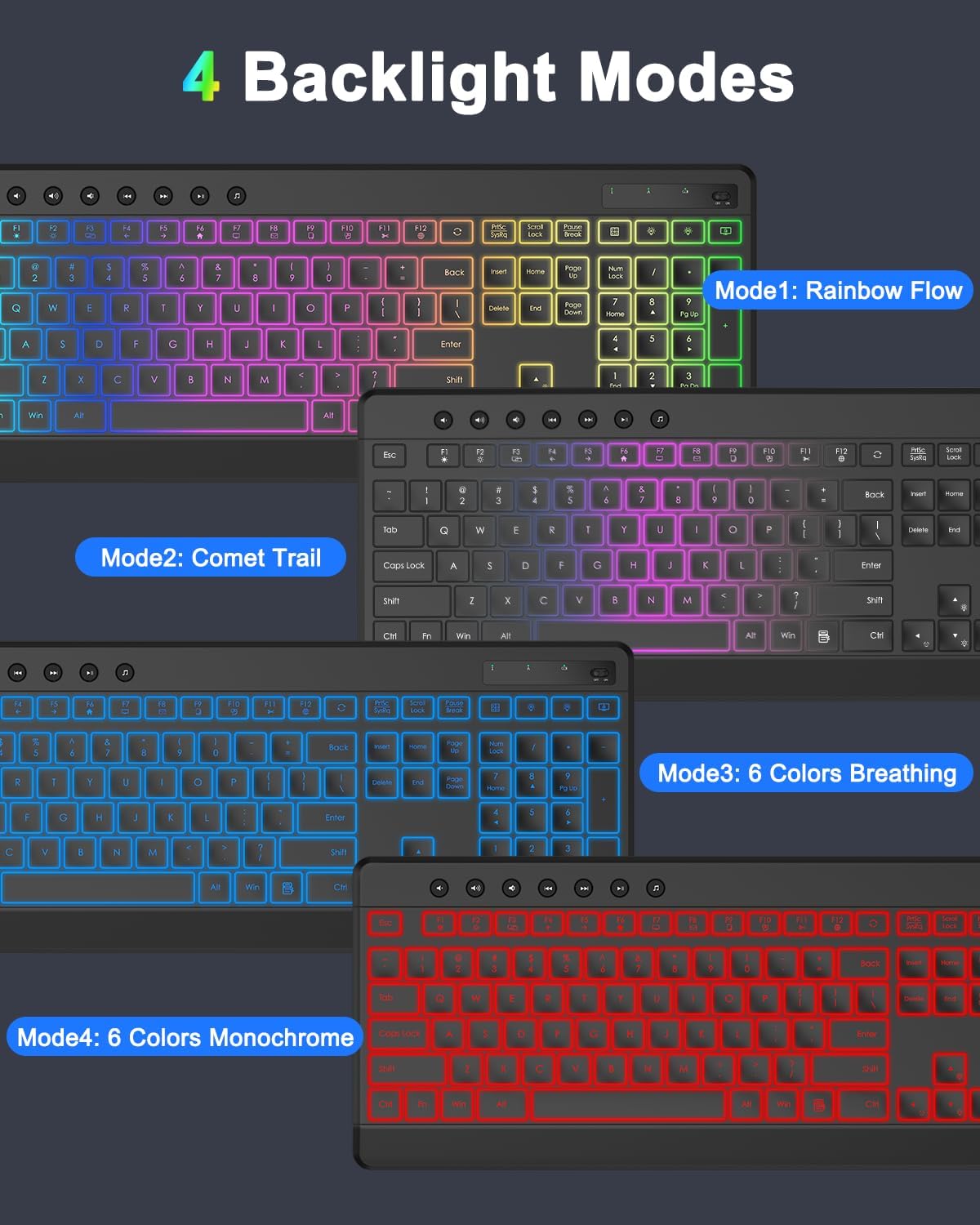
Image: Examples of the keyboard's dynamic backlight modes, including Rainbow Flow, Comet Trail, 6 Colors Breathing, and 6 Colors Monochrome.

Image: The keyboard showcasing its 6 available backlight colors and controls for adjusting mode, brightness, speed, and power.
4.2 Keyboard Multimedia and Hotkeys
The keyboard includes 12 multimedia function keys (F1-F12, often accessed with the 'Fn' key) and 10 independent hotkeys for quick access to common functions such as Refresh, Calculator, and Lock Screen.
- Multimedia Keys: Press 'Fn' + F1-F12 for functions like volume control, media playback, and browser access.
- Independent Hotkeys: These keys are typically located above the function row or on the right side of the keyboard and provide single-press access to their labeled functions.
4.3 Mouse Operation
The wireless mouse features 6 buttons and adjustable DPI settings for precise tracking.
- Left/Right Click: Standard mouse buttons.
- Scroll Wheel: For scrolling and middle-click functionality.
- DPI Button: Located near the scroll wheel, press this button to cycle through 3 adjustable DPI levels (1000/1600/2400) to customize pointer speed.
- Forward/Backward Buttons: Located on the side of the mouse, these buttons allow for quick navigation in web browsers and file explorers.
Image: A diagram illustrating the various buttons and features of the EDJO wireless mouse, including DPI adjustment and navigation buttons.
5. Power Management and Charging
Both the keyboard and mouse are equipped with rechargeable batteries and smart power-saving features.
5.1 Battery Life and Auto-Sleep
- The keyboard features a 4000 mAh high-capacity battery, offering up to 365 days of standby time on a single charge.
- To conserve power, the keyboard backlight automatically turns off after 2 minutes of inactivity.
- The mouse enters sleep mode after 15 minutes of inactivity.
- To wake up the keyboard or mouse from sleep mode, simply press any key on the keyboard or click/double-click a mouse button.
5.2 Charging
Use the provided USB-C cable to charge both devices. The Type-C interface allows for convenient charging.
- Connect the USB-C end of the cable to the charging port on the keyboard or mouse.
- Connect the USB-A end of the cable to a powered USB port (e.g., computer, wall adapter).
- An indicator light on the device will typically show charging status (e.g., red for charging, off or green for fully charged).
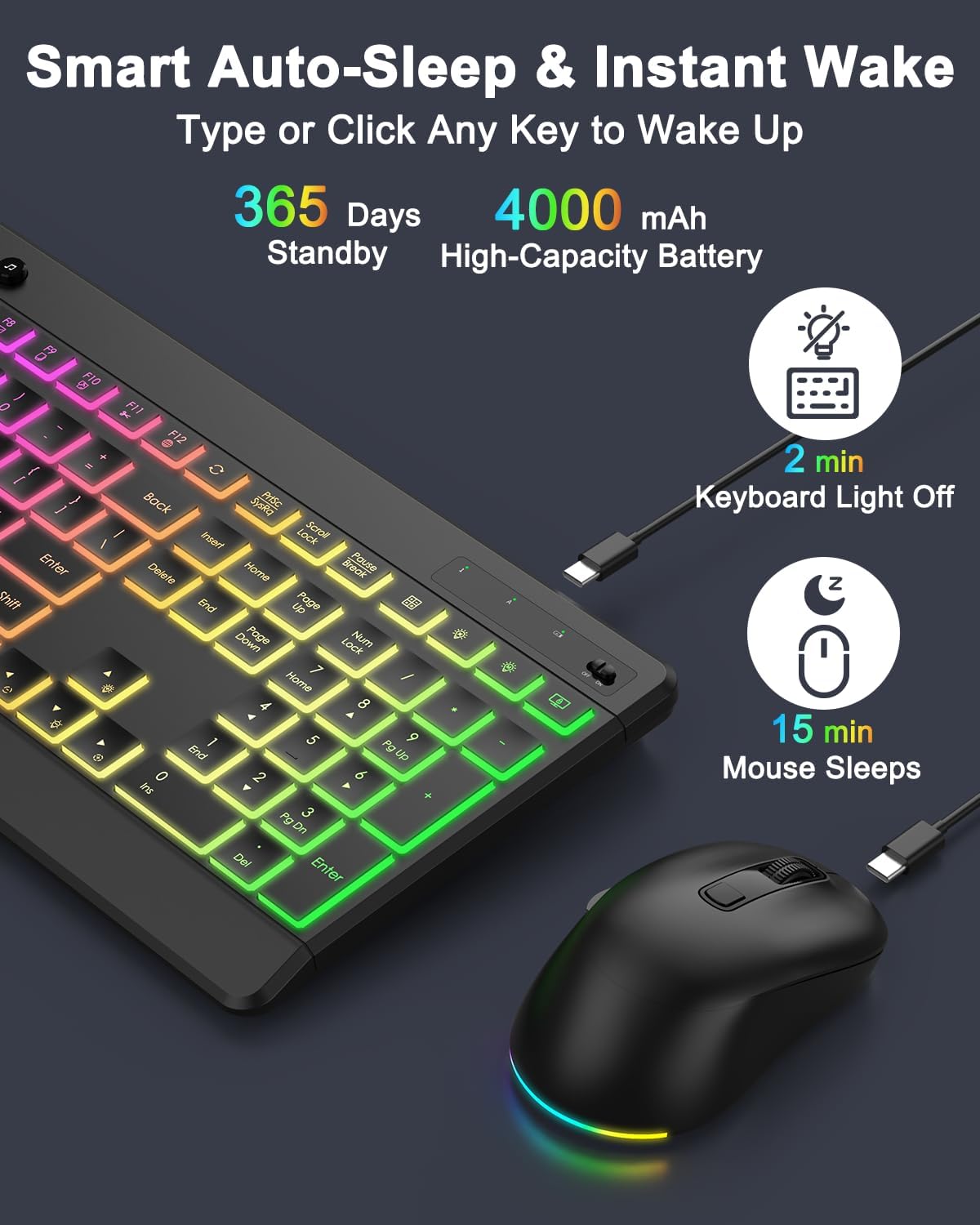
Image: Illustration of the smart auto-sleep and instant wake features, highlighting the keyboard's 4000 mAh battery and standby time.
6. Maintenance
To ensure the longevity and optimal performance of your EDJO Wireless Keyboard and Mouse Combo, follow these maintenance guidelines:
- Cleaning: Use a soft, dry cloth to wipe down the surfaces of the keyboard and mouse. For stubborn dirt, slightly dampen the cloth with water or a mild, non-abrasive cleaner. Avoid excessive moisture.
- Storage: When not in use for extended periods, store the devices in a cool, dry place away from direct sunlight and extreme temperatures.
- Battery Care: Avoid completely draining the batteries frequently. Charge them regularly to maintain battery health.
- USB Receiver: Keep the USB receiver in a safe place, preferably in the mouse's storage compartment, when not connected to a computer to prevent loss or damage.
7. Troubleshooting
If you encounter issues with your EDJO Wireless Keyboard and Mouse Combo, please refer to the following common solutions:
- No Connection/Unresponsive:
- Ensure both the keyboard and mouse are powered on.
- Verify the USB receiver is securely plugged into a working USB port on your computer.
- Try plugging the USB receiver into a different USB port.
- Check if the devices are charged. Connect them to the charging cable.
- If the mouse seems to stop working, it might be in sleep mode. Click a button to wake it up.
- Backlight Not Working:
- Ensure the keyboard is powered on.
- Press the backlight on/off hotkey to toggle the lighting.
- Adjust the brightness levels using the dedicated hotkeys.
- The backlight automatically turns off after 2 minutes of inactivity to save power. Press any key to reactivate.
- Mouse Pointer Jumps or is Inaccurate:
- Ensure the mouse sensor is clean and free from obstructions.
- Try using the mouse on a different surface.
- Adjust the DPI settings using the DPI button on the mouse.
- Short Battery Life:
- Ensure devices are fully charged before use.
- The backlight consumes more power. Reduce brightness or turn off the backlight if extended battery life is needed.
- Ensure devices are allowed to enter auto-sleep mode when inactive.
If problems persist, please contact EDJO customer support for assistance.
8. Specifications
| Feature | Specification |
|---|---|
| Brand | EDJO |
| Model Number | MK368RGB |
| Color | Black |
| Connectivity Technology | 2.4 GHz Wireless (USB Receiver) |
| Keyboard Layout | QWERTY |
| Number of Keyboard Keys | 114 |
| Keyboard Type | Membrane |
| Keyboard Backlight | RGB (6 colors, 5 dynamic modes, 3 brightness levels) |
| Mouse Buttons | 6 (Left, Right, Scroll Wheel, DPI, Forward, Backward) |
| Mouse DPI | 1000/1600/2400 (Adjustable) |
| Keyboard Battery Capacity | 4000 mAh |
| Power Source | Battery Powered (Rechargeable via USB-C) |
| Compatible Operating Systems | Windows, Linux, Chrome OS (Limited MAC OS hotkey compatibility) |
| Weight | 1.6 Pounds (approx. 0.73 kg) |
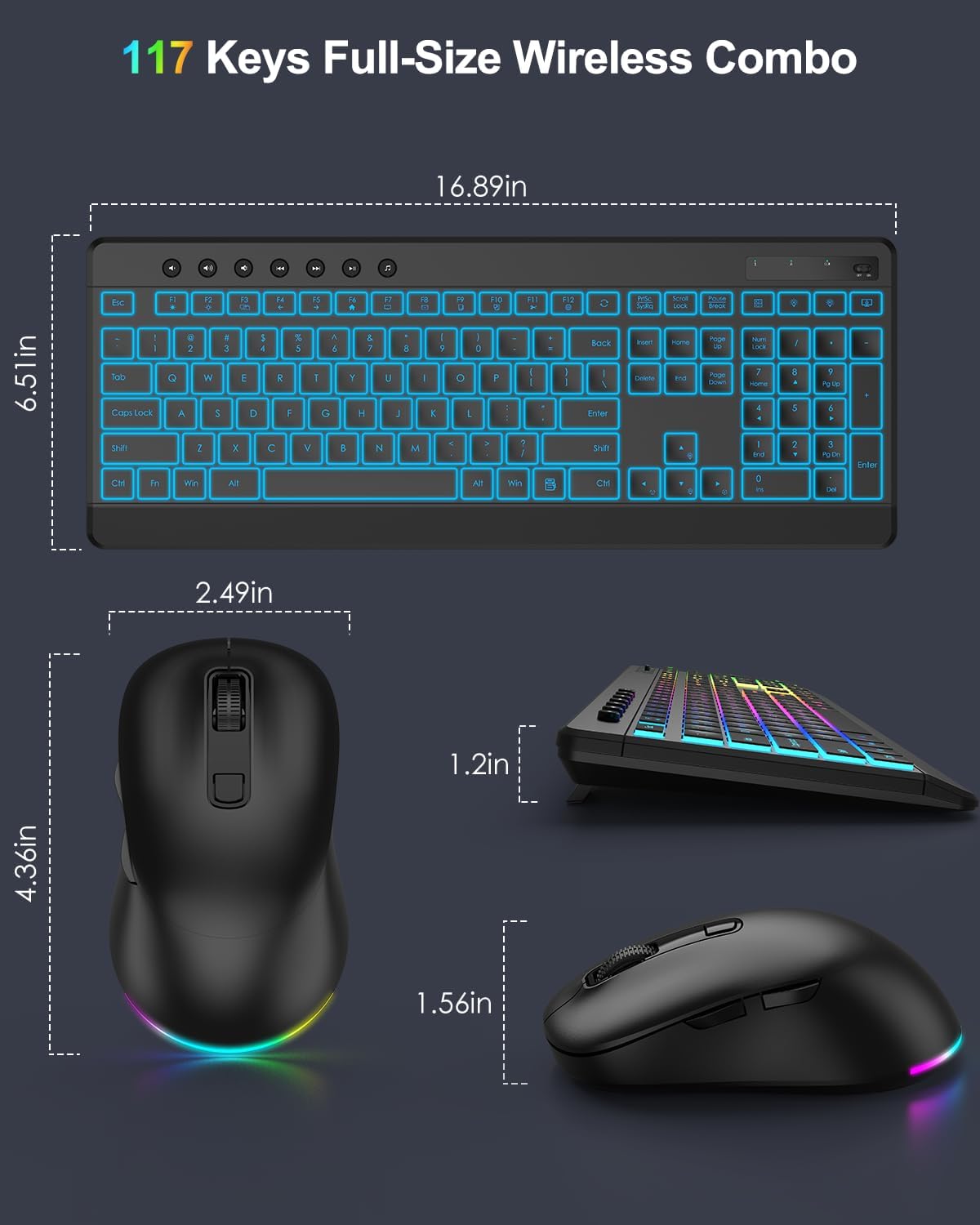
Image: Dimensional overview of the full-size wireless keyboard and mouse combo.
9. Support and Warranty
For any issues encountered during use, please contact EDJO customer support. We are committed to providing a satisfactory solution.
Please refer to your purchase documentation for specific warranty details.
