1. Introduction
This manual provides comprehensive instructions for the VISHANGYAES Y18 Hidden Camera Wireless Phone Charger. This device integrates a high-definition surveillance camera with a functional wireless phone charger, designed for discreet monitoring and convenient charging in home or office environments. Please read this manual thoroughly before operation to ensure proper use and to maximize the product's capabilities.
2. Safety Information
- Ensure the device is placed on a stable, flat surface to prevent accidental falls.
- Do not expose the device to extreme temperatures, direct sunlight, or high humidity.
- Keep the device away from water or other liquids.
- Use only the provided power adapter or a compatible power source.
- Do not attempt to disassemble or modify the device. This will void the warranty and may cause damage.
- Keep out of reach of children.
- Operate the device in accordance with all local laws and regulations regarding surveillance.
3. Package Contents
Verify that all items are present in the package:
- VISHANGYAES Y18 Hidden Camera Wireless Phone Charger
- USB Power Cable
- User Manual
- (Note: Micro SD card is not included and must be purchased separately.)
4. Product Features
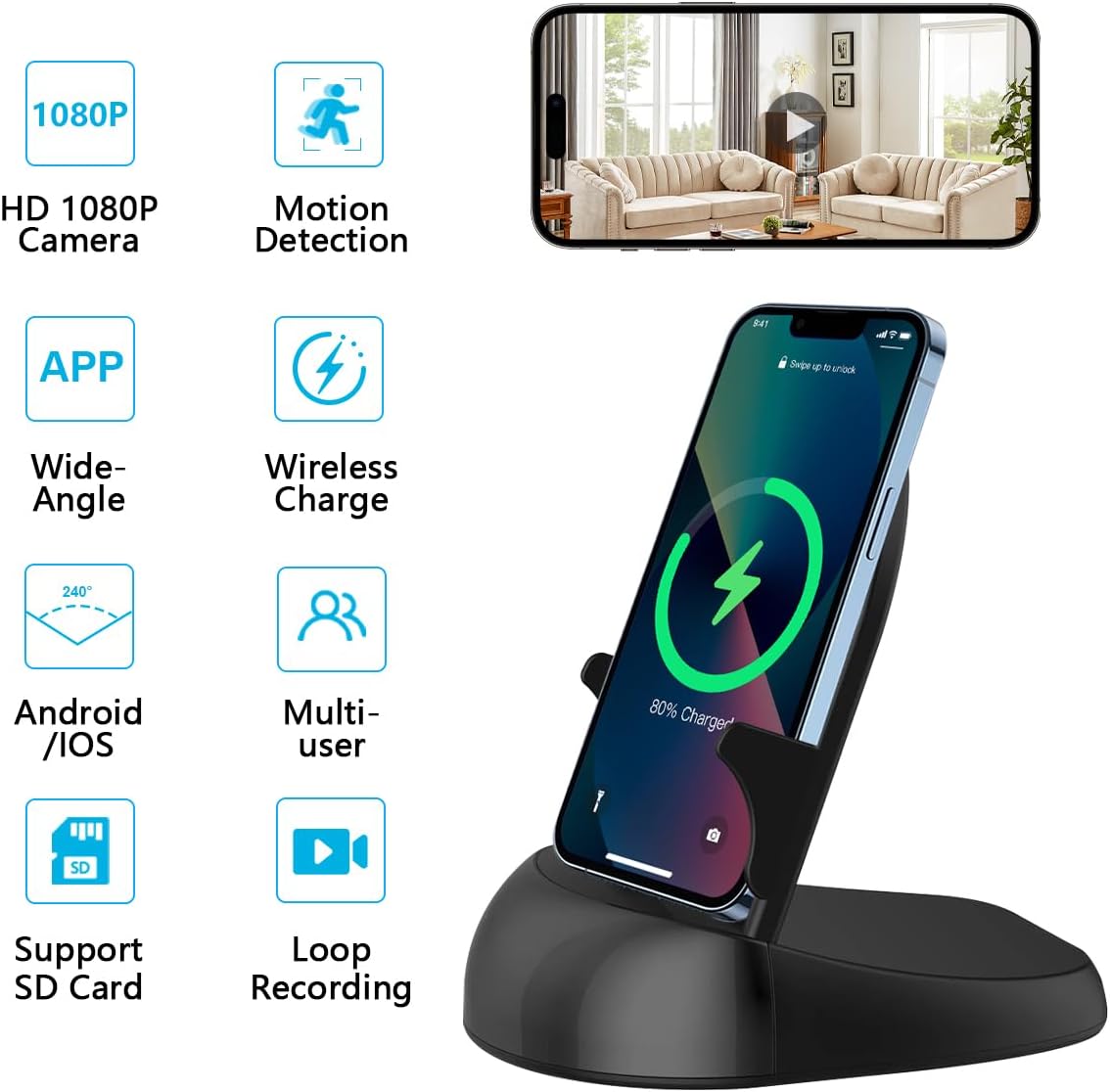
Image: Overview of the VISHANGYAES Y18 device highlighting its key features such as HD 1080P camera, motion detection, wide-angle view, wireless charging, Android/iOS app support, multi-user access, SD card support, and loop recording.
- Integrated Design: Combines a hidden camera, wireless fast charger, and mobile phone holder.
- High-Definition Video: Supports 1080P/4K resolution for clear video recording.
- Wide Viewing Angle: Features a rotatable lens providing up to a 250° viewing angle.
- Motion Detection: Sensitive human figure detection with automatic picture capture and mobile app alarm notifications.
- Real-time Streaming: Live video streaming via a dedicated mobile application (Android/iOS).
- Loop Recording: Continuous 24/7 recording to an SD card (up to 128GB, not included), automatically overwriting old footage when full.
- Remote Access: Connects via Wi-Fi (2.4/5GHz) for remote monitoring from anywhere.
- Wireless Charging: Provides wireless charging functionality for compatible smartphones.
5. Setup
5.1 Powering On the Device
- Connect the provided USB power cable to the device's power input port.
- Plug the other end of the USB cable into a compatible USB power adapter (not included) and then into a wall outlet.
- The device will power on automatically.
5.2 Inserting a Micro SD Card
(Micro SD card not included)
- Locate the Micro SD card slot on the device.
- Gently insert a Micro SD card (Class 10 or higher, up to 128GB) into the slot until it clicks into place.
- To remove, press the card inward until it springs out.
5.3 App Download and Installation
Search for the official application (refer to the packaging or quick start guide for the app name) in your device's app store (Apple App Store for iOS or Google Play Store for Android) and install it.
5.4 Wi-Fi Connection
- Open the installed application on your smartphone.
- Follow the in-app instructions to add a new device. This typically involves scanning a QR code on the device or manually selecting the device from a list.
- Connect the camera to your home or office Wi-Fi network (supports 2.4GHz and 5GHz). Enter your Wi-Fi password when prompted.
- Once connected, the camera status indicator will change (refer to the app or device for specific indicator behavior), and you will be able to view the live feed.
6. Operating Instructions
6.1 Live View and Remote Control

Image: A smartphone screen showing the live camera feed with directional arrows for remote lens rotation, indicating a 160-degree rotation capability and a 250-degree angle of view.
- Open the mobile application and select your device to access the live video feed.
- Use the on-screen controls within the app to remotely rotate the camera lens, adjusting the viewing angle up to 250 degrees.
- You can take snapshots or manually record video directly from the live view interface.
6.2 Motion Detection and Alerts

Image: A smartphone displaying a motion detection alert notification, indicating that movement has been detected by the camera. The image also shows a child playing, illustrating a typical scenario for motion detection.
- Enable motion detection in the app settings. You can often adjust sensitivity levels.
- When motion is detected, the camera will automatically capture images or record video clips.
- You will receive push notifications on your smartphone via the app.
- Review recorded motion events in the app's playback section.
6.3 Loop Recording

Image: An illustration depicting the loop recording function, showing a timeline of video segments and a smartphone screen with playback controls, indicating continuous recording and automatic overwriting of old files.
With a Micro SD card inserted, the camera will continuously record video 24/7. When the SD card's memory is full, the system will automatically delete the oldest video files to make space for new recordings, ensuring uninterrupted surveillance.
6.4 Wireless Charging Function

Image: The VISHANGYAES Y18 device functioning as a wireless charger, with a smartphone placed on it displaying a charging indicator. The image also shows the device used as a phone stand.
Place your Qi-compatible smartphone on the charging pad of the device. Ensure the phone is properly aligned for optimal charging. The device supports various charging speeds (e.g., 5W, 7.5W, 10W) depending on the phone model and power adapter used.
7. Maintenance
- Cleaning: Use a soft, dry cloth to clean the device. Do not use liquid cleaners or abrasive materials.
- Storage: When not in use for extended periods, store the device in a cool, dry place away from direct sunlight.
- Firmware Updates: Periodically check the mobile application for available firmware updates to ensure optimal performance and security.
8. Troubleshooting
| Problem | Possible Cause | Solution |
|---|---|---|
| Device not powering on. | No power, faulty cable/adapter. | Ensure power cable is securely connected. Try a different USB power adapter and outlet. |
| Cannot connect to Wi-Fi. | Incorrect Wi-Fi password, weak signal, incompatible network. | Verify Wi-Fi password. Ensure the device is within Wi-Fi range. Confirm your router supports 2.4GHz or 5GHz. Restart the device and router. |
| No video recording to SD card. | SD card not inserted, full, or corrupted; recording feature disabled. | Ensure SD card is properly inserted. Format the SD card via the app. Check app settings to confirm recording is enabled. Replace SD card if corrupted. |
| Motion detection alerts not received. | Motion detection disabled, app notifications blocked, poor network. | Enable motion detection in app settings. Check phone notification settings for the app. Ensure stable internet connection. |
| Wireless charging not working. | Phone not Qi-compatible, misaligned, foreign objects, insufficient power. | Ensure your phone supports Qi wireless charging. Realign phone on the charging pad. Remove any metal objects or thick cases. Use a power adapter with sufficient output. |
9. Specifications
| Brand | VISHANGYAES |
| Model Name | Y18 |
| Indoor/Outdoor Usage | Indoor |
| Connectivity Protocol | Wi-Fi (2.4/5GHz) |
| Mounting Type | Tabletop Mount |
| Video Capture Resolution | 1080p (supports 4K output) |
| Video Capture Format | MJPEG |
| Viewing Angle | 250° (with rotatable lens) |
| Storage | Micro SD card, up to 128GB (not included) |
| Power Source | Wired (No batteries required) |
| Item Dimensions (L x W x H) | 13.7 x 9.8 x 13.7 Centimetres |
10. Warranty and Support
- Manufacturer Warranty: This product comes with a 1-year manufacturer's warranty.
- Customer Service: For any issues or inquiries, please contact VISHANGYAES customer service. Refer to the product packaging or official website for contact details.


