
1. Product Overview
The Flipsky TFT Advanced Display V2.0 is an ebike cycling computer designed with GPS functionality and IP65 waterproofing. It features a 3.2-inch TFT screen with 240x320 resolution and RGB color support, providing a clear and modern user interface for enhanced cycling and energy management.
Key Features:
- Clear graphical layout for improved user experience.
- Comprehensive energy efficiency performance data: Speed, Mileage, Riding time, Power output, Energy recovery, Average energy consumption (Wh/km), Maximum ESC and motor temperatures, and Maximum power during cycling.
- Automatic GPS time calibration with a built-in GPS module, allowing manual time zone setting.
- Multi-language support: Chinese, English, and Russian for diverse users.
- Real-time display of cycling and ESC data for optimized riding habits.
- Compact and lightweight design: 124.4 x 68.1 x 18.5 mm, 116g.
- Enhanced human-computer interaction with ESC energy consumption and maximum data display in riding records.
- Compatible with Flipsky Non VESC ESCs (FTESC), VESC-based ESCs (FSESC), and FOCBOX Unity.
2. Package Contents
Verify that all items listed below are included in your package:
- TFT display unit
- Mounting Bracket
- Connection Cable
- Sensor
- Instruction Manual
- Protective Case
3. Technical Specifications
| Specification | Value |
|---|---|
| Dimensions (L*W*H) | 124.4 x 68.1 x 18.5 mm |
| Item Weight | 116 Grams |
| Screen Size | 3.2 Inches |
| Display Type | TFT |
| Native Resolution | 240x320 |
| Connectivity Technology | Wired (UART) |
| Sensor Type | GPS Sensor |
| International Protection Rating | IP65 |
| Working Voltage | 5V |
| Working Current | 500mA |
| Working Temperature | -20°C to +70°C |
| Storage Temperature | -30°C to +70°C |
| Communication Mode | UART |
The display is designed for durability and performance in various environmental conditions.
4. Setup Guide
4.1 Wiring Diagram

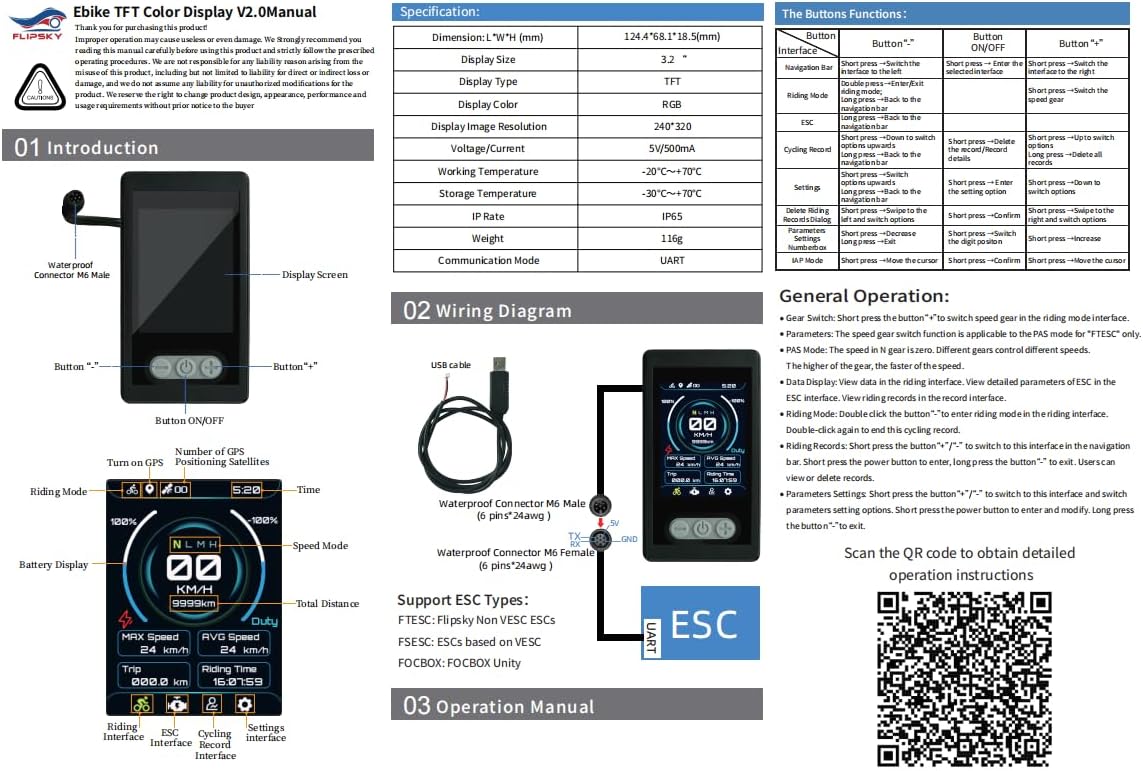
Connect the display to your Electronic Speed Controller (ESC) using the provided UART cable. Ensure the 5V, TX (Transmit), RX (Receive), and GND (Ground) pins are correctly aligned and securely connected. The display supports FTESC (Flipsky Non VESC ESCs), FSESC (VESC-based ESCs), and FOCBOX Unity.
4.2 Initial Configuration
Upon initial power-on, the display will show the Flipsky logo. To access the parameter settings, long press the minus (-) button. This interface allows you to configure various aspects of your ebike setup.
For a visual guide on setting up the display and its various functions, refer to the video below:
This video demonstrates the display's various settings and operational modes, including parameter adjustments and real-time data display.
5. Operating Instructions
5.1 Button Functions
| Button | Short Press | Long Press |
|---|---|---|
| ON/OFF | Switch display interfaces | Power ON/OFF |
| "-" Button | Switch to the left interface / Decrease value | Enter parameter settings / Clear riding records |
| "+" Button | Switch to the right interface / Increase value | Enter riding mode / View riding records |
5.2 Display Interfaces
The display features multiple interfaces to show various data:
- Riding Interface: Shows real-time speed, battery level, PAS level, and GPS status.
- ESC Interface: Displays detailed ESC data such as current, voltage, temperature, and power.
- Riding Records Interface: Provides trip distance, average speed, mileage, riding time, and other historical data.
- Settings Interface: Allows adjustment of various parameters.
5.3 Parameter Settings
To enter parameter settings, long press the "-" button. Use the "+" and "-" buttons to navigate and adjust values, and the ON/OFF button to confirm selections.
- ESC Type: Select your ESC type (FTESC, FSESC, FOCBOX).
- Motor Type: Choose between 'Pulleyed' or 'HUB motor'.
- Speed Option: Set speed unit (km/h or mph).
- Battery Number: Configure battery cell count (3-32S).
- Motor Pulley Teeth: Adjustable range 5-999.
- Wheel Diameter (mm): Adjustable range 5-999.
- Motor Pole Pairs: Adjustable range 3-250.
- CLR Total km: Keep or clear total mileage data.
- Ride Timer Mode: Select 'Only Riding Time' or 'Total Elapsed Time'.
- Calendar Time: Set year, month, day, hour, and minute.
- IAP Mode: Supports firmware updates online.
- GPS Select: Turn GPS function ON or OFF. The GPS icon is green when signal is normal.
5.4 Riding Mode and Records
Double click the "-" button from the main interface to enter riding mode. In riding mode, the display will track and show real-time riding data. To exit riding mode, double click the "-" button again.
To view riding records, long press the "+" button. To clear riding records, long press the "-" button, select "YES" to confirm, then short press the ON/OFF button.
This short video provides a quick overview of the display's boot-up sequence and initial data presentation.
6. Care and Maintenance
- Keep the display clean using a soft, dry cloth. Avoid abrasive cleaners or solvents.
- Ensure all connections are secure and free from corrosion.
- Store the display in a cool, dry place when not in use.
- While IP65 rated, avoid prolonged submersion in water.
7. Troubleshooting
- Display not powering on: Check battery connection and ensure the display is receiving 5V power.
- No data displayed: Verify UART connection to the ESC. Ensure ESC is powered on and configured correctly.
- GPS icon grey: Ensure GPS function is enabled in settings and the device has a clear view of the sky for signal acquisition.
- Incorrect speed/mileage: Check motor type, pulley teeth, and wheel diameter settings in the parameters.
- Firmware update issues: Refer to the official Flipsky resources for detailed firmware update procedures.
8. Warranty and Customer Support
This product comes with a 2-month warranty from the date of purchase. For warranty claims or technical support, please contact Flipsky customer service.
For additional documentation, firmware updates, and support resources, please visit the official Flipsky support page or refer to the following link: Flipsky Documentation