
FLIPSKY FT85BD
FLIPSKY FT85BD Dual ESC 84V 200A Instruction Manual
Model: FT85BD
Brand: FLIPSKY
Introduction
This manual provides detailed instructions for the installation, configuration, and operation of the FLIPSKY FT85BD Dual ESC. The FT85BD is a high-performance Electronic Speed Controller designed for various electric vehicles and robotics applications, including electric skateboards, scooters, ebikes, and electric motorcycles. Please read this manual thoroughly before use to ensure proper functionality and safety.
Specifications
- Firmware: V1.4 or above (firmware update via Flipsky ESC Tool supported)
- Voltage: 14-84V (safe for 4S-20S)
- Continuous Current: 100A / Single; 200A / Dual (values depend on mounting and ambient temperature)
- Peak Current: 250A / Single; 500A / Dual
- Communication Ports: USB, CAN, UART, PPM, ADC
- Input Signals Support: PPM, ADC, UART (compatible with FLIPSKY remote VX4 and VX3Pro only at present), PAS
- Startup Modes Support: IPDS (sensorless), HFPI (sensorless), HALL (sensored), Encoder (ABI, AS5047 encoder SPI interface)
- Multiple Speed Gear levels: Low, Medium, High, Reverse
- Front Lights, Rear Brake Lights & Horn: Support
- Programmable: Yes
- Regenerative Capacity: Yes
- Slide Poweron & Auto shutdown: Yes (automatic shutdown time adjustable via ESC TOOL)
- Self-resetting switch with green LED button Diameter: 16mm
- Power Wire Size: 10AWG
- Motor Wire Size: 12 AWG
- Size: L132*W81*H26.5mm (Including Alu. Case)
- CPU: AT32F403ARCT7 (ARM Cortex-M4, 240MHz, max PWM switching frequency 45KHz)
- Protection functions: Low and high voltage, over-current, temperature abnormality, MOSFETs over-temperature and over-current, battery over-discharge, motor over-temperature.
- Supported motor temperature sensors: NTC-10K-100C, NTC-10K-25C, PT1000, PTC-1K-100C, KTY.
Package Contents
Upon unboxing your FLIPSKY FT85BD Dual ESC, please verify that all components listed below are included and in good condition.

Image: FLIPSKY FT85BD Dual ESC with various wires and accessories.
- FLIPSKY FT85BD Dual ESC (1 pc)
- FT85BD Manual (1 pc)
- GH1.25-4Pin wire without connector (3 pcs)
- PH2.0-6Pin & ZH1.5-6Pin hall sensor wire adapter (1 pc)
- PH2.0-5Pin adapter wire (1 pc)
- USB Type-C cable (1 pc)
- Self-resetting switch with green LED button (1 pc)
- Various connection wires for motors, lights, and horn.
Note: The USB cable color (black or white) may vary.
Setup and Installation
1. Wiring Diagram
Refer to the following diagram for proper connection of all components to the FT85BD Dual ESC.

Image: Detailed wiring diagram for the FT85BD Dual ESC, showing connections for motors, battery, power switch, remote receiver, front lights, rear brake lights, and horn.
The diagram illustrates the connections for two motors (Master and Slave ESCs), battery, power switch, and various accessories. Ensure all connections are secure and correctly oriented.
2. Physical Installation and Connections
Follow these steps to physically install and connect the FT85BD Dual ESC to your electric vehicle.
- Mount the ESC: Securely mount the FT85BD Dual ESC within your vehicle's enclosure. Ensure adequate ventilation for heat dissipation.
- Connect Motor Phases and Hall Sensor Wires: Connect the motor phase wires (typically three thick wires) from each motor to the corresponding outputs on the ESC. Then, connect the smaller hall sensor wires from each motor to the respective HALL ports on the ESC.

Image: Close-up of hands connecting motor phase wires and hall sensor wires to the FT85BD Dual ESC.
- Connect Power Switch: Connect the self-resetting switch with the green LED button to the POWER SWITCH port on the ESC.
- Connect Battery Wire: Connect the battery power wires to the main power input of the ESC. Ensure correct polarity (red to positive, black to negative).
- Connect Remote Receiver: Connect the remote receiver to the UART port on the Master ESC. This allows communication between your remote controller and the ESC.
- Connect Front Lights: Connect the front light wires to the dedicated Front Light port on the ESC.
- Connect Rear Brake Light: Connect the rear brake light wire to the dedicated Brake Light port on the ESC.
- Connect Horn: Connect the horn wire to the dedicated Horn port on the ESC.
For a visual guide on wiring, please refer to the official video:
Video: This video demonstrates the unboxing and wire connection process for the FT85BD Dual ESC, including motor phases, hall sensors, power switch, battery, remote receiver, and accessories like lights and horn.
For a four-wheel drive setup using two FT85BD ESCs, follow these additional steps:
- Prepare Two FT85BD ESCs: Ensure you have two FT85BD units.
- Remove CAN Terminal Resistor: Open the casing of both ESCs. On the main ESC, locate and remove the terminal resistor of the CAN bus. This is crucial for proper communication between the two ESCs.
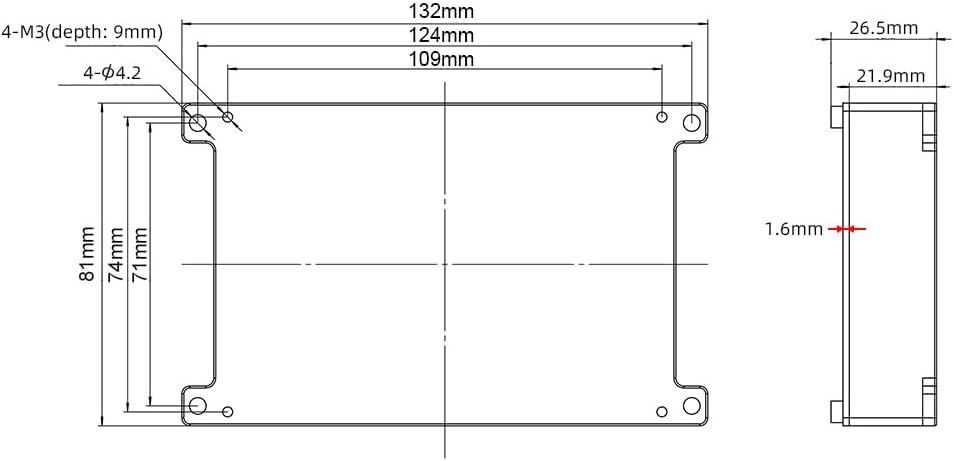
Image: Internal view of the FT85BD ESC circuit board, highlighting the location of the CAN terminal resistor to be removed on the main unit for dual ESC setups.
- Connect ESCs via CAN-BUS: Use a CAN-BUS wire to connect the CAN ports of the two ESCs (one main, one slave). Pay attention to the correct port direction as indicated in the video.
- Connect Four Motors: Connect the motor and hall sensor wires for all four motors to their respective ESCs.
- Connect USB Wire: Connect the USB wire to the main ESC's USB port.
- Connect Battery Wires in Parallel: Connect the battery wires of both ESCs in parallel, then connect them to your battery pack.
- Power On: Short press the power button to turn on the system. The LED lights on the ESCs should illuminate.
For a visual guide on setting up two FT85BD ESCs for a four-wheel drive system, please refer to the official video:
Video: This video provides a detailed tutorial on how to set up a four-wheel drive electric skateboard using two FT85BD Dual ESCs, including removing the CAN terminal resistor, connecting ESCs via CAN-BUS, and wiring four motors.
Parameter Settings
The FT85BD Dual ESC is highly programmable via the Flipsky ESC Tool. Proper parameter settings are crucial for optimal performance and safety. You can download the Flipsky ESC Tool and user manual from the official Flipsky website or by scanning the QR code provided in the product images.
Download Link: Flipsky ESC Tool & Manual
1. Using Flipsky ESC Tool (PC Software)
- Connect ESC to PC: Connect one side of the ESC to your computer via the provided USB cable.
- Launch ESC Tool: Double-click to open the "Flipsky ESC Tool" software (V1.4 or above).
- Connect to ESC: In the software, click "Connect" to establish a connection between the ESC and the tool. The ESC IDs should appear upon successful connection.
- Set Motor Parameters: Before motor identification, set the "Motor Rated Current(A)", "Li-ion Battery Series(S)", and "Cell Cut-Off Voltage(V)" according to your motor and battery specifications. Incorrect settings can damage the ESC or motor.
- Motor Parameter Identification: Click the "Identification Button" and confirm with "Yes" in the notification window. This process will identify your motor's specific parameters.
- Check Identification Results: Review the identified motor parameters displayed in the software.
- Control Setup: Navigate to the "Control Setup" tab.
- Set "Input Signal Type" to "UART" for remote control.
- Choose the "Control Mode" (e.g., Current Gear Reverse Brake) and "Extra Interface" (e.g., Front Brake Light and Horn) based on your needs.
- Save Settings: Click "Write Setup" to save all configured parameters to the ESC.
- Test and Display: After saving, click "Test and Display" to read real-time data and verify the settings.
For a visual guide on parameter settings using the Flipsky ESC Tool, please refer to the official video:
Video: This video demonstrates how to configure the FT85BD Dual ESC using the Flipsky ESC Tool, covering motor parameter identification, control mode selection, and saving settings.
2. Using Remote Controller (VX4/VX3Pro)
You can also perform some basic parameter settings and motor identification directly from your compatible FLIPSKY remote controller (VX4 or VX3Pro).
- Enter Setting Interface: Long press the remote function button for 2 seconds to enter the setting interface.
- Select ESC Type: Pull the throttle gear to switch to "ESC Type" (4/25) and select "FTESC".
- Identify Motor Parameters: Pull the throttle gear again to switch to "Identify Motor Para" (21/25). Short press the function button to initiate motor identification. The remote will display "SEARCHING" and the wheels will run with a voice alert.
- Check Display Data: After identification, check the remote display data for each ESC (e.g., NO.1, NO.2). Pull the throttle gear to navigate between pages.
- ESC Setup: Push or pull the throttle gear to switch to "ESC Setup" (22/25). Short press the function button to perform ESC settings. The remote will display "SEARCHING".
- CAN Devices ID Check: Long press the function button to check all CAN devices IDs.
- UART Extra Interface: Push or pull the throttle gear to switch to "UART Extra Interface" (27/32). Long press the function button to set all settings.
- Exit Settings: Short press the power button to exit the setting interface and return to the home screen.
For a visual guide on remote controller settings, please refer to the official video:
Video: This video demonstrates how to configure the FT85BD Dual ESC using a compatible FLIPSKY remote controller, including selecting ESC type, performing motor identification, and adjusting UART extra interface settings.
Operating Instructions
Once the ESC is installed and configured, you can operate your electric vehicle using the remote controller.
- Power On/Off: Use the self-resetting switch button to power on or off the ESC. The green LED indicates power status. The ESC supports slide power-on and automatic shutdown.
- Front Lights Control: Short press the power button on the remote controller once to turn on/off the front lights. There are three light modes available: weak, strong, and flashing.

Image: Front lights installed on an electric skateboard, demonstrating their illumination.
- Rear Brake Light Control: Pull down the throttle gear on the remote controller to turn on/off the rear brake light.

Image: Rear brake light installed on an electric skateboard, showing its red illumination.
- Horn Activation: Press the power button on the remote controller twice quickly to activate or deactivate the horn.
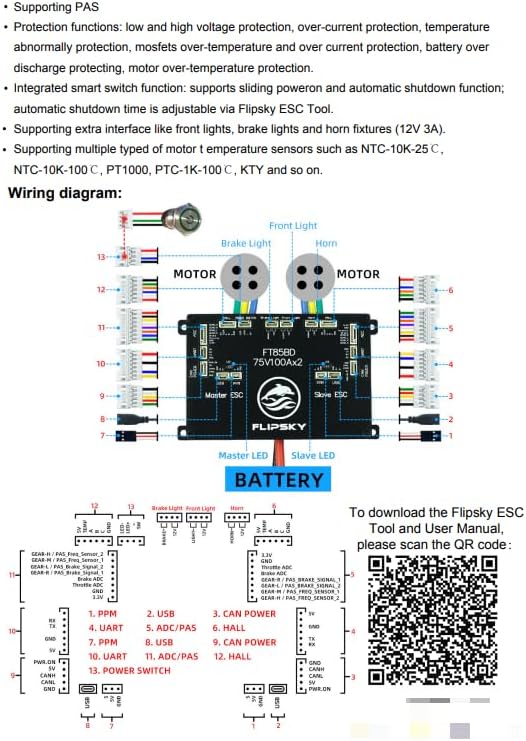
Image: Horn component installed on an electric skateboard.
- Speed Control: Use the throttle gear on the remote to control the speed. The ESC supports multiple speed gear levels: Low, Medium, High, and Reverse.
- Regenerative Braking: The ESC supports regenerative braking, which helps recharge the battery during deceleration.
Maintenance
Regular maintenance ensures the longevity and optimal performance of your FT85BD Dual ESC.
- Keep Clean: Regularly clean the ESC and its connections to prevent dust and debris buildup, which can affect performance and lead to overheating.
- Check Connections: Periodically inspect all wires and connectors for any signs of wear, corrosion, or loose connections. Secure any loose connections immediately.
- Monitor Temperature: Ensure the ESC operates within its recommended temperature range. Excessive heat can damage components. Provide adequate airflow if necessary.
- Firmware Updates: Check the Flipsky website regularly for firmware updates. Keeping your firmware up-to-date can improve performance, add new features, and fix bugs.
- Storage: When not in use for extended periods, store the ESC in a dry, cool environment.
Troubleshooting
If you encounter issues with your FT85BD Dual ESC, refer to the following common troubleshooting steps:
- ESC Not Powering On:
- Check battery connection and charge level.
- Ensure the power switch is correctly connected and functioning.
- Motor Not Spinning/Irregular Operation:
- Verify all motor phase and hall sensor connections are secure and correct.
- Re-run motor parameter identification using the Flipsky ESC Tool or remote.
- Check for any error codes displayed on the remote or in the ESC Tool.
- Ensure firmware versions are consistent between the ESC and remote controller. Inconsistent versions can cause parameter issues.
- Remote Not Connecting/Controlling:
- Ensure the remote receiver is correctly connected to the UART port.
- Verify the "Input Signal Type" is set to "UART" in the ESC Tool.
- Check remote battery level and ensure it's paired with the ESC.
- Overheating:
- Ensure adequate airflow around the ESC.
- Check motor current settings; excessive current can lead to overheating.
- Verify motor and battery specifications are compatible with the ESC's capabilities.
- Software Connection Issues (USB/Bluetooth):
- Ensure the correct USB drivers are installed for the ESC.
- Try a different USB port or cable.
- Restart the Flipsky ESC Tool and your computer.
If issues persist, please contact FLIPSKY customer support for further assistance. You can also refer to the videos provided in the product listing for visual troubleshooting guides.
Warranty and Support
The FLIPSKY FT85BD Dual ESC comes with a 2-month warranty. For warranty claims, technical support, or any product-related inquiries, please contact Shenzhen Flipsky Technology Company Limited directly or through your point of purchase.
It is recommended to keep your purchase receipt as proof of purchase for warranty purposes.
Related documentsFT85BD

Ask a question about this manual
Ask about setup, troubleshooting, compatibility, parts, safety, or missing instructions. Manuals+ will review the question and use this page’s manual context to help answer it.