
Introduction
This manual provides detailed instructions for the installation, operation, and maintenance of your Hyojum 7" Double Din Car Stereo. Please read this manual thoroughly before use to ensure proper functionality and to prevent damage.
What's in the Box
Verify that all components are present before beginning installation.
- Wireless double din car stereo unit
- Remote control
- Backup camera
- Power harness
- Universal mounting kits

This image illustrates the main unit, remote, wiring harness, user manual, rear view camera, mounting brackets, screws, and camera cable. It also details the rear panel connections including video output, video input, external microphone input, right/left channel output, reverse video input, rear USB, and radio antenna port.
Setup and Installation
Pre-Installation Verification
Before installation, confirm the unit's dimensions: width 7.01'' (178mm), height 4.01'' (102mm), depth 3.62'' (92mm). Compare these against your vehicle's dashboard cavity, OEM wiring harness, and antenna connector type. Incompatible setups may require purchasing a model-specific installation kit.

This diagram provides the exact measurements of the stereo unit for fitment verification. It also highlights features such as RDS FM Radio, Steering Wheel Controls, and 7-Color Backlight options.
Wiring Connections
Connect the power harness, speaker wires, and other necessary cables according to your vehicle's wiring diagram and the provided harness. Ensure all connections are secure to prevent electrical issues.
Backup Camera Installation
The included 12-LED night vision waterproof backup camera provides 170° wide-angle coverage. Install the camera at the rear of your vehicle. Connect its power wire to a rear brake light for automatic activation when reverse gear is engaged. Route the video cable to the stereo unit's reverse video input.

This image demonstrates the backup camera in action, showing the wide-angle view and parking guidelines on the stereo display, assisting with safe maneuvering.
Operating Instructions
Wireless Apple CarPlay & Android Auto
Upon vehicle ignition, the system automatically activates for instant smartphone connectivity. This allows seamless use of navigation apps (Google Maps, Waze), music streaming (Apple Music, Spotify), and communication tools. Voice commands such as "Hey Siri" or "OK Google" enable hands-free calls, messaging, and navigation.

This image shows the Apple CarPlay interface on the car stereo, featuring various iOS applications and voice command prompts.
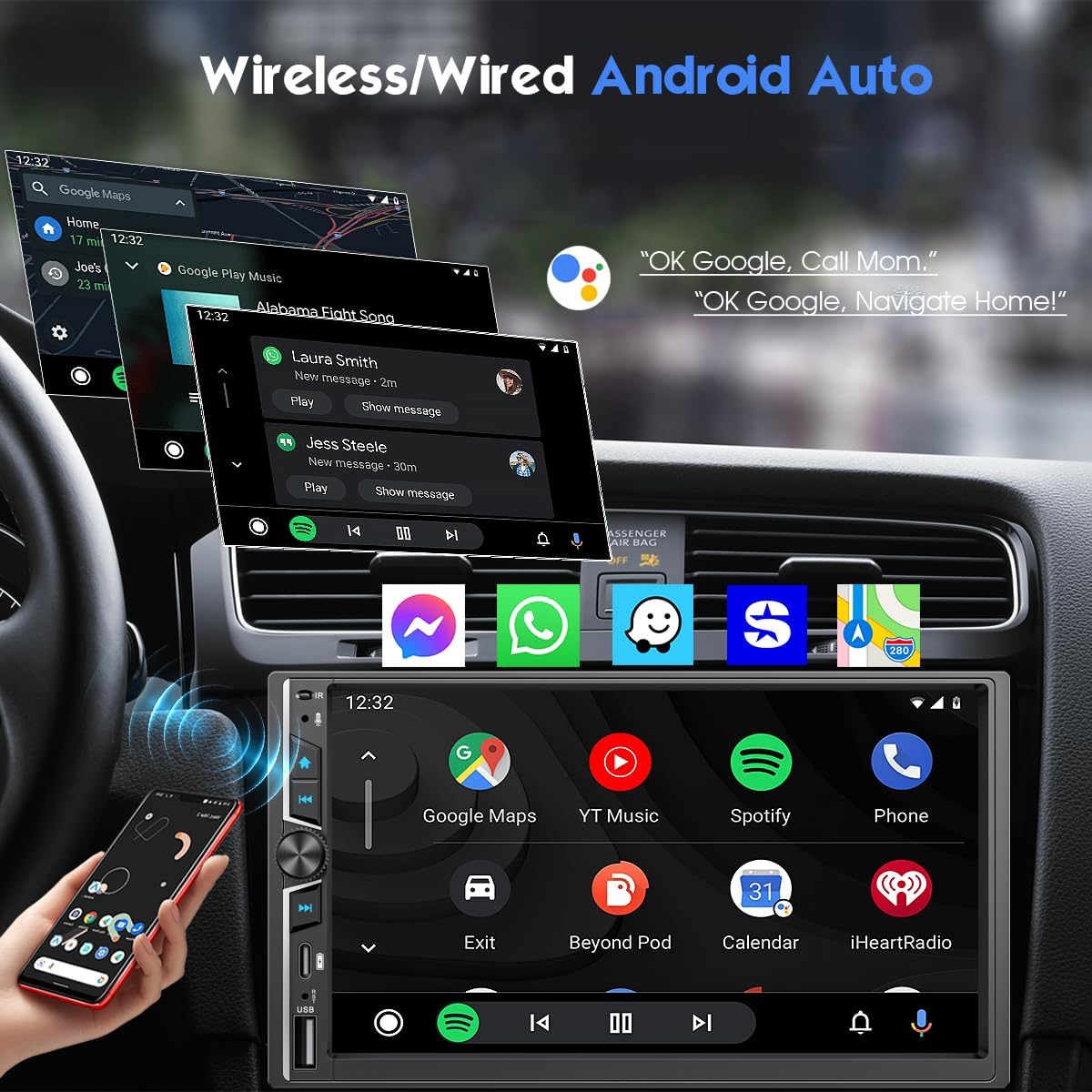
This image displays the Android Auto interface on the car stereo, showcasing Google Maps, music apps, and voice command functionality.
Wire/Wireless Phone Mirror-Link
Mirror your smartphone display (Android & iOS) in real-time to the 7-inch HD car radio screen. This supports synchronized viewing of apps, games, videos, and maps with minimal latency. iOS devices can use wireless Airplay to project media content.

This image illustrates the Mirror-Link feature, where content from a smartphone, such as games or videos, is displayed directly on the car stereo screen.
Advanced Dual-Channel Bluetooth 5.3
Dual independent Bluetooth modules ensure faster pairing and reduced interference. The built-in HD noise-canceling microphone and external MIC port provide clear call clarity, even at highway speeds, with high speech recognition accuracy.
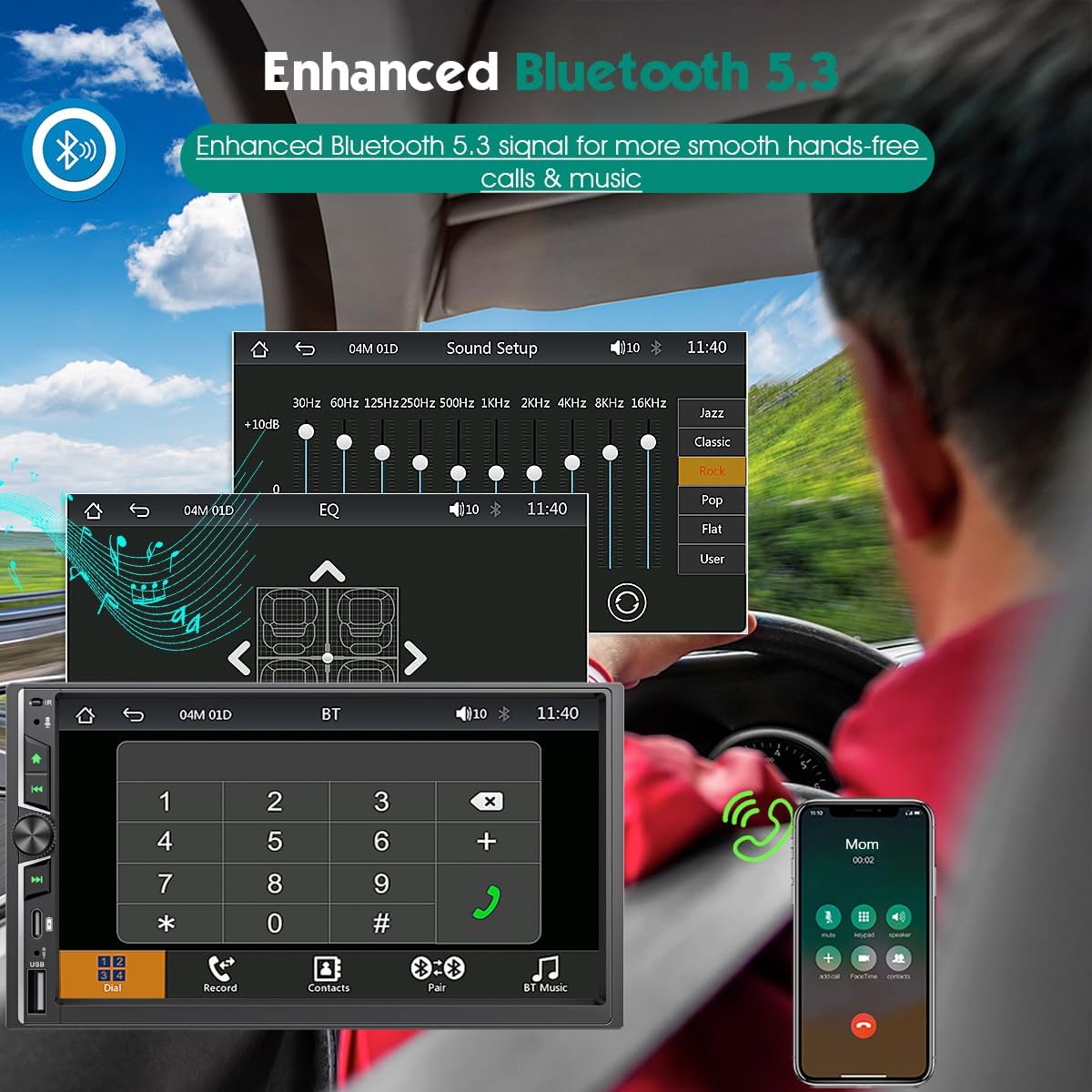
This image highlights the Bluetooth 5.3 features, including hands-free calling and sound customization options via the equalizer.
Built-in DSP Chip and Audio Settings
The independent DSP chip provides 240W audio performance with stronger bass and purer treble. Adjust the volume of different frequencies using the 10-band equalizer settings to customize sound quality for various music styles (pop, jazz, classical). The DSP also suppresses noise for clearer sound effects.
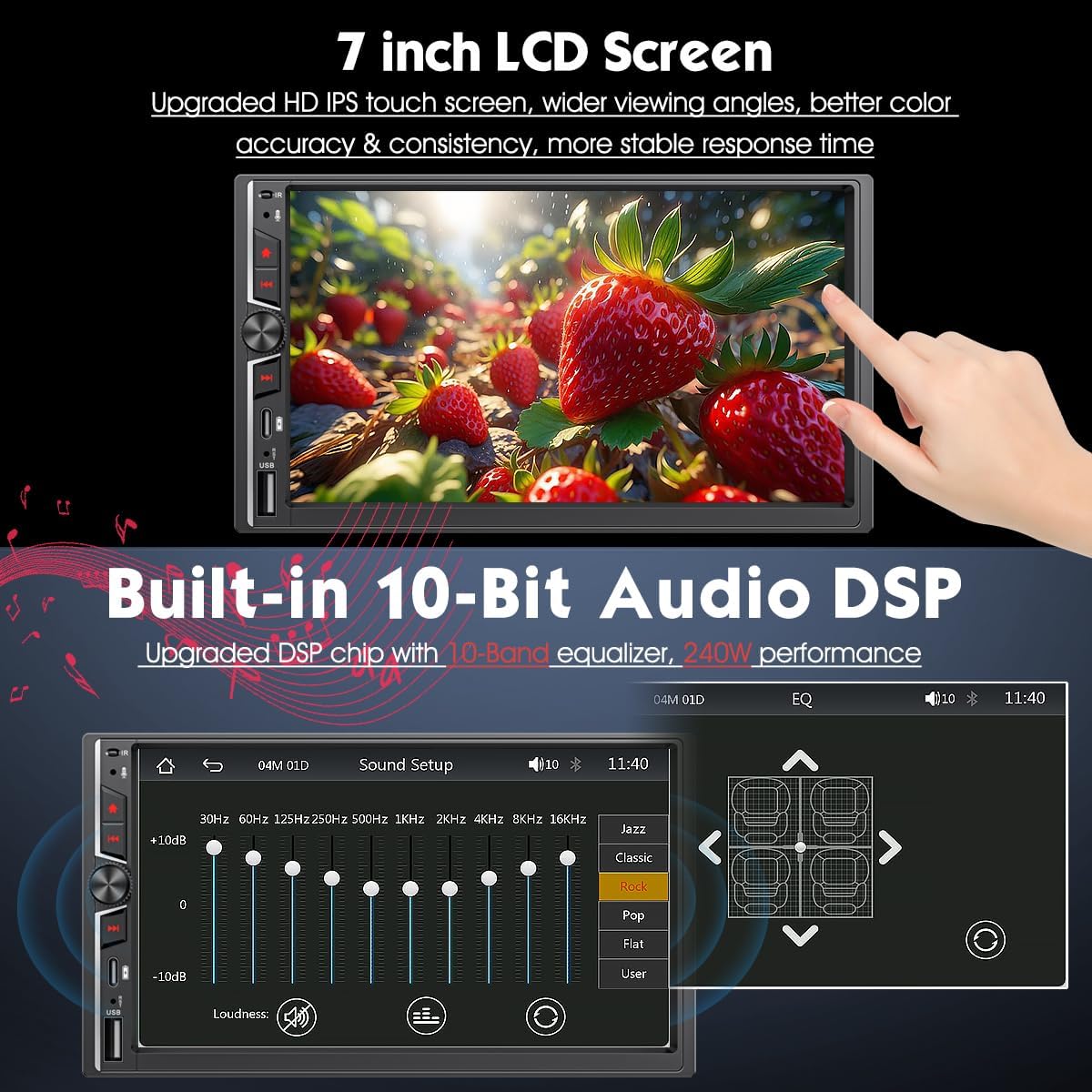
This image showcases the responsive 7-inch LCD touchscreen and the detailed 10-band equalizer interface for fine-tuning audio output.
Steering Wheel Control
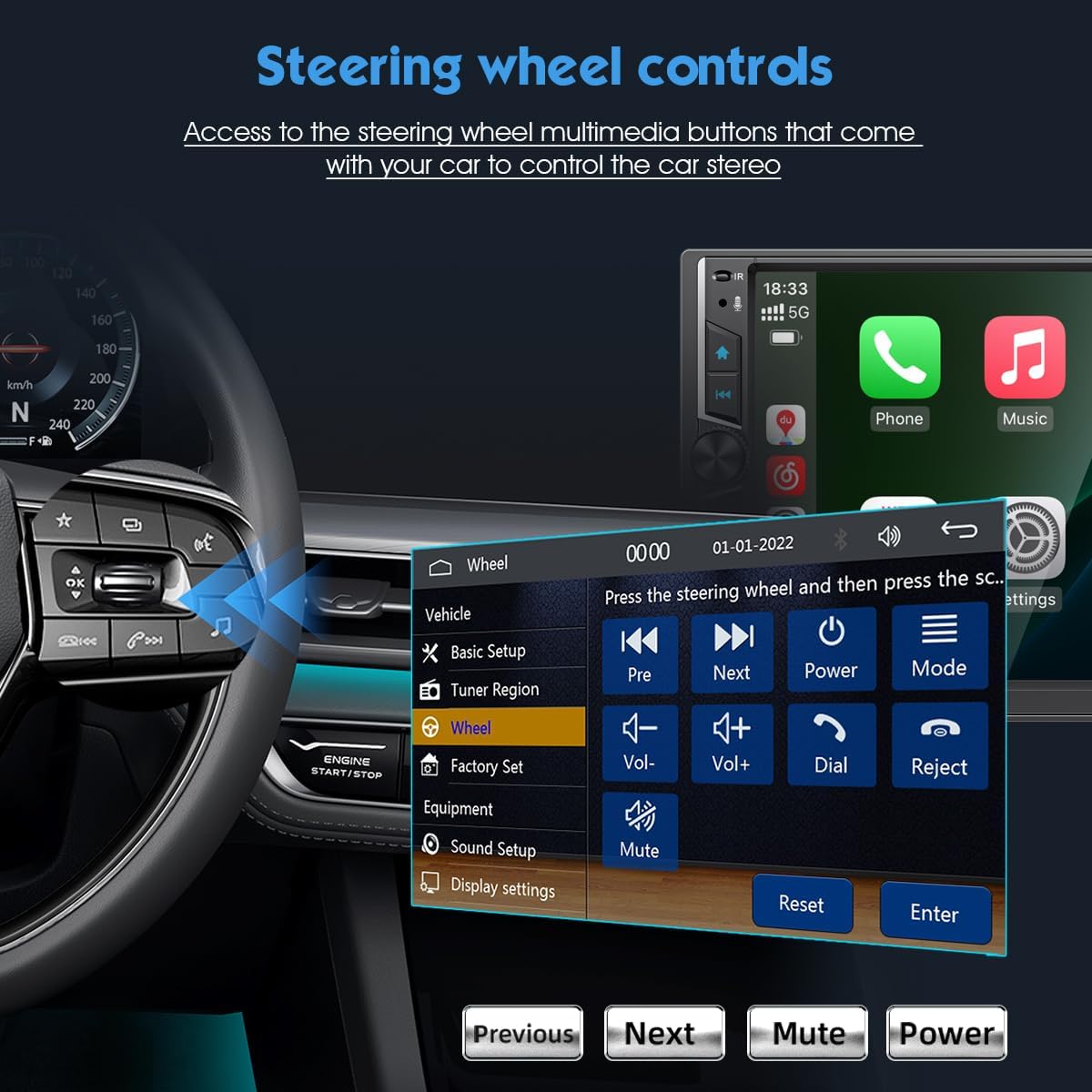
Access the steering wheel multimedia buttons to control the car stereo. This allows for safe and convenient operation without taking your hands off the wheel.

This image illustrates how to configure and use the steering wheel controls to manage the stereo's functions.
FM Radio
The high-performance radio chip provides a strong FM radio signal, covering frequencies from 87.5-108.0MHz. Enjoy clear reception and various radio stations.
This image shows the user interface for the FM radio, including frequency display and preset options.
Maintenance
To ensure the longevity and optimal performance of your car stereo, follow these maintenance guidelines:
- Cleaning: Use a soft, dry cloth to clean the screen and exterior. Avoid abrasive cleaners or solvents.
- Software Updates: Periodically check the manufacturer's website for any available software or firmware updates to improve performance and add new features.
- Environmental Conditions: Avoid exposing the unit to extreme temperatures, direct sunlight for prolonged periods, or excessive moisture.
Troubleshooting
If you encounter issues with your car stereo, refer to the following common problems and solutions:
| Problem | Possible Cause | Solution |
|---|---|---|
| Unit does not power on | Incorrect wiring, blown fuse, power supply issue | Check power connections and fuses. Ensure the unit is correctly wired to the vehicle's power source. If issues persist, contact technical support. |
| Audio cuts in and out via Bluetooth | Interference, weak signal, device compatibility | Ensure no other devices are interfering with the Bluetooth signal. Try unpairing and re-pairing your device. Update your phone's software. If the issue continues, try a different Bluetooth device to isolate the problem. |
| Touchscreen unresponsive | Software glitch, physical damage | Restart the unit by turning off the vehicle's ignition and restarting. If available, perform a factory reset (refer to the on-screen menu). If the screen remains unresponsive, contact support. |
| Backup camera not displaying | Incorrect wiring, camera malfunction | Verify the camera's power and video connections. Ensure the reverse trigger wire is correctly connected. Check if the camera lens is clean and unobstructed. |
Specifications
| Feature | Detail |
|---|---|
| Brand | Hyojum |
| Model Number | 791535370842 |
| Product Dimensions | 3.62"D x 7.09"W x 4.02"H (92mm D x 178mm W x 102mm H) |
| Connectivity Technology | Auxiliary, Bluetooth, USB Type-C, Wireless Apple Carplay / Android Auto, Wireless MirrorLink / Airplay |
| Controller Type | Android-Google Assistance, iOS-Siri |
| Special Features | Android Auto, Apple CarPlay, Built-In Bluetooth, Equalizer, FM Tuner, Wireless MirrorLink, Built-in DSP |
| Compatible Devices | Audio Amplifier, Car Speaker, Mobile Phone |
| Connector Type | RCA, USB Type-C |
| Audio Output Mode | Stereo |
| Surround Sound Channels | 4 |
| Video Encoding Support | H263/H264/H265/DIVX HD/AVI/FLV/MKV/MPEG/MP4/WMV9/VC/ASF/TS/QT |
| Output Power | 240 Watts |
| Supported Internet Services | Google Voice, Siri |
| Control Method | App, Remote, Touch, Voice |
| Item Weight | 670 Grams |
Warranty Information
This product comes with a 2-year warranty. Please retain your proof of purchase for warranty claims. The warranty covers manufacturing defects and malfunctions under normal use. It does not cover damage caused by improper installation, misuse, accidents, or unauthorized modifications.
Customer Support
For wiring diagrams, harness compatibility checks, step-by-step guidance, or any other technical assistance, please contact our 24/7 technical support team. You can reach us directly through the "Contact Seller" portal on the platform where you purchased the product.