
1. Introduction
The FIREBAT F1 Mini PC is a compact desktop computer featuring an AMD Ryzen 5 7640HS processor. It is designed for various tasks including everyday use, gaming, and video editing. This manual provides essential information for setting up, operating, maintaining, and troubleshooting your device.

Image 1.1: Front view of the FIREBAT F1 Mini PC, highlighting its AMD Ryzen 7640HS processor, Radeon 760M graphics, Dual DDR5 RAM, M.2 NVMe 2280 SSD, Bluetooth 5.2, WiFi 6, and 2.5Gbps LAN capabilities. It also shows support for triple screen display.
Key features include:
- Processor: AMD Ryzen 5 7640HS (6-core/12-thread, up to 5.0GHz) with Zen 4 architecture.
- Graphics: Integrated AMD Radeon 760M (RDNA3 architecture, 8CU, 2600MHz).
- Display Output: Supports triple 4K@60Hz displays via HDMI 2.1, DP 1.4, and USB4 (Type-C).
- Memory: Dual DDR5 slots (up to 64GB, 5600MHz).
- Storage: 2x M.2 2280 PCIe 4.0 SSD slots.
- Connectivity: USB4 (40Gbps), 2.5Gbps LAN, WiFi 6, Bluetooth 5.2, multiple USB-A ports.
- Design: Ultra-thin, VESA mount compatible, efficient cooling system.
2. Package Contents
Verify that all items are present in the package:

Image 2.1: Illustration of the package contents, including the FIREBAT F1 Mini PC, power adapter, HDMI cable, VESA mount, and user manual.
- 1 x FIREBAT F1 AMD 7640HS Mini PC
- 1 x 19V/6.32A 120W US Power Adapter
- 1 x HDMI Cable
- 1 x VESA Mount
- 1 x User Manual
3. Setup Instructions
Follow these steps to set up your FIREBAT F1 Mini PC:
- Connect Peripherals: Connect your keyboard, mouse, and other USB devices to the available USB ports on the Mini PC.
- Connect Display: Connect your monitor(s) to the Mini PC using an HDMI, DisplayPort, or USB4 (Type-C) cable. The device supports up to three displays simultaneously.
- Connect to Network: For a wired connection, connect an Ethernet cable to the 2.5Gbps LAN port. For wireless, ensure your WiFi network is available after powering on.
- Connect Power: Plug the 19V/6.32A 120W power adapter into the DC port on the Mini PC, then plug the adapter into a power outlet.
- Power On: Press the power button located on the front of the Mini PC to turn it on.

Image 3.1: Detailed view of the front and rear ports of the FIREBAT F1 Mini PC, showing USB4 (Type-C), USB-A 3.2, 3.5mm audio jack, HDMI 2.1, DisplayPort 1.4, 2.5Gbps LAN, and DC power input.
3.1 VESA Mount Installation
The included VESA mount allows you to attach the Mini PC to the back of a compatible monitor or to a wall.
- Secure the VESA mount bracket to the back of your monitor or desired surface using appropriate screws.
- Slide the Mini PC onto the VESA mount until it clicks securely into place.
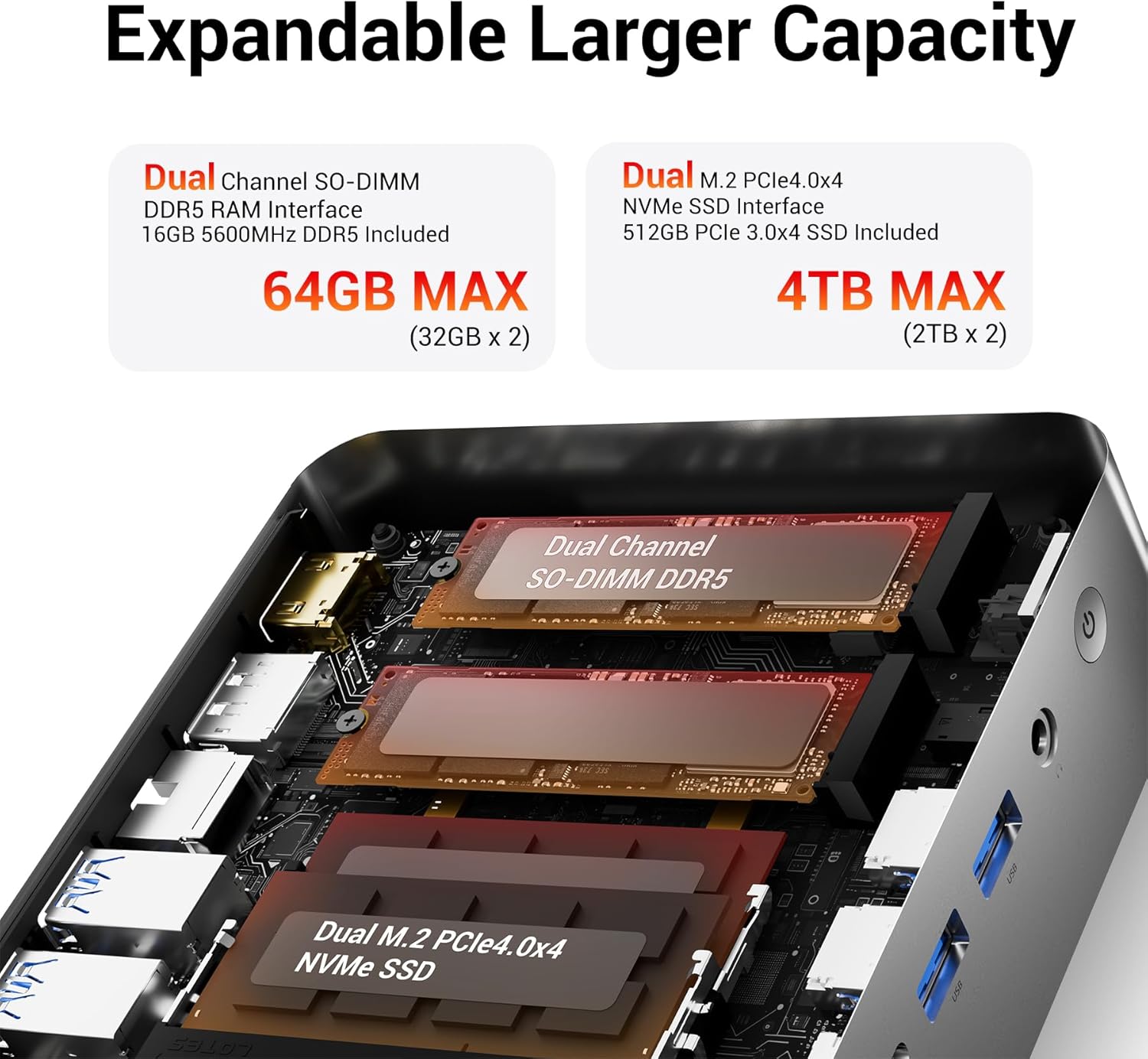
Image 3.2: The FIREBAT F1 Mini PC shown mounted on the back of a monitor using the VESA bracket, illustrating a space-saving setup.
4. Operating Instructions
4.1 Power On/Off
- To Power On: Press the power button on the front panel.
- To Shut Down: Use the operating system's shutdown function. Alternatively, press and hold the power button for 5 seconds to force a shutdown (use only when necessary).
4.2 Display Configuration
The Mini PC supports up to three independent 4K@60Hz displays. Connect monitors to the HDMI, DisplayPort, and USB4 (Type-C) outputs. Configure display settings through your operating system.
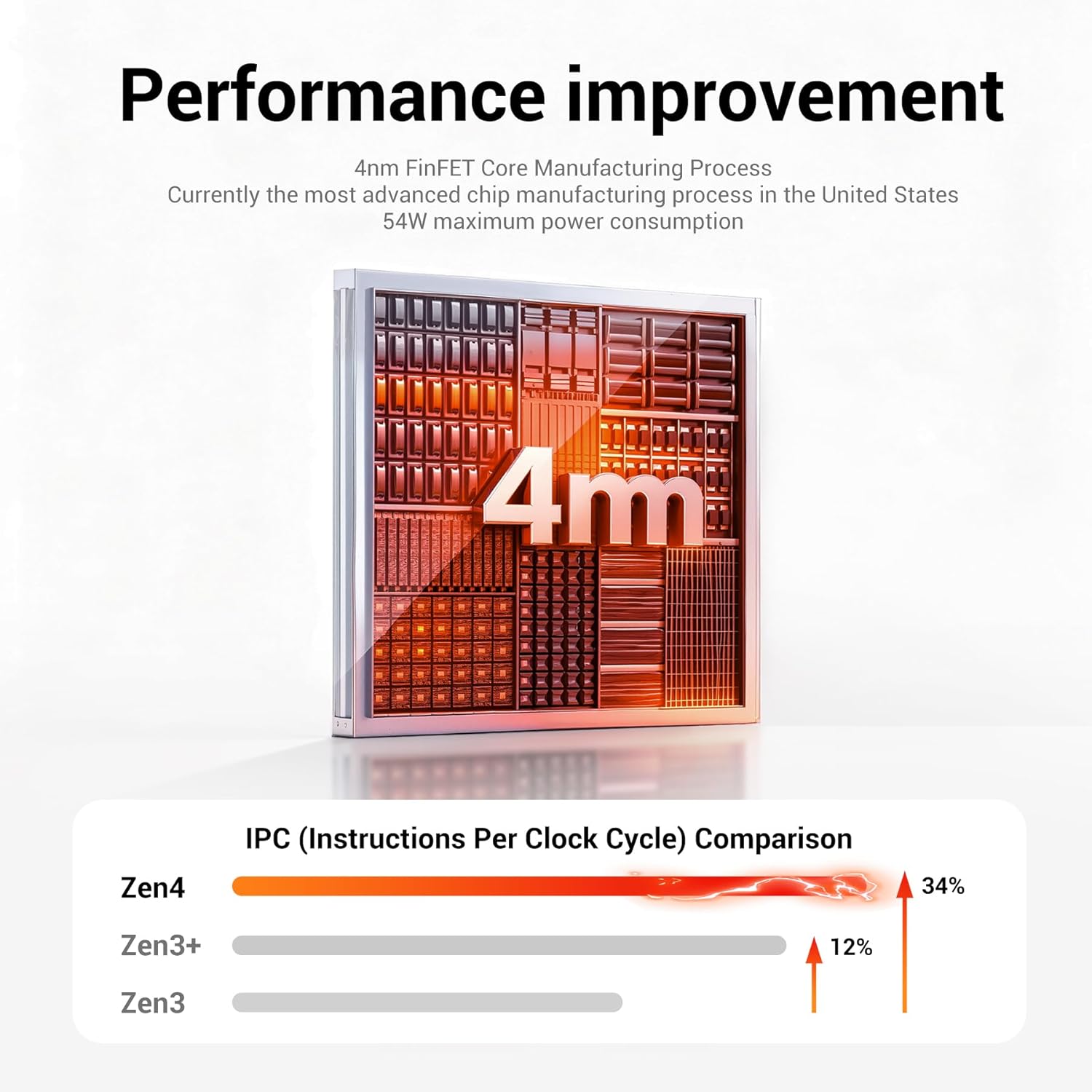
Image 4.1: A FIREBAT F1 Mini PC connected to three external monitors, demonstrating its triple display output capability for multitasking or extended workspaces.
4.3 Performance Modes
The Mini PC may feature adjustable performance modes (e.g., Silent, Balanced, Performance) which can be toggled via a dedicated button or software utility. Refer to the operating system's power settings for further customization.
5. Maintenance
5.1 Cleaning
- Regularly clean the exterior of the Mini PC with a soft, dry cloth.
- Use compressed air to clear dust from ventilation grilles and ports to maintain optimal airflow and cooling.
5.2 Software Updates
Keep your operating system and drivers updated to ensure system stability and performance. Check the manufacturer's website for the latest driver releases.
5.3 Hardware Expansion
The Mini PC supports dual DDR5 RAM slots (up to 64GB) and two M.2 2280 PCIe 4.0 SSD slots for storage expansion. When upgrading, ensure the device is powered off and disconnected from the power source. Consult a qualified technician if you are unsure about the upgrade process.
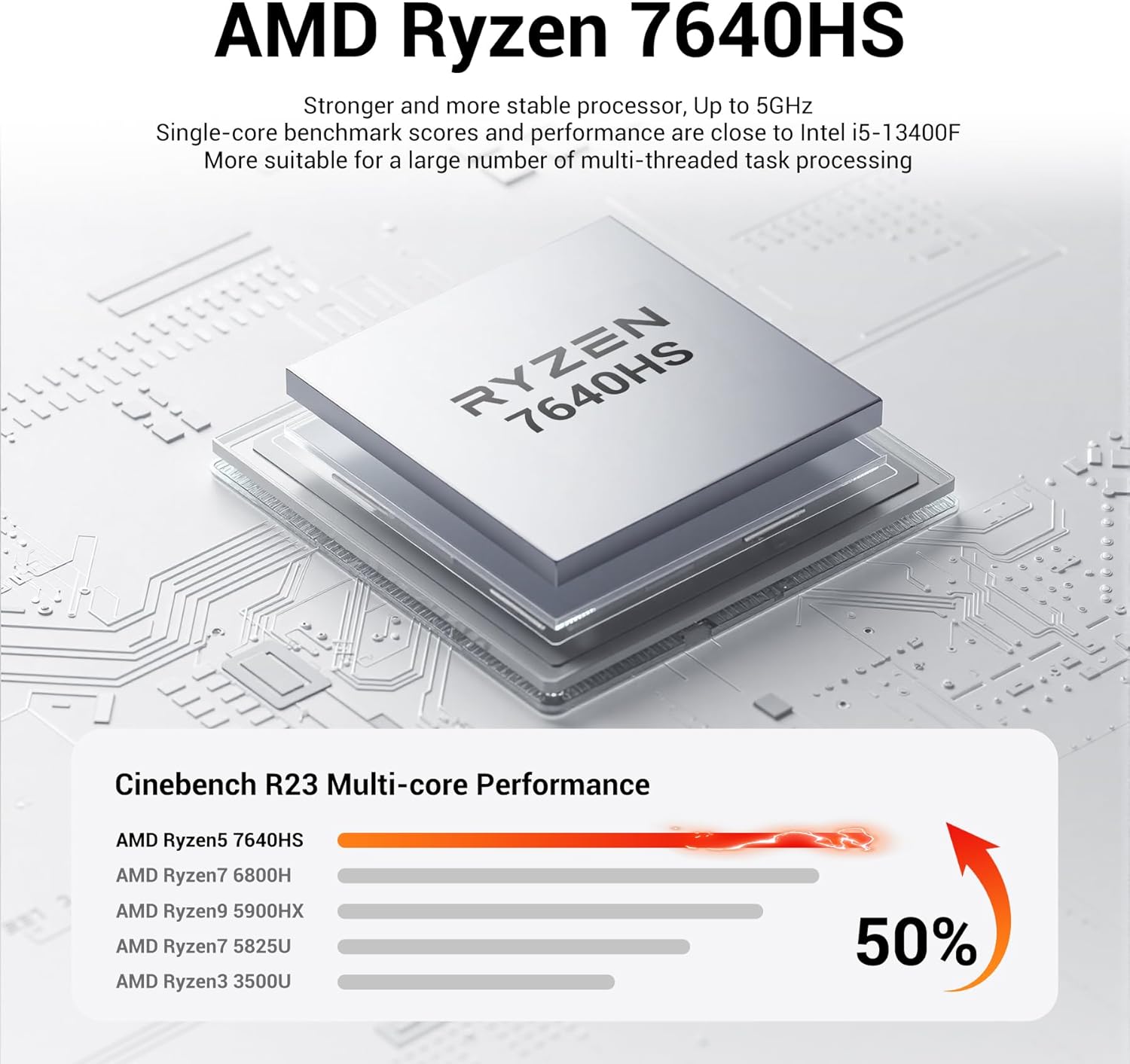
Image 5.1: An internal view of the FIREBAT F1 Mini PC, illustrating the dual SO-DIMM DDR5 RAM slots and the M.2 NVMe PCIe 4.0 SSD slots for memory and storage expansion.

Image 5.2: A diagram showing the internal cooling components of the FIREBAT F1 Mini PC, including the cooling fan, dual heat pipes, and high-efficiency thermal grease, designed for low-temperature operation.
6. Troubleshooting
This section addresses common issues you might encounter with your FIREBAT F1 Mini PC.
| Problem | Possible Cause | Solution |
|---|---|---|
| No power | Power adapter not connected; Power outlet issue; Faulty power adapter. | Ensure power adapter is securely connected to both the Mini PC and a working power outlet. Test the outlet with another device. |
| No display output | Monitor not connected; Incorrect input source on monitor; Faulty cable. | Check display cable connections. Ensure monitor is set to the correct input source (HDMI, DP, USB-C). Try a different cable or monitor. |
| No internet connection (wired) | Ethernet cable disconnected; Router/modem issue; Network driver issue. | Verify Ethernet cable is connected. Restart your router/modem. Check network adapter status in operating system. |
| No internet connection (wireless) | WiFi disabled; Incorrect password; Router too far. | Ensure WiFi is enabled in the operating system. Re-enter WiFi password. Move closer to the router or check router settings. |
| System freezes or crashes | Overheating; Software conflict; Outdated drivers. | Ensure proper ventilation. Update operating system and drivers. Close unnecessary applications. |
7. Specifications
Detailed technical specifications for the FIREBAT F1 Mini PC:
| Feature | Detail |
|---|---|
| Brand | FIREBAT |
| Model Number | Ryzen5 7640HS |
| CPU Model | AMD Ryzen 5 7640HS (6 Cores, 12 Threads) |
| CPU Speed | Up to 5.0 GHz (Turbo) |
| Graphics Coprocessor | AMD Radeon 760M (Integrated) |
| RAM Memory Installed | 16 GB DDR5 (5600 MHz) |
| RAM Memory Maximum Size | 64 GB (32GB x 2) |
| Hard Disk Description | SSD (512GB NVMe PCIe 3.0 x4 included) |
| Hard Disk Interface | PCIE x 4 (2x M.2 2280 slots) |
| Operating System | Default (Windows 11 Pro often pre-installed) |
| Video Output | HDMI 2.1, DisplayPort 1.4, USB4 (Type-C) |
| Display Resolution Maximum | 8K@60Hz Pixels (via USB4), 4K@60Hz (via HDMI/DP) |
| Connectivity Technology | Bluetooth 5.2, Ethernet (2.5Gbps LAN), Wi-Fi 6 (802.11ax) |
| Total USB Ports | 7 (1x USB4, 2x USB-A 3.2 Gen2, 4x USB-A 3.2 Gen1) |
| Audio | 2-in-1 audio combo (3.5mm jack) |
| Power Consumption | 54 Watts |
| Item Dimensions | 5 x 5 x 1.5 inches |
| Item Weight | 1.1 Pounds |
| Cooling Method | Fan with Dual Heat Pipes |
8. Warranty and Support
8.1 Warranty Information
The FIREBAT F1 Mini PC typically comes with a 1-year limited warranty. Please refer to your purchase documentation for specific warranty terms and conditions.
8.2 Customer Support
For technical assistance, troubleshooting, or warranty claims, please contact FIREBAT customer support through their official website or the contact information provided with your product. Keep your purchase receipt and product serial number readily available.
Online resources and FAQs may also be available on the FIREBAT official website: www.firebatpc.com


