
ANTMINER AS02
ANTMINER AS02 Mini WiFi Security Camera User Manual
Model: AS02 | Brand: ANTMINER
1. Product Overview
The ANTMINER AS02 is an ultra-compact mini WiFi security camera designed for discreet and portable surveillance. Its small design allows for easy concealment in various indoor and outdoor locations, making it ideal for security monitoring and evidence recording without being conspicuous. Featuring 1080P high-definition video and infrared night vision, it captures clear details even in darkness, suitable for nighttime entryway monitoring or recording unexpected events. With WiFi smartphone connectivity, you can view real-time footage remotely via a dedicated iOS/Android app, perfect for home security, pet monitoring, or in-car surveillance. It supports loop recording and continuous 24-hour monitoring when connected via USB power, eliminating storage concerns. Easy to operate with a single power button for recording start/stop, it comes with a Japanese instruction manual, making it user-friendly for beginners.
2. Package Contents
Please check that all items are present and in good condition.
- ANTMINER AS02 Mini WiFi Security Camera
- Stand
- Charging Cable
- Mounting Screws
- Instruction Manual (Japanese)

Image: The ANTMINER AS02 camera, its magnetic stand, charging cable, and the included instruction manual.
3. Product Diagram and Components
Familiarize yourself with the camera's physical features and dimensions.
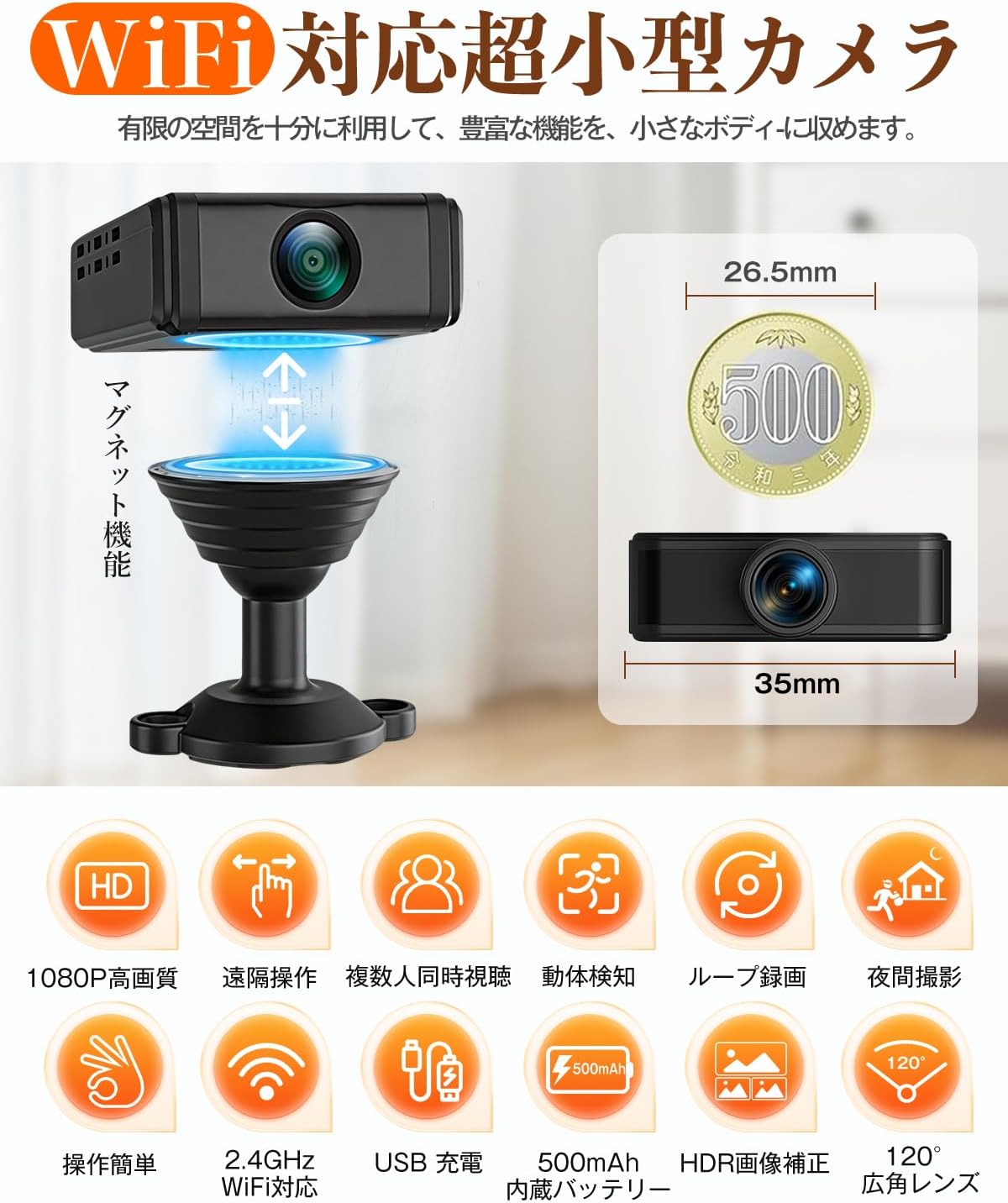
Image: The compact ANTMINER AS02 camera shown with its magnetic base, highlighting its small size (26.5mm x 35mm).

Image: Demonstrates the camera's 180-degree manually adjustable lens and the 360-degree rotatable magnetic base for flexible positioning.
4. Setup Instructions
Follow these steps to set up your ANTMINER AS02 camera and connect it to your smartphone.
4.1. App Download and Installation
Scan the QR code provided in the manual or on the product packaging to download the dedicated iOS/Android application. Install the app on your smartphone.
Video: A tutorial demonstrating the app download process by scanning a QR code from the instruction manual, followed by the initial setup steps.
4.2. Initial Camera Power On
Locate the power switch on the camera. Press and hold the power button to turn on the device. A signal light will illuminate, indicating the camera is ready for connection.
4.3. Connecting to WiFi
Open the installed app. Follow the on-screen instructions to add your device. This typically involves scanning a QR code on the camera itself and entering your local WiFi network credentials. Ensure your WiFi is 2.4GHz, as 5GHz is not supported.
Video: Demonstrates the process of connecting the mini camera to a smartphone via WiFi, including scanning the QR code and entering network details.
5. Operating Instructions
5.1. Real-time Monitoring
Once connected, open the app to view live footage from your camera. You can monitor your home, pets, or car remotely from anywhere.

Image: A smartphone screen showing real-time monitoring from the camera, with options for cloud storage and TF card recording.
5.2. Night Vision
The camera is equipped with infrared night vision, allowing for clear recording even in low-light or dark conditions. This feature activates automatically or can be controlled via the app.

Image: Illustrates the camera's 1080P high-definition and infrared night vision capabilities, showing clear images in both day and night settings.
Video: Demonstrates the camera's night vision capabilities in a dark room, showing clear footage of a person moving.
5.3. Motion Detection
The camera features motion detection. When motion is detected, it can automatically start recording and send notifications to your smartphone, providing immediate alerts for any activity.

Image: Displays the motion detection feature, showing a smartphone receiving alerts and reviewing recorded video clips triggered by movement.
5.4. Loop Recording and Continuous Monitoring
The camera supports loop recording, automatically overwriting the oldest files when the storage card is full. When connected to USB power, it can provide 24-hour continuous surveillance.
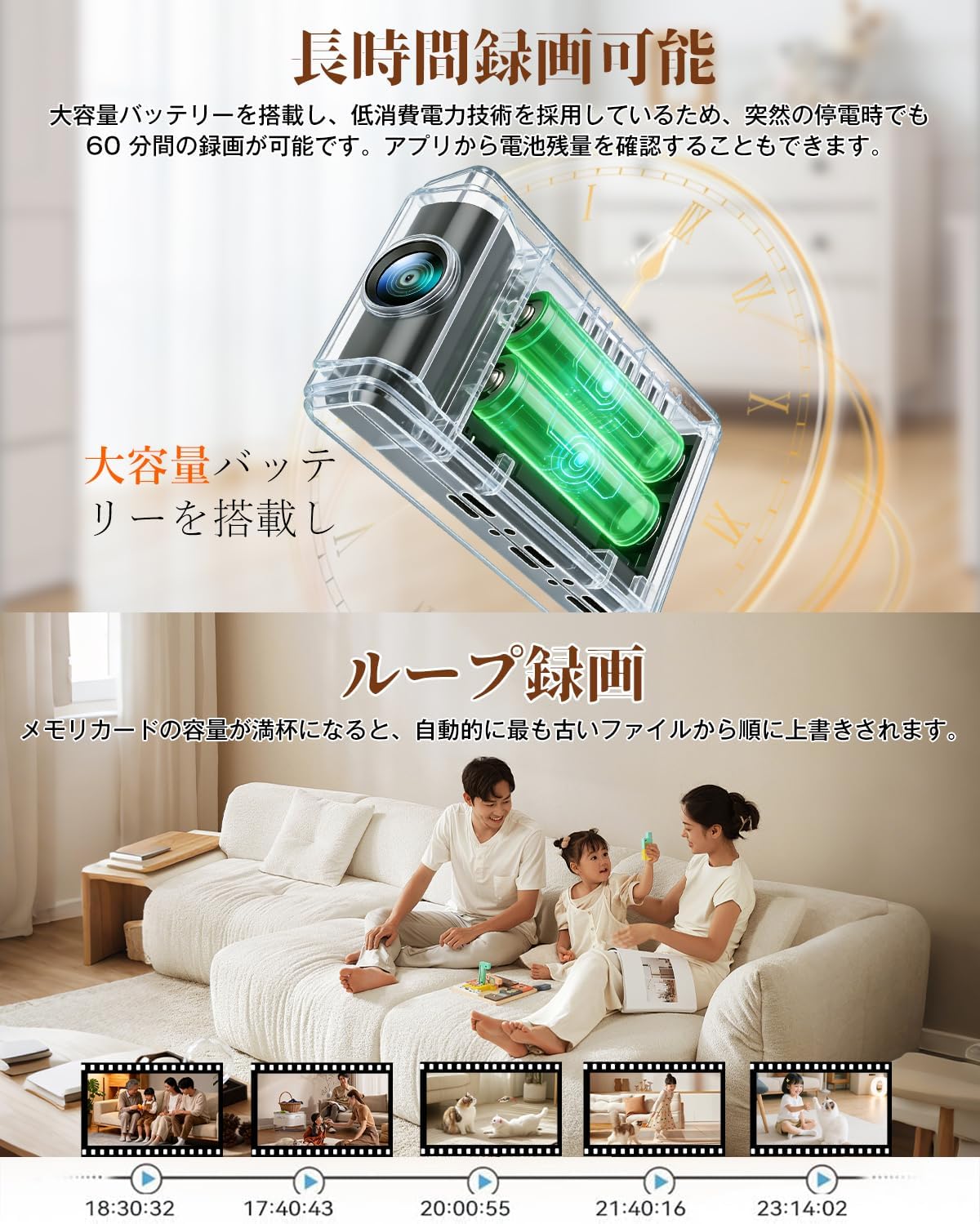
Image: Highlights the camera's large capacity battery and loop recording function, showing a timeline of recorded video segments.
5.5. Versatile Applications
The compact design and features of the AS02 make it suitable for a wide range of uses, including monitoring children, pets, elderly individuals, home security, office surveillance, and in-car recording.

Image: A collage of images illustrating diverse applications for the camera, including child monitoring, pet surveillance, warehouse security, and car interior monitoring.
6. Maintenance
To ensure optimal performance and longevity of your ANTMINER AS02 camera, follow these maintenance guidelines:
- Cleaning: Gently wipe the camera lens and body with a soft, dry cloth. Avoid using harsh chemicals or abrasive materials that could scratch the lens or damage the casing.
- Storage: When not in use for extended periods, store the camera in a cool, dry place away from direct sunlight and extreme temperatures.
- Battery Care: For models with internal batteries, ensure the battery is charged periodically even when not in active use to maintain battery health.
- Firmware Updates: Check the app regularly for any available firmware updates to ensure your camera has the latest features and security enhancements.
7. Troubleshooting
If you encounter issues with your ANTMINER AS02 camera, refer to the following common problems and solutions:
| Problem | Possible Cause | Solution |
|---|---|---|
| Camera not powering on | Low battery or power issue | Charge the camera using the provided USB cable. Ensure the power switch is in the 'ON' position. |
| Unable to connect to WiFi | Incorrect WiFi password, 5GHz network, or camera too far from router | Verify WiFi password. Ensure you are connecting to a 2.4GHz network. Move the camera closer to the WiFi router. Reset the camera and try again. |
| No video feed in app | Connection issue or app malfunction | Check WiFi connection. Restart the app and the camera. Ensure the camera is online in the app. |
| Motion detection not working | Settings not configured or sensitivity too low | Enable motion detection in the app settings. Adjust sensitivity levels as needed. |
| SD card not recording | SD card full, corrupted, or not inserted correctly | Check SD card capacity. Format the SD card via the app. Reinsert the SD card. Replace with a new SD card if necessary. |
If problems persist, please contact customer support for further assistance.
8. Technical Specifications
| Feature | Detail |
|---|---|
| Brand | ANTMINER |
| Model Name | AS02 |
| Connectivity Technology | Wireless (Wi-Fi 2.4GHz) |
| Video Capture Resolution | 1080p |
| Video Capture Format | AVI |
| Features | Motion Sensor, Night Vision |
| Indoor/Outdoor Use | Indoor (also suitable for covered outdoor areas like entryways) |
| Compatible Devices | Smartphone (IOS/Android) |
| Mounting Type | Adhesive / Magnetic (No-drill installation) |
| Color | Black |
| Shape | Rectangular |
| Number of Infrared LEDs | 4 |
| Field of View | 300 degrees |
| Product Body Size | 5.5 x 4 x 1 cm |
9. Warranty and Support
For warranty information, technical support, or any inquiries regarding your ANTMINER AS02 Mini WiFi Security Camera, please refer to the contact details provided in your product packaging or visit the official ANTMINER website. Keep your purchase receipt as proof of purchase for warranty claims.
Ask a question about this manual
Ask about setup, troubleshooting, compatibility, parts, safety, or missing instructions. Manuals+ will review the question and use this page’s manual context to help answer it.