
Introduction
This manual provides detailed instructions for the setup, operation, maintenance, and troubleshooting of your DIGIDRAW Turing 14 Drawing Tablet with Screen. Please read this manual thoroughly before using the device to ensure proper functionality and to maximize your creative experience.
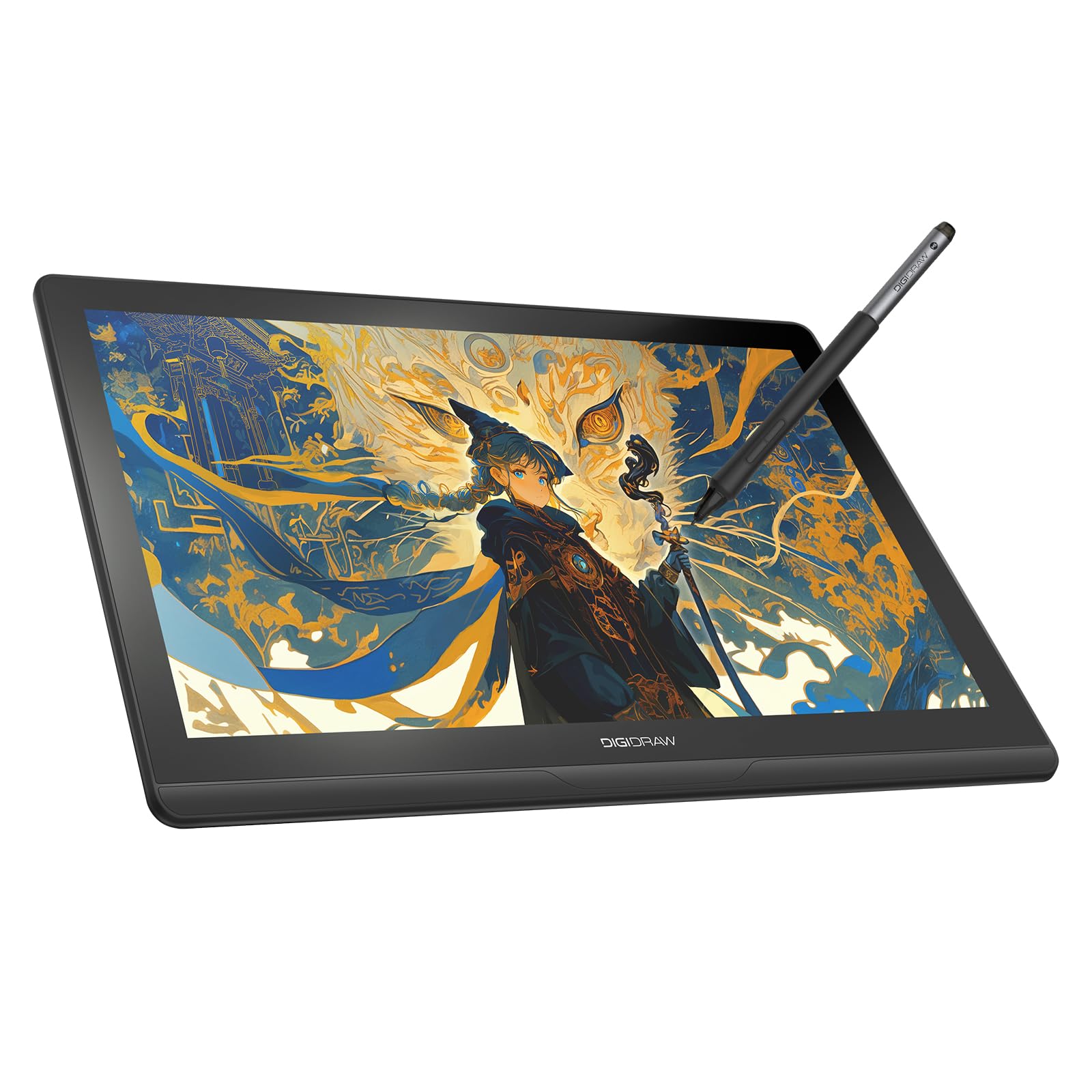
Image: The DIGIDRAW Turing 14 Drawing Tablet with Screen, showcasing its sleek design and display.
Setup
1. Unboxing and Components
Before starting, ensure all components are present in the box:
- Pen Display
- 3-in-1 Cable
- Magic 5.0 Pen
- Power Adapter
- Pen Holder PH01 (built-in)
- Nib Extractor
- Cleaning Cloth
- Quick Start Guide
- 8 Replacement Nibs

Image: All items included in the DIGIDRAW Turing 14 package, laid out clearly.
2. Driver Installation
To fully utilize the features of your DIGIDRAW Turing 14, including customizing shortcut keys and pressure curves, it is essential to download and install the official DIGIDRAW driver. Visit the official DIGIDRAW website to download the latest driver compatible with your operating system.
3. Connecting to a PC
Use the provided 3-in-1 cable to connect the tablet to your desktop PC. The cable includes HDMI for video, USB-A for data, and a separate USB-A for power (connected to the power adapter).
- Connect the HDMI plug to your PC's independent graphics card. If this port is occupied, a DisplayPort (DP) to HDMI converter may be required (sold separately).
- Connect the USB-A data plug to an available USB port on your PC.
- Connect the USB-A power plug to the power adapter, then plug the adapter into a power outlet.

Image: A visual guide illustrating the connection of the drawing tablet to a desktop computer using the 3-in-1 cable.
4. Connecting to Laptops, Tablets, and Phones
For laptops, tablets, and phones, the connection method may vary:
- Using the 3-in-1 Cable: Connect the HDMI and USB-A data plugs to your device (a docking station may be required for devices with limited ports, sold separately). Connect the USB-A power plug to the power adapter.
- Using a Full-featured USB-C Cable (sold separately): For devices that support USB 3.1 with DisplayPort (DP) 1.2 or above, a single full-featured USB-C cable can provide both video and data. Connect the USB-C power cable to the power adapter for additional power.

Image: A visual guide illustrating the connection of the drawing tablet to a laptop, tablet, or phone, highlighting the use of a docking station for some devices.

Image: Illustration of connecting the tablet using a single full-featured USB-C cable and a separate USB-C power cable.
Operating Instructions
1. Display Features
The Turing 14 features a 13.3-inch 2.5K QHD (2560x1600) display, offering significantly more pixels than standard 1080P displays. It is factory-calibrated for color accuracy with a ΔE<1.5, ensuring true-to-life colors. The screen incorporates AG+AF nano-etched glass to reduce glare and resist fingerprints, providing a clear and tactile drawing surface.
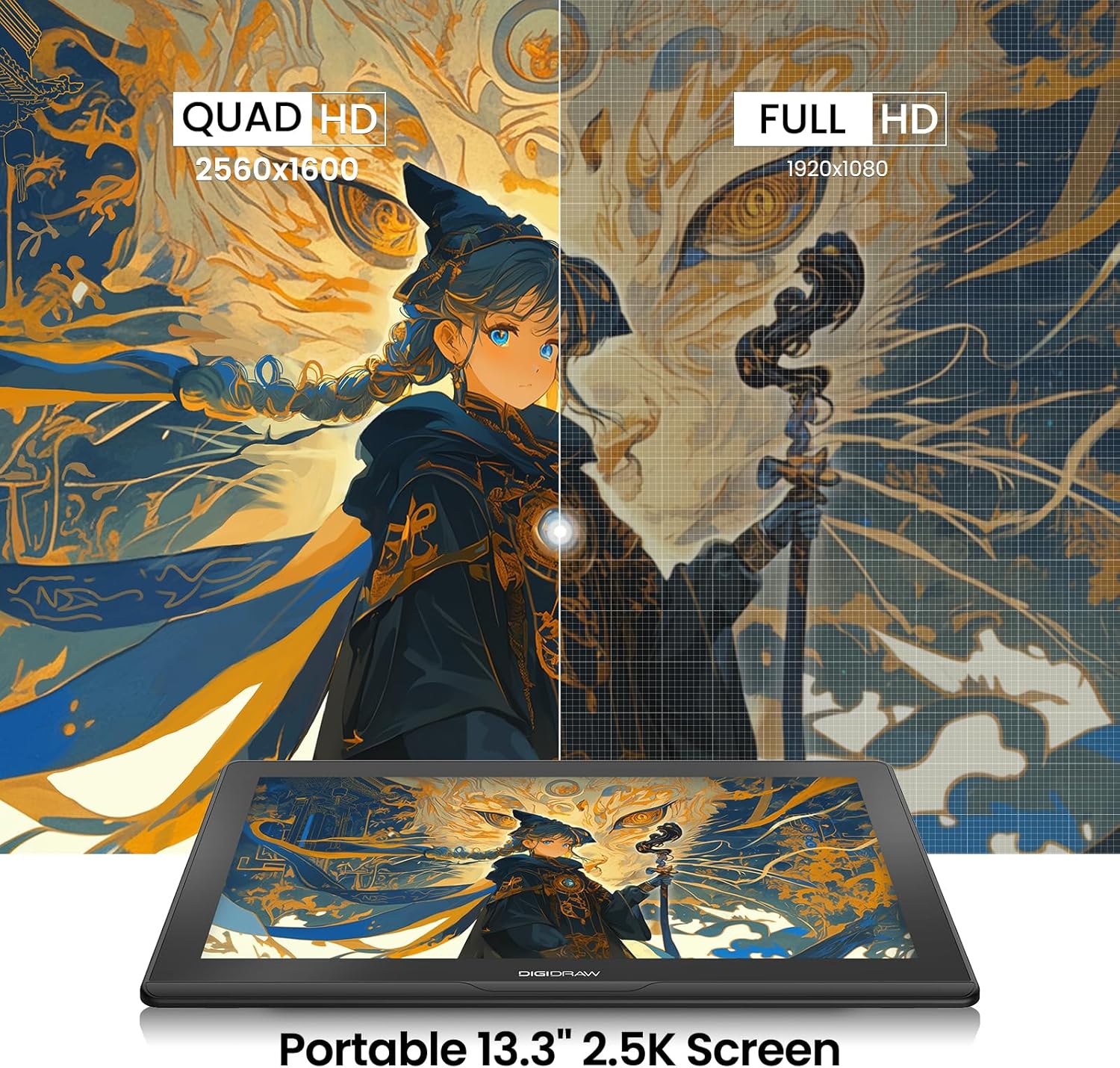
Image: A visual comparison demonstrating the superior clarity of 2.5K Quad HD resolution (2560x1600) compared to Full HD (1920x1080) on the Turing 14 display.

Image: A side-by-side view illustrating the benefit of the full-laminated anti-glare glass in reducing reflections and fingerprints compared to standard non-laminated glass.

Image: Infographic detailing the professional color accuracy of the Turing 14, including ΔE<1.5, 130% color gamut volume, 16:10 aspect ratio, and 16.7 million display colors.
Video: Demonstrates the 2.5K display quality of the DIGIDRAW Turing 14.
2. Magic 5.0 Stylus
The included Magic 5.0 battery-free stylus offers 16,384 levels of pressure sensitivity and 60° tilt support, allowing for precise control from thin hairlines to broad strokes. Its ergonomic design features a 50/50 weight distribution for balanced and comfortable use during extended periods. The stylus has an ultra-narrow gap of 0.03mm for enhanced precision.

Image: Details of the Magic Pen 5.0, highlighting the D-M5 Smart Chip, 50% weight balance, and 0.03mm ultra-narrow gap for precision.
Video: Demonstrates the features and precision of the DIGIDRAW Magic Pen 5.0 stylus.
Video: Illustrates the 16384 pressure levels of the DIGIDRAW stylus, showcasing its sensitivity and control.
3. Built-in Stand and Ergonomics
The Turing 14 includes a built-in 19° zinc alloy stand, providing an optimal drawing angle. The design also features a slanted wrist rest to support your hand naturally, enhancing comfort during long creative sessions.
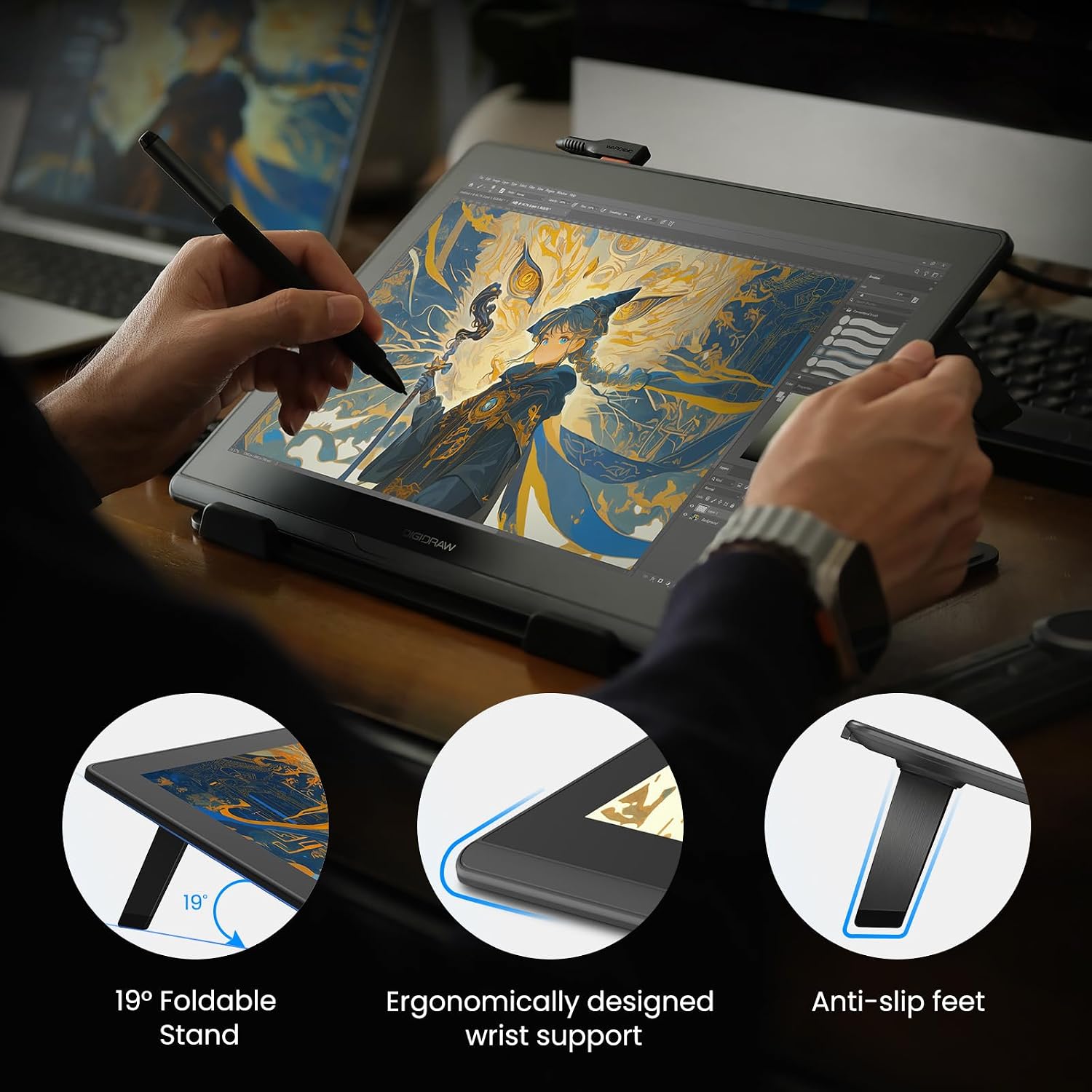
Image: The tablet positioned with its 19° foldable stand, highlighting the ergonomic wrist support and anti-slip feet for stable use.
4. Compatibility
The DIGIDRAW Turing 14 is compatible with a wide range of operating systems and software:
- Operating Systems: Windows (10 and above), macOS (10.12 and above), ChromeOS (88 or later), Android (devices meeting USB 3.1 + DP 1.2 and above), LinuxOS (Ubuntu 20.04 LTS).
- Software: Works with popular digital art software such as Adobe Photoshop, Illustrator, Clip Studio Paint, SAI, Krita, MediBang Paint, FireAlpaca, Blender 3D, and more.

Image: An overview of compatible operating systems including Windows, macOS, ChromeOS, Android, and LinuxOS.

Image: A selection of recommended digital art software compatible with the Turing 14, such as Photoshop, Illustrator, and Clip Studio Paint.
Video: A demonstration of drawing on the DIGIDRAW Turing 14 display, showcasing its responsiveness and utility in creative applications.
Maintenance
1. Cleaning the Display
The AG+AF nano-etched glass is designed to resist fingerprints. To clean the display, gently wipe it with the provided cleaning cloth. For stubborn marks, use a soft, lint-free cloth lightly dampened with water or a screen-safe cleaning solution. Avoid harsh chemicals or abrasive materials.
2. Stylus Nib Replacement
The Magic 5.0 pen comes with 8 replacement nibs and a nib extractor. If the pen nib becomes worn, use the nib extractor to carefully remove the old nib and insert a new one. Ensure the new nib is fully seated.
Troubleshooting
Common Issues and Solutions
- No Display/Signal:
- Ensure all cables (HDMI/USB-C, USB-A data, USB-A power) are securely connected.
- Verify the power adapter is plugged into a working outlet.
- Check your computer's display settings to ensure the tablet is detected and set as an extended or mirrored display.
- If using a DP to HDMI converter, ensure it is functioning correctly.
- Pen Not Responding:
- Confirm the DIGIDRAW driver is installed correctly and is the latest version.
- Restart your computer and the tablet.
- Check if the pen nib is properly inserted. Replace if worn.
- Ensure there are no other conflicting tablet drivers installed on your system.
- Inaccurate Pen Pressure/Tilt:
- Recalibrate the pen in the DIGIDRAW driver settings.
- Ensure the driver is up to date.
- Test with different drawing software to isolate the issue.
- Screen Flickering/Distortion:
- Check cable connections for looseness or damage.
- Ensure your graphics card drivers are updated.
- Test with a different cable if possible.
If you encounter issues not covered here, please refer to the official DIGIDRAW support website or contact customer service for further assistance.
Specifications
| Feature | Detail |
|---|---|
| Brand | DIGIDRAW |
| Model Name | D1401 |
| Screen Size | 13.3 inches |
| Native Resolution | 2560x1600 (2.5K QHD) |
| Color Accuracy | ΔE<1.5 |
| Color Gamut Volume | 130% |
| Aspect Ratio | 16:10 |
| Display Colors | 16.7 Million |
| Special Features | Full-Laminated, Anti-Glare and Anti-Fingerprint coating, 300 PPS report rate |
| Stylus | Magic 5.0 Battery-Free Stylus |
| Pressure Sensitivity | 16384 levels |
| Tilt Support | 60° |
| Connectivity Technology | USB (3-in-1 cable, Full-featured USB-C compatible) |
| Operating System Compatibility | Windows, macOS, ChromeOS, Android 14+, LinuxOS |
| Built-in Stand | 19° Zinc Alloy Stand |
| Item Weight | 900 g |
| Item Dimensions (L x W) | 12.95"L x 9.21"W |
| Active Surface Area | 22.41 square inches |
Warranty and Support
The DIGIDRAW Turing 14 Drawing Tablet comes with a 2-year warranty. Additionally, a free stylus replacement service is available within the first year of purchase. For warranty claims, technical support, or further inquiries, please visit the official DIGIDRAW website or contact their customer service department.
Manufacturer: DIGIDRAW
