
Introduction
This user manual provides essential information and instructions for the ONERugged M10T 10.1-inch Rugged Tablet. It covers product features, setup, operation, maintenance, troubleshooting, and technical specifications to ensure optimal performance and longevity of your device. Please read this manual thoroughly before using the tablet.
What's in the Box
Verify that all items listed below are included in your product package:
- 1 x ONERugged M10T Tablet
- 1 x 18W QC Adapter
- 1 x Type C Charging/Data Cable
- 1 x Hand Strap
- 1 x Stylus Pen

Product Overview
Durability and Protection
The ONERugged M10T tablet is certified to MIL-STD-810H and IP65 standards, indicating its resilience against harsh environmental conditions. It is designed to withstand 4-foot drops, exposure to extreme temperatures, dust ingress, and water jets, making it suitable for demanding outdoor and industrial applications.

Display
Equipped with a 10.1-inch HD+ IPS screen, the tablet features 1000 Nits of peak brightness. This high brightness ensures clear visibility even in direct sunlight, reducing eye strain during outdoor use. The display resolution is 800x1280 pixels with a 16:10 aspect ratio.

Performance
The tablet operates on Android 14 and is powered by a MediaTek Helio G99 2.2GHz Octa-core processor. It includes 8GB of RAM and 128GB of internal storage, expandable up to 512GB via a TF card, providing ample capacity for applications and data.

Battery
A 10000mAh removable battery provides up to 12 hours of continuous operation. The removable design allows for quick battery swaps, minimizing downtime. It supports 18W fast charging.
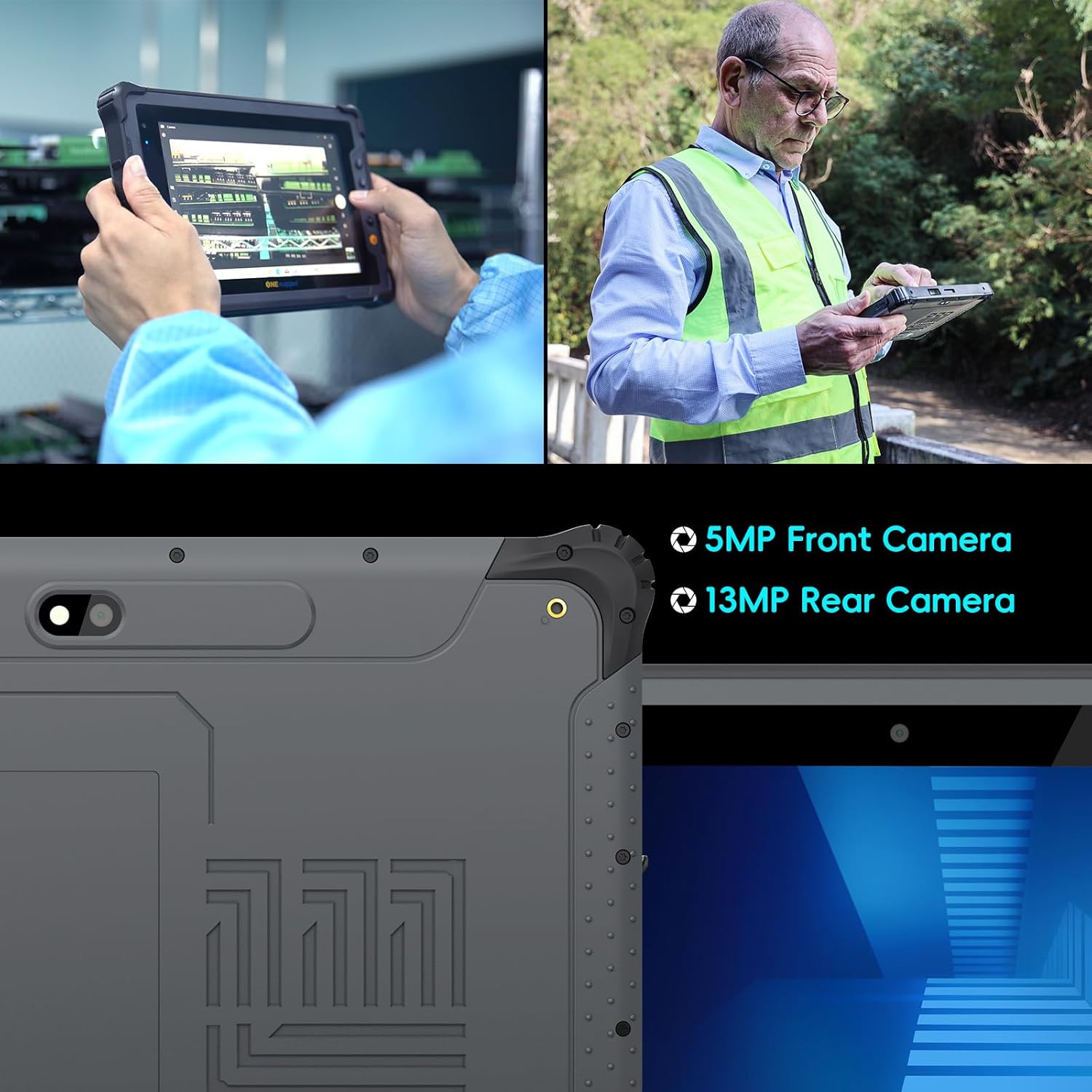
Cameras
The tablet features a 13MP rear camera with a flashlight for on-site documentation and a 5MP front camera for video conferencing and selfies.

Connectivity
Stay connected with 4G LTE cellular access via a Nano SIM slot, 2.4G/5.8G dual-band Wi-Fi, and Bluetooth 5.1. Integrated GPS provides precise navigation for field operations.

Setup
Powering On/Off
To power on the tablet, press and hold the Power button located on the side until the screen illuminates. To power off, press and hold the Power button, then select 'Power off' from the on-screen options.
Inserting SIM/SD Card
To insert a Nano SIM card or a TF (MicroSD) card, you must first remove the back panel and the removable battery. Locate the card slots beneath the battery compartment. Carefully insert the cards into their respective slots, ensuring correct orientation. Reinstall the battery and back panel securely.
Initial Configuration
Upon first power-on, follow the on-screen prompts to complete the initial setup. This includes selecting your language, connecting to a Wi-Fi network, setting up your Google account, and configuring basic device settings.
Operation
Touchscreen Navigation
The tablet features a responsive touchscreen. Use standard gestures such as tap, swipe, pinch-to-zoom, and long-press to navigate the interface, open applications, and interact with content. The screen is designed to be responsive even when wearing work gloves.
Physical Buttons
The tablet includes several physical buttons for quick access to functions:
- Power Button: Powers the device on/off, locks/unlocks the screen.
- Volume Up/Down: Adjusts media and notification volume.
- Home Button: Returns to the home screen.
- Customized Button: Can be programmed for a specific function (refer to settings for customization options).
Connecting Peripherals
The tablet offers various ports for connecting external devices:
- USB 2.0: For connecting USB devices like flash drives or keyboards.
- HDMI: For connecting to external displays.
- Type-C: For charging and data transfer.
- Headphone Jack: For audio output.
- Ethernet Port: For wired network connectivity.
Maintenance
Cleaning
To clean the tablet, use a soft, lint-free cloth. For stubborn dirt or grime, slightly dampen the cloth with water or a mild, non-abrasive cleaning solution. Avoid using harsh chemicals or abrasive materials that could damage the screen or casing. Ensure all port covers are securely closed before cleaning to maintain water and dust resistance.
Battery Care
To maximize battery life, avoid exposing the tablet to extreme temperatures. Charge the battery using the provided 18W QC adapter and Type-C cable. If the battery is removable, ensure it is properly seated and secured. For long-term storage, charge the battery to approximately 50% and store the device in a cool, dry place.
Software Updates
Regularly check for and install software updates to ensure your tablet has the latest features, security patches, and performance improvements. You can typically find update options in the device's 'Settings' menu under 'System' or 'About tablet'.
Troubleshooting
- Device not powering on: Ensure the battery is charged. Connect the tablet to the charger and wait a few minutes before attempting to power it on again. If the battery is removable, ensure it is correctly installed.
- Screen unresponsive: Try restarting the tablet by holding down the Power button for approximately 10-15 seconds until the device reboots. If the issue persists, ensure the screen is clean and free of debris.
- Connectivity issues (Wi-Fi/4G LTE): Check if Wi-Fi or cellular data is enabled in the settings. For Wi-Fi, try forgetting the network and reconnecting. For 4G LTE, ensure the SIM card is correctly inserted and activated with your service provider.
- Applications crashing: Ensure all applications are updated to their latest versions. Clear the cache and data for the problematic app in 'Settings > Apps'. If the issue continues, consider uninstalling and reinstalling the app.
- Slow performance: Close unnecessary background applications. Clear cached data regularly. Consider reducing the number of widgets on your home screen. If storage is nearly full, free up space by deleting unused files or apps.
Specifications
| Feature | Specification |
|---|---|
| Brand | ONERugged |
| Model Name | M10T |
| Operating System | Android 14 |
| Screen Size | 10.1 Inches |
| Screen Resolution | 800 x 1280 Pixels |
| Processor | MediaTek Helio G99 2.2 GHz Octa-core |
| Graphics Coprocessor | Mali-G57 MC2 |
| RAM | 8 GB |
| Flash Memory Size | 128 GB (Expandable up to 512GB via TF card) |
| Wireless Type | 802.11a/b/g/n/ac (2.4G/5.8G Dual-band Wi-Fi), Bluetooth 5.1, 4G LTE |
| Average Battery Life | 12 Hours (10000mAh Lithium Polymer) |
| Item Weight | 2.25 pounds |
| Product Dimensions | 10.82 x 7.43 x 0.87 inches |
| Color | Gray |
| Certifications | IP65, MIL-STD-810H |
Warranty and Support
ONERugged provides a 12-month warranty for the M10T tablet, covering manufacturing defects and hardware malfunctions under normal use. Additionally, lifetime technical support and 24-hour online customer service are available to assist with any product-related inquiries or issues. For support, please contact the ONERugged customer service team.
Official Product Videos
ONERugged Smart Laboratory
Video demonstrating the rigorous testing processes at Emdoor Laboratory, ensuring product stability and reliability through environmental, chemical, and safety tests.
Rugged Tablet Applications
Video showcasing the ONERugged tablet in various industrial applications, highlighting its use in event management, asset management, equipment management, safety management, data management, material management, and production management.
ONERugged Rugged Tablet M10T
Official product video for the ONERugged M10T Rugged Tablet, highlighting its high performance, outdoor productivity features, long battery life, and enhanced robustness for fieldwork.