
Introduction
The FREEWOLF M104 is a full-size wireless gaming keyboard designed for versatile use across various platforms. It features tri-mode connectivity (2.4GHz wireless, Bluetooth, and USB-C wired), a 104-key layout with a numeric keypad, RGB backlighting, and a 4000mAh rechargeable battery. The keyboard incorporates a membrane switch design with a tactile feel, double-shot injection keycaps, and an ergonomic metal panel for durability and comfortable use.
Setup
Package Contents
Verify that the package contains the FREEWOLF M104 keyboard, a USB-C cable, and a 2.4GHz USB receiver.
Charging the Keyboard
Connect the provided USB-C cable to the keyboard's USB-C port and the other end to a power source (e.g., computer USB port, USB wall adapter). The keyboard features a 4000mAh rechargeable battery. A full charge ensures extended wireless operation.

Connectivity Modes
The M104 keyboard supports three connection modes: Wired (USB-C), 2.4GHz Wireless, and Bluetooth.
1. Wired Mode (USB-C)
Connect the USB-C cable directly from the keyboard to your computer. The keyboard will function immediately without additional drivers.
2. 2.4GHz Wireless Mode
Locate the 2.4GHz USB receiver, typically stored in a compartment on the keyboard's underside. Plug the receiver into an available USB port on your computer. Switch the keyboard's mode selector to 2.4GHz. The keyboard should connect automatically.
3. Bluetooth Mode
Switch the keyboard's mode selector to Bluetooth. On your device (PC, Mac, tablet, smartphone), enable Bluetooth and search for new devices. Select "FREEWOLF M104" (or similar name) from the list to pair. The keyboard can store multiple Bluetooth pairings, allowing for seamless switching between devices.


Video: Connectivity Overview (Similar Model)
Video: This video demonstrates the multi-mode connectivity and a media knob feature on a similar FREEWOLF keyboard model (K100). It illustrates the physical switch for changing between 2.4G, Bluetooth, and wired modes, which is applicable to the M104's setup.
Operating Instructions
Basic Key Functions
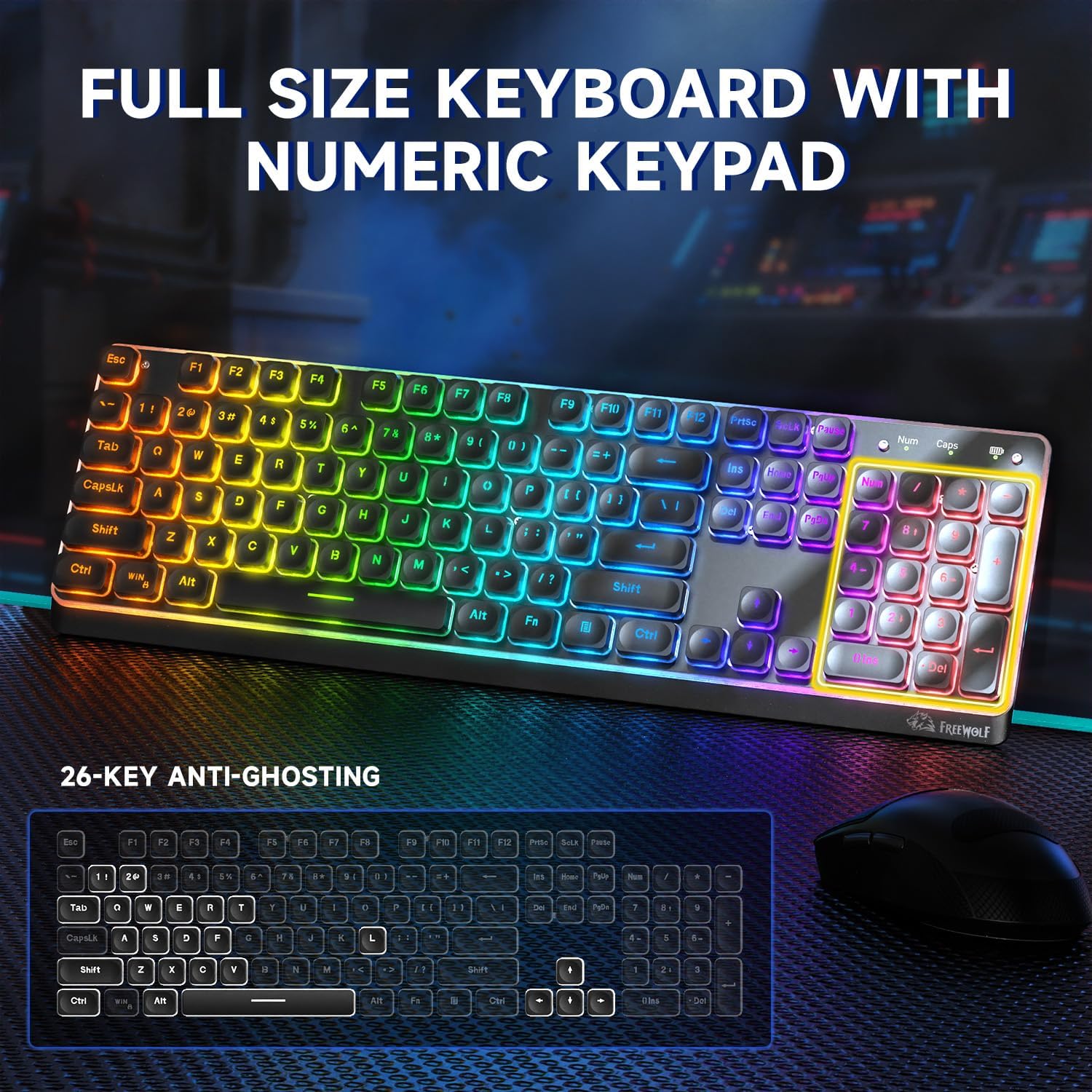
The M104 features a standard 104-key QWERTY layout, including a dedicated numeric keypad for efficient data entry and calculations.
Multimedia Keys
The keyboard includes 12 multimedia keys, accessible via the Function (Fn) key combinations, for quick control over media playback, volume, and other system functions.
RGB Backlight Control
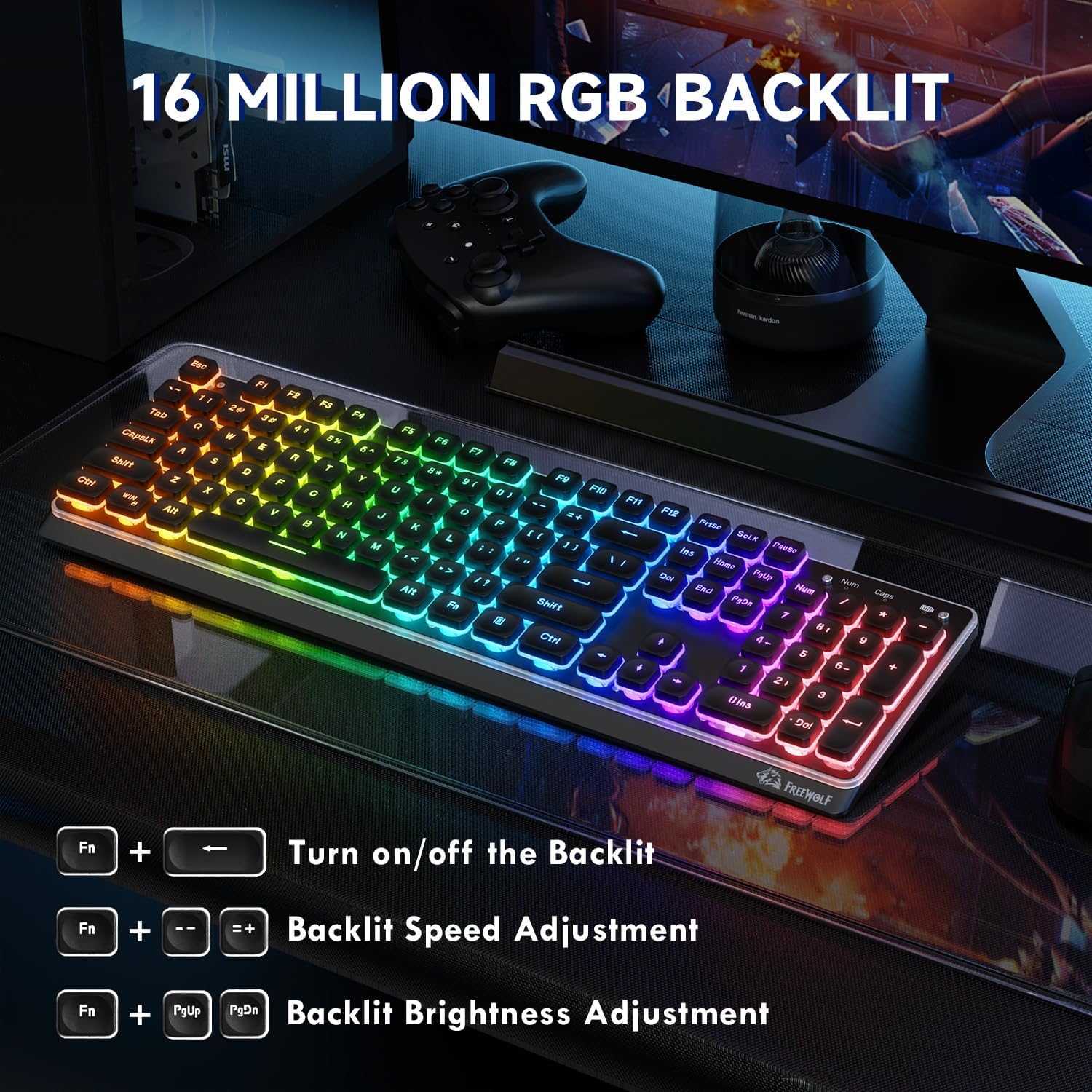
The M104 keyboard features RGB backlighting with 16 million color options. Use the following key combinations to adjust the lighting:
- Turn On/Off Backlight: Press Fn + PrtSc
- Adjust Backlight Speed: Press Fn + '-' (decrease speed) or Fn + '+' (increase speed)
- Adjust Backlight Brightness: Press Fn + PgUp (increase brightness) or Fn + PgDn (decrease brightness)
Anti-Ghosting
The M104 supports 26-key anti-ghosting, ensuring that multiple simultaneous key presses are registered accurately, which is beneficial for gaming and fast typing.
Ergonomic Design
The keyboard features an ergonomic design with a tilt angle and height-adjustable feet, promoting a comfortable typing posture and reducing wrist fatigue during extended use. The membrane silicone rebound structure contributes to a quiet and smooth typing experience.

Maintenance
Cleaning
The M104 features floating keycaps, which facilitate easy cleaning. Use a soft brush or compressed air to remove dust and debris from between the keys. The keyboard is designed to be splash-proof, offering protection against minor liquid spills. For deeper cleaning, gently wipe the keycaps and surface with a damp cloth and mild cleaning solution, ensuring no liquid enters the keyboard's internal components.

Battery Care
To maximize the lifespan of the 4000mAh rechargeable battery, avoid fully discharging it frequently. Charge the keyboard when the battery indicator shows low power. Store the keyboard in a cool, dry place when not in use for extended periods.
Troubleshooting
Keyboard Not Responding
- Check Power: Ensure the keyboard is charged or connected via USB-C.
- Verify Mode: Confirm the mode switch (2.4GHz, Bluetooth, Wired) is set correctly for your connection type.
- Re-establish Connection: For 2.4GHz, try unplugging and re-inserting the USB receiver. For Bluetooth, unpair and re-pair the keyboard in your device's Bluetooth settings.
- Test Wired Mode: If wireless modes fail, connect the keyboard via USB-C to determine if the issue is with the wireless connection or the keyboard itself.
Input Delay or Unresponsive Keys
- Bluetooth Latency: Bluetooth connections may experience slight delays, especially in environments with interference. For critical tasks like gaming, consider using 2.4GHz wireless or wired mode.
- 2.4GHz Interference: Ensure the 2.4GHz receiver is not obstructed and is close to the keyboard. Avoid placing it near other wireless devices that may cause interference.
- Battery Level: Low battery can affect performance. Charge the keyboard fully.
RGB Backlight Not Working
- Turn On: Ensure the backlight is turned on using Fn + PrtSc.
- Adjust Brightness: Increase brightness using Fn + PgUp.
- Power Saving: The backlight may turn off automatically after a period of inactivity to conserve battery. Press any key to reactivate.
Specifications
| Model | M104 |
| Brand | FREEWOLF |
| Key Layout | 104-key Full Size QWERTY with Numeric Keypad |
| Key Type | Membrane (Mechanical Feel) |
| Connectivity | Tri-Mode (2.4GHz Wireless, Bluetooth, USB-C Wired) |
| Battery Capacity | 4000mAh Rechargeable |
| Backlight | RGB (16 Million Colors) |
| Anti-Ghosting | 26-Key |
| Panel Material | Metal |
| Keycaps | Double-shot Injection, Floating Design |
| Dimensions | 44.5 x 16 x 4 cm |
| Weight | 790 g |

Warranty and Support
For warranty information, technical support, or service inquiries, please refer to the documentation included with your purchase or contact the seller directly. Keep your proof of purchase for any warranty claims.


