
Introduction
This manual provides comprehensive instructions for the URAO 10.1" Android Tablet, Model X109. It covers initial setup, operation, maintenance, and troubleshooting to ensure optimal performance and user experience. Please read this manual thoroughly before using your tablet and retain it for future reference.
Package Contents
Upon unpacking, verify that all items listed below are present and in good condition:
- URAO 10.1" Android Tablet (Model X109)
- USB Type-C Charging Cable
- Power Adapter
- User Guide (this manual)
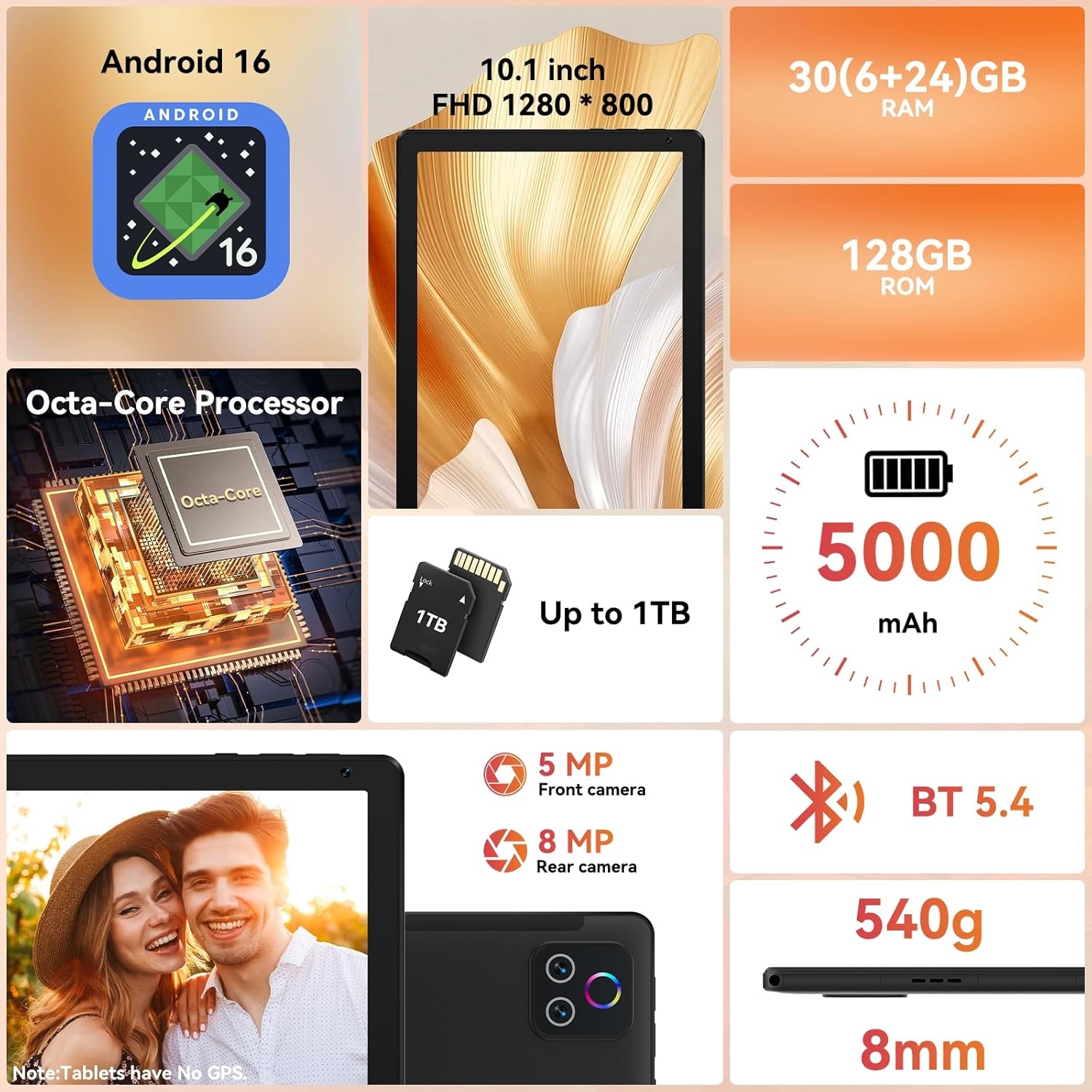
Image: The URAO 10.1" Android Tablet, USB Type-C cable, and power adapter neatly arranged in its packaging.
Setup
1. Initial Charging
Before first use, fully charge the tablet. Connect the USB Type-C cable to the tablet's charging port and the power adapter. Plug the adapter into a wall outlet. The charging indicator will illuminate. A full charge typically takes approximately 1.5 hours.

Image: The URAO tablet connected to a charger via its USB Type-C port, displaying a charging icon on the screen.
2. Power On/Off
- To Power On: Press and hold the Power button located on the side of the tablet until the URAO logo appears.
- To Power Off: Press and hold the Power button until a power menu appears on the screen. Select "Power off".
- To Restart: From the power menu, select "Restart".

Image: A detailed side view of the URAO tablet, highlighting the power button, volume controls, USB-C port, and Micro SD slot.
3. Initial Setup Wizard
Upon first power-on, the tablet will guide you through an initial setup process. Follow the on-screen prompts to:
- Select your language.
- Connect to a Wi-Fi network.
- Set up your Google account (or create a new one).
- Configure date, time, and other basic settings.
Operating Instructions
1. Navigating the Android 16 Interface
The URAO tablet runs on Android 16, offering an intuitive and secure user experience. Key navigation gestures include:
- Tap: Select an item or open an application.
- Swipe: Scroll through screens, lists, or content.
- Pinch-to-Zoom: Enlarge or reduce content on the screen.
- Long Press: Access contextual menus or move icons.
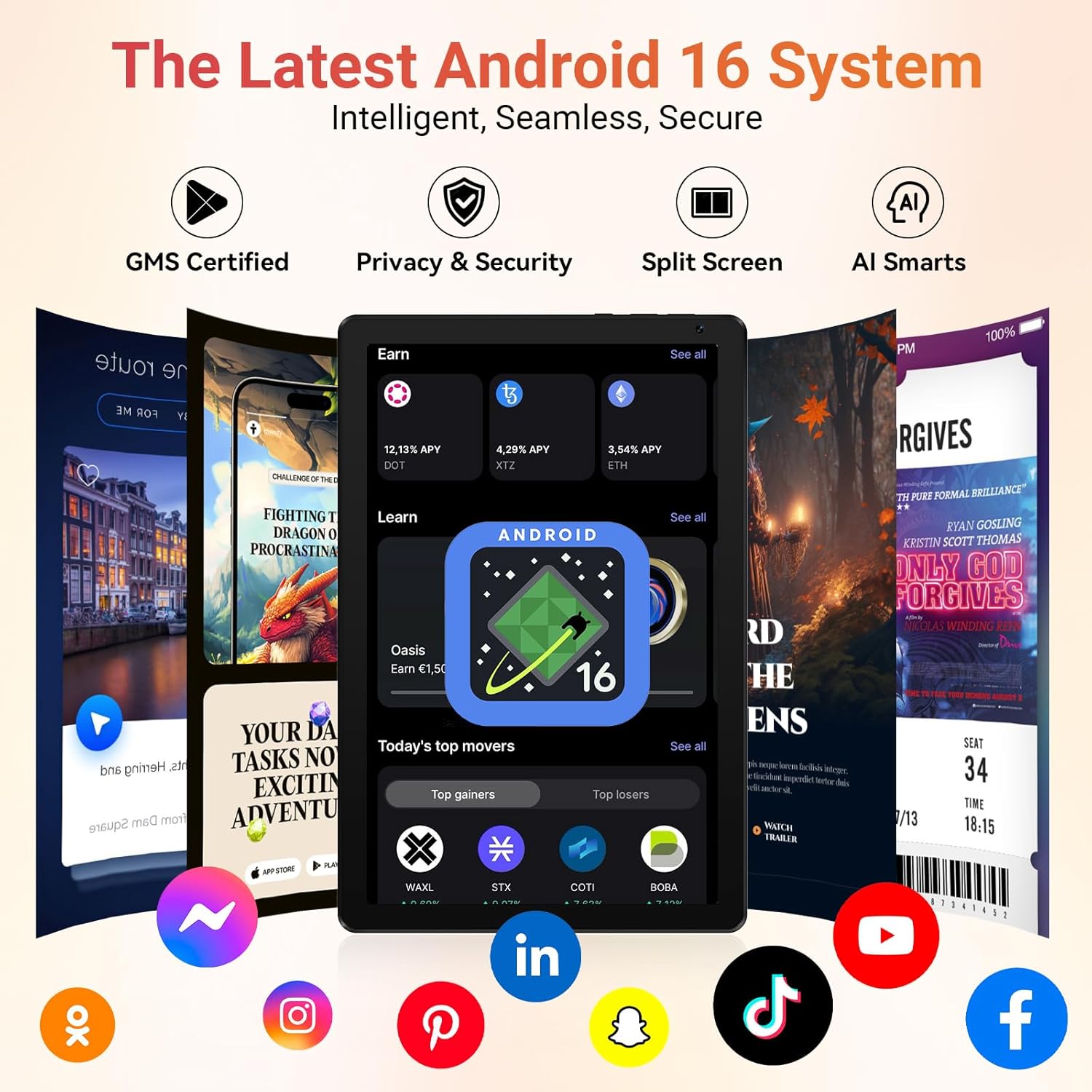
Image: The URAO tablet displaying the Android 16 home screen with various application icons, demonstrating the user interface.
2. Wi-Fi and Bluetooth Connectivity
Your tablet supports Wi-Fi 6 and Bluetooth 5.4 for fast and stable connections.
- Wi-Fi: Go to Settings > Network & internet > Wi-Fi. Turn Wi-Fi on and select your desired network. Enter the password if prompted.
- Bluetooth: Go to Settings > Connected devices > Bluetooth. Turn Bluetooth on and pair with compatible devices.

Image: A URAO tablet screen displaying a video call, with icons for dual-band Wi-Fi and Bluetooth 5.4, indicating seamless connectivity.
3. Camera Usage
The tablet features a 5MP front camera and an 8MP rear camera.
- Open the Camera app.
- Tap the shutter button to take photos.
- Switch between front and rear cameras using the camera icon.
- Use the LED flash for low-light conditions (rear camera only).

Image: The URAO tablet highlighting its 8MP rear camera and 5MP front camera, suitable for video calls and photography.
4. Storage Management
The tablet comes with 128GB of internal storage, expandable up to 1TB via a Micro SD card (not included).
- To insert a Micro SD card, locate the Micro SD slot on the side of the tablet and gently push the card in until it clicks.
- Manage storage by going to Settings > Storage.

Image: The URAO tablet showcasing its 128GB ROM and support for up to 1TB Micro SD card expansion, with various app icons.
5. Face Unlock
The tablet supports facial recognition for convenient unlocking.
- To set up Face Unlock, go to Settings > Security & privacy > Face unlock.
- Follow the on-screen instructions to register your facial data.

Image: A woman demonstrating the face unlock feature on the URAO tablet, with a facial recognition graphic overlay.
6. Split Screen Multitasking
Utilize the split-screen feature to run two applications simultaneously.
- Open an app, then swipe up from the bottom of the screen and hold to access recent apps.
- Tap the app icon at the top of the app's card and select "Split screen".
- Choose a second app from the recent apps list or app drawer to fill the other half of the screen.

Image: The URAO tablet displaying multiple applications in split-screen mode, illustrating its multitasking capabilities.
Maintenance
1. Battery Care
- Avoid extreme temperatures, as they can degrade battery life.
- For optimal battery longevity, avoid fully discharging the battery frequently.
- Use only the provided charger or a certified compatible charger.
2. Cleaning the Tablet
- Use a soft, lint-free cloth to clean the screen and body of the tablet.
- For stubborn smudges, slightly dampen the cloth with water or a screen cleaner.
- Avoid harsh chemicals, abrasive materials, or excessive moisture.
3. Software Updates
Regularly check for and install software updates to ensure your tablet has the latest features, security patches, and performance improvements. Go to Settings > System > System update.
Troubleshooting
| Problem | Solution |
|---|---|
| Tablet does not power on. | Ensure the battery is charged. Connect to the charger for at least 30 minutes, then try powering on again. If unresponsive, press and hold the power button for 10-15 seconds to force a restart. |
| Wi-Fi connection issues. | Check if Wi-Fi is enabled in settings. Restart your router and the tablet. Ensure you are within range of the Wi-Fi signal. Verify the Wi-Fi password. |
| Apps are slow or crashing. | Close unused background apps. Clear app cache (Settings > Apps > [App Name] > Storage & cache > Clear cache). Restart the tablet. Ensure sufficient storage space is available. |
| Battery drains quickly. | Reduce screen brightness. Close background apps. Disable Wi-Fi/Bluetooth when not in use. Check battery usage in settings to identify power-hungry apps. |
Specifications
| Feature | Detail |
|---|---|
| Model | X109 |
| Operating System | Android 16 |
| Processor | 2.0 GHz Octa-core |
| RAM | 30GB (6GB + 24GB Expansion) |
| Internal Storage (ROM) | 128GB |
| Expandable Storage | Up to 1TB Micro SD Card (not included) |
| Display | 10.1-inch HD IPS Touchscreen (1280x800) |
| Rear Camera | 8MP |
| Front Camera | 5MP |
| Wi-Fi | Wi-Fi 6 (Dual-band 2.4G+5G) |
| Bluetooth | Bluetooth 5.4 |
| Battery Capacity | 5000mAh |
| Charging Port | USB Type-C |
| Dimensions | 8mm thin, 540g weight |
| Color | Charcoal |

Image: The URAO 10.1" Android Tablet displaying its key features and specifications, including Android 16, 10.1-inch display, Octa-core processor, 30GB RAM, 128GB ROM, 5000mAh battery, and dual cameras.
Warranty and Support
The URAO tablet comes with a 2-Year Manufacturer Warranty. For warranty claims or technical support, please contact URAO customer service through their official website or the retailer where the product was purchased. Please have your purchase receipt and product model number (X109) ready when contacting support.
For additional resources and FAQs, visit the URAO Store on Amazon.
Product Video Overview
Watch this video for a quick overview of the URAO 10.1" Android Tablet's features and unboxing experience.
Video: An unboxing and feature overview of the URAO 10.1" Android Tablet, demonstrating its physical appearance and key functionalities.